With big TVs heavily discounted around Black Friday, it's tempting to use one as a PC screen instead of buying a gaming monitor. Both can work well, but they're designed for different jobs. A monitor is built to sit an arm's length away on a desk and respond as quickly as possible. A TV is built to be watched from across a room, with picture processing, apps and speakers. It sets out the differences that matter, using official specs and the HDMI Licensing Administrator's descriptions of the gaming features.
The short answer
| Gaming monitor | TV |
|---|
Designed for | Sitting close at a desk | Viewing from a sofa |
Typical sizes | Usually 24 to 32 inches, plus ultrawides | Usually much larger |
Refresh rates | The fastest models go far beyond TVs | Fine for most games, but not esports-level speeds |
Main inputs | DisplayPort and HDMI | HDMI (DisplayPort is rare) |
Low-latency mode | Built for low delay | Needs game mode, ideally switched automatically by ALLM |
Extras | Height-adjustable stand, USB hubs on some | Apps, remote, built-in speakers, tuner |
Best for | Competitive and desk gaming, work | Sofa gaming, films and shared viewing |
Size and viewing distance
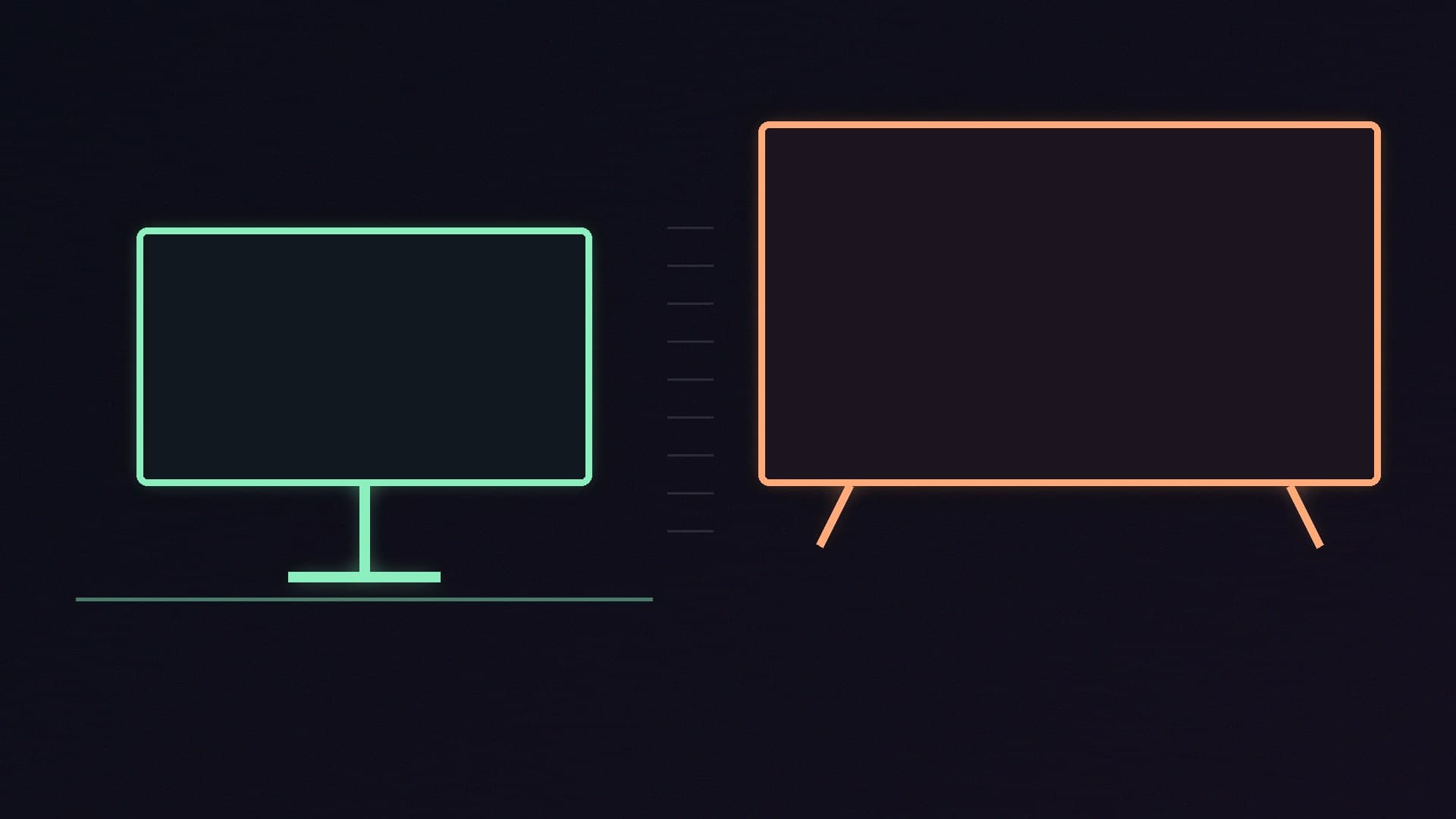
This is the biggest practical difference. A large TV on a desk puts much of the screen outside your central vision, so you end up moving your head to see the minimap or chat. Monitors come in sizes that suit a desk: our 27 vs 32 inch monitor comparison covers the most common choice, and an ultrawide gives a wider view without the extra height. A TV makes sense when you're sitting back on a sofa, where a monitor would look small.
Refresh rate and speed
Gaming monitors are where the fastest panels appear first. Samsung's Odyssey G6 (G60H), launched this week, runs at up to 600Hz at QHD and up to 1,100Hz at HD, according to Samsung. Our Odyssey G6 news story has the details. Many TVs support 120Hz on their HDMI 2.1 inputs, which is plenty for most single-player games, but they aren't designed for esports-level refresh rates. If you play competitive shooters, a monitor is the better choice. Our 144Hz vs 240Hz comparison explains how much refresh rate you need.
TVs process their picture to make films and broadcasts look better, and that processing adds delay. The HDMI Licensing Administrator explains that a low-latency game mode may switch off some of a TV's processing features to reduce latency, and that this mode usually has to be set manually. Its Auto Low Latency Mode (ALLM) feature lets a PC or console signal the TV to switch into that mode automatically, and back again when you watch a film.
Monitors don't need this switch, as they're designed for low delay from the start. On a TV, always make sure game mode is on when you play. Our guide to reducing input lag in PC games covers the PC side.
VRR and connections
Variable refresh rate stops tearing and stutter when your frame rate varies. The HDMI Licensing Administrator says HDMI VRR lets a console or computer deliver frames as fast as it can, and reduces or eliminates lag, judder and frame tearing. Most gaming monitors support VRR, usually branded as G-Sync Compatible or FreeSync; Samsung's Odyssey G6, for example, supports both. On a TV, VRR comes over HDMI, so check that the TV's HDMI inputs support it and that your graphics card works with it. Our G-Sync vs FreeSync explainer covers the brands.
Connections are a real difference. Many graphics cards have more DisplayPort outputs than HDMI ports, and gaming monitors usually offer both. Samsung's Odyssey G6, for example, has one DisplayPort 2.1 port and two HDMI 2.1 ports. TVs rely on HDMI, so you'll use the card's HDMI port and need a certified cable for 4K at 120Hz. See our DisplayPort vs HDMI comparison.
HDR and picture quality
Both can do HDR well. Microsoft says an HDR10-capable TV or display connected to a Windows PC that supports HDR gives a brighter, more detailed picture than a standard dynamic range screen. In practice, HDR quality depends on brightness and contrast, not the label, on monitors and TVs alike. Our DisplayHDR 400 vs 600 vs 1000 explainer and OLED vs Mini LED comparison explain what to look for.
If you're considering an OLED TV or monitor for PC use, static elements such as the taskbar matter. Our guide to preventing OLED burn-in explains the precautions.
Text, work and everyday use
Monitors are better for working at a desk. They come in sizes and resolutions where text is sharp at a normal distance, and they often have height-adjustable stands. A TV used as a desktop screen can make text look less crisp, depending on the panel and processing, and you'll usually need to raise Windows' scaling.
TVs bring apps, a remote, built-in speakers and a tuner, so one screen can be your PC display, streaming box and broadcast TV. Monitors don't, but they're simpler as PC screens, and some include USB hubs or USB-C connections.
Can you have both?
Yes, and it's often the best answer. Keep a monitor at your desk and run an HDMI cable to the TV, or stream to it over your home network. Use Windows key + P to choose whether Windows duplicates, extends or switches to the TV, and our Sunshine and Moonlight guide shows how to stream games to another room.
Which should you buy?
Buy a gaming monitor if you play at a desk, play competitive games, or also use the PC for work. See our guide to choosing a gaming monitor and our best 4K gaming monitor picks.
Use a TV if you play from a sofa with a controller, mainly play single-player games, and want one screen for films and streaming too. Check it supports 120Hz, VRR and ALLM on its HDMI inputs.
Use both if you want the best of each: a monitor at the desk and the TV for sofa sessions.
Our verdict
A gaming monitor is the better PC screen for most people: it's sized for a desk, it supports DisplayPort and much higher refresh rates, and it doesn't rely on game mode for low delay. A TV is the better choice when you're gaming from a sofa with a controller, provided its HDMI inputs support 120Hz, VRR and ALLM. If you can, keep a monitor for the desk and connect the PC to the TV for big-screen sessions.