Skip to content

VersusMotherboard

Wi-Fi vs Non-Wi-Fi Motherboard: Is Built-In Wi-Fi Worth It?

A Wi-Fi motherboard adds a pre-installed M.2 Key E wireless module with Bluetooth and antennas, and keeps wired Ethernet; MSI's B850 TOMAHAWK MAX WIFI lists Wi-Fi 7 and Bluetooth 5.4. Buy non-Wi-Fi only if you'll always be wired and the saving is meaningful.

By , Senior Hardware Editor

3 min read

Wi-Fi vs Non-Wi-Fi Motherboard: Is Built-In Wi-Fi Worth It?

Look at almost any motherboard range and you'll see pairs of names that differ only by "WIFI" at the end. The Wi-Fi version is usually a little dearer, and it's easy to wonder whether that's worth it if you could add wireless later. This guide explains what the Wi-Fi version adds, using MSI's published specification for the MAG B850 TOMAHAWK MAX WIFI as a worked example, and compares it with the alternatives. Real-world wireless performance depends heavily on your router, walls and distance.

Wi-Fi vs non-Wi-Fi motherboard at a glance

Wi-Fi motherboard

Non-Wi-Fi motherboard

Wireless networking

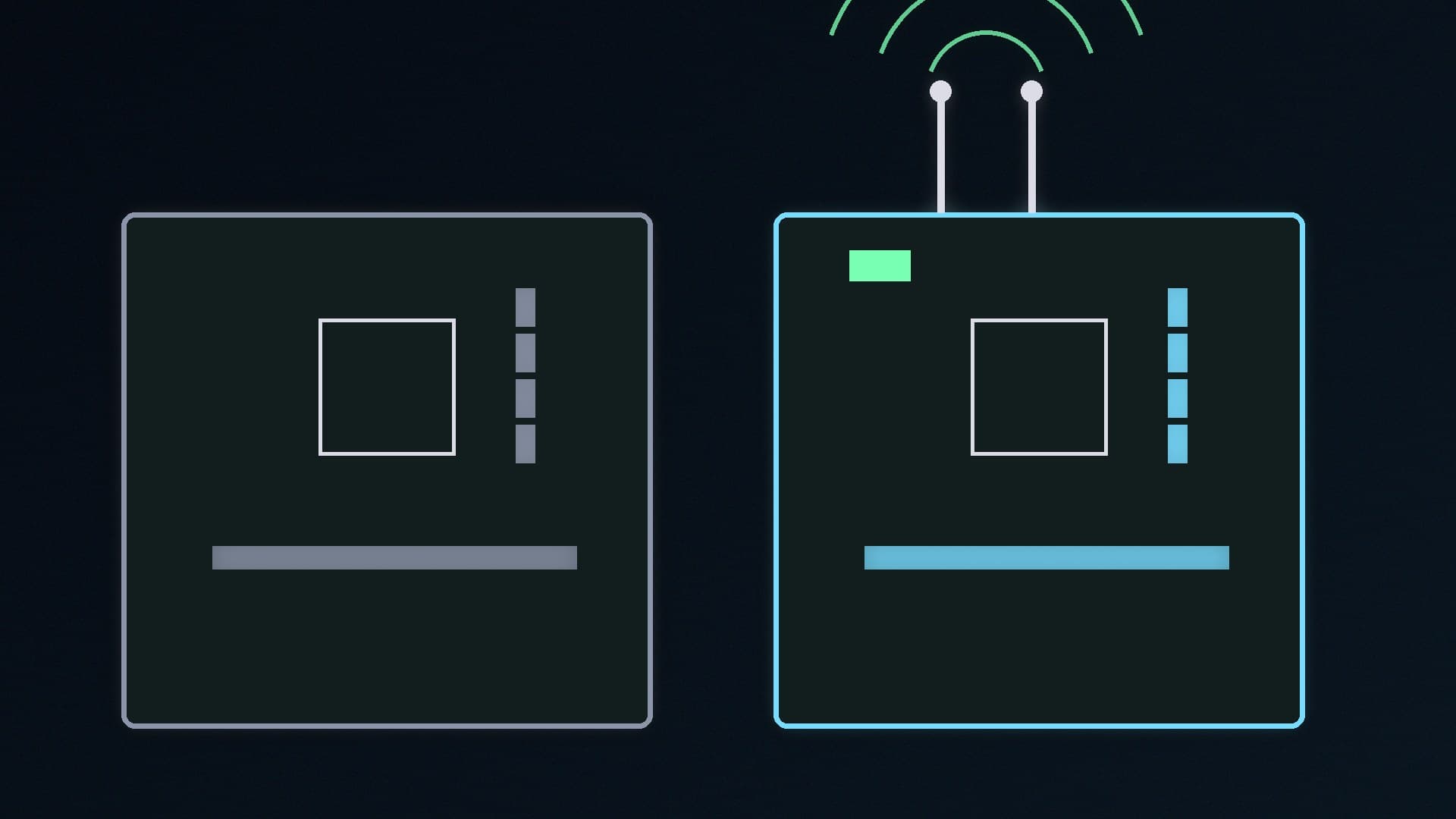
Built-in module, usually in an M.2 Key E slot

None; add a PCIe card or USB adapter if needed

Bluetooth

Normally included with the Wi-Fi module

None; add an adapter or a combo card

Antenna

Antenna connectors on the rear I/O

n/a

Wired Ethernet

Yes

Yes

Uses a PCIe slot or USB port for wireless?

No

Yes, if you add wireless later

Cost

Usually a little more

Usually a little less

What the Wi-Fi version actually adds

MSI's specification for the MAG B850 TOMAHAWK MAX WIFI is a good example of a current board. It lists a Wi-Fi 7 solution, with "the wireless module pre-installed in the M.2 (Key-E) slot", supporting 2.4GHz, 5GHz and 6GHz bands, 320MHz channels and speeds of up to 5.8Gbps, plus Bluetooth 5.4. The rear panel has Wi-Fi and Bluetooth antenna connectors, and the board still has a wired 5G LAN port.

That tells you three useful things. The Wi-Fi is a small plug-in module rather than something soldered into the chipset; Bluetooth comes with it, which matters if you use wireless controllers, earbuds or a Bluetooth keyboard; and wired Ethernet is still there, so you lose nothing by choosing the Wi-Fi version.

MSI's notes also flag two details that apply to any Wi-Fi 7 board: 6GHz band support depends on each country's regulations, and MSI says Wi-Fi 7 and Bluetooth 5.4 support are "ready in Windows 11 version 24H2", so keep Windows up to date to get the full feature set. If you're deciding which wireless standard you need, our Wi-Fi 7 vs Wi-Fi 6E comparison explains the differences.
The alternatives to built-in Wi-Fi

If you buy a board without Wi-Fi, you have three ways to add wireless later:

  • PCIe Wi-Fi card. Usually the best-performing add-on, with external antennas and normally Bluetooth too, but it takes a PCIe slot, and the Bluetooth part often needs an internal USB header. See our best Wi-Fi 7 PCIe cards.

  • USB Wi-Fi adapter. The simplest option and easy to move between PCs, but it uses a USB port and sits at the back of the case unless you use an extension cable. See our best USB Wi-Fi adapters.

  • An M.2 Key E module. Some non-Wi-Fi boards still have an empty Key E slot, but many don't, and you'll also need antennas and a way to mount them. Check your board's manual before assuming this route is available.

Our guide to adding Wi-Fi to a desktop PC walks through each of these.

Who should choose which

Choose a Wi-Fi motherboard if your PC isn't near the router, you'll use Bluetooth devices, you're building a small mini-ITX or micro-ATX system with few spare slots, or you simply want everything working out of the box. Built-in Wi-Fi keeps PCIe slots and USB ports free.

Choose a non-Wi-Fi motherboard if your PC will always be plugged into Ethernet and you don't need Bluetooth, or the Wi-Fi version costs noticeably more than a good add-on card. Wired Ethernet remains the steadiest connection for gaming, so if you can run a cable, the Wi-Fi module may never be used.

Our verdict

For most new builds, the Wi-Fi version of a motherboard is worth buying: it adds Wi-Fi and Bluetooth through a pre-installed M.2 module, keeps your PCIe slots and USB ports free and loses nothing, because the wired Ethernet port is still there. A non-Wi-Fi board only makes sense if your PC will always be wired, you don't need Bluetooth and the saving is meaningful. If you've already bought a non-Wi-Fi board, a PCIe card or USB adapter adds wireless later without much fuss.

The bottom line

For most new builds, the Wi-Fi version of a motherboard is worth buying: it adds Wi-Fi and Bluetooth through a pre-installed M.2 module, keeps your PCIe slots and USB ports free and loses nothing, because the wired Ethernet port is still there. A non-Wi-Fi board only makes sense if your PC will always be wired, you don't need Bluetooth and the saving is meaningful. If you've already bought a non-Wi-Fi board, a PCIe card or USB adapter adds wireless later without much fuss.

Sources

  1. 01MSI, MAG B850 TOMAHAWK MAX WIFI specifications

About the author

Callum Reid

Senior Hardware Editor

Callum leads GPU, CPU and platform architecture coverage at Forge PC. Before joining the editorial desk, he spent nine years specifying, assembling and stress-testing custom gaming and workstation systems in the UK, with a focus on PCIe bandwidth, VRM thermal design, DDR5 memory tuning and 1440p/4K frame-time consistency.

More from Callum Reid

Read next

CPU Contact Frame vs Stock ILM: Is It Worth Swapping on LGA1700?

Versus

CPU Contact Frame vs Stock ILM: Is It Worth Swapping on LGA1700?

Intel says the slight heat-spreader bending caused by its LGA1700 ILM is expected and in spec, and that modifying the socket may void warranties. Tom's Hardware measured up to about 12°C lower on a Core i5-13600K with Thermalright's contact frame, but it won't help if cooler contact is already good.

Callum Reid4 min

Best AM5 CPU Upgrade in 2026: 6 Drop-In Ryzen Picks

Best Picks

Best AM5 CPU Upgrade in 2026: 6 Drop-In Ryzen Picks

The best drop-in AM5 upgrades on AMD's specs: Ryzen 7 9850X3D for gaming (8 cores, 96MB L3, 5.6GHz), 9800X3D for value, 9950X3D for gaming plus creating, 9900X for multithreaded work and the 65W 9700X for air-cooled builds. Update your BIOS before swapping.

Hannah Vance5 min

How to Move Your PC Into a New Case, Step by Step

How-To

How to Move Your PC Into a New Case, Step by Step

To move a PC to a new case, check form factor, GPU, cooler and PSU clearances, photograph every connection, strip the old case from the outside in, install only the standoffs your board needs, fit the I/O shield first if separate, then reconnect and test before closing up. Windows shouldn't need reactivating.

Marcus Thorne6 min

How to Set Up Ethernet Backhaul on Mesh Wi-Fi for a Gaming PC

How-To

How to Set Up Ethernet Backhaul on Mesh Wi-Fi for a Gaming PC

To set up Ethernet backhaul on a TP-Link Deco mesh, set all units up wirelessly first, place the satellite, then cable it to the main Deco's LAN port or a switch on it (Router mode) or any unit or the main router (Access Point mode). Check the network map, then plug your PC into the satellite.

Marcus Thorne6 min