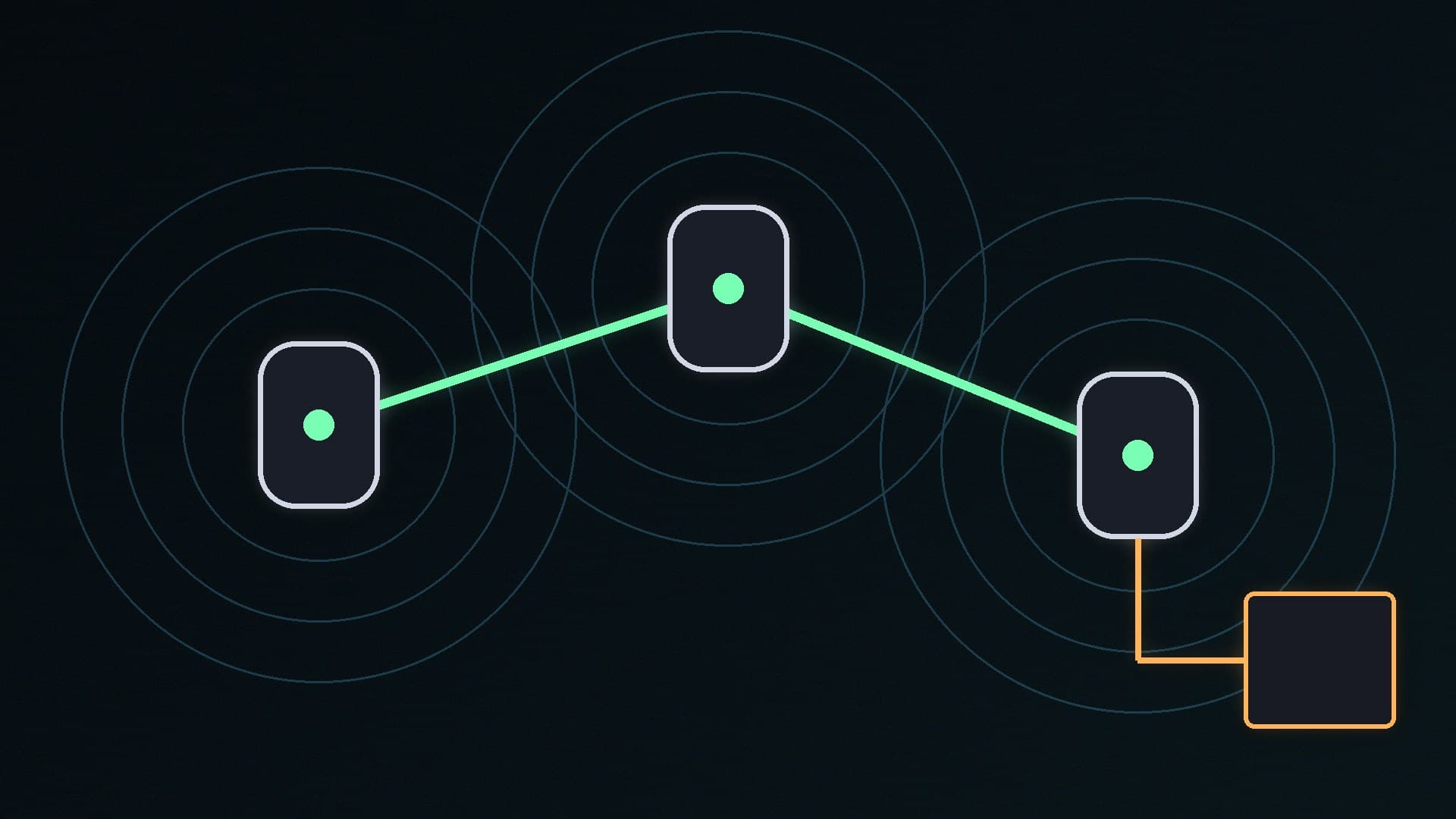
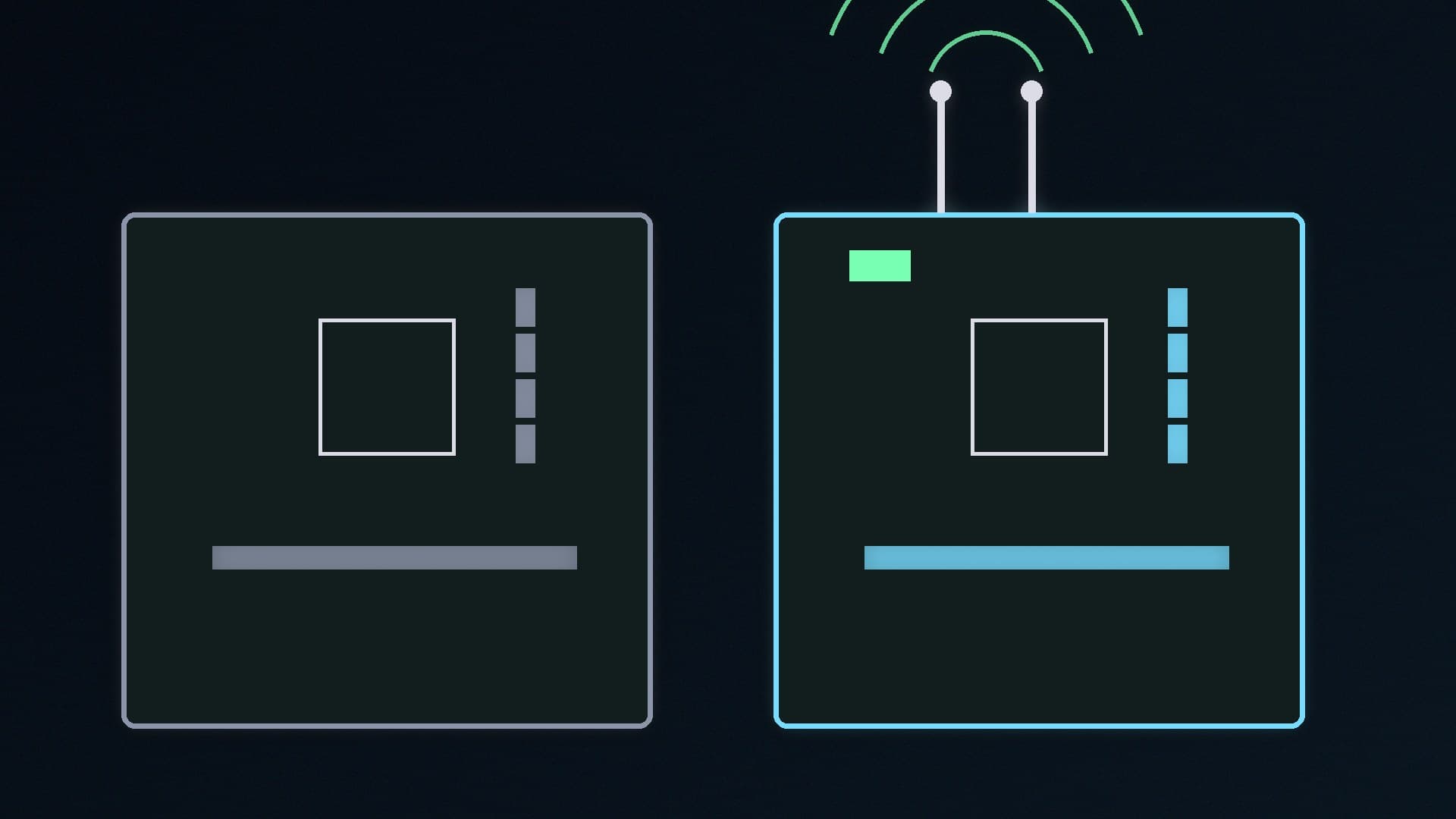
A mesh Wi-Fi system spreads coverage around your home, but by default its units talk to each other over Wi-Fi. That wireless link, called the backhaul, shares airtime with your phones, TVs and consoles, so a gaming PC plugged into a satellite at the far end of the house can see slower speeds and less consistent latency than one wired to the router. If you can run a cable between the units, Ethernet backhaul takes that hop off the airwaves. This guide uses TP-Link's official Deco documentation as the worked example, because it spells out the wiring rules clearly; other mesh brands work on the same principle but have their own rules, so check your system's support pages.
What Ethernet backhaul does
TP-Link describes Ethernet backhaul as letting any two Deco units communicate over a physical Ethernet cable instead of over Wi-Fi. Because the traffic between them no longer uses wireless bandwidth, TP-Link says the result is lower latency and no bandwidth loss from a wireless hop, and it recommends wired backhaul for multi-storey homes, thick walls, homes already wired with Ethernet, and latency-sensitive uses like online gaming and 4K streaming.
Two details are worth knowing before you start:
You don't have to wire every unit. TP-Link says Ethernet backhaul applies only between units that are physically cabled together; any unwired units keep using Wi-Fi backhaul. So you can wire just the satellite nearest your PC.
The switch-over is automatic. Once a wired connection is detected between two Deco units, their Wi-Fi backhaul disconnects automatically. There's no setting to turn on.
If you're still deciding between mesh and other ways to reach a far-off room, our mesh Wi-Fi vs Wi-Fi extender comparison covers the trade-offs, and best powerline adapter covers using mains wiring instead.
What you need
A mesh system that supports Ethernet backhaul (check its manual or support pages)
Ethernet cable long enough to reach between the units, or existing wall sockets and in-wall cabling
Optionally, a network switch if you need more ports
A spare port on the satellite, or a small switch, if you want to plug your PC in at the far end
For the cable itself, Cat5e or better supports gigabit speeds; if your mesh units have 2.5GbE or faster ports, our Cat5e vs Cat6 vs Cat8 guide explains which cable category to use for the run length you need.
Step 1: Set up the mesh wirelessly first
TP-Link's instructions are clear that you should set up all Deco units on the same network wirelessly through the Deco app before connecting any cables. If you've just bought a system, follow the normal app setup, add each satellite, and let them all join the network over Wi-Fi first.
Step 2: Place each satellite where you want it
Put the satellite in the room where it's needed, ideally near your gaming PC and near the end of your cable run. Because the backhaul will be wired, you're not limited to spots with a strong signal from the main unit, which is one of the main advantages of Ethernet backhaul in a large or thick-walled home.
Step 3: Wire the units together, following the rules for your mode
This is where most setups go wrong. TP-Link's wiring rules depend on whether your Deco system runs in Router mode (the default) or Access Point mode.
Router mode (default): satellite Decos must connect to the LAN port of the main Deco, or to a switch that is itself connected to the main Deco's LAN port. TP-Link warns not to connect satellites directly to the modem or router in front of the main Deco, as this creates a network loop.
Access Point mode: satellites can connect to any Deco unit or to the main modem or router, because the upstream router handles routing.
On the main Deco, TP-Link notes that one Ethernet port connects to the modem or router for internet access and the other can be used for Ethernet backhaul or for a wired device such as a desktop PC.
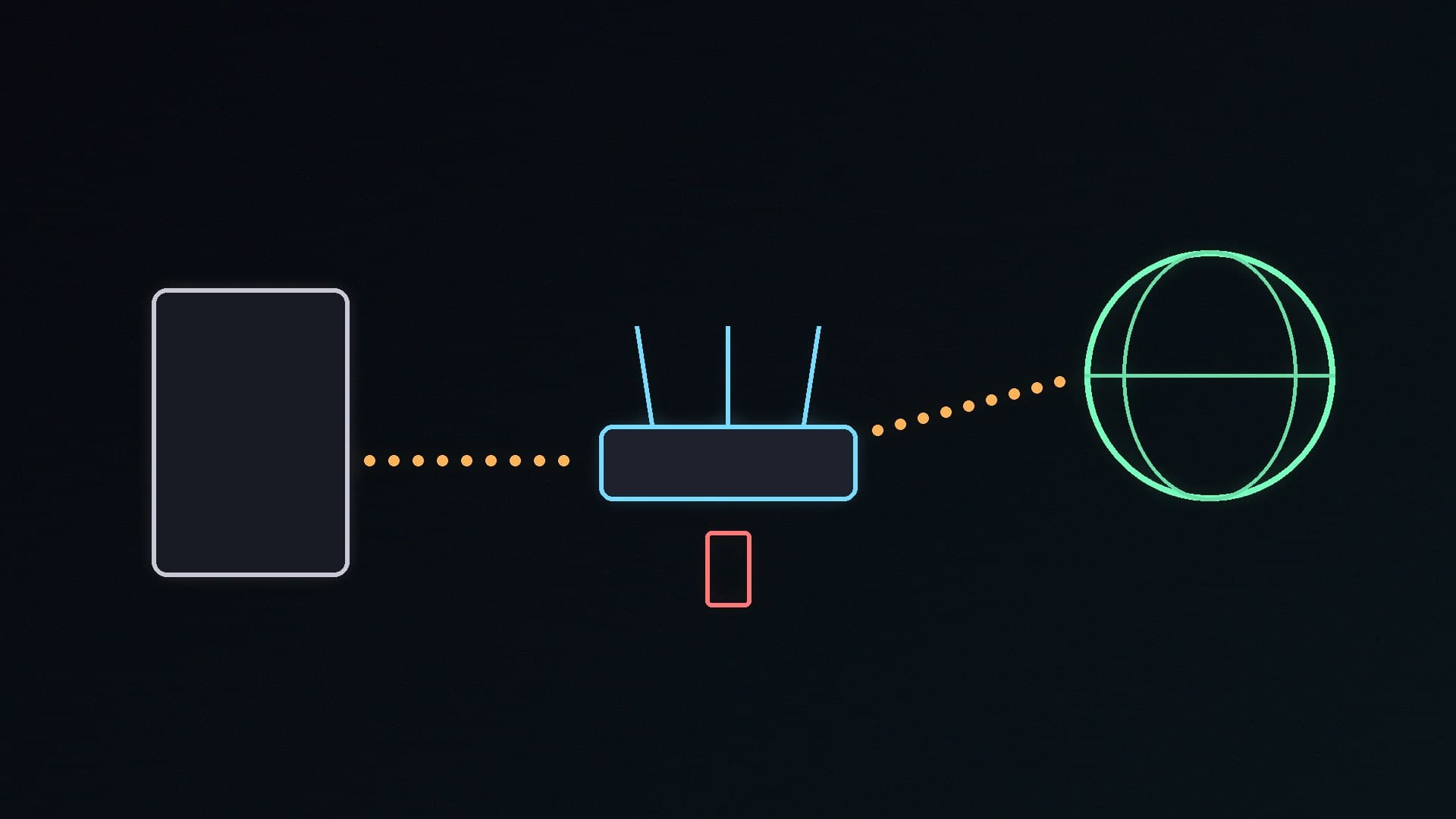
A common UK example is a mesh system behind an ISP router such as a BT Smart Hub or Virgin Media Hub. If the Deco runs in Router mode behind the ISP router, the satellites' cables must go back to the main Deco (or a switch hanging off its LAN port), not to the spare ports on the ISP router. If your wall sockets all terminate at the ISP router, Access Point mode may be the simpler layout, as it lets satellites connect to the main router directly. Either way, running two routers in a chain can complicate NAT and port forwarding for online games; our guide to fixing a strict NAT type explains what to check.
Step 4: Confirm the backhaul is wired
TP-Link says you can verify each unit's backhaul type in the Deco app: open the network map and tap a satellite to see which unit it connects to and whether that link is Ethernet or Wi-Fi. Check this rather than assuming it worked, as a satellite that doesn't detect the cable will quietly carry on using Wi-Fi backhaul.
Step 5: Connect your gaming PC
With the backhaul wired, plug your PC into a spare Ethernet port on the nearby satellite, or into a small switch connected to it, and you get a wired connection back to the main unit without a wireless hop in the way. If you need more ports in a desk setup with a console and a NAS, a switch is the cleanest solution; our best 2.5GbE switch guide covers options if your hardware supports faster than gigabit.
If you'd rather stay wireless at the PC, the wired backhaul still helps, because the satellite's full wireless capacity is available to devices in that room.
Troubleshooting: Ethernet backhaul won't activate
TP-Link lists these checks if the backhaul doesn't switch to Ethernet:
Check IPTV settings. If the Deco's IPTV feature is enabled, the port selected for IPTV can't be used for Ethernet backhaul.
Try a different port on the Deco or the switch.
Try a different Ethernet cable.
Bypass the switch. Connect the two Deco units directly. If that works, the switch is the likely cause.
On the switch point, TP-Link explains that when Deco switches from Wi-Fi to Ethernet backhaul it can create a short loop for one to two seconds. If your switch has loop detection, it may block the port Deco uses; TP-Link advises turning off loop detection on the switch, rebooting it and trying again, or asking the switch maker whether loop detection is on by default. TP-Link says most switches on the market work with Deco's Ethernet backhaul and lists its TL-SG108 and TL-SX1008 unmanaged switches and TL-SG3210 managed switch as verified.
Units become unstable through a switch? TP-Link suggests trying different ports, swapping the main Deco's internet and backhaul ports, trying another cable and connecting the units directly. If they're stable when connected directly, TP-Link says the switch may not forward the specific multicast packets that Deco's IEEE 1905.1-based backhaul relies on.
Powerline and backhaul aggregation
Some Deco models support powerline (PLC) backhaul too. TP-Link says PLC and Wi-Fi backhaul can run at the same time, but PLC and Ethernet backhaul cannot. If an Ethernet cable connects two Deco units and the model doesn't support backhaul aggregation, only Ethernet backhaul is used; on models that do support aggregation, Wi-Fi and Ethernet backhaul are established simultaneously.
Mesh systems in our database
Our specs database includes Deco systems such as the TP-Link Deco BE25 2-pack, Deco BE25 3-pack and Deco BE65 2-pack. For a wider round-up, see our best mesh Wi-Fi system guide.
Our verdict
If you can run a cable between two mesh units, Ethernet backhaul is one of the most effective upgrades for a gaming PC far from the router. With TP-Link's Deco, set the system up wirelessly first, then cable the satellite to the main unit's LAN port (or a switch on it) in Router mode, or to any unit or the main router in Access Point mode. Confirm the link in the app's network map, plug your PC into the satellite, and if the backhaul won't switch over, work through IPTV ports, cables and switch loop detection.