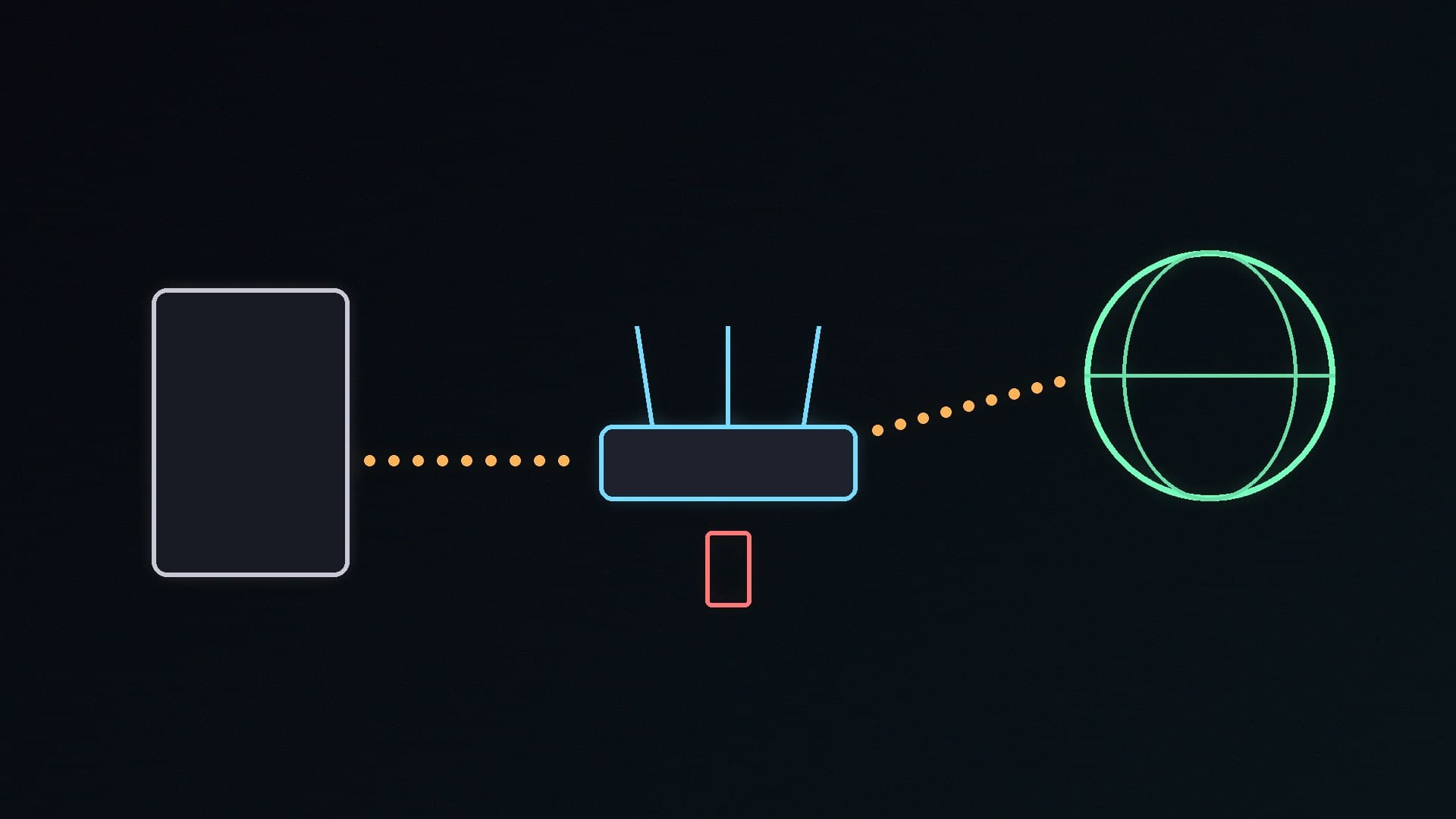
If you can't hear friends in party chat, can't join or host multiplayer matches, or a game reports a "Strict" or "Moderate" NAT type, the problem is usually how your PC's traffic gets through your router. NAT (network address translation) is what lets every device in your home share one internet address, and some games and services need extra help to get connections through it. This guide covers the Windows and Xbox network side first, then the router.
Step 1: Check your NAT type and connection status
On PC, the Xbox app shows what Microsoft's services can see. Xbox Support says to open the Xbox app, select Settings > Network and check that Internet connection says Connected under Network status; if it doesn't, fix the basic connection before anything else. The same Network settings show your NAT type. On Windows 10, Settings > Gaming > Xbox Networking shows the NAT type and Server connectivity.
Two results point to specific fixes:
NAT type: Teredo is unable to qualify means your PC can't get a Teredo IP address (Step 2).
Server connectivity: Blocked means the PC couldn't make a Teredo IPsec connection to Microsoft's Quality of Service server (Step 3).
If the problem is in a game that doesn't use the Xbox network, Xbox Support's advice is to check that game's support site, which will usually list the ports it needs (Step 4).
Step 2: Fix "Teredo is unable to qualify"
Teredo is a networking protocol that helps devices behind a NAT router connect to each other. Xbox Support says select games, such as Forza Horizon 3 and 4, use it for multiplayer on the Xbox network, and that failing to get a Teredo address can be caused by a problem with the Teredo adapter, a device on your network blocking the protocol, or software on the PC that has disabled it.
Xbox Support's fix is to reinstall the Teredo adapter:
Open Device Manager, select View > Show hidden devices, then expand Network adapters.
Right-click any adapter with "Teredo" in its name and select Uninstall, then restart the PC.
Open an administrator Command Prompt or Terminal and run:
netsh interface Teredo set state type=default
Xbox Support says the Microsoft Teredo Tunneling Adapter will then reinstall automatically, and warns not to add the Teredo Tunneling Pseudo-Interface manually in Device Manager, as that may cause problems. It also notes that some programs disable IPv6 networking components, which can include Teredo, so if the error comes back, check whether software you've installed has changed those settings.
Step 3: If server connectivity says "Blocked"
Xbox Support says to fix any "Teredo is unable to qualify" error first, then check whether server connectivity is still blocked. On Windows 11, its suggested fix is a network reset: Settings > Network & internet > Advanced network settings > Network reset > Reset now. Our guide to resetting network settings in Windows 11 explains what a reset changes and what to set up again afterwards.
Step 4: Forward the ports your game needs on the router
If Windows looks healthy but a game still reports a strict NAT, the router is the next place to look. BT, for example, says its Hub handles port traffic automatically but that you can create your own port forwarding rules, and that you'll need the port numbers from the software or service provider. On a BT Smart Hub or Ultrafast Smart Hub, BT's steps are:
Go to 192.168.1.254 in a browser to open Hub Manager.
Select Advanced Settings, then Firewall, and enter the admin password (printed on the Hub's settings card unless you've changed it).
Select Create a new port forwarding rule, give it a name and choose your gaming PC as the device.
Enter the external and internal port range and protocol from the game's support page.
Select the + button to add the rule, then Save.
BT notes that the old BT Mini Hub doesn't support port forwarding. Other UK broadband routers have similar settings under names such as port forwarding or firewall; check your provider's help pages.
Because a port forwarding rule points at one device, it helps if your PC keeps the same local address. Our guide to setting a static IP address in Windows 11 shows how. Only forward the ports your game's publisher lists, and delete rules you no longer need, since each one opens a route into your network.
Step 5: Rule out other causes
Our verdict
Start with the Xbox app's Network screen to see what's wrong. If it says Teredo is unable to qualify, reinstall the Teredo adapter and reset it with the netsh command; if server connectivity is blocked, run a Windows network reset. If Windows is healthy but a game still reports a strict NAT, forward only the ports the game's publisher lists on your router, keep your PC on a fixed local address, and remove rules you no longer need.