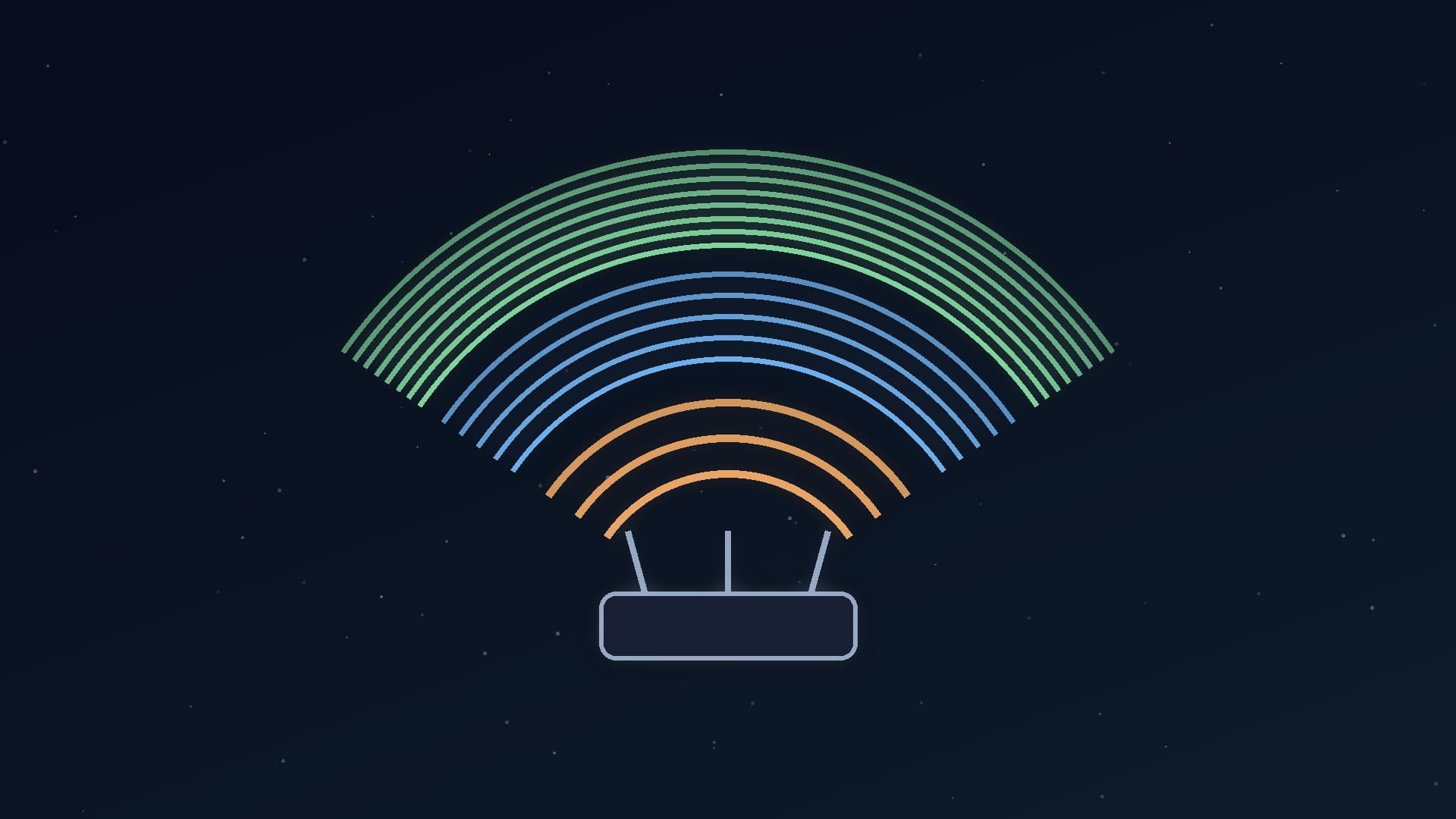
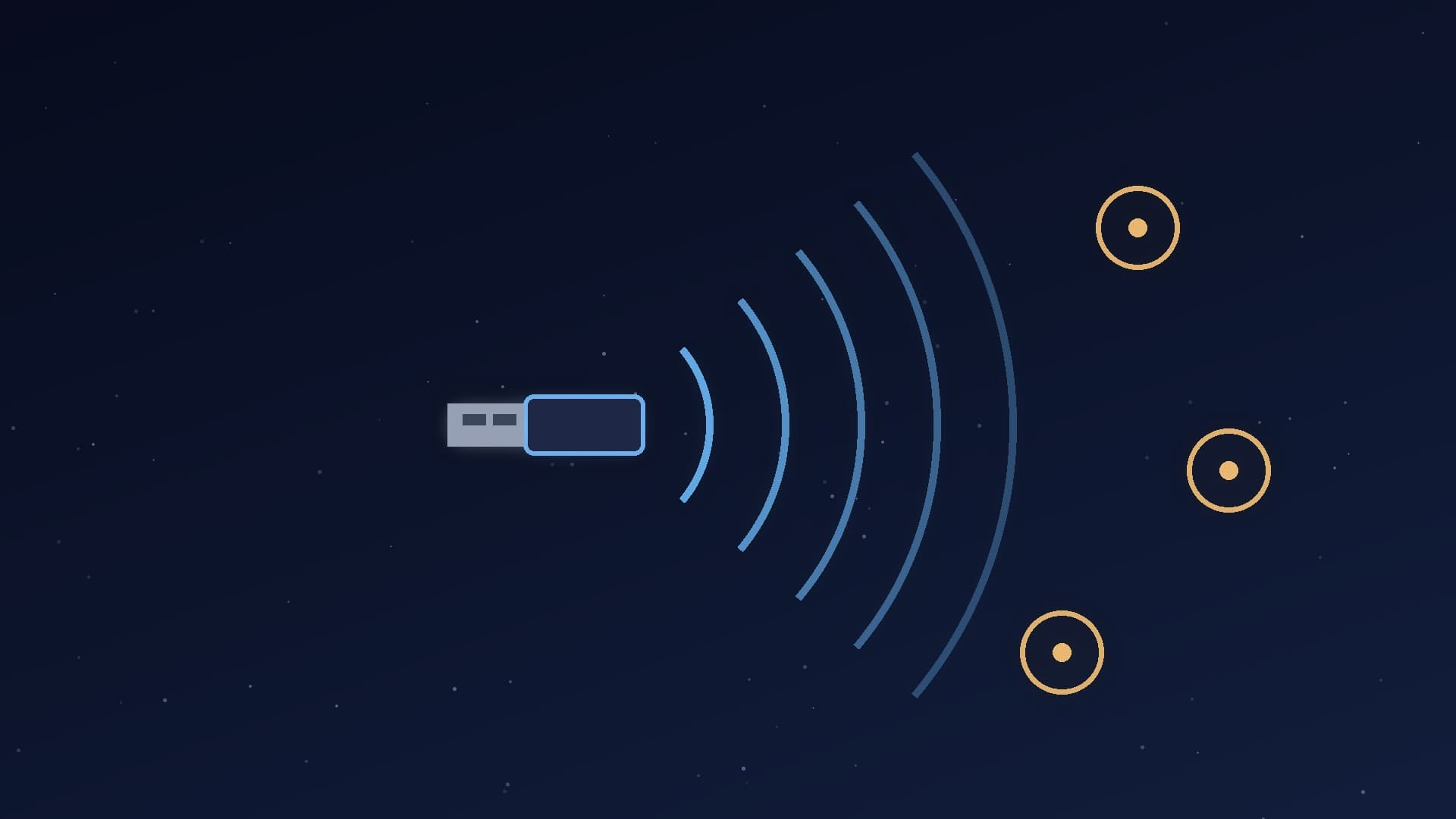
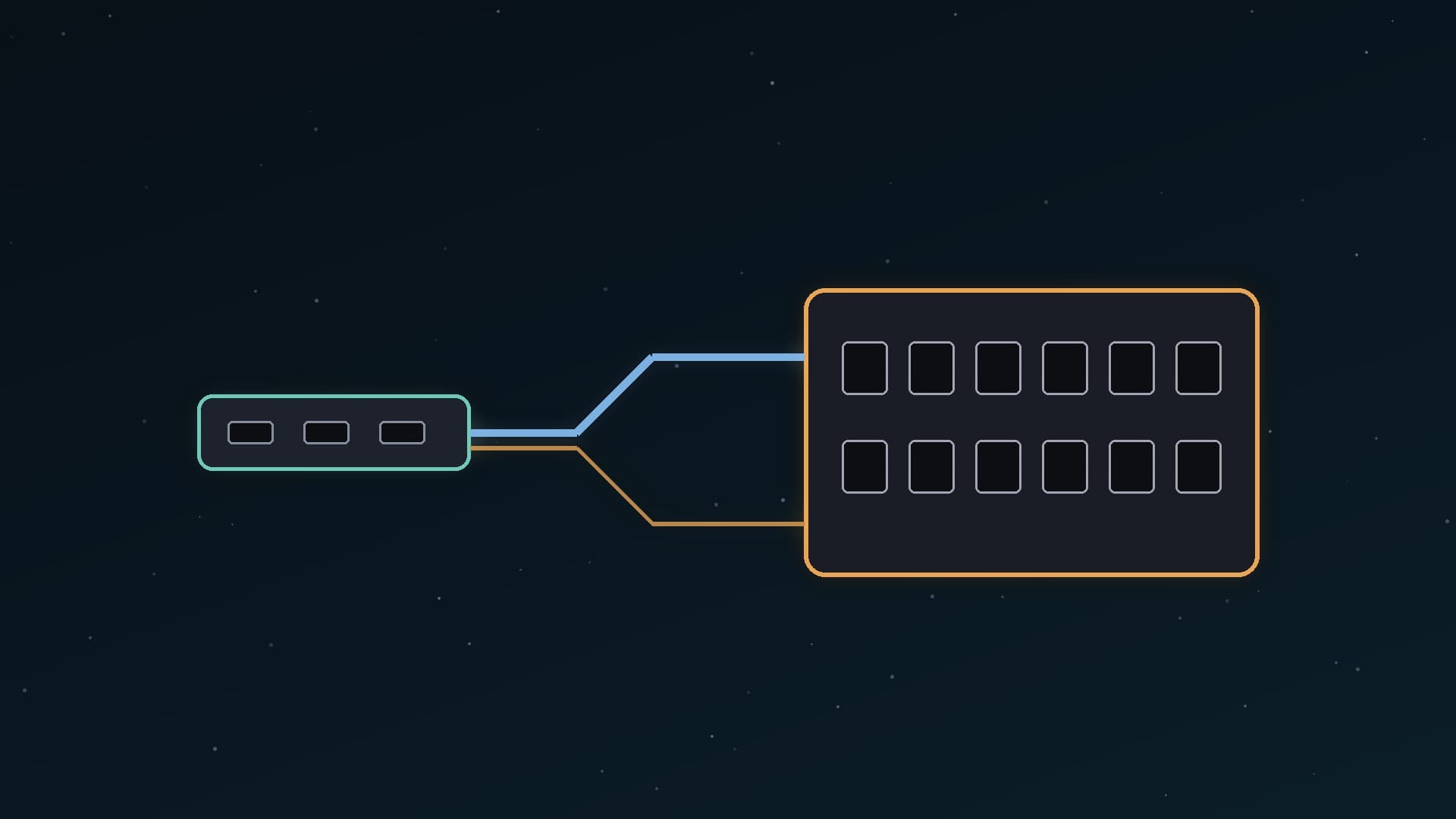
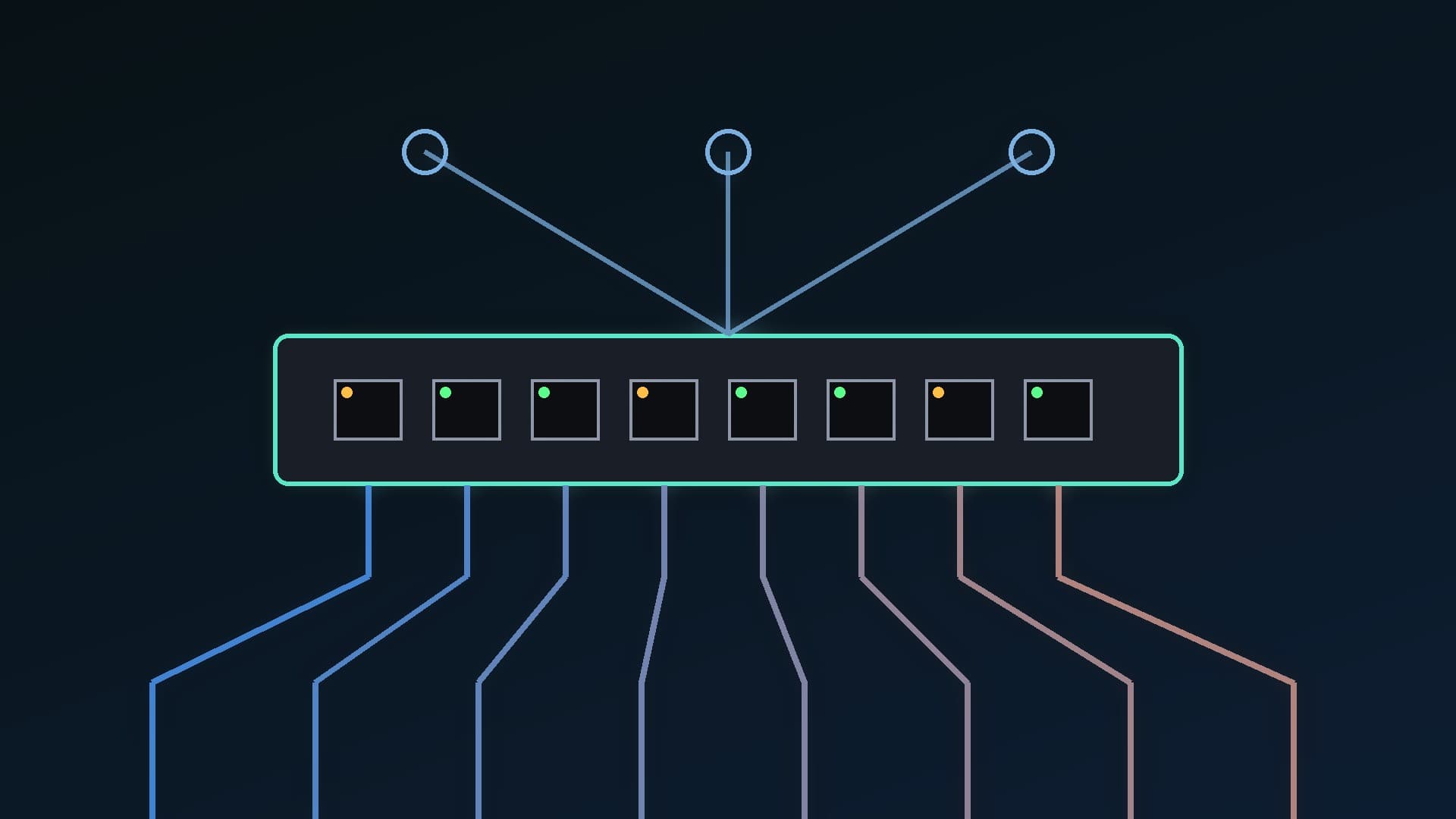
Modern routers broadcast on up to three frequency bands, and the one your PC connects to can matter as much as the router itself. The short version: 2.4GHz reaches furthest but is the slowest and most crowded, 5GHz is the sensible default for most PCs, and 6GHz can be the fastest and least congested if your PC and router both support it and you're not too far away. The comparison below is based on Microsoft's Windows networking guidance, Intel's 6GHz support article and Ofcom's rules for UK Wi-Fi, linked in the sources.
2.4GHz vs 5GHz vs 6GHz at a glance
| 2.4GHz | 5GHz | 6GHz |
|---|
Range and walls | Longest range, best through walls | Shorter range, weaker through walls | Shortest range, weakest through walls |
Throughput | Slowest | Faster | Fastest (with Wi-Fi 6E or Wi-Fi 7) |
Congestion | Most congested; shared with Bluetooth, microwaves and cordless phones | Less congested, more non-overlapping channels | Least congested |
Device support | Almost everything | Most modern devices | Wi-Fi 6E or Wi-Fi 7 router and PC adapter only |
Best for | Distant rooms, smart-home gadgets, basic browsing | Most gaming PCs and laptops | PCs in the same room or close to the router |
The range, speed and congestion comparisons are Microsoft's, from its Windows guide to Wi-Fi and your home layout. Microsoft doesn't give distances, because real range depends on your home's walls and layout.
2.4GHz: range over speed
Microsoft describes 2.4GHz as having longer range, being better at getting through walls and other obstacles, and being supported by more devices than 5GHz or 6GHz. The trade-offs are slower throughput, fewer channels that don't overlap, and more congestion, because household devices such as microwaves and cordless phones, plus Bluetooth devices, use the same band.
Microsoft says 2.4GHz is fine for basic tasks such as web browsing and email. For a gaming PC, it's usually the fallback when the PC is too far from the router to hold a 5GHz connection. If that's your situation, a mesh system or wired link may serve you better (see our mesh Wi-Fi vs extender guide and Wi-Fi vs Ethernet vs powerline comparison).
5GHz: the default for most gaming PCs
According to Microsoft, 5GHz offers faster throughput, more non-overlapping channels and less congestion than 2.4GHz, and is better suited to streaming and gaming. Its range is shorter and it doesn't get through walls as well.
If your PC is in the same room as the router or one wall away, 5GHz is generally the band to use unless you have 6GHz available.
6GHz: fastest, if you have the hardware
6GHz arrived with Wi-Fi 6E and is also used by Wi-Fi 7. Microsoft says 6GHz offers very fast throughput, low congestion for more reliable connections and lower latency, and that a strong 6GHz connection is best for gaming, streaming and video calls. Microsoft also notes that Wi-Fi 7's 320MHz ultra-wide channels are in the 6GHz band. The downside is the shortest range of the three bands and the weakest wall penetration, so it works best when your PC is close to the router.
Your PC needs three things for 6GHz, according to Microsoft and Intel:
A Wi-Fi 6E or Wi-Fi 7 router with its 6GHz network switched on.
A Wi-Fi 6E or Wi-Fi 7 adapter in the PC, with an up-to-date driver. Intel lists minimum driver versions for its own cards: 22.70.0 or later for Wi-Fi 6E and 23.10.0 or later for Wi-Fi 7. Forge PC's specs database includes cards such as the ASUS PCE-AXE5400 Wi-Fi 6E adapter and TP-Link Archer TBE550E Wi-Fi 7 card, and our best Wi-Fi 7 PCIe card guide covers the options.
Windows 11. Intel says 6GHz use relies on Windows 11 support, and that Wi-Fi 7 features need Windows 11 24H2 or later.
If you're weighing up which generation to buy, our Wi-Fi 7 vs Wi-Fi 6E comparison goes into the differences.
In the UK, Wi-Fi has been allowed to use 5925-6425MHz (the lower 6GHz band) without a licence. Ofcom has now extended the licence-exempt range to 5925-6585MHz, adding a 160MHz "Wi-Fi priority" slice of the upper 6GHz band. The regulations were made on 27 October 2026 and came into force on 10 November 2026. Ofcom says that slice is available on the same licence-exempt basis as the lower 6GHz band, including low-power indoor use.
Whether your router or adapter can use the extra spectrum depends on the manufacturer's hardware and firmware. We haven't confirmed which devices have been updated, so check your router maker's release notes rather than assuming it applies to you.
How to choose and check your band
Give each band its own network name. Microsoft suggests separate names (SSIDs) for the 2.4GHz, 5GHz and 6GHz networks so you know which one you're on. Microsoft notes that some networks show one name but contain several bands, in which case Windows picks the band automatically.
Check which band you're connected to. In Windows 11, open Settings > Network & internet > Wi-Fi, select your network's properties and look at Network band (channel). On a Wi-Fi 7 connection using Multi-Link Operation, Microsoft says this can show more than one band.
Test signal strength where the PC sits. Our Wi-Fi signal strength guide shows how. If 6GHz or 5GHz drops out in your room, fall back a band rather than putting up with disconnections.
Our verdict
Use 5GHz for most gaming PCs: Microsoft rates it faster and less crowded than 2.4GHz, and it doesn't need Wi-Fi 6E or Wi-Fi 7 hardware. Switch to 6GHz if your router and PC adapter both support Wi-Fi 6E or Wi-Fi 7, you're on Windows 11 and the PC is close to the router, because Microsoft rates a strong 6GHz connection as the best for gaming. Keep 2.4GHz for distant rooms and smart-home devices, and if your PC can only reach the router on 2.4GHz, consider mesh Wi-Fi or a wired connection instead.