Before you blame your broadband provider for lag or slow downloads, check how strong your PC's Wi-Fi signal actually is. Windows 11 can show it in several ways, from a quick glance at the taskbar to an exact percentage from the command line. This guide uses Microsoft's documentation for the netsh command, plus a Windows Central guide for reading the results. Forge PC hasn't measured any particular router or adapter.
1. The taskbar icon (quickest)
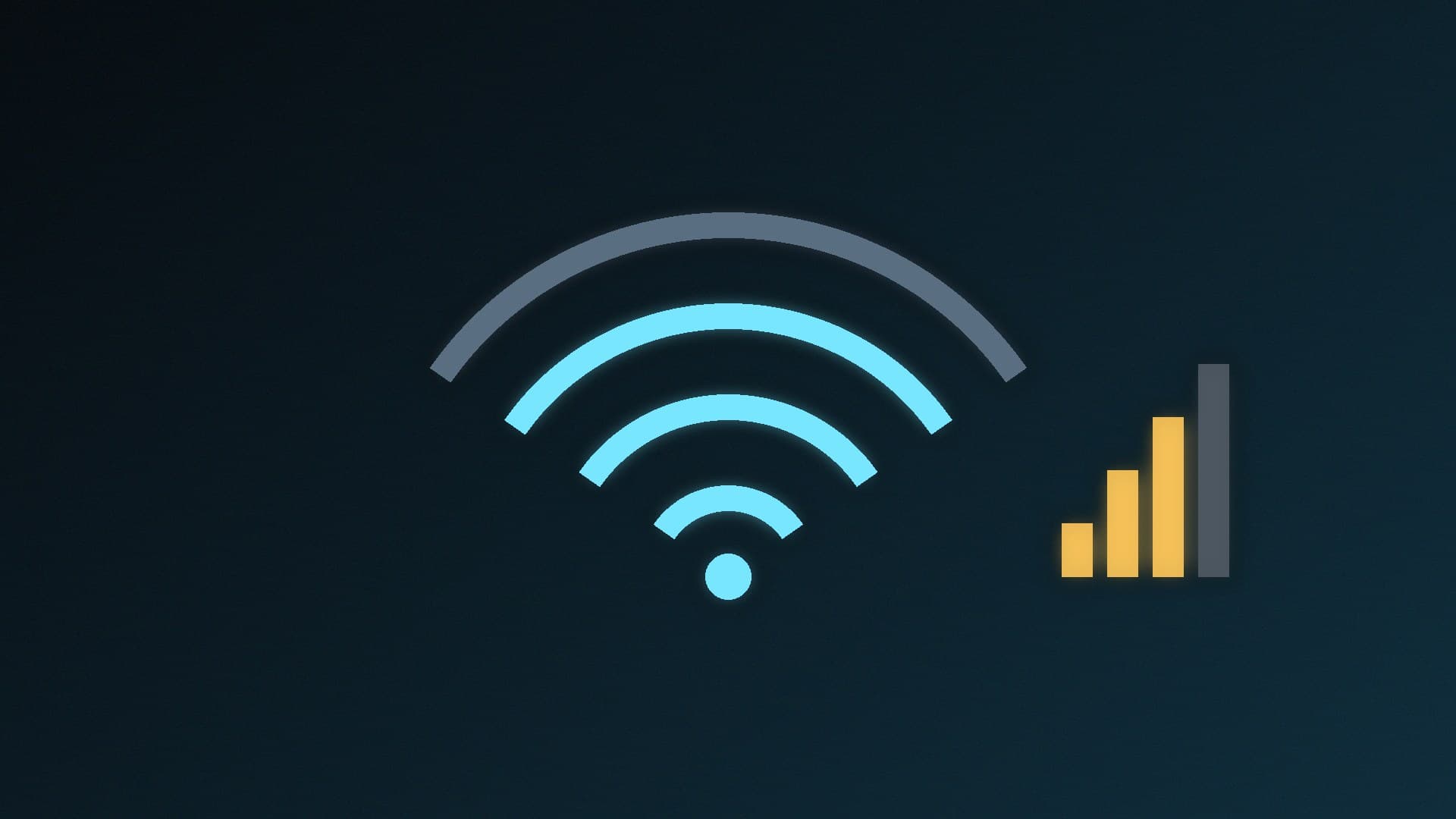
The Wi-Fi icon in the bottom-right of the taskbar shows bars for the connected network. Windows Central explains that one bar indicates a weak signal, two bars are acceptable, and three or four bars are the best you'll get. Open Quick Settings by selecting the icon to see the same bars next to your network name.
2. Settings
Open Settings > Network & internet. The Wi-Fi entry for your active connection shows the same signal bars.
3. Command Prompt: an exact percentage
For a precise number, open Command Prompt or Terminal and run:
netsh wlan show interfaces
Microsoft documents netsh wlan show interfaces as part of the netsh wlan command set. In the output, look for the Signal line, which shows signal quality as a percentage. Windows Central says 100% indicates excellent signal quality, and offers this rule of thumb: 80% to 100% is reliable, above 70% is still fine for light web browsing, and anything below 60% is weak.
4. PowerShell: just the number
Windows Central gives a PowerShell one-liner that shows only the percentage:
(netsh wlan show interfaces) -Match '^\s+Signal' -Replace '^\s+Signal\s+:\s+',''
Run it a few times while you move a laptop around, or after repositioning a desktop's antenna, to see what helps.
5. The Windows wireless report
Microsoft's netsh documentation also lists netsh wlan show wlanreport, which it describes as generating a report summarising recent wireless network sessions and activity. That makes it useful for spotting disconnections. If your PC keeps dropping off the network, our guide to fixing Wi-Fi disconnections in Windows 11 goes through the fixes.
What to do if the signal is weak
If the signal is strong but games still lag, the problem is probably elsewhere: see how to fix high ping and packet loss.
Our verdict
Glance at the taskbar bars for a rough idea, then run netsh wlan show interfaces for the exact Signal percentage. Below about 60%, Windows Central's threshold for a weak signal, improve your antenna position or adapter, or run a cable, before you start changing Windows settings.