Skip to content

How-ToOS

How to Turn On the New Run Dialog in Windows 11 (and What's Changed)

Windows 11's KB5132057 preview update adds an opt-in redesigned Run dialog with Fluent Design, dark mode, a ~\ shortcut to your user folder and, by Microsoft's measurement, a 94ms median time-to-show. Turn it on in Settings > System > Advanced > New Run dialog, and off again the same way.

By , Editorial team

2 min read

How to Turn On the New Run Dialog in Windows 11 (and What's Changed)

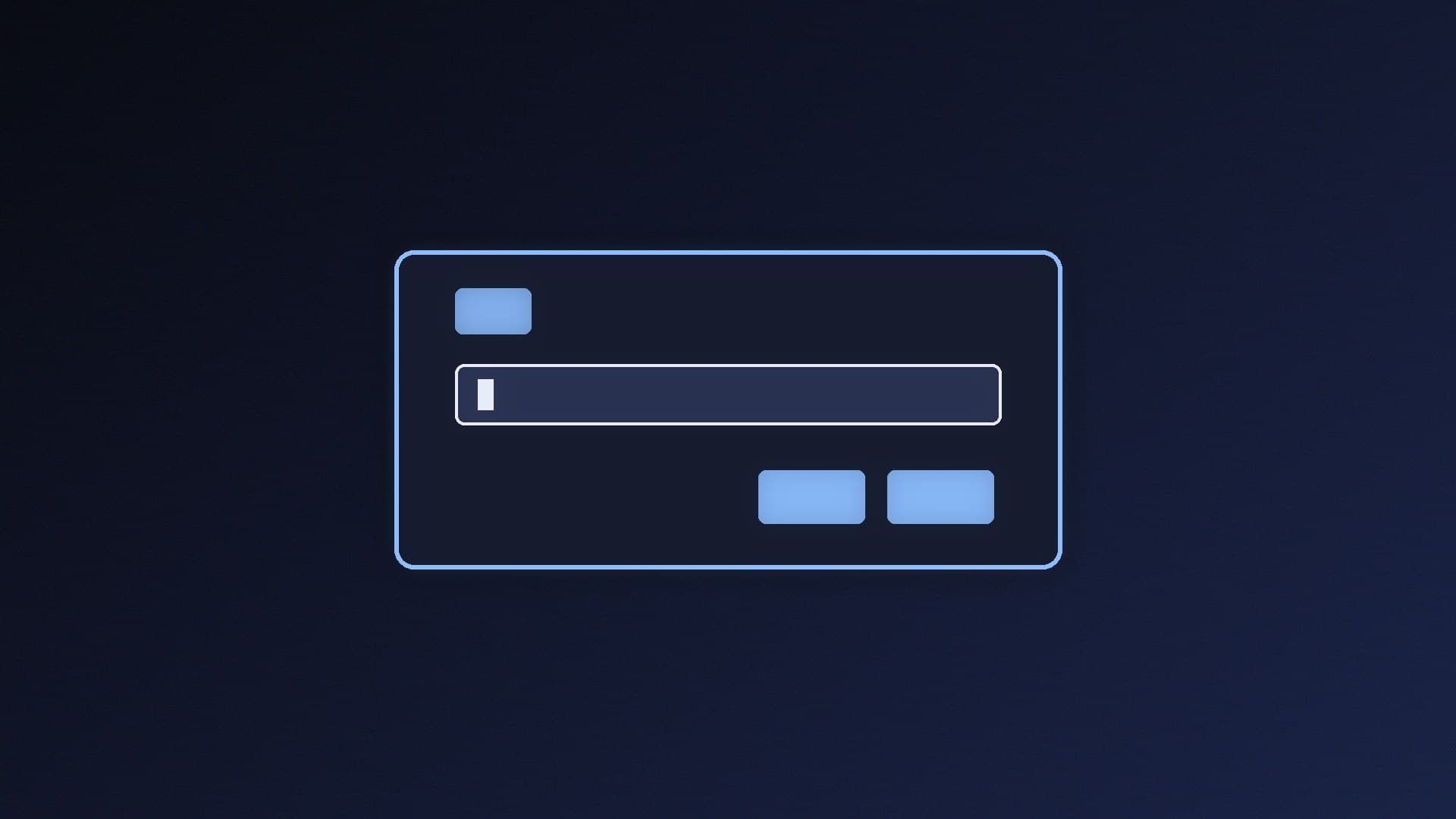
The Run dialog, the little box that opens when you press Windows + R, has been rebuilt. Microsoft's November 2026 optional update for Windows 11, KB5132057 (released 19 November for versions 25H2 and 26H2), lists a "more modern design and improved usability", and it's an opt-in switch rather than a forced change. Forge PC hasn't run timing tests on it; the details below come from Microsoft's release notes and the Windows team's blog post.

What's new

According to the Windows Terminal and PowerToys team, who built it:

  • A Windows 11 look. The new dialog follows Fluent Design and supports dark mode.

  • Speed. Microsoft measured a median time-to-show of 94ms for the new dialog, against 103ms for the old one.

  • A home-folder shortcut. Type ~\ to jump straight to your user folder, then keep typing to navigate from there, as you would at a command line.

  • Shared code with PowerToys. The team says the new Run dialog uses the same run command code as Command Palette in PowerToys. If you already use PowerToys, see our PowerToys guide.

The old dialog's Browse button isn't a feature Microsoft highlights: its blog post says only 0.0038% of users in a sample of 35 million had clicked it.

Before you start

The switch arrives with KB5132057 or a later update. Microsoft says this update is delivered in phases (a "gradual rollout"), so features may reach some PCs before others. Our news story on the KB5132057 preview update covers what else is in it, and our guide on updating to Windows 11 26H2 explains how to get the latest version.

  1. Open Settings > Windows Update.

  2. Install the optional preview update if it's offered, then restart.

How to turn on the new Run dialog

  1. Open Settings (Windows + I).

  2. Go to System > Advanced.

  3. Turn on New Run dialog.

  4. Press Windows + R to try it.

If you don't see the toggle yet, your PC may not have received the feature in the gradual rollout. Check for updates again later.

How to go back to the old Run dialog

Because it's a toggle, you can switch back at any time: go to Settings > System > Advanced and turn New Run dialog off.

What it still does

Microsoft's team says the Run dialog handles both local and network file paths as well as launching programs, and that it wanted the new version to do everything the old one did. Its own favourites include wt (Windows Terminal) and mstsc (Remote Desktop). If you find a command that behaves differently, Microsoft asks for reports through the Feedback Hub.

Our verdict

The new Run dialog is a small but welcome change: it looks like the rest of Windows 11, supports dark mode, adds the ~\ shortcut and, by Microsoft's measurement, opens slightly faster. Turn it on under Settings > System > Advanced once KB5132057 reaches your PC, and switch it off again if anything in your workflow breaks.
The bottom line

The new Run dialog is a small but welcome change: it looks like the rest of Windows 11, supports dark mode, adds the ~\ shortcut and, by Microsoft's measurement, opens slightly faster. Turn it on under Settings > System > Advanced once KB5132057 reaches your PC, and switch it off again if anything in your workflow breaks.

Sources

  1. 01Microsoft Support, November 19, 2026 - KB5132057 (OS Builds 26300.10075 and 26200.10075) Preview
  2. 02Microsoft Windows Command Line blog, The new Run dialog: faster, cleaner, and more capable

About the author

Forge PC Staff

Editorial team

The shared byline for articles researched, written and edited by the Forge PC editorial team. How we source, check and correct our work is set out in our editorial policy.

More from Forge PC Staff

Read next

How to Check Your Wi-Fi Signal Strength in Windows 11

How-To

How to Check Your Wi-Fi Signal Strength in Windows 11

Check Wi-Fi signal strength in Windows 11 from the taskbar bars, Settings > Network & internet, or exactly with netsh wlan show interfaces (the Signal percentage). Windows Central treats 80-100% as reliable and below 60% as weak. netsh wlan show wlanreport summarises recent wireless sessions.

Forge PC Staff2 min

How to Fix Windows Search Not Working in Windows 11

How-To

How to Fix Windows Search Not Working in Windows 11

If Windows 11 search stops finding files or apps, follow Microsoft's fixes in order: end SearchHost.exe in Task Manager, install updates, run the Search and Indexing troubleshooter, check Classic or Enhanced indexed locations, then rebuild the index and allow up to 24 hours.

Forge PC Staff3 min

MBR vs GPT: Which Partition Style Should Your SSD Use in Windows 11?

Versus

MBR vs GPT: Which Partition Style Should Your SSD Use in Windows 11?

GPT is the modern partition style: Windows allows up to 128 partitions, each with a unique GUID, and 64-bit Windows boots from GPT on UEFI systems. MBR supports four primary partition entries and suits only very old hardware. Microsoft's MBR2GPT converts a system disk without deleting data.

Forge PC Staff2 min

How to Repair Windows 11 System Files With DISM and SFC

How-To

How to Repair Windows 11 System Files With DISM and SFC

Microsoft recommends running DISM /Online /Cleanup-image /Restorehealth first, then sfc /scannow, from an administrator Command Prompt to repair missing or corrupted Windows system files. Here's what each SFC result means, how to view the log, and what to do if repairs fail.

Forge PC Staff2 min