Microsoft PowerToys is a free, open-source set of utilities that adds window layouts, key remapping, a command palette and a long list of other small tools to Windows. It is maintained by Microsoft and the PowerToys community, not a third-party "tweaking" pack, and it works on Windows 11 and on Windows 10 version 2004 (build 19041) or later.
Forge PC has not tested PowerToys as a product. This guide follows Microsoft's official Learn documentation, including the install page last updated on 11 November 2026.
Install it the official way
Microsoft recommends installing PowerToys from GitHub or the Microsoft Store. Alternative package managers are documented if you prefer them.
Microsoft Store. Open the official PowerToys Store page and install it like any other app. This is the simplest option if you already use the Store for updates.
GitHub. Visit the PowerToys GitHub releases page, download the current Windows installer and run it.
WinGet. From Command Prompt or PowerShell, Microsoft's documented command is:
winget install --id Microsoft.PowerToys --source winget
The same Learn page also lists Chocolatey and Scoop commands if you already use those tools. You do not need all three methods; pick one official route and stay with it so updates stay consistent.
PowerToys is free. After it is installed, open the PowerToys Settings app to see the list of utilities, turn each one on or off, and change shortcuts. You do not have to enable every tool.
The utilities most PC users actually want
Microsoft's overview lists a large set of utilities. You do not need them all on day one. These are the ones that tend to earn their keep on a desktop PC:
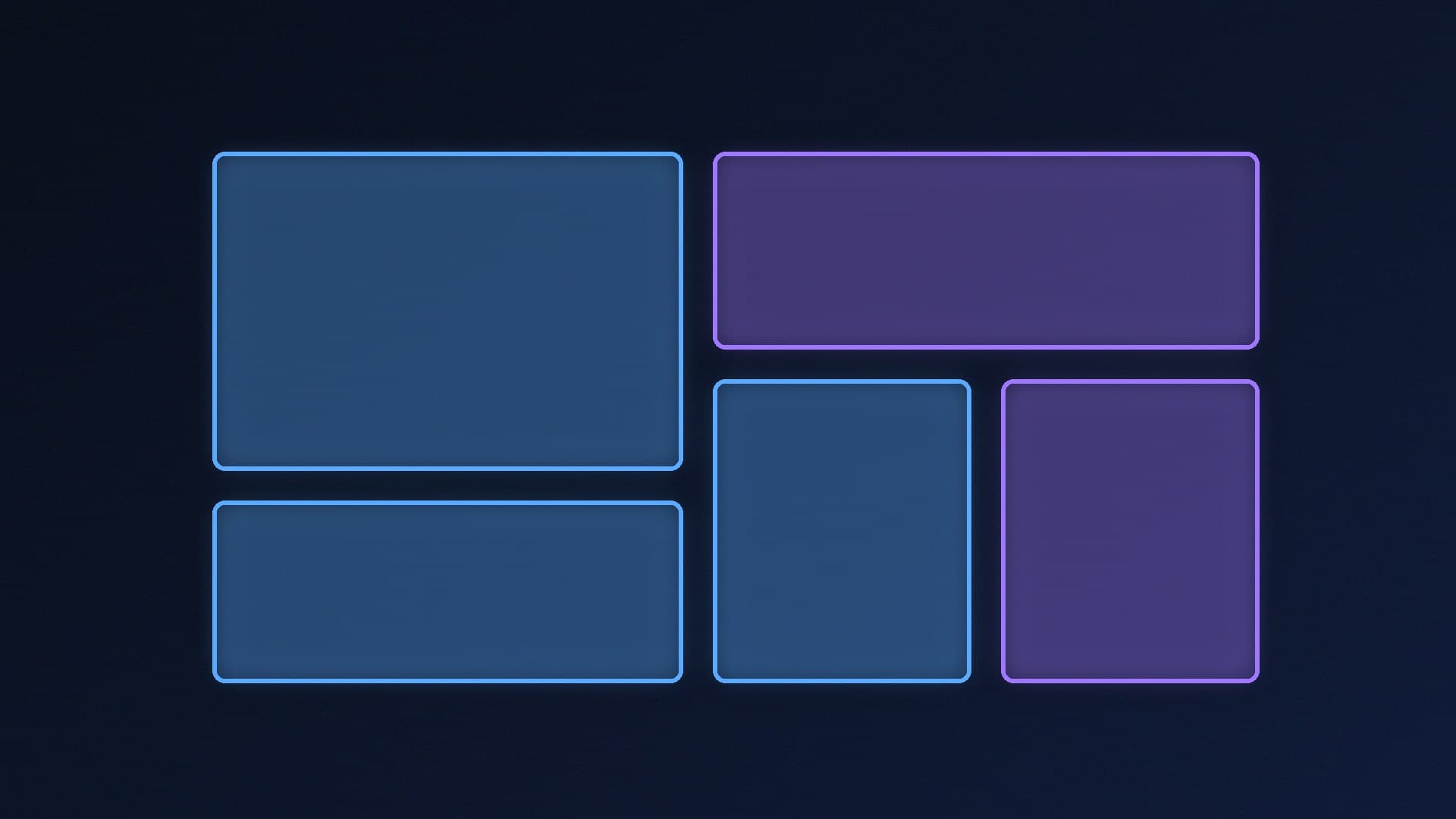
FancyZones is a window manager for snapping windows into custom layouts, not just the standard Windows halves and quarters. The default shortcut to open the layout editor is Windows key + Shift + backtick (the ` key). Microsoft's FancyZones documentation says you drag a window while holding Shift, by default, to drop it into a zone. You can change that shortcut and the drag behaviour in Settings.
Command Palette is a fast, customisable launcher for apps, commands and tools. Think of it as a more capable successor to the older PowerToys Run box. Open its settings page to confirm the shortcut on your PC, because you should not learn a shortcut from memory if you have remapped it.
Keyboard Manager remaps keys and creates custom shortcuts. This is the tool to use if a media key is in the wrong place, or if you want a key to send a different combination. Apply changes carefully and keep a way to undo them.
Always On Top pins a window above the others with a shortcut. Awake keeps the PC from sleeping without you digging through power settings. Colour Picker grabs a colour from anywhere on the screen. Image Resizer adds resize options to the File Explorer right-click menu. File Explorer add-ons can show previews and thumbnails for file types that Windows does not handle well on its own. Text Extractor, Hosts File Editor, Environment Variables and FancyZones' close relations such as Crop And Lock are there if you need them; leave them off until you do.
Microsoft's current overview also includes newer utilities such as Advanced Paste, Light Switch (automatic light and dark themes), Mouse utilities, Shortcut Guide, and several developer-facing tools. Treat the list in Settings as the live catalogue, because utilities are added over time.
A sensible way to start
Install PowerToys from GitHub, the Store or WinGet, as above.
Open PowerToys Settings and check that the app is running in the background.
Turn on FancyZones and open the layout editor with Windows key + Shift + backtick. Create a layout that matches how you actually work, for example a wide main window and a narrower sidebar.
Turn on Command Palette, confirm its shortcut, and use it to launch a few everyday apps.
Only then consider Keyboard Manager, Image Resizer or Colour Picker. Remapping keys last means you are not debugging a shortcut clash on day one.
PowerToys can be updated from within the app, or by the same Store, GitHub or WinGet route you used to install it. If a utility misbehaves after an update, disable that utility in Settings before you uninstall the whole suite.
If you are setting up a new Windows 11 PC more broadly, our guides to installing Windows 11, Windows 11 gaming settings and updating to 26H2 cover the rest of the system. PowerToys is optional; it does not replace those steps.
Our verdict
Install Microsoft PowerToys from GitHub, the Microsoft Store or WinGet, on Windows 11 or on Windows 10 version 2004 or later. Start with FancyZones and Command Palette, then turn on Keyboard Manager, Colour Picker or Image Resizer if you need them, rather than enabling every utility at once. PowerToys is free and official, but it is still a background app: if something feels wrong, disable the individual tool in Settings. We have not tested the suite ourselves; this guide follows Microsoft's Learn documentation.
The bottom line
Install Microsoft PowerToys from GitHub, the Microsoft Store or WinGet, on Windows 11 or on Windows 10 version 2004 or later. Start with FancyZones and Command Palette, then turn on Keyboard Manager, Colour Picker or Image Resizer if you need them, rather than enabling every utility at once. PowerToys is free and official, but it is still a background app: if something feels wrong, disable the individual tool in Settings. We have not tested the suite ourselves; this guide follows Microsoft's Learn documentation.