A PC that powers on but shows a black screen, or a monitor that says "no signal", is a different problem from a machine that will not start at all. Fans, lights or a startup beep can all be present while the display stays blank. The first job is to check that the monitor is actually receiving a picture, not to assume the graphics card or motherboard has failed.
Forge PC has not reproduced these faults in our own lab. The steps below follow NZXT's official "My PC has no display" guidance, written for systems that use a discrete graphics card. If the PC does not power on at all, start with our PC will not turn on or boot guide instead. If you can reach Windows but the card is missing or disabled, use graphics card not detected.
Confirm the PC is actually on
Look at the case, not the screen. If there are no fans, no lights and no signs of life, this is a power or boot problem, and the monitor is not the first thing to chase. If the machine is clearly running and the screen is not, stay with the display checks below.
Is the monitor getting power?
NZXT's first checks are simple, and they catch a surprising number of "dead PC" reports:
Confirm the monitor is plugged into a working mains outlet and switched on.
Look for the standby LED on the bezel, or an on-screen logo when the screen starts.
Power the monitor off and on again, and try a different outlet if it does not come to life.
If the monitor itself has no power, the computer may be fine. Consult the monitor manual or the manufacturer before you start unplugging parts inside the PC.
Are the video cables in the right place?
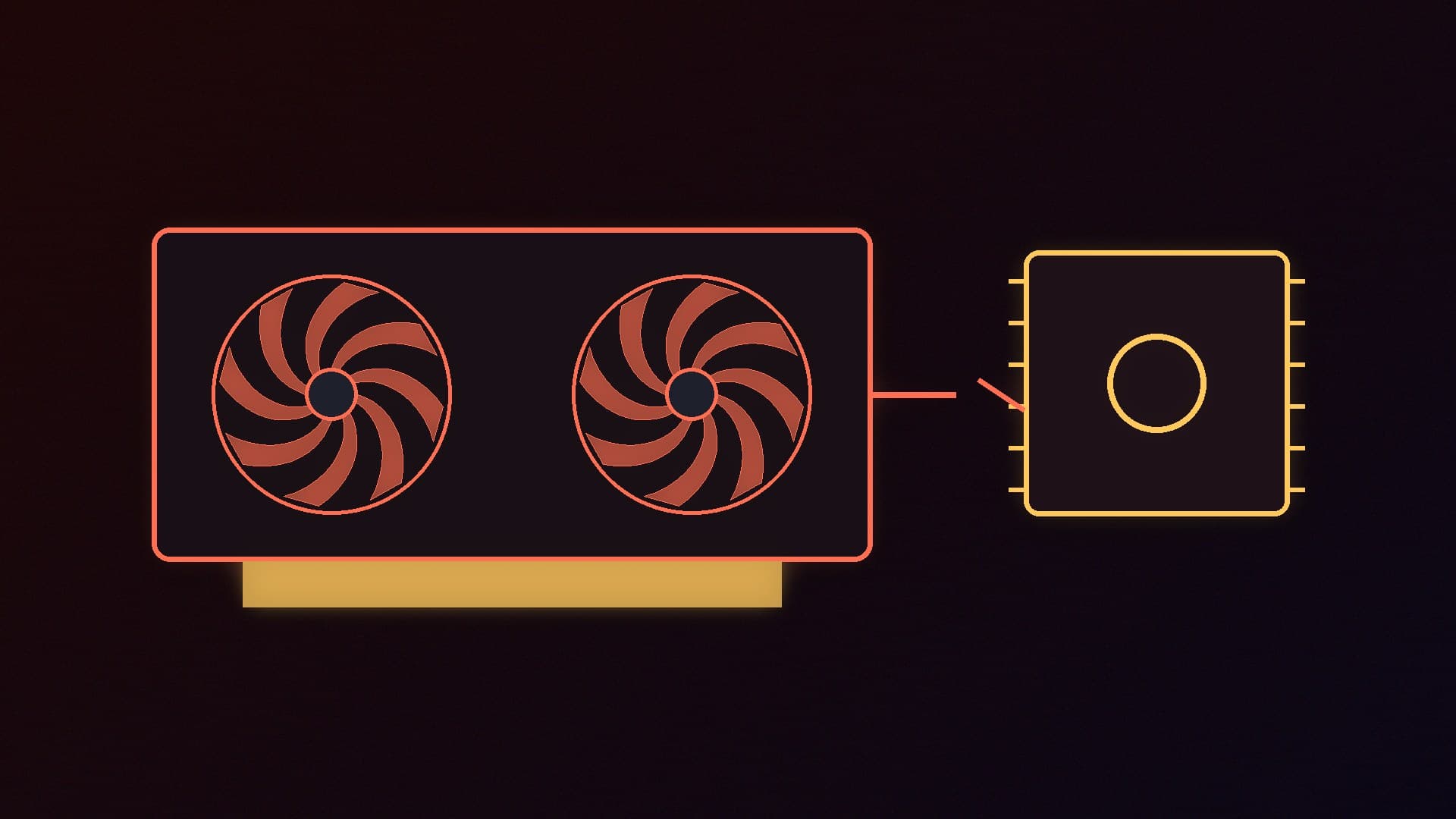
On a PC with a dedicated graphics card, the monitor cable should go into the ports on the card, not into the HDMI or DisplayPort sockets on the motherboard I/O panel. NZXT is explicit: the display cable must run between the monitor and the graphics card. Motherboard ports belong to the CPU's built-in graphics, if the processor has any. A cable in the wrong place is a very common reason for a "no signal" message on a newly built or newly upgraded PC.
Use the correct connector. Modern monitors typically have HDMI and DisplayPort; NZXT notes that NVIDIA and AMD (referred to there as ATI) recommend DisplayPort for higher refresh rates. Seat the cable fully in both ends, but do not force a plug that does not fit or is the wrong way up. Forcing a connector can damage the card or the screen.
If you only have a processor with built-in graphics and no discrete card, the motherboard video outputs are the ones to use.
Many screens have more than one HDMI or DisplayPort socket. NZXT's advice is to open the monitor's on-screen display and set the input either to automatic detection or to the exact socket you have used, for example DisplayPort rather than HDMI, or HDMI-1 rather than HDMI-2. The wrong input produces a blank screen even when every cable is seated correctly. Use the monitor's manual if you are not sure how to open that menu.
If there is still no picture
If the monitor has power, the cable is in the right port and the input is correct, NZXT suggests these next swaps, one at a time:
Try a different video cable.
Use a different output of the same type on the graphics card, if there is one.
If the monitor has both HDMI and DisplayPort, try the other type with a known-good cable.
Try a different monitor, if you have one, or connect this monitor to a different PC to confirm the screen itself works.
Those tests tell you whether the problem is the cable, the screen or the computer. They do not, by themselves, prove that a graphics card, power supply or motherboard has failed. If the monitor works on another machine and every cable-and-input check on this one has failed, the fault may sit further down the boot path, and that is a different troubleshooting job. NZXT points owners of its own pre-built systems to a follow-up article on systems that do not fully POST. For a machine that will not start, or a card that Windows cannot see, use the two guides linked at the top of this page rather than repeating cable swaps.
A loose power cable to the graphics card, a failed PSU rail or a motherboard that never reaches POST can all produce a black screen, but those checks are outside the scope of NZXT's display article, and inventing a reseating routine would not help you. If you do open the case, power the PC down, unplug it and discharge residual power first, and do not force connectors.
Our verdict
Treat "no display" as a monitor and cable problem until you have proved otherwise. Confirm the PC is actually powered on, that the screen itself has power, that the cable is in the graphics card rather than the motherboard (unless you are using built-in graphics), and that the monitor input matches the socket you have used. If those checks fail, swap the cable, the port or the monitor before you assume a component is dead. We have not reproduced these faults in our own lab; these steps follow NZXT's official no-display guidance.