AI upscaling is one of the easiest ways to put a gaming graphics card to work outside games. Instead of uploading old photos, screenshots or artwork to a website, you can enlarge them locally with Upscayl, a free and open-source desktop app for Windows, Linux and macOS.
Forge PC has not tested Upscayl's output quality or speed for this guide. The steps and requirements below come from Upscayl's official GitHub README, wiki and documentation, read on 13 November 2026.
What Upscayl does, and what it cannot do
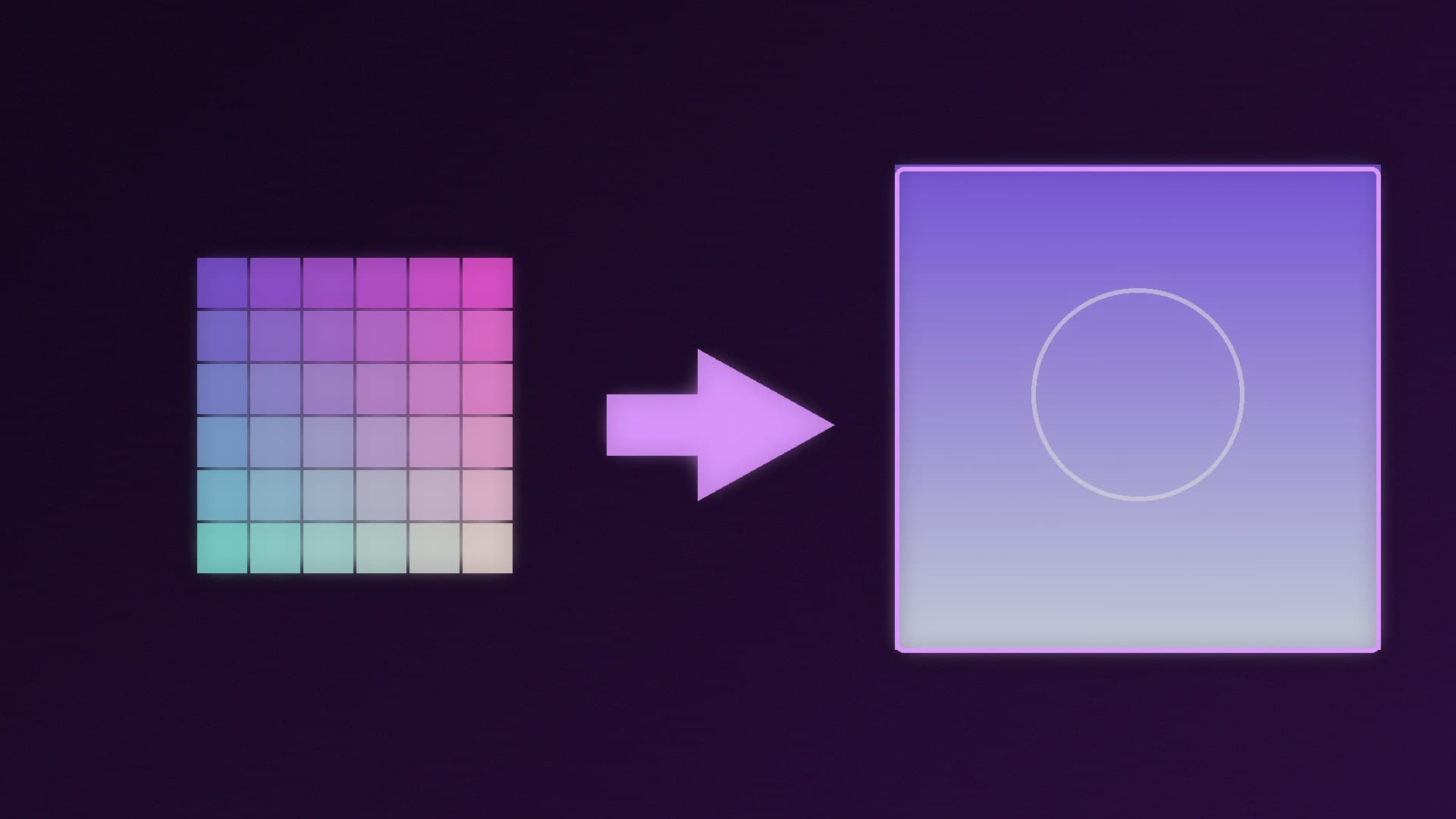
Upscayl describes itself as a "Free and Open Source AI Image Upscaler". Its FAQ explains that it "uses AI models to enhance your images by guessing what the details could be", built on Real-ESRGAN and the Vulkan graphics API. Its processing back end, upscayl-ncnn, is open source under the AGPLv3 licence, and there is also a command-line version under that name.
Be realistic about the results. Upscayl's FAQ says it can enhance low-resolution and pixelated images, "but it cannot de-blur or do focus adjustment on your image". If a photo is out of focus, upscaling will not rescue it.
What you need
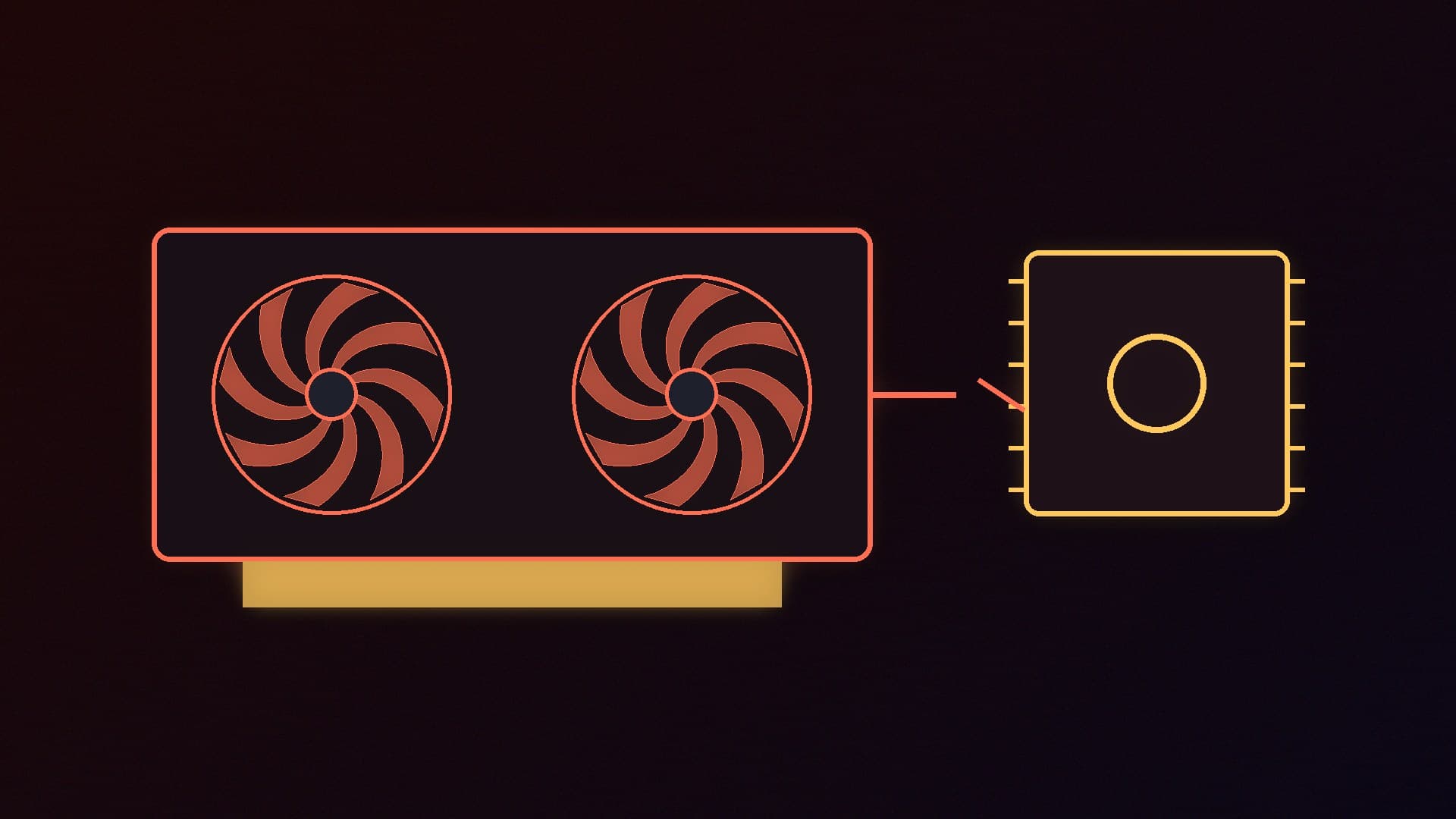
A Vulkan-compatible graphics card. This is the key requirement. Upscayl's README says you need one to upscale images, and that "many iGPUs (integrated graphics) do not work". Current NVIDIA GeForce, AMD Radeon and Intel Arc cards support Vulkan; if you are unsure about yours, Upscayl's troubleshooting page suggests checking with the free VulkanCapsViewer tool.
Windows 10 or later, according to the README. Linux and macOS 12 or later are also supported.
An up-to-date graphics driver. Reinstalling drivers is one of Upscayl's own troubleshooting steps; our graphics driver guide shows how.
Upscayl's FAQ says it will not work with most integrated graphics or CPUs. It links to a community-contributed workaround for Windows and Linux, but a graphics card with Vulkan support is the route the developers support.
Step 1: Install Upscayl on Windows
Download the latest Windows installer, named upscayl-x.x.x-win.exe, from Upscayl's official website (upscayl.org) or the releases page of its GitHub repository. Avoid third-party download sites.
Double-click the file to start the installer.
If Windows SmartScreen warns you about the app, the README's instruction is to click More info and then Run anyway, or to accept the unverified publisher prompt.
Follow the installation steps.
Step 2: Upscale your first image
Open Upscayl and select the image you want to enlarge.
Choose a model from the upscaling type list. Different models suit different kinds of image, such as photos or illustrations; Upscayl's README credits the creators of community models it uses, including Remacri, UltraSharp and the HFA2k model that appears as "High Fidelity".
Pick a scale and an output folder.
Start the job and wait for the result to appear in your output folder.
A note on scale: Upscayl's wiki says its default models only support x4 natively. Since version 2.8 it emulates other scales by producing the x4 image and then scaling it down. If you want a native x2 or x3 model, its official Custom Models repository has some, such as realesr-animevideov3-x2.
Batch processing
Upscayl can process a whole folder at once. If you stop a batch part-way and some images look unfinished or at the wrong scale, its FAQ explains why: when a model does not support an action, Upscayl upscales every image first and post-processes them afterwards, so you should "simply wait for the process to finish".
Adding custom models
Since version 2.5 you can load your own models. According to the wiki:
Create a folder called models.
Put NCNN models (a .bin and a .param file for each) into it.
In Upscayl, open Settings, find Add Custom Models and select the folder.
Choose the new model from the upscaling type list.
If Upscayl will not work
Upscayl's troubleshooting pages suggest these fixes, in roughly this order:
Set the GPU ID to your graphics card. Upscayl lists the available GPUs and their IDs in the log area of the Settings tab. Enter the number for your discrete card in the GPU ID box. On Windows, Upscayl's FAQ warns that the system may override this setting unless Upscayl is set to performance mode.
Set Upscayl to high performance in Windows' graphics settings, and on laptops disable switchable graphics if you can.
Turn on hardware-accelerated GPU scheduling if your system supports it.
Check Vulkan support with VulkanCapsViewer, and reinstall your graphics driver.
Uninstall and reinstall Upscayl, then restart the PC.
If none of that works, the Settings tab has a log you can copy into a bug report on Upscayl's GitHub page.
Upscayl is a single-purpose tool, and that makes it a gentle introduction to local AI on a gaming PC. If you want to generate images rather than enlarge them, our guides to installing ComfyUI on Windows and what PC you need for Stable Diffusion and Flux are the next step.
Our verdict
Upscayl is a straightforward way to enlarge low-resolution images on your own PC without uploading them anywhere. You need a Vulkan-compatible graphics card, because most integrated graphics will not work; install it from Upscayl's official site or GitHub releases, pick a model and scale, and let it run. It will not fix blurry or out-of-focus photos. If it fails, set the GPU ID to your discrete card, put the app in high-performance mode and update your driver. We have not tested Upscayl's results ourselves; this guide is based on its official README, wiki and documentation.