A graphics card that the PC "cannot see" usually shows up in one of three ways: no picture at all when the monitor is plugged into the card; a picture, but Device Manager shows no graphics card; or Device Manager lists Microsoft Basic Display Adapter instead of your NVIDIA, AMD or Intel card. The fixes overlap, but the order matters. Start with the cheap, physical checks before you blame the card.
Forge PC has not diagnosed your specific PC, and this guide does not replace your motherboard or card manual. The steps come from Microsoft's support page on the Basic Display Adapter, ASUS's official "graphics card not detected" and "no display" troubleshooting FAQs, and Intel's no-signal guide for Arc cards. The same logic applies to NVIDIA and AMD cards.
Safety first: shut down, switch the PSU off at the rear and unplug the mains cable before touching anything inside the case.
Step 1: Check where the monitor is plugged in
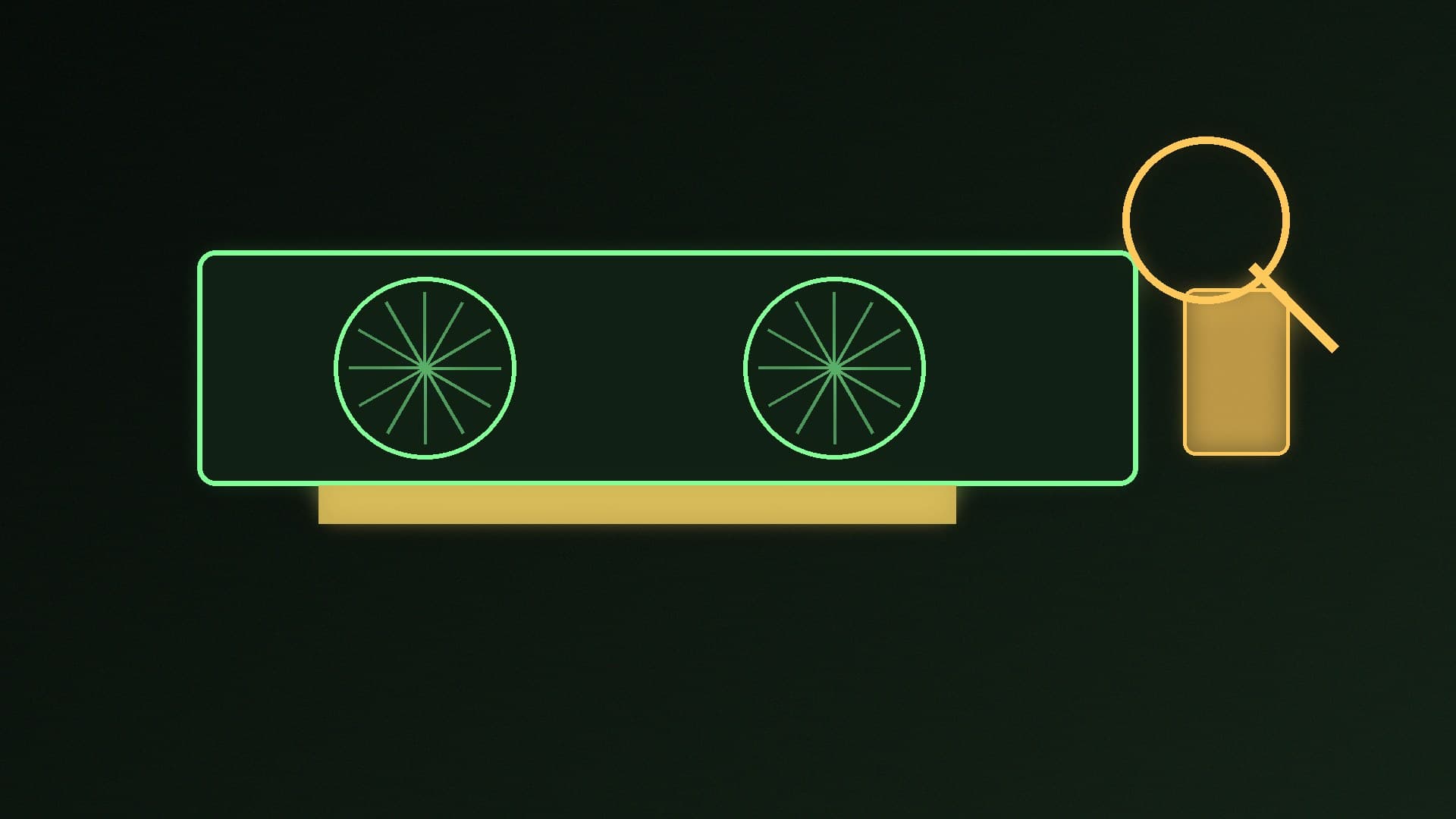
The most common "dead GPU" is a monitor cable in the wrong socket. If your CPU has integrated graphics, the motherboard has its own video outputs. Plug the monitor into the graphics card's HDMI or DisplayPort outputs, not the ones on the rear I/O. ASUS's no-display FAQ also tells you to check the cable is seated at the monitor end and that the monitor's input source matches the port you are using.
Step 2: Check the card's power cables
Most gaming cards need one or more PCIe or 12V-2x6 power connectors from the power supply. ASUS and Intel both list a missing or loose power connector as a first check. Make sure:
every power socket on the card is filled;
connectors are pushed fully home, with no gap or pins showing (ASUS's install FAQ illustrates "properly connected" and "not properly connected" pins);
you use a separate PSU cable where the card or PSU maker recommends one, rather than both ends of a single daisy-chained cable. ASUS warns against connecting the same power connector to two or more independent ports.
Some cards have an LED near the power socket. ASUS says that if it stays red, the power connection is the problem, and suggests trying a different cable. If you are unsure your PSU is up to the job, see our guide to choosing a power supply.
Step 3: Reseat the card in the main slot
With the power off, remove the card and refit it in the top full-length PCIe x16 slot, the one closest to the CPU. ASUS's install guide says the slot latch should click and lock, and that the card's gold contacts must sit fully in the slot. Intel's Arc guide lists the same reseat as its first step.
If you have another full-length slot, Intel suggests temporarily trying the card there. That helps you tell a slot problem from a card problem.
Step 4: Strip the system back and clear the CMOS
If you still have no display, Intel recommends simplifying the build: one stick of RAM, one drive, and nothing else plugged in that you do not need. Then clear the CMOS to reset BIOS settings to defaults, using the jumper, button or coin-cell method in your motherboard manual. Our PC won't turn on or boot guide covers what to do if the PC shows no signs of life at all.
Step 5: Test with integrated graphics, if you have them
ASUS suggests removing the card and connecting the monitor to the motherboard's own outputs. If the PC boots and displays normally that way, the rest of the system is working, and the problem is the graphics card, its power or its slot. If it still does not display, the fault is elsewhere. Note that CPUs without integrated graphics, such as Intel's "F" models, cannot do this test.
Step 6: Check the BIOS
Once you have a picture, open the BIOS and look for:
Primary display or initial display output. If your board has this option, set it to the PCIe graphics slot rather than the integrated graphics. The name varies, so check the manual.
Resizable BAR. Intel lists enabling it as a fix for Arc cards with no display, and it is worth enabling on modern NVIDIA and AMD cards too if your board supports it.
A BIOS update. New cards on older boards sometimes need a newer BIOS. ASUS lists updating the BIOS, Windows and drivers as a standard step. Follow our guide to updating the BIOS safely.
ASUS adds a useful rule: if the card is still not detected in the BIOS after restoring defaults, "it is likely a hardware issue."
Step 7: Fix "Microsoft Basic Display Adapter" in Windows
If Windows starts but Device Manager shows Microsoft Basic Display Adapter under Display adapters, the card is usually detected but has no proper driver. Microsoft describes this as a generic driver that Windows uses when the manufacturer's driver is not installed, and recommends installing the manufacturer's driver.
Right-click Start and open Device Manager.
Click Action > Scan for hardware changes, as ASUS suggests. This can make Windows pick up a card it missed.
Expand Display adapters. If it says Microsoft Basic Display Adapter, install the latest driver from NVIDIA, AMD or Intel. Our guide to updating graphics drivers walks through each.
If a previous driver is corrupt, uninstall it first. ASUS recommends removing the old driver, restarting, then installing the fresh one.
You can also confirm which driver is in use from the DirectX Diagnostic Tool (press Windows + R, type dxdiag), on the Display tab, as Microsoft documents.
On gaming laptops, ASUS notes that an "Eco" GPU mode can hide the discrete GPU from Device Manager entirely. Switch the laptop's GPU mode back to Standard or Optimised before troubleshooting further.
When to give up and return it
If the card is not detected in the BIOS in two different slots, or in a second PC, with known-good power cables, it is very likely faulty. Contact the retailer or manufacturer for a warranty claim rather than continuing to swap parts. If you are buying a replacement, see our best graphics card and best budget graphics card guides.
Our verdict
Work from the outside in: monitor cable into the card, every power connector fully seated, card reseated in the top x16 slot, then a CMOS clear and a minimal build. If you can get a picture, set the BIOS to use the PCIe slot, update the BIOS if needed, and install the proper driver to replace Microsoft Basic Display Adapter. A card that is missing from the BIOS in two slots is probably faulty. We have not diagnosed your PC; these steps come from Microsoft, ASUS and Intel's official support pages.