A BIOS (or UEFI) update is one of those jobs that looks scarier than it is, until you skip a step. On a modern AM5 or Intel 800-series board it is also a common one: a new processor, or a stability fix, often needs a newer firmware before the system will boot properly.
This guide is a set of safety rules and a worked example from ASUS's official USB BIOS FlashBack instructions. Forge PC hasn't flashed these boards on a test bench. Motherboard makers differ on button names, file names and LED behaviour, so the last word is always the support page and manual for your exact model. If the PC already won't start, work through our boot-fix checklist first.
When you should update — and when you shouldn't
Update the BIOS when you have a reason:
You are fitting a newer CPU than the board shipped with, such as a Ryzen 9000 or X3D chip in an older AM5 board, or a Core Ultra 200S Plus chip in an LGA 1851 board.
The manufacturer has published a fix you need, such as memory compatibility or a stability patch.
You are preparing an AM5 board for a later processor. AMD has said it will support AM5 through 2029, but each new chip still depends on a vendor BIOS. Our AM5 motherboard guide and CPU guide explain the platforms.
Don't update "just because" a new version exists, and don't use a file meant for a similar but different board. A failed or wrong-file flash can leave the board unable to start. If the system is stable and you have no new hardware to support, leaving the BIOS alone is a reasonable choice.
Before you touch anything
Identify the exact motherboard model, including the revision if it's printed on the board or the box. "B850" is not enough; you need the full name, such as TUF Gaming B850-Plus WiFi.
Download the BIOS only from the manufacturer's support page for that model (ASUS, MSI, Gigabyte, ASRock and so on). Do not use a third-party mirror or a file someone emailed you.
Read the version notes on that page. Confirm the file is meant to add support for your CPU, or to fix the problem you actually have.
Use a desktop PC that will stay powered. Plug the machine into a known-good mains socket. Do not flash a laptop from a low battery, and do not flash a desktop off a dying UPS if you can avoid it.
Prepare a USB flash drive you can wipe. ASUS's FlashBack instructions ask for a drive of 1GB or more, formatted as FAT16 or FAT32 with an MBR partition, and they warn that formatting erases the drive.
If you can already boot Windows, it is worth noting the current BIOS version first (System Information, or the BIOS screen itself) so you can confirm the update later.
Two ways to flash, and which to use
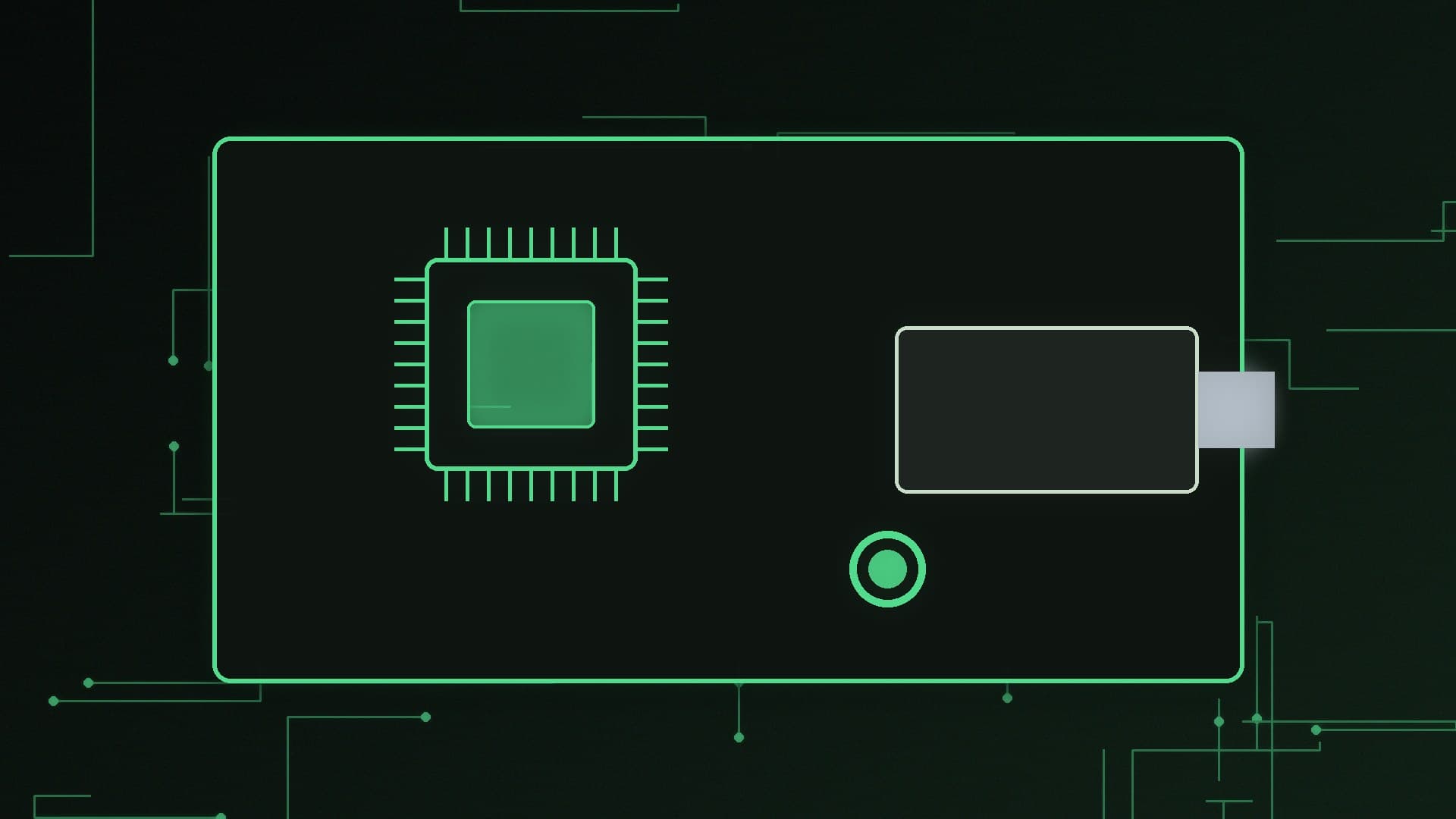
USB BIOS Flashback (ASUS's name; MSI, Gigabyte and others have their own button-and-port versions, such as Flash BIOS Button or Q-Flash Plus) can update the firmware with no working CPU or memory, or when the board won't display a picture. That is the method to use if you have just bought a new chip the board doesn't yet support.
An in-BIOS tool (ASUS EZ Flash, MSI M-Flash, Gigabyte Q-Flash and similar) is usually easier if the system already boots. You copy the extracted BIOS file to a USB drive, enter the BIOS, and run the vendor's updater. Follow the on-screen instructions for your board; don't switch off while it runs.
If your board has no Flashback-style button and won't boot with the new CPU, you may need a supported older processor to get into the BIOS, or a retailer or friend who can flash it for you. That limitation is why Flashback is worth having on an AM5 board you plan to keep.
Worked example: ASUS USB BIOS FlashBack
These steps follow ASUS's official support article. Other brands are similar in spirit but not identical — use their instructions for file names and button behaviour.
On the board's official support page, open the BIOS or firmware section and download the latest BIOS that matches your exact model.
Extract the archive. ASUS says it contains a .CAP BIOS file and a BIOSRenamer tool.
Run BIOSRenamer so the .CAP file is renamed automatically. ASUS is specific that the file name matters.
Copy the renamed .CAP file to the root of the FAT32 USB drive (not inside a folder).
Shut the PC down, but leave it plugged in at the wall and at the power supply.
Fit the USB drive to the dedicated BIOS FlashBack port, not a random USB port. The manual shows which one.
Press and hold the FlashBack button for about three seconds, until the LED blinks three times.
Wait. ASUS says the file size affects the time and that it can take around eight minutes. Do not remove the USB drive, unplug the power, turn the system on, or press the clear-CMOS button while it runs. When the light goes out, the update has finished.
After you next boot, enter the BIOS (usually Del or F2) and check that the version matches the file you used.
If the flash is interrupted, ASUS's advice is to confirm the drive format and file name, try again, and contact support if the board still won't start. Don't keep experimenting with different files.
After a successful update
Go back into the BIOS and set the basics again if they were reset: boot order, memory profile (EXPO or XMP), and any resizeable BAR or above-4G options your graphics card needs. If you changed those for a reason, write them down before you flash. Then boot into Windows and check that everything starts as expected.
A BIOS update is sometimes the missing step in a new AM5 build that appears to do nothing for a long time, or in a board that won't see a new CPU. It is not a substitute for seated power cables, correctly installed memory or a working display connection — those are still the first things to check in our build guide and boot-fix guide.
Our verdict
Update the BIOS when a new processor or a documented fix requires it, and only with the official file for your exact motherboard. If the board already boots, use the manufacturer's in-BIOS updater. If it doesn't, or you need to add CPU support before the first boot, use the board's USB Flashback-style button and follow that vendor's steps to the letter — ASUS's official process is: the right .CAP file, on a FAT32 USB stick, in the marked port, with the power attached and left alone until the LED goes out. Never flash from an unofficial file, and never interrupt the update.