A local chatbot is useful; a local chatbot that can answer questions about your own manuals, contracts, notes and PDFs is more useful still. AnythingLLM Desktop is an open-source app that does exactly that. Its developers describe it as a "single-player" application for local LLMs, RAG (retrieval augmented generation) and agents, with "full privacy" when you use local models.
Forge PC has not benchmarked AnythingLLM on our own hardware. The steps below come from AnythingLLM's official documentation, read on 13 November 2026, when the current version was v1.19.0. Menus may move between versions.
What hardware do you need?
AnythingLLM itself is lightweight. The developers say the language model is "often the bottleneck". Their own guidance for Windows is that a graphics card is recommended for local models, and "8-12GB+ VRAM is great". Storage depends on the size of the models you download.
If you are choosing hardware for this, our best graphics card for local AI and how much RAM for local AI guides go into detail, and GGUF quantisation explained shows how to fit bigger models into less memory.
Step 1: Install AnythingLLM Desktop
Download the Windows installer from AnythingLLM's site. There are x64 and ARM64 builds for Windows 10 and later.
Install it for the current user only. The docs say installing for all users "will cause issues with the app and is not supported".
Let the installer add its extra GPU support files. AnythingLLM says it installs these automatically for NVIDIA, AMD or NPU acceleration; if they fail, the app warns you and local models fall back to the CPU.
The first launch can take a minute or two, according to the docs. Since v1.11.0 the app minimises to the system tray when closed, so quit it from the tray if an update installer complains it is still running.
Step 2: Choose a language model
AnythingLLM Desktop includes a built-in local engine, which its docs say is powered by Lemonade and llama.cpp. That is the zero-setup option.
If you already use Ollama, connect to it instead. The docs actually recommend installing AnythingLLM and Ollama separately and connecting them, to avoid problems when the built-in engine updates. In AnythingLLM's LLM settings, choose Ollama and use http://127.0.0.1:11434, which the docs give as the default address. You can then pick any model you have pulled. New to Ollama? Start with how to run AI models locally, or see Ollama vs LM Studio if you are still choosing.
Step 3: Create a workspace and add documents
Everything in AnythingLLM happens inside a workspace. The docs are clear that the model can only "see" documents added to that workspace.
There are two ways to use a document:
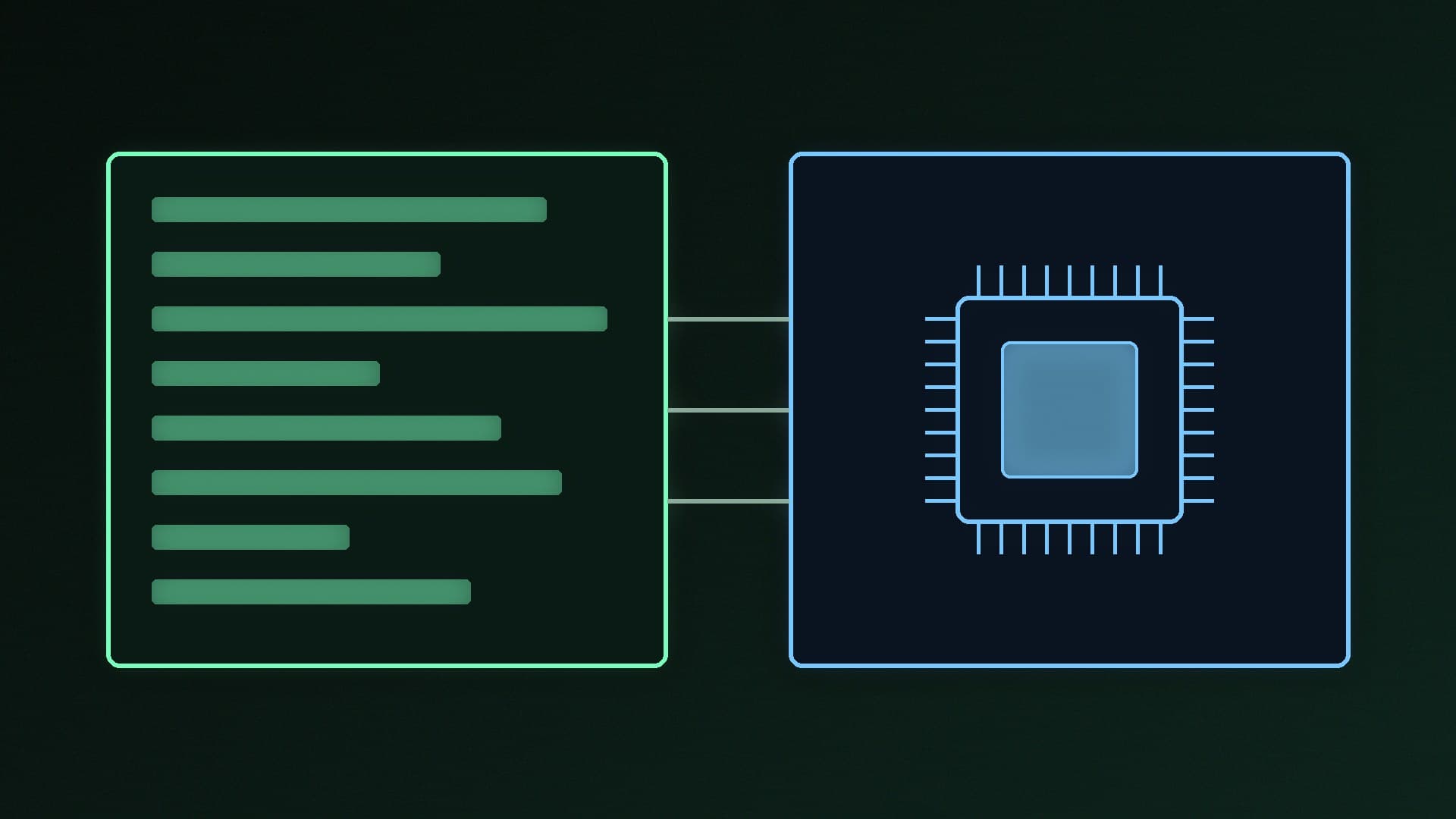
Attach it to a chat. Drag and drop a file into the chat window or click the + icon. By default AnythingLLM inserts the document's full text into the conversation. This gives very accurate answers, but it only works if the text fits in the model's context window, and the document only applies to that thread.
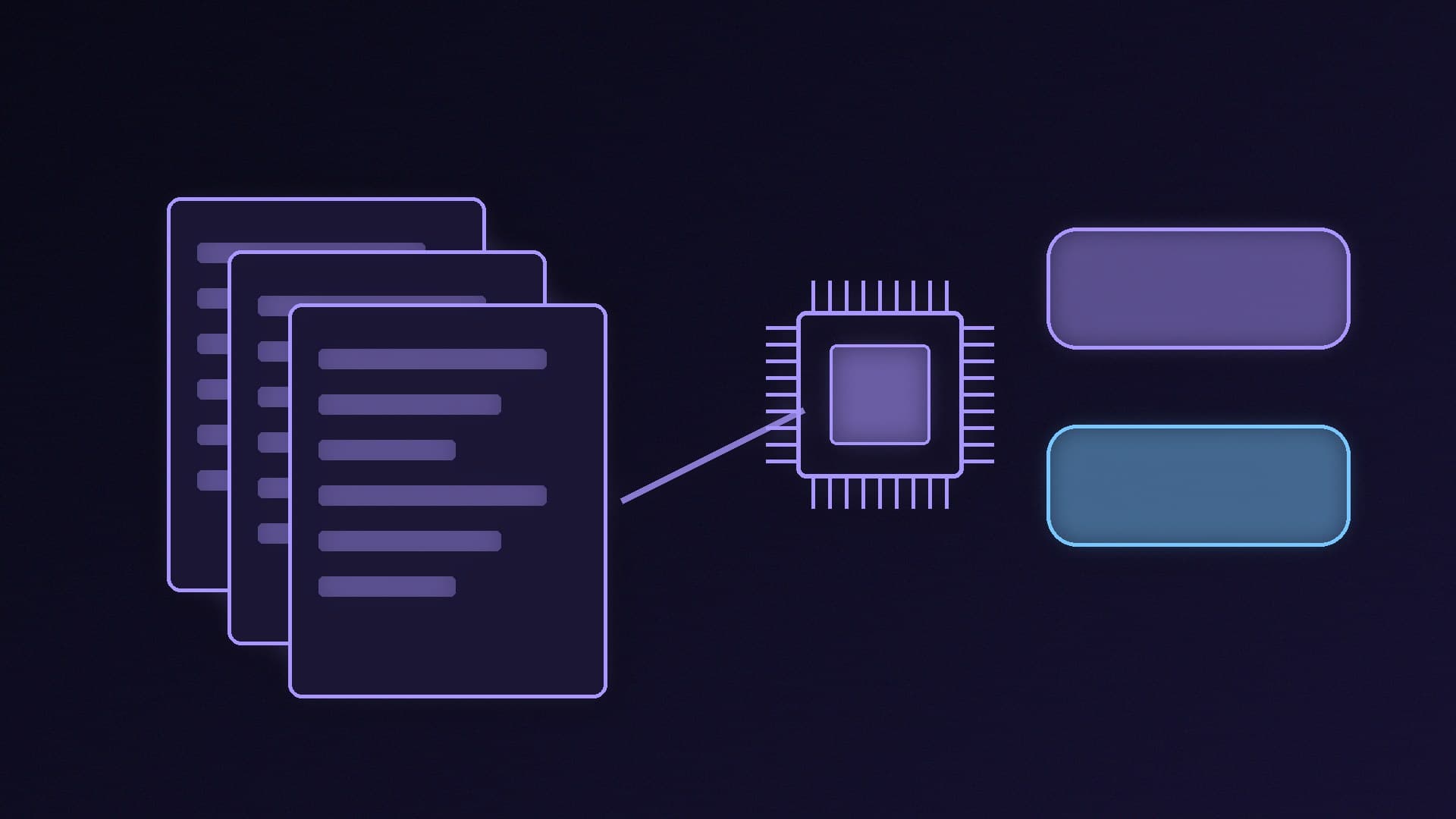
Embed it (RAG). For large documents, or a library you want every chat in the workspace to use, embed them. AnythingLLM splits the text into chunks, turns them into vectors and stores them in its built-in LanceDB vector database. When you ask a question, it retrieves the most relevant chunks and passes them to the model.
If an attached document is too big for the context window, AnythingLLM asks whether to cancel, continue anyway or embed it. The docs advise against "Continue Anyway", because the app will prune text to fit and answers become unreliable. Choose Embed.
Step 4: Ask better questions
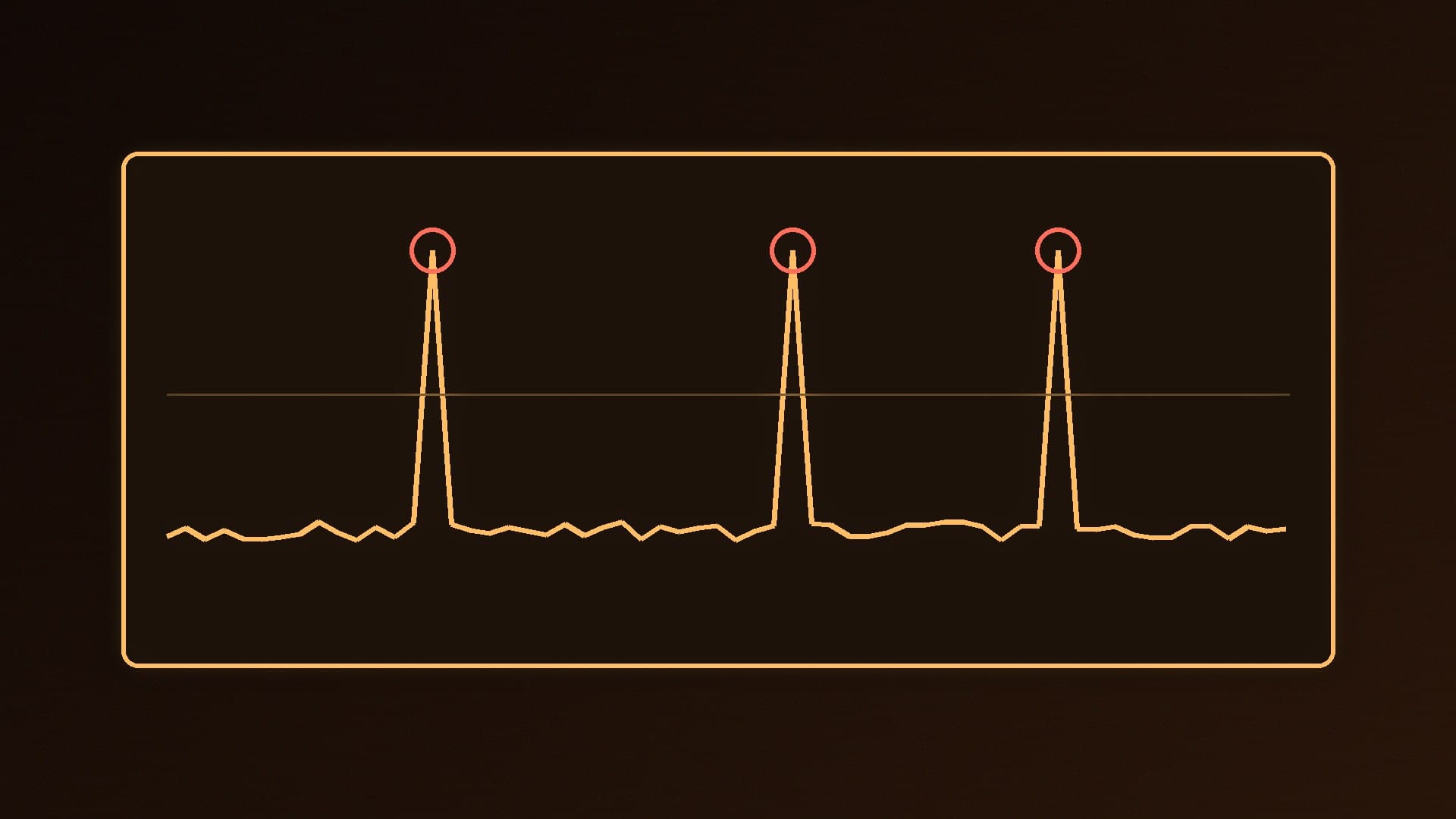
The most common complaint, according to AnythingLLM's own docs, is that "the LLM does not use my documents". The explanation is how RAG works: the model does not read your whole library, it sees a handful of chunks that match your question. Some tips from the docs:
Use Query mode in the workspace's chat settings if you want answers only from your documents. It will say when it cannot find relevant information instead of guessing.
Use the words in the document. Ask "How do I initialise the application?" if that is how the manual phrases it.
Loosen the similarity threshold if Query mode keeps finding nothing. In Workspace settings > Vector Database, set "Document similarity threshold" to "No restriction" and work up from there.
Try "Accuracy Optimized" search (reranking) if answers pick the wrong passages. The docs say it is slightly slower, adding roughly 100 to 500ms per response in their testing.
Do not ask questions that require reading every document at once, such as "list every invoice over £500". RAG is designed to find relevant passages, not to summarise an entire folder.
Keep it private
On the desktop app, AnythingLLM says its backend only listens on your own PC (127.0.0.1) by default. A setting called Enable network discovery exposes its API to your local network. The docs warn the desktop app has "no user accounts or authentication", so never expose it to the internet. And remember privacy only holds if your model is local; connect a cloud LLM provider and your prompts and retrieved text go to that provider.
Our verdict
AnythingLLM Desktop is a straightforward way to chat with your own files on a Windows PC without writing code. Install it for the current user, connect it to Ollama or use the built-in engine, attach small documents directly and embed larger ones, and use Query mode when you need answers that stick to your files. A graphics card with 8GB to 12GB or more of VRAM will make local models far more pleasant. We have not benchmarked AnythingLLM; the steps come from its official documentation.