Microsoft released KB5132057 on 19 November 2026, the optional non-security preview update for Windows 11 versions 26H2 and 25H2 (OS Builds 26300.10075 and 26200.10075). It's the update that brings the redesigned Windows Search to more PCs, along with a new Run dialog, faster search from This PC in File Explorer and a few gaming and accessibility tweaks. Microsoft also says there won't be a December 2026 preview update. This is a news report based on Microsoft's release notes and coverage from Thurrott and Windows Report; Forge PC hasn't tested the update on its own PCs, and because many features roll out gradually, you may not see all of them straight away even after installing it.
What's new in KB5132057
Microsoft splits the release notes into features that arrive through a gradual rollout (they reach devices over time) and fixes in the normal rollout (everyone who installs the update gets them). The headline items in the gradual rollout are:
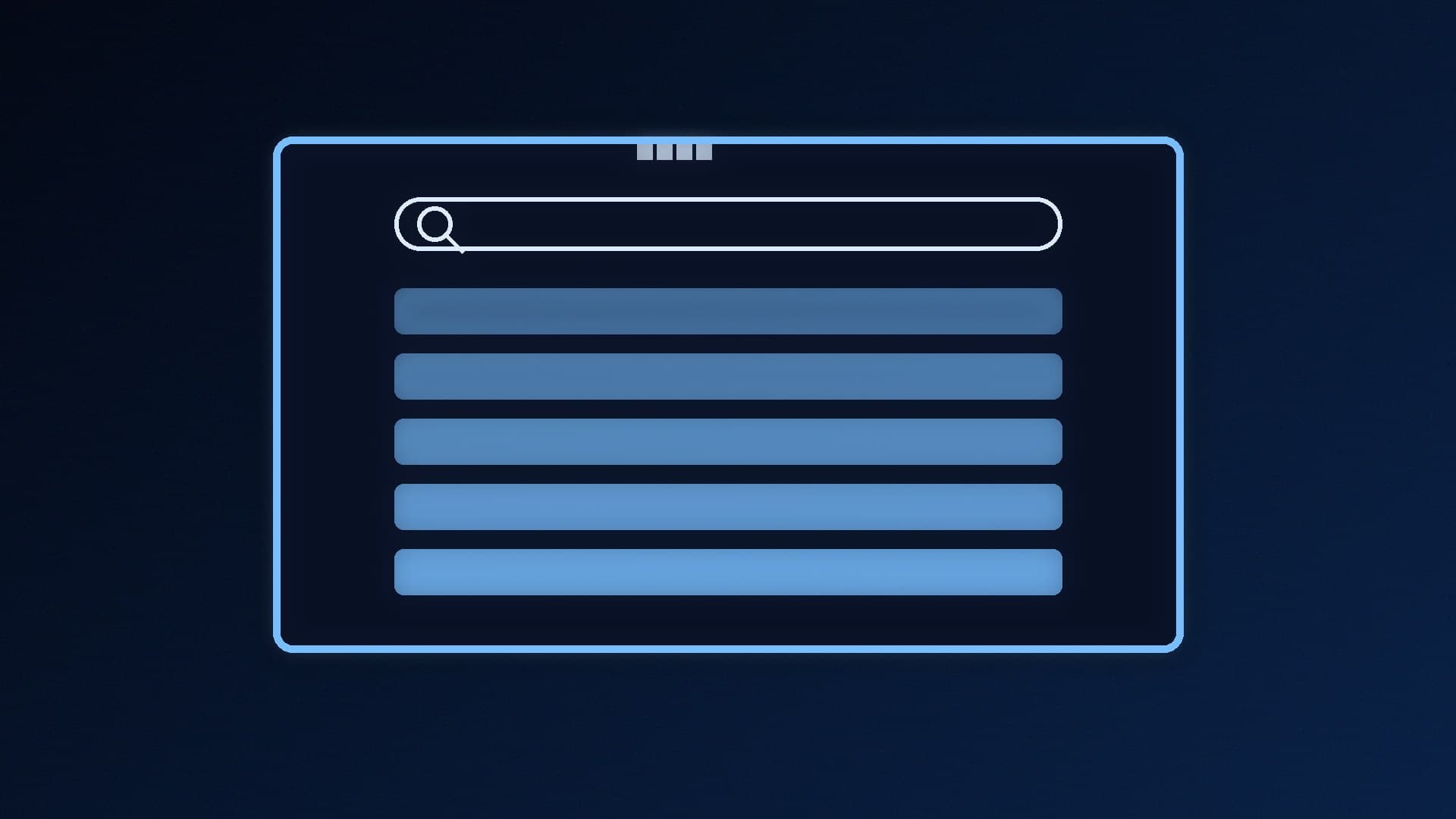
A new Windows Search. Results now appear in a single, simplified list, and Microsoft says the new design also improves performance and memory efficiency. You can complete some tasks directly from search without opening Settings, such as turning on dark mode or Bluetooth, adjusting screen brightness, muting your device or arranging open windows. Search can also preview files, show when a file was last modified and where it's saved, and better recognises typos and synonyms. Microsoft says the new experience is initially available in English.
Faster File Explorer search. Search from This PC is now indexer-based, which Microsoft says makes it "much faster" and consistent with searching from File Explorer Home.
A new Run dialog. The Win + R box gets a more modern design. It's optional: turn it on in Settings > System > Advanced with the New Run dialog switch.
Xbox mode Quick Settings. The Gaming Task View navigation bar in Xbox mode now gives access to the full set of taskbar Quick Settings without leaving Xbox mode.
Windows Hello in the dark. Facial recognition can temporarily brighten the screen to help you sign in in a dim room. The option is in Settings > Accounts > Sign-in options > Facial recognition (Windows Hello).
Pointer indicator. A new accessibility feature to help people with low vision find the mouse pointer, in Settings > Accessibility > Mouse pointer. Microsoft also says the update reduces visible cursor latency during screen captures, in scenarios such as game streaming.
Live captions choices. You can now caption system audio, microphone audio or both.
Smaller changes. The screen capture border changes from yellow to red, and Windows can notify you when an app you've installed adds a new widget.
Fixes worth knowing about
The normal-rollout fixes are mostly niche, but a few could matter on a home PC. Microsoft lists fixes for Miracast connections defaulting to a lower resolution on some wireless display receivers, cross-device passkey sign-in on Android phones showing a "Something went wrong" error, the "Someone else is using this PC" warning appearing when nobody else is signed in, and File History's restore screen failing to find backups on a selected drive. The only known issue listed when we checked affects SQL Server linked server connections on server devices, not typical gaming PCs.
Should you install it?
KB5132057 is an optional, non-security preview update. Thurrott notes that Microsoft released it a week earlier than usual, probably because of the US Thanksgiving holiday.
Our suggestion for gaming PCs is simple: if nothing in the list above fixes a problem you actually have, skip it and stick with the regular monthly security updates. If you do want the new search or Run dialog now:
Open Settings > Windows Update.
Look for the optional update listed as KB5132057 and select Download & install.
Restart when asked. Remember that many of the new features roll out gradually, so they may not appear immediately.
Create a restore point first if you like a safety net; our System Restore guide shows how. If the update gets stuck, see our Windows Update troubleshooting guide.
No December preview, and 26H2 is spreading
Microsoft's release notes say there will be no December 2026 non-security preview update in the second half of the month, because of minimal operations over the Western holidays and the new year. Normal monthly servicing resumes in January.
Separately, Windows Report says Microsoft expanded the automatic rollout of Windows 11 26H2 on 18 November 2026 to eligible personal and unmanaged business PCs running 24H2 or 25H2, so more PCs will be offered the feature update without a manual check. If you'd rather move now, our Windows 11 26H2 update guide covers it. This month's mandatory security update is covered in our KB5132061 story.
What it means for PC gamers
Microsoft doesn't bill anything in KB5132057 as a game performance improvement. The most useful changes for a gaming PC are the quicker File Explorer search, which relies on the Windows Search index (our 100% disk usage guide explains how indexing modes work), and the Xbox mode Quick Settings for anyone using a controller-first setup. If you use live captions with voice chat, the new audio source choice is handy too; see our Live Captions guide.
Our verdict
KB5132057 is a feature-heavy but optional preview. The new Windows Search, faster This PC search and modern Run dialog are welcome, but they roll out gradually and none of them is urgent for gaming. Unless one of the listed fixes solves a problem you have, there's no need to rush to install it. And note that there's no December preview this year, so the next batch of optional features arrives in January.