Everything below comes from Intel's product page, support articles, driver download page and driver release notes, all checked on 25 November 2026.
If you own an Intel Arc graphics card such as the Intel Arc B580 Limited Edition 12GB, or a laptop or desktop with recent Intel integrated graphics, Intel Graphics Software is the app you'll use to change graphics settings, check for drivers and monitor your GPU. It's Intel's equivalent of the NVIDIA App or AMD Software (we compare those two in NVIDIA App vs AMD Software).
Intel Graphics Software, Arc Control and Graphics Command Center
Intel has had three graphics apps in recent years, which is confusing. According to Intel's FAQ:
App | Released | Status |
|---|
Intel Graphics Software | November 2024 | Current app, with continual updates and improvements |
Intel Arc Control | March 2022 | End of life, no further changes |
Intel Graphics Command Center | November 2018 (Microsoft Store) | Only critical legacy fixes |
Intel says you can still use Arc Control or Graphics Command Center, but feature and stability updates now only come through Intel Graphics Software. Compared with Arc Control, Intel highlights more detailed overclocking controls and a low latency mode.
What you need
Intel's FAQ lists these minimum requirements:
Intel Xe Plus graphics (version 11) or later, or an Intel Arc dedicated graphics card
Windows 10 version 22H2 or later, or Windows 11 version 22H2 or later
Intel graphics driver 32.0.101.6325 WHQL or later
An internet connection
Intel also warns that features depend on your hardware and configuration, so some options may not appear on your PC.
Step 1: Install it with the graphics driver
Intel Graphics Software is installed with Intel's graphics driver. The Arc driver released on 4 November 2026 (version 32.0.101.9175 WHQL) lists Intel Graphics Software installer 26.36.2702.2 among its contents. That driver covers Intel Arc B-Series and A-Series graphics cards and Intel Core Ultra processors with Intel Arc graphics, and supports Windows 10 22H2 and Windows 11.
Download the latest driver from Intel's Arc Graphics Windows download page, or let Intel Driver & Support Assistant, Intel's own update tool (also bundled in the driver package), find it for you.
Run the installer and follow the prompts.
Open Intel Graphics Software from the Start menu.
Laptop owners, read this first: Intel's driver page warns that installing its generic graphics driver will overwrite the handpicked driver from your laptop or PC manufacturer. Check your manufacturer's support page before switching.
If you're moving from an NVIDIA or AMD card to Arc and want a clean start, see our DDU clean install guide.
Step 2: Find your way around
Intel describes Intel Graphics Software as a hub for drivers, settings, display options, monitoring and tuning. The main areas Intel lists are:
Graphics settings and per-app profiles. You can set options globally or for each game and app, and Intel says the software will apply your stored settings automatically when you switch to that game or app.
Image quality controls such as image sharpening and adaptive tessellation.
Options for older games: frame synchronisation and low latency mode for DirectX 9 and DirectX 11 titles.
XeSS Frame Generation override, which Intel says adds AI-generated frames to boost frame rates in supported cases.
Display options: display information, variable refresh rate, colour, scaling modes and display power-saving features.
Performance monitoring: live readouts of frame rate, memory usage, clock speed, temperature, voltage and more.
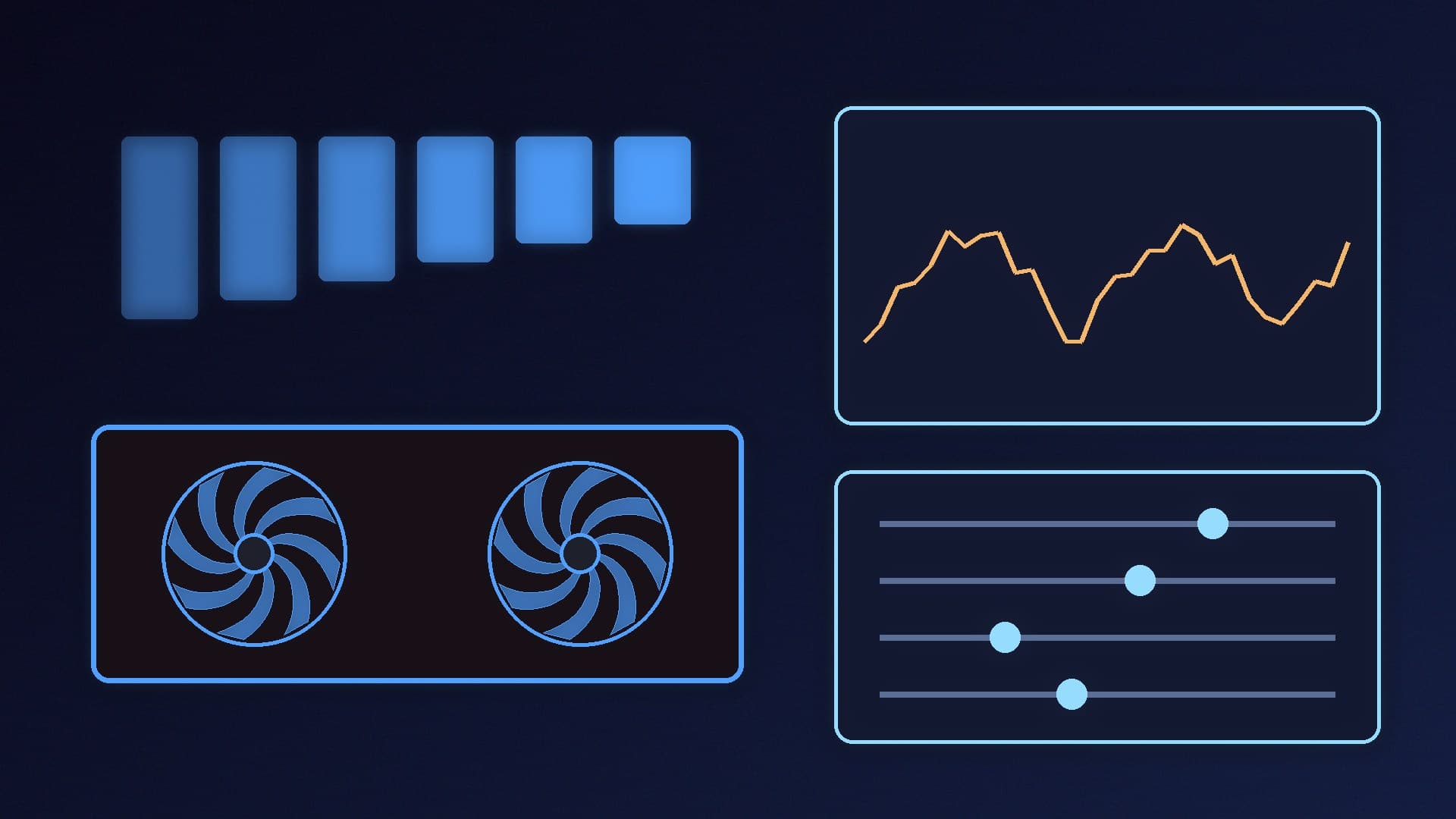
Performance tuning: frequency, voltage, fan, power and thermal controls, on select Arc graphics cards only.
Step 3: Set up per-game profiles
Profiles are the best reason to use the app. Rather than changing global settings that affect everything, make a profile for a specific game, change only what you need, and let Intel Graphics Software apply it when that game runs. Leave settings you don't understand at their defaults.
If a game stutters or tears, check the variable refresh rate (VRR) option in the display settings; our guide to turning on variable refresh rate in Windows 11 covers the Windows side. For frame rate limits, see how to cap your frame rate on PC.
Step 4: Watch your GPU with live metrics and the overlay
The performance monitoring section shows live frame rate, clock speed, temperature, voltage and memory usage. Early versions of Intel Graphics Software didn't have an in-game overlay like Arc Control did, but Intel says a Performance Overlay is available from Intel Graphics Software version 26.18.2353.2 onwards, so update if you can't find it.
If you see a repeated "Failed to Open Metrics Overlay" notification, Intel says this happened with version 26.14.2306.2 and isn't seen with 26.18.2353.2. Its advice is to install a newer driver; for Arc graphics it names driver 32.0.101.8860.
Intel's latest release notes also warn that the app may show incorrect values for certain metrics on its Performance page, so cross-check anything odd with another tool; our guide to checking GPU temperature in Windows 11 covers alternatives.
On select Arc graphics cards, Intel Graphics Software has tuning controls for frequency, voltage, fans, power and temperature limits. Before you touch them, note what Intel itself says:
It's still in beta. The November 2026 release notes say Performance Tuning is in beta and "performance and features may behave unexpectedly". In systems with two tuning-capable GPUs, changes may be applied to more than one device at once rather than just the one you selected.
Fan target speed may not work as expected. Intel lists a known issue where Target Speed in Fan and Thermal Tuning may not change fan speed as expected.
There are real risks. Intel's overclocking disclaimer says altering clock frequency or voltage may damage or reduce the useful life of components, may reduce stability, and that product warranties may not apply outside specifications.
Big VRAM changes caused crashes in early drivers. Intel's support article says VRAM tuning wasn't re-applied after a reboot and that big changes could crash the system, fixed in driver 32.0.101.6632.
If you want to try it, change one thing at a time in small steps and keep a note of what you changed so you can go back. If your aim is lower temperatures and noise rather than more speed, our GPU undervolting guide explains that approach.
Shared GPU memory on laptops
On Intel Core Ultra laptops and mini PCs with integrated Arc graphics, Intel Graphics Software can override how much system memory the GPU may share. Intel's release notes warn that this Shared GPU memory override may not show the actual value allocated to the GPU. Our guide to increasing shared GPU memory on Intel Core Ultra covers the details.
If Intel Graphics Software is missing
Intel has a support article for when the driver installs but the app doesn't. Its first fix is to install driver 32.0.101.6559 or newer. If that doesn't work, Intel's workaround is:
Install 7-Zip or a similar archive tool.
Right-click the driver installer file and open it in the archive tool.
Go to the Resources/Extras folder.
Extract the Intel Graphics Software installer.
Double-click the extracted installer to install the app.
Intel's separate article for when the app won't open or reinstall says running the same extracted installer will first uninstall Intel Graphics Software if it's still detected; run it again to install it.
Privacy setting
Intel's FAQ says the app only collects anonymous usage data, and you can opt out under Settings > Preferences > Analytics by turning off Allow Data Collection. Its support link is under Settings > Support > Contact Intel Support.
Our verdict
Intel Graphics Software is the app to use with an Intel Arc graphics card or recent Intel integrated graphics: Arc Control is end of life, and new features only arrive here. Install it with the latest Intel driver (on laptops, check your manufacturer's driver first), use per-game profiles rather than global changes, turn on the Performance Overlay if you want in-game stats, and treat the beta Performance Tuning page with caution. If you're still choosing a card, our Arc B580 vs Arc B570 comparison is a good place to start.