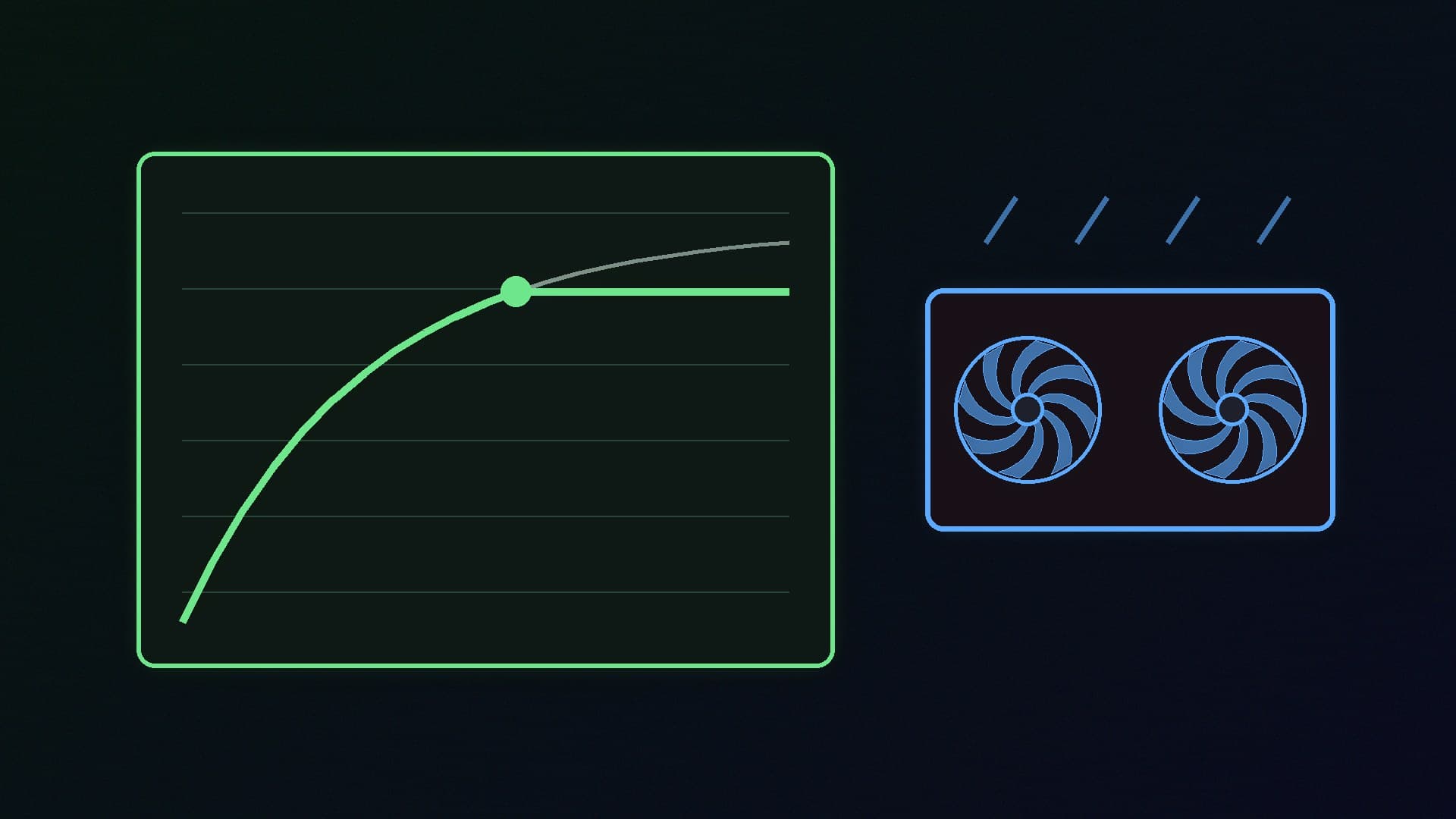
Undervolting means running your graphics card at a lower voltage than the factory setting. Done well, the card draws less power, runs cooler and makes less fan noise, while staying close to its normal performance. It is one of the most useful tweaks for a hot, loud PC, a small case, or a card that pushes a modest power supply hard.
This guide follows the methods published by MSI for MSI Afterburner and by AMD for AMD Software: Adrenalin Edition. Forge PC has not tested specific undervolt settings, and we do not give target voltages or performance figures, because every graphics chip behaves differently. MSI calls this the "silicon lottery": two cards of the same model may settle at different voltages.
Before you start
Know what you are changing. Undervolting lowers voltage, which reduces heat and power. If you go too low, the card becomes unstable, which usually shows up as a game crash, a driver reset or a black screen. Undervolting does not normally damage hardware, but AMD's own tuning page carries an overclocking warning, and changing GPU settings outside factory defaults may affect your warranty. Check your card maker's terms.
Update your graphics driver first, using our driver update guide.
Get monitoring running. You need to see temperature, clock speed, power and voltage while you test. Our guide to monitoring temps and FPS with HWiNFO and Afterburner shows how to set up an on-screen display.
Record a baseline. Run a demanding game or benchmark at default settings and note temperatures, clocks and performance. Our Cinebench and 3DMark guide explains how to run repeatable benchmarks.
NVIDIA: the simple method with MSI Afterburner
Guru3D lists NVIDIA and AMD GPU support for MSI Afterburner, and you do not need an MSI-branded card to use it. Download it only from MSI or Guru3D: Guru3D says these are the only two sites allowed to distribute it, and warns that copies elsewhere may contain malware. Guru3D also recommends a final build rather than a beta for most people.
MSI's simplest method is not a true voltage change at all. It limits how much power the card can draw, and the card then picks the lowest stable voltage to stay within that budget:
Start a demanding game or MSI Kombustor and let it run for a minute to get baseline readings.
In Afterburner's main window, find the Power Limit (%) slider.
Drag it to the left. MSI suggests starting at around 85% or 80%. The lowest setting available varies by card.
Click Apply, then watch voltage, clock speed and power drop on the on-screen display.
This costs some performance, but it is quick, easy to reverse and very unlikely to cause instability.
NVIDIA: the advanced method with the curve editor
For a better result, MSI's guide uses Afterburner's voltage/frequency curve editor. Set the Power Limit back to 100% and click Reset first.
Click Curve Editor, under the Core Voltage slider in Afterburner.
Find the point on the curve that matches your card's normal boost clock and voltage under load. Note both values.
Choose a lower voltage point on the curve and click it.
Hold Shift and drag that point upwards until it reaches your card's normal boost clock.
Press L twice to lock the point. A dotted horizontal line should appear.
Click Apply.
Now test with a game or Kombustor. If it is stable, repeat with a slightly lower voltage. MSI recommends lowering in 25mV or 50mV steps so you can track stability. When it crashes, go back to the last stable point and lock that.
MSI also describes a second approach: choose a much lower voltage and accept a lower clock speed. You raise the clock at that voltage in steps of around 50MHz, and back off by 50 to 100MHz if you see crashes. This saves more power and heat in exchange for some performance.
AMD: undervolting in AMD Software
AMD builds tuning into its driver. Open AMD Software: Adrenalin Edition, type "Tuning" into the search box and click the Performance Tuning result. AMD notes that tuning needs the full installation of AMD Software, and that the options vary by card.
The easy option is the Undervolt GPU preset. AMD says it "reduces voltage and maintains clock speeds to improve performance/watt". It is only available on select GPUs.
For manual control, enable GPU Tuning and Advanced Control. AMD explains that the Voltage slider offsets the entire voltage/frequency curve. For example, moving from a default of 1150mV to 1125mV applies a -25mV offset across the whole curve. These sliders are available on Radeon RX 6000 series cards and later.
Power Tuning lets you lower the Power Limit (%), which works like the simple NVIDIA method above.
AMD Software has a built-in Stress Test to check your settings. Its default duration is 60 seconds, and you can make it longer. AMD says that if the stress test crashes or reboots the system, the software resets your tuning to default values. You can also click the Reset icon at any time to go back to factory settings.
How to test that your undervolt is stable
A short stress test is a start, not proof. A setting that survives one minute can still crash in a particular game an hour later.
Play the games you actually play for an hour or two at your new settings.
Watch for crashes, driver timeouts, flickering or stutter.
Compare temperatures, clocks and frame rates with your baseline. If performance has fallen more than you are happy with, raise the voltage or clock slightly.
If you see problems, step back to the last setting that worked.
Saving your settings safely
Afterburner lets you save settings to numbered profiles, and lock them so they are not overwritten. It also has an Apply at Windows Startup button. MSI warns that applying unstable settings at startup can cause boot loops or blue screens. Only use it once you are confident the settings are stable. If something goes wrong, MSI says you can hold Ctrl during start-up to stop Afterburner applying them.
When undervolting helps most
Hot or noisy cards, especially in compact cases. Our overheating guide covers airflow fixes too.
Power-hungry high-end cards where you want lower heat with little performance loss.
Marginal power supplies, though undervolting is not a substitute for a suitable PSU. See how to choose a PSU.
Our verdict
Undervolting is a low-risk way to make a graphics card cooler and quieter. On NVIDIA cards, start with the Power Limit slider in MSI Afterburner, then try the curve editor in 25mV to 50mV steps. On Radeon cards, try AMD Software's Undervolt GPU preset or lower the Voltage slider, then run the built-in Stress Test. Always test in real games before you make settings permanent. Forge PC has not tested specific settings; results vary from card to card, so treat any voltage you see online as a starting point, not a guarantee.