This guide is based on Intel's support articles for the Shared GPU Memory Override feature and Intel's graphics driver release notes, read on 24 November 2026.
If you run local AI models on a laptop or mini PC with an Intel Core Ultra processor, the built-in Intel Arc graphics doesn't have its own video memory. It borrows system RAM instead, and by default Windows and the driver limit how much it can use. That limit decides how big a model you can load onto the integrated GPU in apps such as LM Studio, before the app has to fall back to the slower CPU.
Intel added a setting called Shared GPU Memory Override to Intel Graphics Software to let you change that limit. AMD has a similar feature for Ryzen processors, covered in our guide to setting AMD Variable Graphics Memory.
What Shared GPU Memory Override does
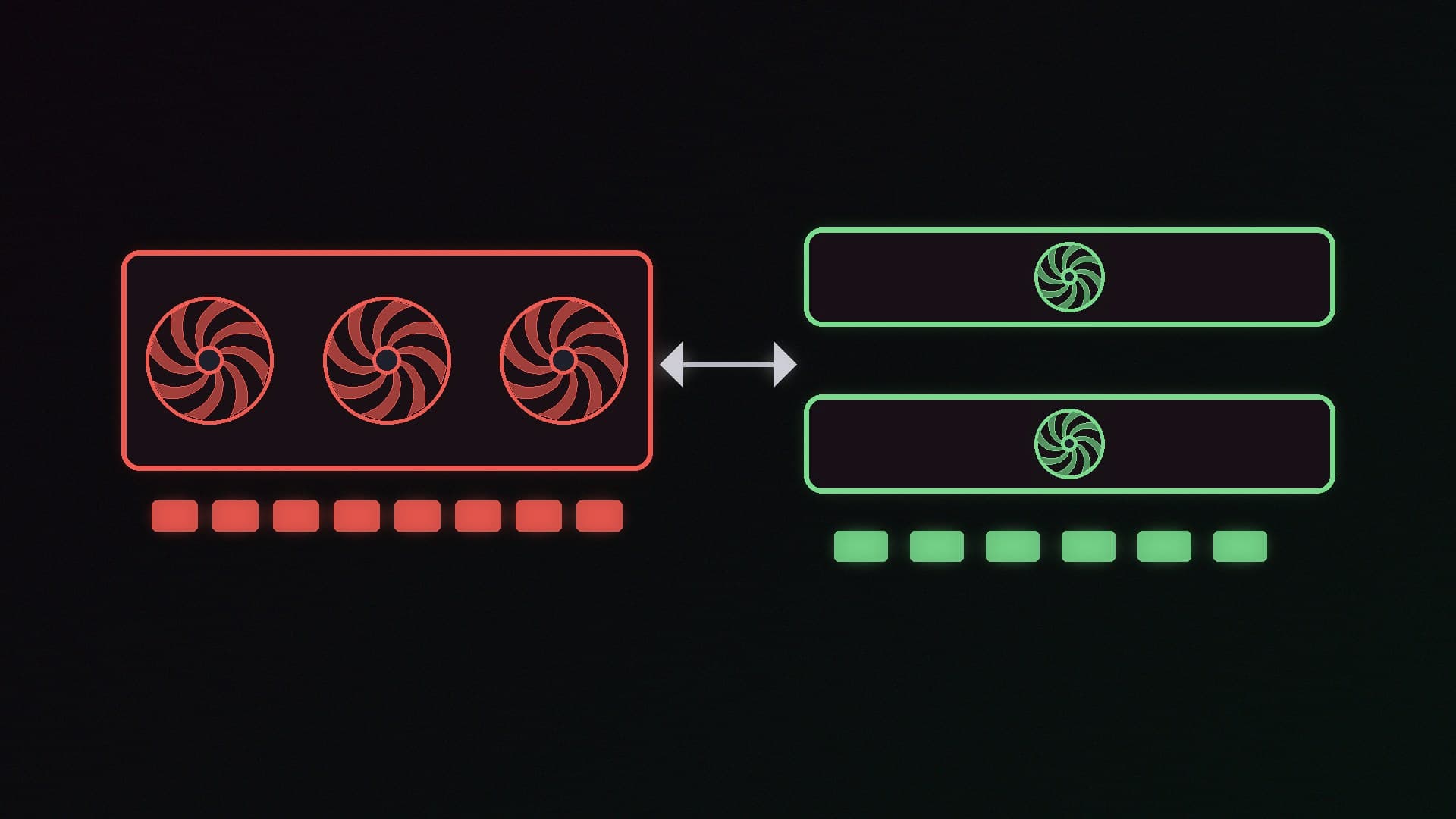
According to Intel, the setting is exclusive to integrated graphics and lets you balance the GPU's memory needs against the rest of the system. Apps with high GPU memory needs may benefit from a higher limit, and apps that need lots of CPU memory may benefit from a lower one. Intel says memory the GPU isn't using remains available to the rest of the system.
The setting is a percentage of your system RAM. Intel lists the default as 57%, and says the maximum you can choose depends on how much RAM is installed: the more RAM you have, the higher the maximum percentage.
As a worked example of the arithmetic (our calculation, not Intel's figure), 57% of a 32GB laptop is about 18GB, so raising the percentage is how you'd let the iGPU address more of that 32GB. Leave enough for Windows and your other apps, though, because the GPU and CPU are sharing the same pool.
Which PCs support it
Intel's current requirements article lists:
Requirement | Minimum |
|---|
Processor | Intel Core Ultra Series 2 or later |
System memory | At least 10GB |
Intel Graphics Software | Version 25.26.1602.2 or newer |
Intel graphics driver | Version 32.0.101.6974 or newer |
Intel's release notes for driver 32.0.101.6987 (August 2025) said the control was supported on built-in Arc GPUs in select Core Ultra Series 1 and Series 2 processors. Intel's support article now lists Series 2 or later as the requirement, so if you have a Series 1 chip such as the Core Ultra 7 155H, don't be surprised if the option isn't there.
There's another catch for laptops. Intel's community support staff have said the feature's availability can depend on the laptop maker's BIOS and driver customisations, and in one case they told a Core Ultra 7 258V owner that their manufacturer-supplied driver was too old for the setting and that Intel's generic driver would unlock it. Intel's generic drivers may not be tuned for your specific laptop in the way the manufacturer's drivers are, so weigh that up first.
How to change Shared GPU Memory Override
Check your processor. Open Settings > System > About and look at the processor name. You need a Core Ultra Series 2 chip or newer, such as a Core Ultra 200V model.
Update the graphics driver and Intel Graphics Software. Install your laptop maker's latest graphics driver or Intel's Arc graphics driver for Windows, and make sure Intel Graphics Software is installed and up to date (version 25.26.1602.2 or newer). Your driver must be 32.0.101.6974 or newer.
Open Intel Graphics Software from the Start menu.
Find Shared GPU Memory Override in the app's settings. Its exact position can change between versions of Intel Graphics Software.
Move the slider to the percentage you want. Start with a moderate increase rather than the maximum.
Restart your PC. Intel says the change only takes effect after a restart.
Check the result. Open Task Manager > Performance > GPU and look at the shared GPU memory figure, or see our guide to checking VRAM usage in Windows.
If the setting is missing or won't save
Option not shown: check your processor generation and driver version against the table above. If your laptop maker's driver is older than 32.0.101.6974, Intel's support staff suggest its generic Arc driver. Intel's support team has also recommended a clean reinstall (uninstall Intel Graphics Software, remove the old driver with Display Driver Uninstaller, then install the latest driver) when the option disappears after an update. Our guide to clean-installing graphics drivers with DDU shows how.
Values below 50% don't save: Intel has a known-issue article for Core Ultra Series 2 and Series 3 systems saying the setting doesn't save if the value is below 50%. Intel says it's investigating; for AI use you'll normally be raising the value anyway.
System feels slower: Intel warns that changing the setting may affect system performance. If it does, lower the value or turn the override off.
Once the limit is raised, apps that run models on the integrated GPU can load larger models or longer contexts before spilling over to the CPU. In LM Studio, adjust how many layers go to the GPU with our guide to setting GPU offload in LM Studio. For a wider overview of running models on integrated graphics, read how to run a local LLM on integrated graphics and running local AI on Intel Arc. If your Core Ultra chip has an NPU you'd rather use, see running an LLM on an Intel NPU with OpenVINO.
Remember that sharing memory doesn't create more of it. On a 16GB laptop, giving the GPU a bigger slice leaves less for Windows and your apps, which is why our guide to how much RAM you need for local AI recommends more memory for this kind of work. Our unified memory vs VRAM explainer covers why shared memory is usually slower than a dedicated graphics card's VRAM.
Our verdict
To increase shared GPU memory on an Intel Core Ultra PC, update to graphics driver 32.0.101.6974 or newer and Intel Graphics Software 25.26.1602.2 or newer, open Intel Graphics Software, raise the Shared GPU Memory Override slider above the 57% default, then restart. Intel lists Core Ultra Series 2 or later and at least 10GB of RAM as requirements, and the maximum depends on how much RAM you have. If the option is missing on a laptop, your manufacturer's driver may be too old. Raise it in moderate steps, and leave enough memory for Windows and your other apps.