Skip to content

How-ToGPU

How to Set GPU Offload in LM Studio (and Fit Bigger Models in Your VRAM)

GPU offload sets how many model layers LM Studio keeps in your graphics card's VRAM. Offload everything when the model and context fit; if not, cut the context length first, then lower offload. Change it in the load settings and save it per model from My Models, or use lms load --gpu max, 0.5 or off, with --estimate-only to check memory first.

By , Editorial team

3 min read

How to Set GPU Offload in LM Studio (and Fit Bigger Models in Your VRAM)

When you load a language model in LM Studio, one setting matters more than most for speed: GPU offload. It controls how much of the model is stored in your graphics card's video memory (VRAM). Whatever doesn't fit stays in system RAM and runs on the CPU, which is much slower. Getting this right is how you run a model that's slightly too big for your GPU without it grinding to a halt.

This guide is based on LM Studio's and llama.cpp's official documentation. Forge PC hasn't benchmarked offload settings, and speeds vary a lot by GPU, model and context length.

What GPU offload actually does

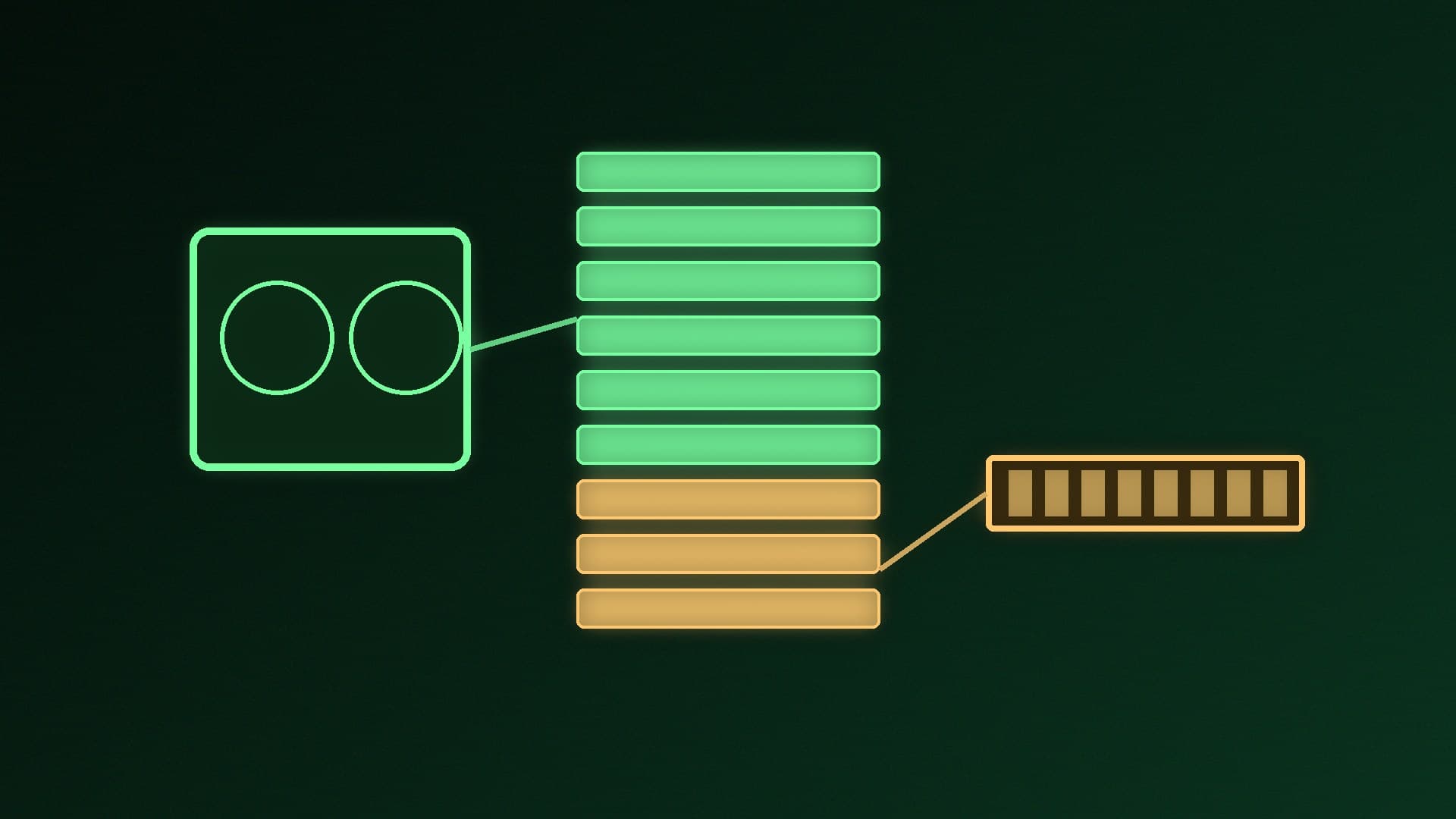
Language models are made of layers. The open-source llama.cpp engine, which runs the same GGUF model files, describes its equivalent option (--n-gpu-layers) as the "max. number of layers to store in VRAM". With full offload, every layer sits in VRAM. With partial offload, some layers stay in system memory and are processed by the CPU.

Two things compete for VRAM:

Option 1: set it when you load a model in the app

  1. Open LM Studio and choose a model to load.

  2. LM Studio's docs say that when you load a model, you can change its load settings before it loads. These include GPU offload and context length.

  3. If the model fits comfortably, offload all layers. If loading fails or your system slows to a crawl, reduce the context length first, then lower GPU offload.

  4. To make the settings stick, save them as the model's defaults. LM Studio's docs say you can do this from the load settings, or later from the My Models tab by clicking the gear icon next to a model. Per-model defaults can include GPU offload, context size and Flash Attention.

Option 2: use the lms command line

LM Studio's lms command-line tool takes a --gpu flag when loading a model. According to the docs:

lms load <model_key> --gpu max   # offload all layers to the GPU
lms load <model_key> --gpu 0.5   # offload 50% of layers
lms load <model_key> --gpu off   # disable GPU offloading

If you don't set --gpu, LM Studio decides automatically. Run lms ls to list your downloaded models and find the model key.

Estimate memory before you load

The most useful flag for tight VRAM is --estimate-only. It prints a memory estimate and exits without loading the model:

lms load --estimate-only <model_key> --gpu max --context-length 8192

LM Studio says the estimate honours the --gpu and --context-length flags and accounts for context length, Flash Attention and whether the model has vision support. Try a few combinations until the GPU estimate fits within your card's VRAM, leaving some room for Windows and other apps.

Check how much VRAM you're really using

Open Task Manager's Performance tab, or follow our guide to checking VRAM usage. If dedicated GPU memory is full, lower the offload or the context length and reload the model.

What if a model just won't fit?

If you use llama.cpp directly, the same control is -ngl (or --n-gpu-layers), which accepts an exact number, auto or all, and defaults to auto. See our llama.cpp on Windows guide.

Our verdict

GPU offload sets how many model layers live in VRAM. Offload everything when the model and context fit; when they don't, cut the context length first, then lower the offload. In LM Studio, change it in the load settings and save it as the model's default from My Models. On the command line, use lms load --gpu max, 0.5 or off, and run --estimate-only first to check memory without loading.
The bottom line

GPU offload sets how many model layers live in VRAM. Offload everything when the model and context fit; when they don't, cut the context length first, then lower the offload. In LM Studio, change it in the load settings and save it as the model's default from My Models. On the command line, use `lms load --gpu max`, `0.5` or `off`, and run `--estimate-only` first to check memory without loading.

Sources

  1. 01LM Studio Docs, lms load
  2. 02LM Studio Docs, Per-model Defaults
  3. 03llama.cpp, llama-server README (--n-gpu-layers)

About the author

Forge PC Staff

Editorial team

The shared byline for articles researched, written and edited by the Forge PC editorial team. How we source, check and correct our work is set out in our editorial policy.

More from Forge PC Staff

Read next

HDR10 vs HDR10+ vs Dolby Vision on PC: What Your Monitor's HDR Badge Means

Versus

HDR10 vs HDR10+ vs Dolby Vision on PC: What Your Monitor's HDR Badge Means

HDR10 uses static metadata and is the format Windows HDR is built around. HDR10+ adds royalty-free dynamic metadata, and HDR10+ Gaming certifies both monitor and GPU. Windows picks Dolby Vision automatically on certified monitors, but Microsoft warns some cap brightness in that mode. Panel brightness and contrast matter more than the badge.

Forge PC Staff3 min

How to Fix Games Crashing on PC: A Step-by-Step Checklist for Windows 11

How-To

How to Fix Games Crashing on PC: A Step-by-Step Checklist for Windows 11

Most PC game crashes come from drivers, corrupted files or unstable overclocks. Update, roll back or clean-install the graphics driver, verify the game's files, run DISM and SFC, and reset GPU and memory tuning to stock. If crashes continue, check temperatures, test RAM with MemTest86 and look at the power supply.

Forge PC Staff3 min

KoboldCpp vs LM Studio: Which Local AI App Should You Use?

Versus

KoboldCpp vs LM Studio: Which Local AI App Should You Use?

KoboldCpp is a single, install-free executable built on llama.cpp, with CUDA and Vulkan builds plus image, speech and agent features and a story-writing UI. LM Studio is a polished app that finds and downloads models for you and serves them over an OpenAI-like API. LM Studio suits most people; KoboldCpp suits tinkerers and writers.

Forge PC Staff3 min

How to Use Radeon Chill: Cut Power, Heat and Fan Noise on AMD Graphics Cards

How-To

How to Use Radeon Chill: Cut Power, Heat and Fan Noise on AMD Graphics Cards

Radeon Chill lowers your frame rate when there's little movement in a game and ramps it up when the action starts, saving power and heat. Turn it on in AMD Software's Global Graphics, set Min and Max FPS, override per game and toggle it with Alt+F11. It disables Anti-Lag and Boost and doesn't work with UWP games.

Forge PC Staff3 min