When you run a large language model locally, the model file isn't the only thing that has to fit in memory. The context length, the number of tokens the model can "see" at once, also takes memory, and it can be the reason a model that fitted your graphics card suddenly spills onto the CPU and slows down.
Forge PC hasn't benchmarked specific models for this explainer. It's based on Ollama's documentation and Hugging Face's guide to the KV cache.
What context length means
Ollama defines context length as the maximum number of tokens the model has access to in memory. Your prompt, any documents you paste in, the chat history and the model's reply all count towards it. When a conversation exceeds the context window, older material falls out and the model can no longer refer to it.
Ollama's documentation says tasks that need a large context, such as web search, agents and coding tools, should be set to at least 64,000 tokens.
Why it uses memory: the KV cache
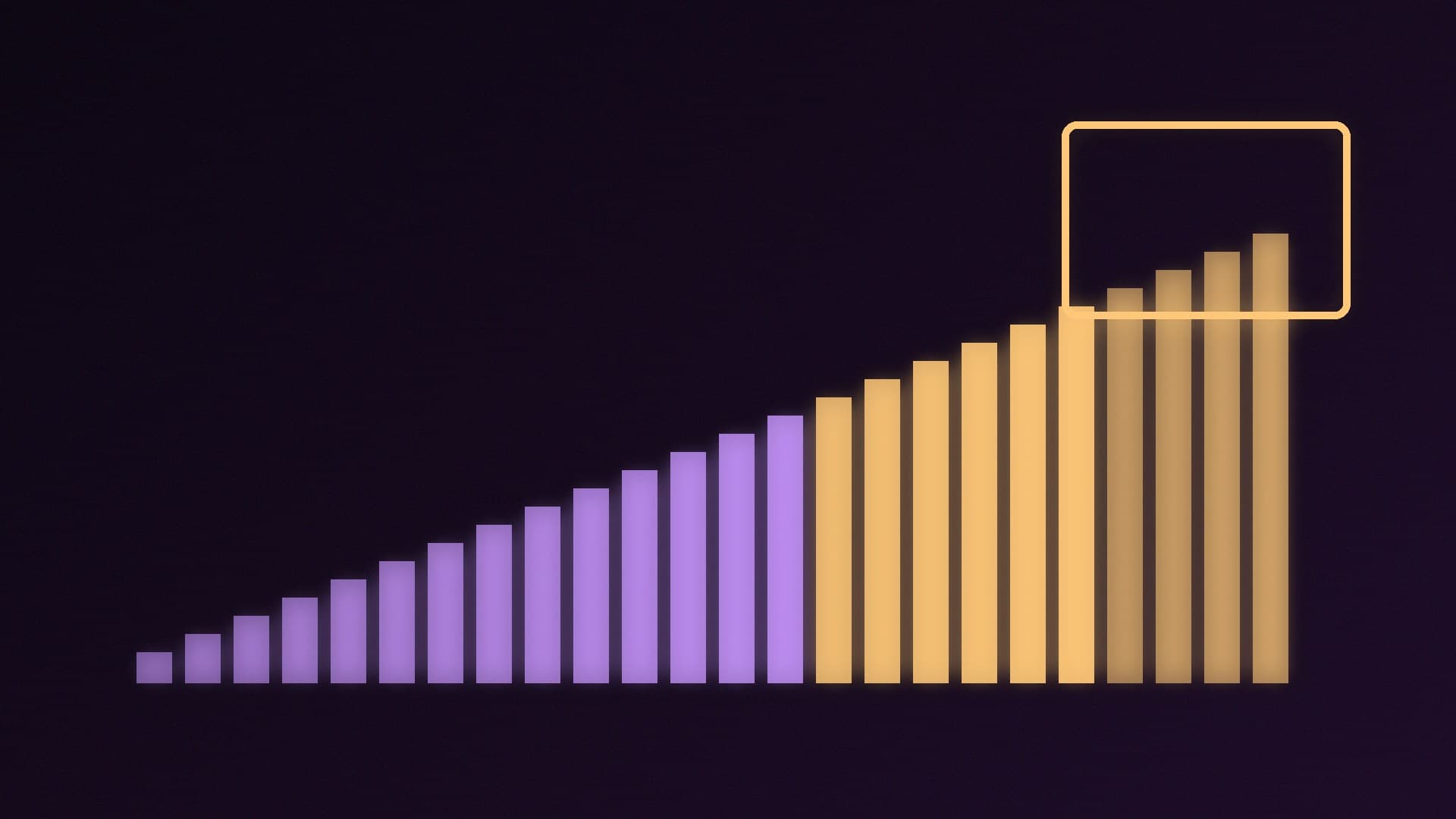
As a model processes text, it stores intermediate results for every token, called the key-value (KV) cache, so it doesn't have to recompute them for each new word. Hugging Face's documentation explains that the KV cache can occupy a significant portion of memory and become a bottleneck for long-context generation. The longer the context, the bigger the cache.
So total memory use is roughly the model weights plus the KV cache plus some overhead. Ollama warns that setting a larger context length will increase the amount of memory required to run a model, and that you should make sure you have enough VRAM before raising it.
Ollama's defaults
Ollama's context length documentation says it picks a default based on your VRAM:
Your VRAM | Default context |
|---|
Under 24GiB | 4k tokens |
24-48GiB | 32k tokens |
48GiB or more | 256k tokens |
That means most gaming graphics cards, with 8GB to 16GB, start at a 4k context. That is fine for short chats, but too small for long documents or coding agents.
How to change the context length in Ollama
Ollama's documentation lists several methods:
Ollama app: move the context length slider in Settings.
For the whole server: start it with the OLLAMA_CONTEXT_LENGTH environment variable, for example OLLAMA_CONTEXT_LENGTH=64000 ollama serve.
In a chat: type /set parameter num_ctx 8192 inside ollama run.
Through the API: pass "num_ctx" in the request options.
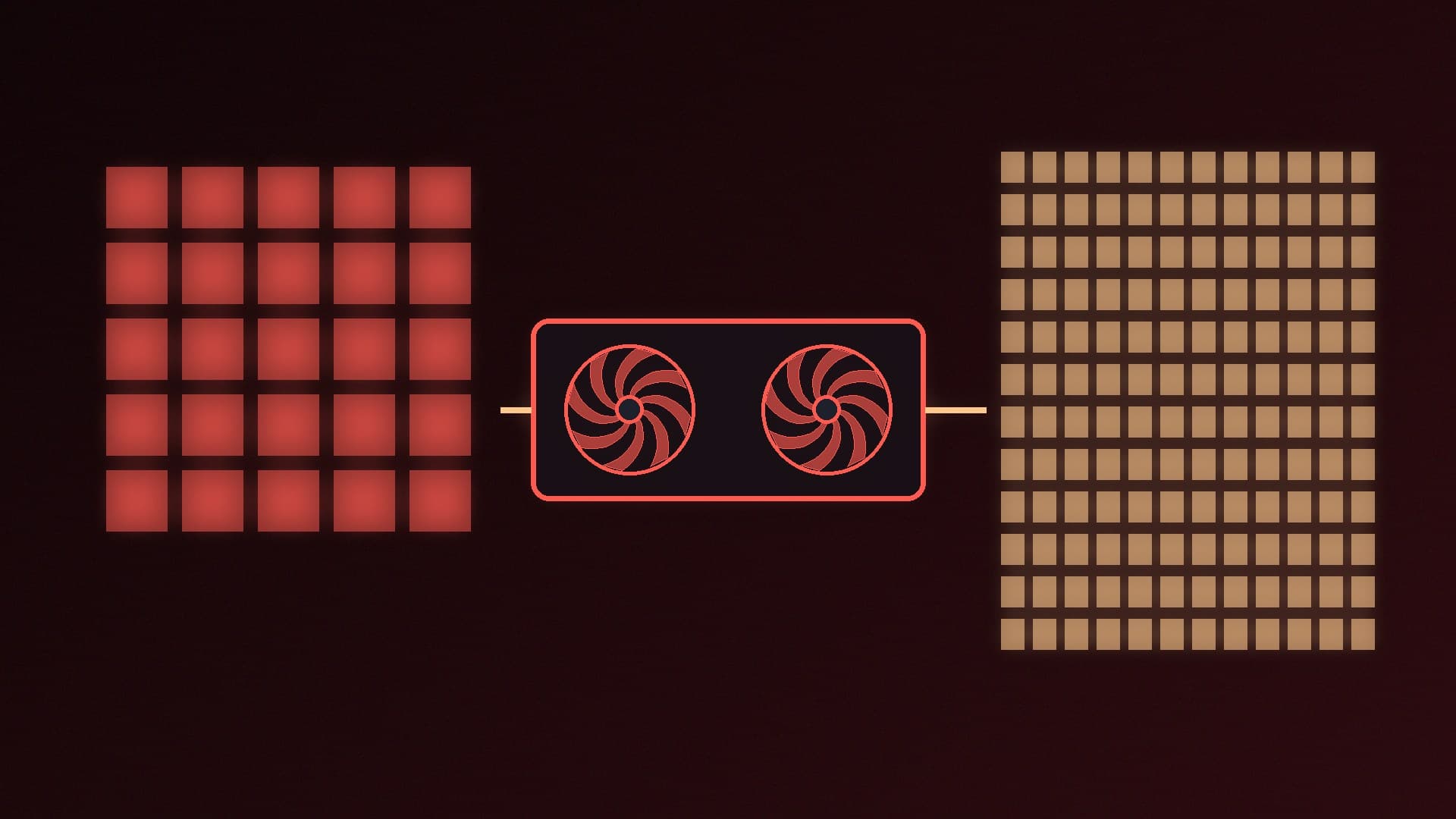
Then run ollama ps. Its PROCESSOR column shows how much of the model is on the GPU (ideally "100% GPU") and the CONTEXT column shows the allocated context. Ollama recommends avoiding offloading the model to the CPU for best performance. If raising the context pushes part of the model onto the CPU, expect generation to slow sharply.
How to fit a longer context into your VRAM
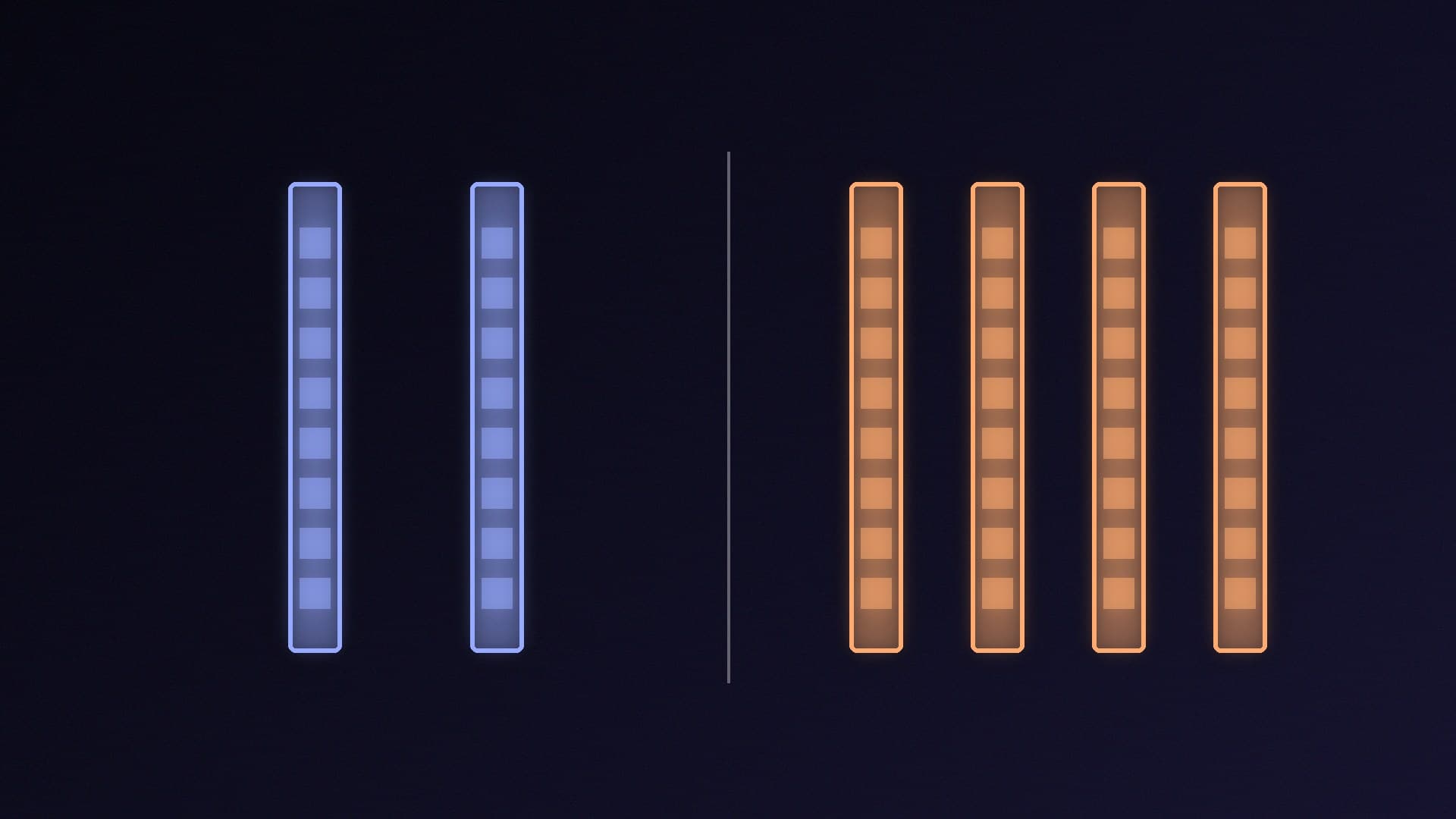
Quantise the KV cache. With Flash Attention enabled, Ollama lets you set OLLAMA_KV_CACHE_TYPE. Its FAQ says q8_0 uses about half the memory of the default f16 with a very small loss in precision, and q4_0 about a quarter, with a small-to-medium loss that may be more noticeable at higher context sizes. The setting applies to all models.
Check Flash Attention. Ollama's FAQ says Flash Attention can significantly reduce memory use as the context grows, and that Ollama uses it automatically where the backend and hardware support it.
Use a smaller or more heavily quantised model. Freeing space from the weights leaves more for context. Our GGUF quantisation explainer covers the trade-offs.
Only ask for what you need. A 4k-8k context is enough for most quick questions; save 32k and above for long documents and coding.
To see how much memory a model is really using, follow our guide to checking VRAM usage in Windows. For more speed tips, see how to speed up a local LLM in Ollama, and for buying advice, how much VRAM you need.
Our verdict
Context length is the hidden cost of running AI locally: every extra token of context adds to the KV cache, which competes with the model for VRAM. Ollama defaults to 4k tokens on cards with under 24GiB, so raise it deliberately, check ollama ps to make sure the model stays 100% on the GPU, and use a q8_0 KV cache to roughly halve cache memory if you need more room. Forge PC hasn't benchmarked these settings; the details come from Ollama's and Hugging Face's documentation.