Skip to content

VersusCPU

Two vs Four RAM Sticks for DDR5: Why 2x32GB Usually Beats 4x16GB

Two DDR5 sticks are better for most builds. AMD lists DDR5-5600 as the AM5 maximum with two modules but DDR5-3600 with four, and XMP or EXPO speeds above that are overclocking and not guaranteed. Buy 2x16GB or 2x32GB for 32GB or 64GB, and use four sticks, ideally a matched kit, only if you need 128GB or more.

By , Editorial team

3 min read

Two vs Four RAM Sticks for DDR5: Why 2x32GB Usually Beats 4x16GB

With DDR4, filling all four memory slots was often harmless. With DDR5 it's a trade-off that catches out a lot of builders: four modules put more load on the CPU's memory controller, and the officially supported speed drops sharply. If you're choosing between 2x32GB and 4x16GB for 64GB, or planning to add a second kit later, this is what you need to know.

Forge PC hasn't tested memory configurations for this comparison, and there are no benchmark figures here. It's based on AMD's and Intel's official processor specifications and Kingston's FURY Beast datasheets, checked on 17 November 2026.

Channels vs sticks

Mainstream desktop processors have two memory channels: AMD lists two for the Ryzen 7 9700X, and Intel lists two for the Core Ultra 9 285K. Two sticks, one per channel, already give you dual-channel memory. Four sticks don't add channels: they put two modules on each channel (often called 2DPC, or two DIMMs per channel). Our single vs dual channel RAM guide explains why dual-channel matters.

The official speeds

AMD's specification page for the Ryzen 7 9700X lists these maximum memory speeds:

Configuration

AMD's listed max speed

2 modules, single-rank (2x1R)

DDR5-5600

2 modules, dual-rank (2x2R)

DDR5-5600

4 modules, single-rank (4x1R)

DDR5-3600

4 modules, dual-rank (4x2R)

DDR5-3600

Intel's specification page for the Core Ultra 9 285K lists support for up to DDR5-6400 and two channels, but doesn't break the speed down by how many modules are fitted. Check your motherboard's manual and memory support list for its four-module speeds.

Running memory faster than the processor's listed speed, which is what XMP and EXPO profiles do, is overclocking and isn't guaranteed to be stable. Kingston's FURY datasheets carry the same warning: some motherboards or system configurations may not run at the published speeds and timings.

Why four-stick kits still exist

Memory makers sell matched four-module kits that are tested together. For example, Kingston lists a FURY Beast 64GB (4x16GB) DDR5-5600 CL40 kit, KF556C40BBK4-64, with XMP profiles for DDR5-5600, DDR5-5200 and DDR5-4800 CL38. Buying a matched four-module kit is better than mixing two separate kits, but it doesn't change your CPU's memory controller limits.

Two sticks: pros and cons

  • Pros: the highest officially supported speeds, the best chance of running your XMP or EXPO profile, and the easiest setup. Our how to enable XMP and EXPO guide covers this.

  • Cons: upgrading later means replacing both sticks rather than adding more.

Four sticks: pros and cons

  • Pros: the most capacity a board can hold. If you need 128GB or more, say for local AI or large creative projects, four modules may be the only way to get there.

  • Cons: much lower official speeds on AM5, and a higher chance that your kit's XMP or EXPO speed won't be stable. If you've added a second kit and the PC won't boot, see our no display fix guide and test the RAM with MemTest86.

Which should you buy?

  • For 32GB or 64GB: buy two sticks (2x16GB or 2x32GB). That's the configuration AMD rates fastest.

  • For 128GB or more: two 64GB modules where your board supports them, or a matched four-module kit, accepting lower speeds.

  • Upgrading an existing 2x16GB kit: replacing it with 2x32GB is usually better than adding a second pair, though selling the old kit costs you time.

Our how much RAM for a gaming PC guide helps decide how much you really need, and our best 64GB DDR5 kit picks cover two-stick kits. The database also lists two-stick kits such as the Kingston FURY Beast Black EXPO 64GB (2x32GB) DDR5-6000 CL30.

Our verdict

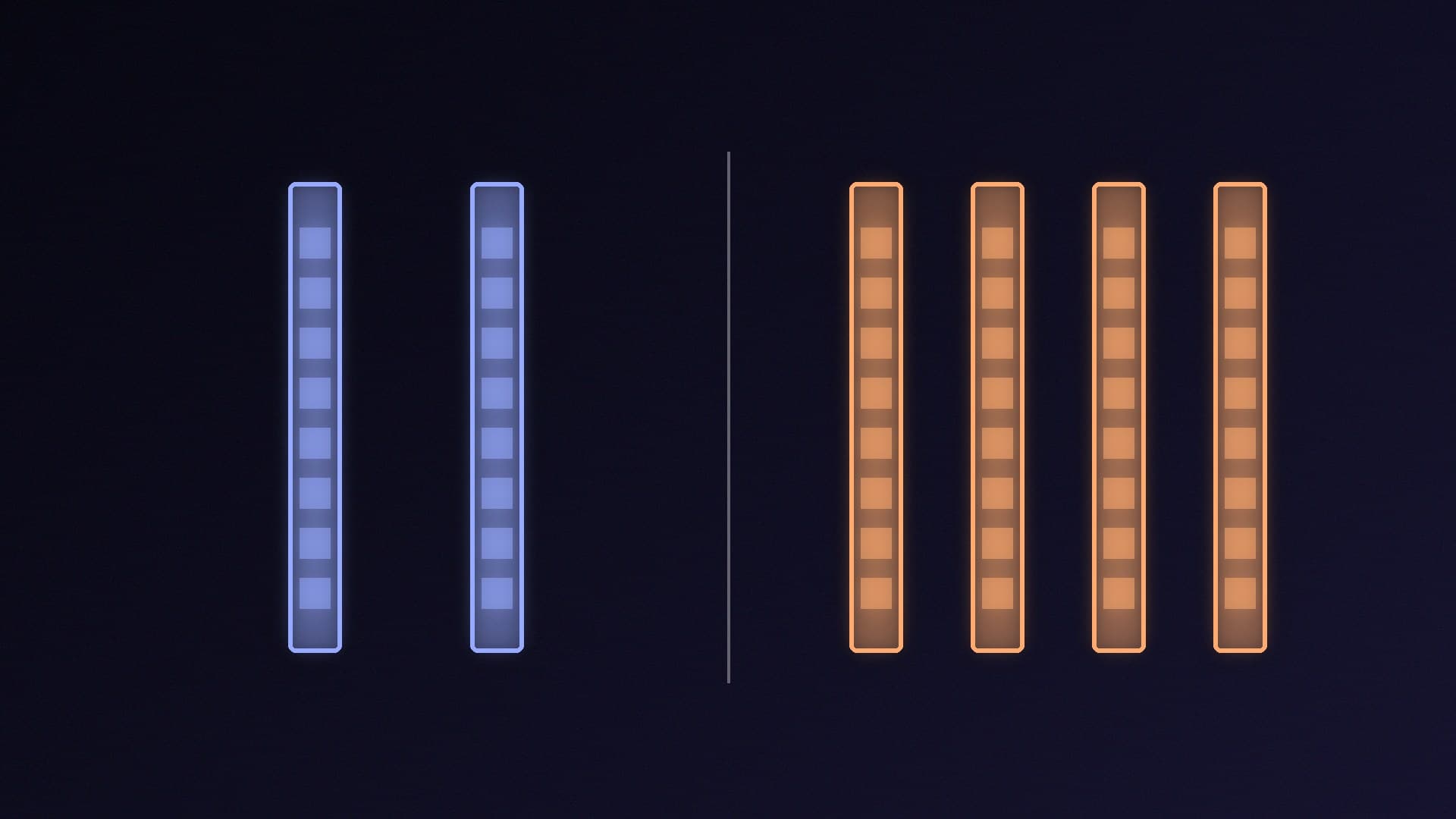
Two sticks are the better choice for most DDR5 builds. On AM5, AMD lists DDR5-5600 as the maximum for two modules but only DDR5-3600 for four, and memory profiles above those speeds aren't guaranteed to be stable. Buy 2x16GB or 2x32GB for 32GB or 64GB, and use four sticks, ideally a matched kit, only when you need 128GB or more. Check your motherboard's memory support list either way. Forge PC hasn't tested these configurations.
The bottom line

Two sticks are the better choice for most DDR5 builds. On AM5, AMD lists DDR5-5600 as the maximum for two modules but only DDR5-3600 for four, and memory profiles above those speeds aren't guaranteed to be stable. Buy 2x16GB or 2x32GB for 32GB or 64GB, and use four sticks, ideally a matched kit, only when you need 128GB or more. Check your motherboard's memory support list either way. Forge PC hasn't tested these configurations.
Sources

  1. 01AMD, Ryzen 7 9700X specifications
  2. 02Intel, Core Ultra 9 Processor 285K specifications
  3. 03Kingston, KF556C40BBK4-64 datasheet

About the author

Forge PC Staff

Editorial team

The shared byline for articles researched, written and edited by the Forge PC editorial team. How we source, check and correct our work is set out in our editorial policy.

More from Forge PC Staff

Read next

Best Wi-Fi 7 PCIe Card for Desktop PCs in 2026

Best Picks

Best Wi-Fi 7 PCIe Card for Desktop PCs in 2026

The TP-Link Archer TBE550E is the best Wi-Fi 7 PCIe card for most desktops: it works on AMD systems, supports 320MHz and MLO and was about £85 at Scan (17 Nov 2026), but it's Windows 11 only. The ASUS PCE-BE92BT (about £51) suits recent Intel PCs only. The ASUS PCE-BE6500 (about £34) is the budget pick.

Forge PC Staff4 min

How to Change Your Mouse Polling Rate: 1,000Hz vs 4,000Hz vs 8,000Hz Explained

How-To

How to Change Your Mouse Polling Rate: 1,000Hz vs 4,000Hz vs 8,000Hz Explained

Change your mouse polling rate in the maker's software. 1,000Hz (1ms) is the safe default; 2,000-4,000Hz can feel slightly smoother; 8,000Hz (0.125ms) needs a six-core-plus CPU, a direct USB 3 port and at least 1,600 DPI to saturate. TechPowerUp measured small gains above 4,000Hz, and Razer advises dropping to 4,000Hz or 2,000Hz if you see stutter.

Forge PC Staff4 min

Liquid Metal vs Thermal Paste: Is Liquid Metal Worth the Risk for Your CPU?

Versus

Liquid Metal vs Thermal Paste: Is Liquid Metal Worth the Risk for Your CPU?

Thermal paste is the right choice for almost everyone: it's cheap, easy and non-conductive. Liquid metal such as Thermal Grizzly Conductonaut targets maximum heat transfer but is electrically conductive, must never touch aluminium, can react with bare copper and needs insulation and checking. Use it only if you're experienced, ideally on nickel-plated copper or direct-die setups.

Forge PC Staff4 min

Best Free Benchmark Software for PC in 2026: CPU, GPU, SSD and AI Tests

Best Picks

Best Free Benchmark Software for PC in 2026: CPU, GPU, SSD and AI Tests

The best free PC benchmarks in 2026: Cinebench 2026 for CPUs, Unigine Superposition Basic or 3DMark's free Steel Nomad test for graphics cards, CrystalDiskMark for SSDs, Geekbench 7 for cross-platform scores, Geekbench AI for NPUs, Blender Benchmark for creators and OCCT for stability. Run each test twice and download only from official sites.

Forge PC Staff5 min