If your Radeon graphics card runs flat out in every game, even when you're standing still in a menu or reading a map, Radeon Chill can help. It's a power-saving feature in AMD Software: Adrenalin Edition that adjusts your frame rate according to what's happening in the game. This guide follows AMD's support documentation. Forge PC hasn't measured Chill's power or temperature savings, so there are no figures here.
What Radeon Chill does
AMD describes Radeon Chill as a power-saving feature that dynamically regulates frame rate based on your character and camera movement. As movement decreases, it lowers the frame rate, and it ramps back up instantly when the action picks up. You set a lower limit for when things are quiet and an upper limit for fast action.
Because the GPU renders fewer frames when nothing much is moving, it uses less power. AMD says that also helps keep your system cooler and quieter and, on laptops, helps save battery.
What it works with
Graphics APIs: AMD says Chill works with most games that use DirectX 9, 10, 11 and 12, and Vulkan.
Not UWP games: AMD's FAQ says UWP (Universal Windows Platform) games aren't supported.
Not alongside Anti-Lag or Boost: turning Chill on disables Radeon Anti-Lag and Radeon Boost, because they don't work together. If you rely on Anti-Lag in competitive games, see NVIDIA Reflex vs AMD Anti-Lag before deciding.
How to turn on Radeon Chill for all games
Click Start, type AMD Software and open it.
Type Graphics in AMD Software's search box and select the Graphics Settings result.
In Global Graphics, find Radeon Chill. It's Disabled by default. Switch it to Enabled.
Set the target frame rate for when you're idle (Min FPS) and during fast action (Max FPS), using the sliders or by typing the values.
AMD says these global settings then apply to all supported games automatically. AMD's steps are based on Adrenalin 23.9.1, so menus in newer versions may look slightly different.
How to set Chill for a single game
In AMD Software, open the Gaming menu and select Games.
Click the game's profile.
Set Radeon Chill's Min FPS and Max FPS for that game.
By default, a game profile inherits your global Chill settings. Any custom values you set in a game's profile override the global ones.
Toggle it in-game
AMD's default hotkey for Radeon Chill is Alt+F11, so you can turn it on or off during play. (Anti-Lag is Alt+L and Boost is Alt+K.)
Choosing your numbers
Our suggestion is to set Max FPS at or just below your monitor's refresh rate, and Min FPS to a level that still feels smooth to you when you're standing still. AMD's FAQ notes that Chill doesn't replace Frame Rate Target Control, but it behaves similarly by capping FPS at the maximum when set per game. For a plain frame cap without the dynamic behaviour, see how to cap FPS on NVIDIA and AMD.
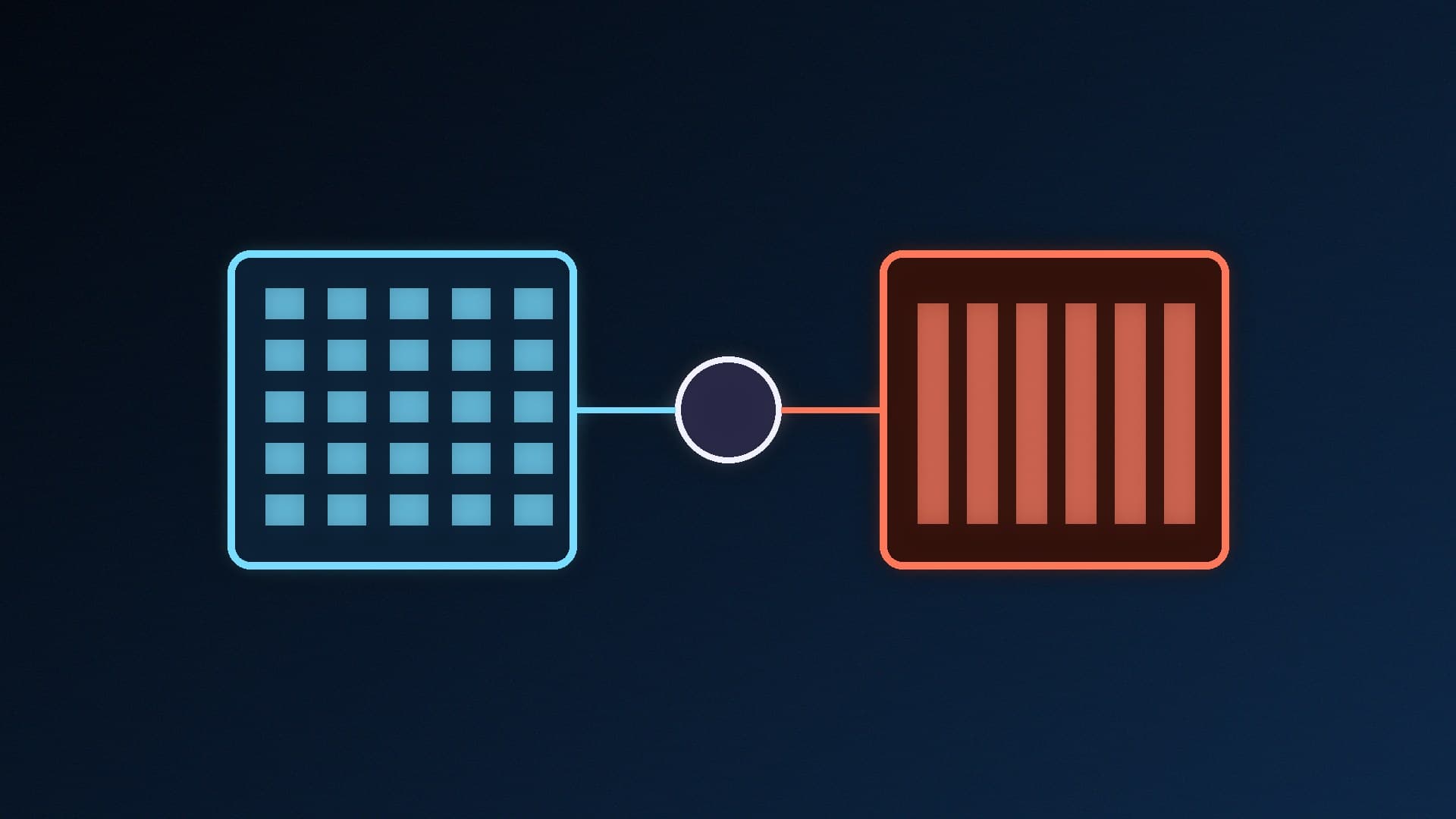
Chill vs other ways to save power
Our verdict
Radeon Chill is a simple way to cut power, heat and fan noise on an AMD graphics card without giving up frame rate when it matters. Enable it in Global Graphics, set Max FPS near your refresh rate and Min FPS to a level that still feels smooth, and fine-tune it per game. Just remember it disables Anti-Lag and Boost, and doesn't work with UWP games.