If you play competitive shooters, you've probably seen a "Reflex" or "Anti-Lag" option in the graphics menu. Both aim to reduce system latency: the time between clicking your mouse and seeing the result on screen. You can't choose between them freely, though. Which one you get depends on your graphics card and whether the game supports it.
This comparison is based on NVIDIA's and AMD's own documentation. Forge PC hasn't measured latency for this article, and the figures quoted are the vendors' own claims.
The short answer
NVIDIA graphics card: turn on NVIDIA Reflex in games that offer it. In games that don't, NVIDIA's driver offers Low Latency Mode as a partial fallback.
AMD graphics card: turn on Anti-Lag 2 in games that offer it. In other games, the original Radeon Anti-Lag in AMD Software works at driver level.
Either way: these settings help most when your GPU is the bottleneck (running at or near 100% usage).
What both technologies do
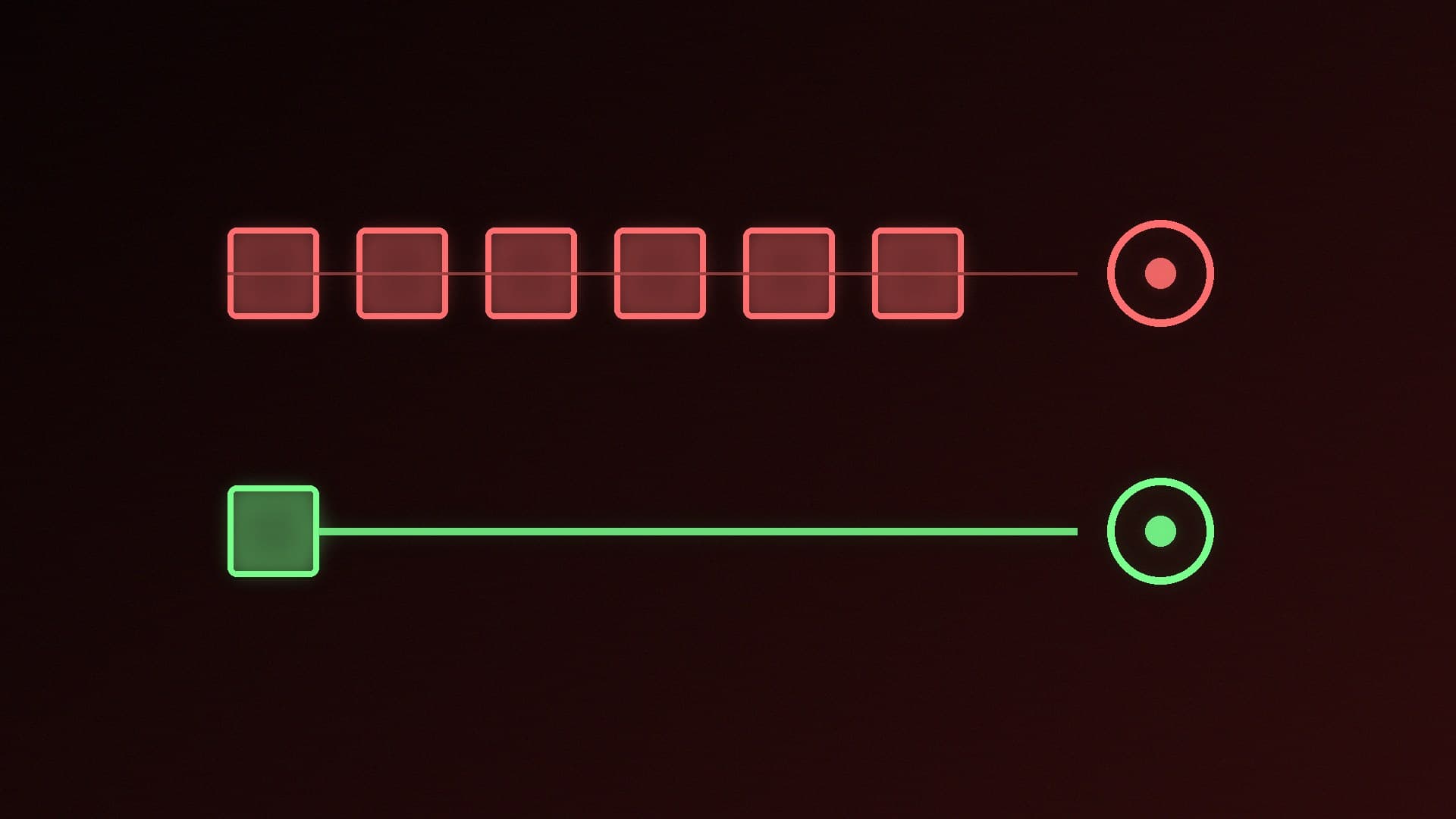
When a game is GPU-bound, the CPU can prepare frames faster than the GPU can render them, so finished CPU work waits in a render queue. NVIDIA explains that this queue keeps the GPU busy and maximises frame rate, but it adds latency, because your latest input waits behind frames that are already queued.
Reflex and Anti-Lag 2 both work inside the game engine to stop that queue building up. NVIDIA says the Reflex SDK "aligns game engine work to complete just-in-time for rendering, eliminating the GPU render queue and reducing CPU back pressure in GPU intensive scenes". AMD says Anti-Lag 2 reduces latency in GPU-bound games, and that unlike the original driver-based Anti-Lag, it is inserted at the best point in the game's own logic, just before the player's controls are sampled.
Side by side
| NVIDIA Reflex | AMD Anti-Lag 2 |
|---|
Where it runs | In the game (developer integration) | In the game (developer integration) |
GPU support | GeForce GTX 900 series and newer, according to NVIDIA | Select AMD RDNA-architecture GPUs and newer, discrete and integrated, according to AMD |
Driver-level fallback | Low Latency Mode (Ultra) in NVIDIA Control Panel | Radeon Anti-Lag in AMD Software |
Extras | Low Latency Boost; Reflex Analyzer on supported monitors and mice | Built-in Latency Monitor in supporting Adrenalin drivers |
NVIDIA Reflex
You'll find Reflex as an option in each supported game's settings, sometimes with a separate Boost option. NVIDIA says Low Latency Boost keeps GPU clocks high when the game is heavily CPU-bound. It can reduce latency slightly, but at the cost of significantly more power.
For games without Reflex, NVIDIA suggests setting Low Latency Mode to Ultra in NVIDIA Control Panel (Manage 3D Settings). NVIDIA says this reduces the render queue but can't remove CPU back-pressure the way Reflex can. If you leave both on, NVIDIA says Reflex automatically takes priority. NVIDIA is also adding Frame Warp with Reflex 2, which it says updates each frame based on your latest mouse input just before it goes to the display. NVIDIA's Reflex page lists this as "coming soon".
AMD Anti-Lag 2
AMD says Anti-Lag 2 needs developer integration and is available in games including Counter-Strike 2, Dota 2 and Ghost of Tsushima DIRECTOR'S CUT, with more to come. Turn it on in the game's own settings.
The original Radeon Anti-Lag works at driver level instead. You can enable it per game in AMD Software or through a HYPR-RX profile. AMD lists support for DirectX 9, 11 and 12 games on Radeon RX 400 series and newer discrete GPUs and Ryzen 2000 series and newer APUs. AMD's developer documentation adds that Adrenalin drivers with Anti-Lag 2 support include a built-in Latency Monitor (Alt+Shift+L) that shows FPS and latency on screen.
Tips that matter more than the toggle
Our verdict
NVIDIA Reflex and AMD Anti-Lag 2 do the same job: they stop frames queuing up behind a busy GPU, which cuts input lag in GPU-bound games. You don't pick one. Your graphics card decides, and both need the game to support them. If the option is in your game's menu, turn it on. Without game support, use NVIDIA's Low Latency Mode (Ultra) or AMD's driver-level Radeon Anti-Lag as a partial fallback, and cap your frame rate so the GPU isn't maxed out.