Almost every modern PC game now offers some form of upscaling, and many also offer frame generation. The names change often — DLSS 4.5, FSR "Redstone", Multi Frame Generation — and it is easy to turn the wrong toggle on, or to expect a feature your graphics card cannot run.
Forge PC has not benchmarked these modes. The description below follows NVIDIA's and AMD's official documentation as it stood when we wrote this on 13 November 2026.
Upscaling is not frame generation
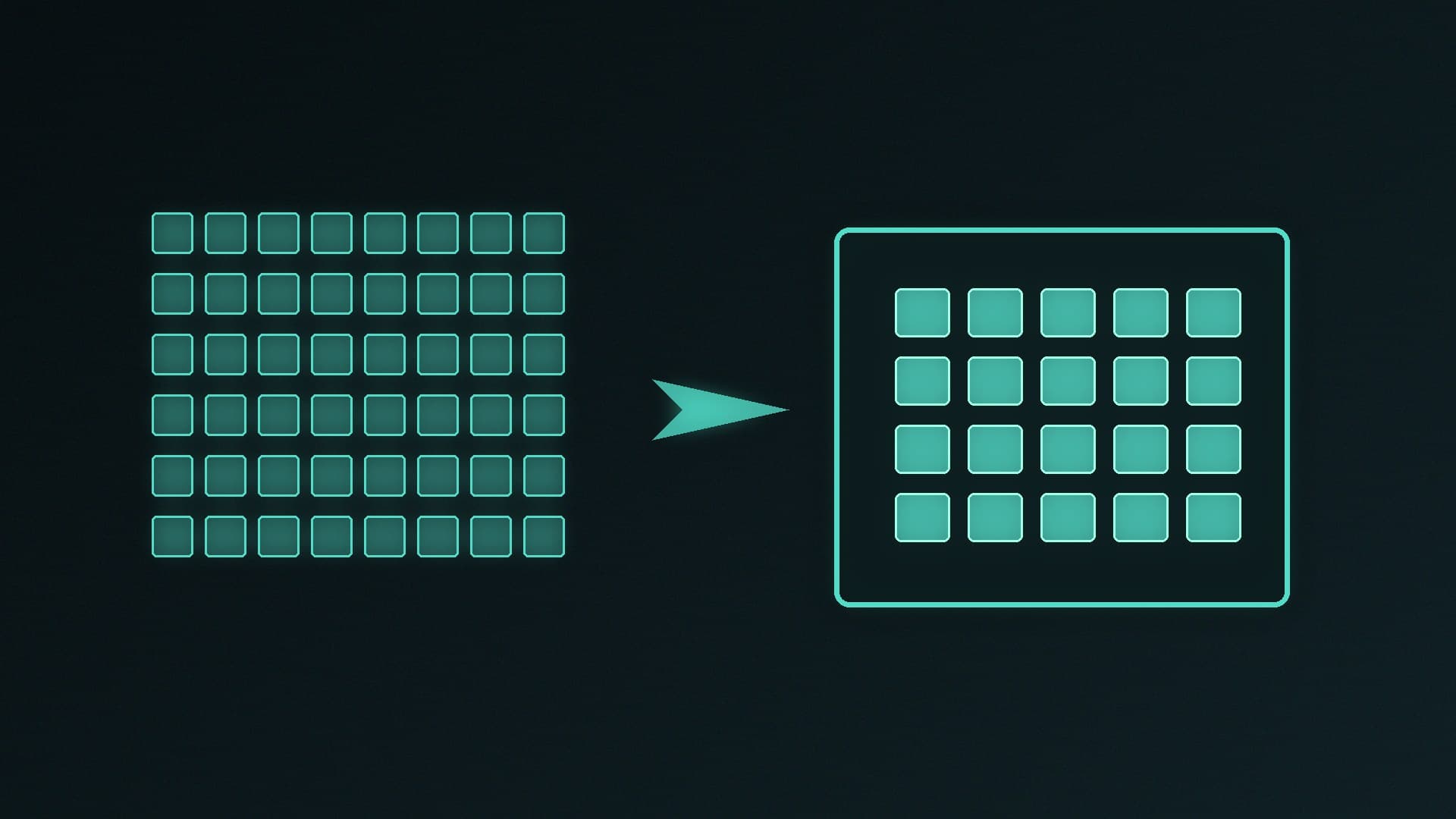
Upscaling (DLSS Super Resolution, FSR Upscaling, and similar) renders the game at a lower internal resolution and uses a model to reconstruct a sharper image at your monitor's resolution. You usually choose a quality preset (Quality, Balanced, Performance, and sometimes Ultra Performance or a native anti-aliasing mode).
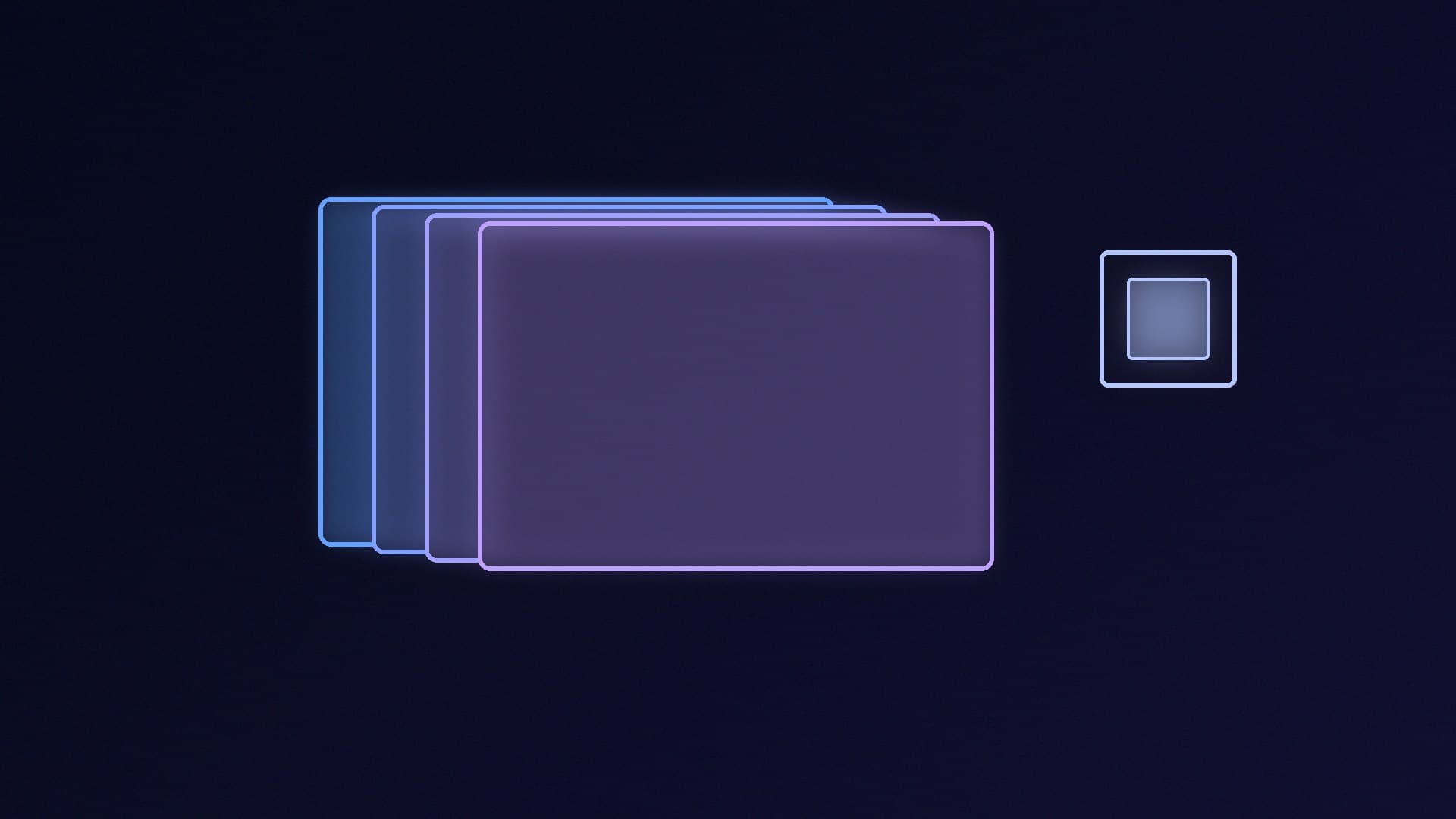
Frame generation inserts extra frames between the ones the game actually renders. It can make the number on the counter go up, but those generated frames are not the same as natively rendered ones, and they can add latency if the game does not also apply a low-latency mode. Multi-frame generation goes further, inserting more than one generated frame per rendered frame.
Use upscaling first if the game is heavy. Add frame generation if you want a higher displayed frame rate and the game supports it on your GPU, then check how the input feels — especially in competitive titles.
NVIDIA DLSS 4.5
NVIDIA's March 2026 GeForce announcement, still the current public description of DLSS 4.5, says the feature set is delivered through an NVIDIA app update and covers Super Resolution, Frame Generation and Multi Frame Generation.
A few official points that matter when you open the settings:
DLSS Super Resolution is described as being available for all GeForce RTX GPUs, with a second-generation transformer AI model.
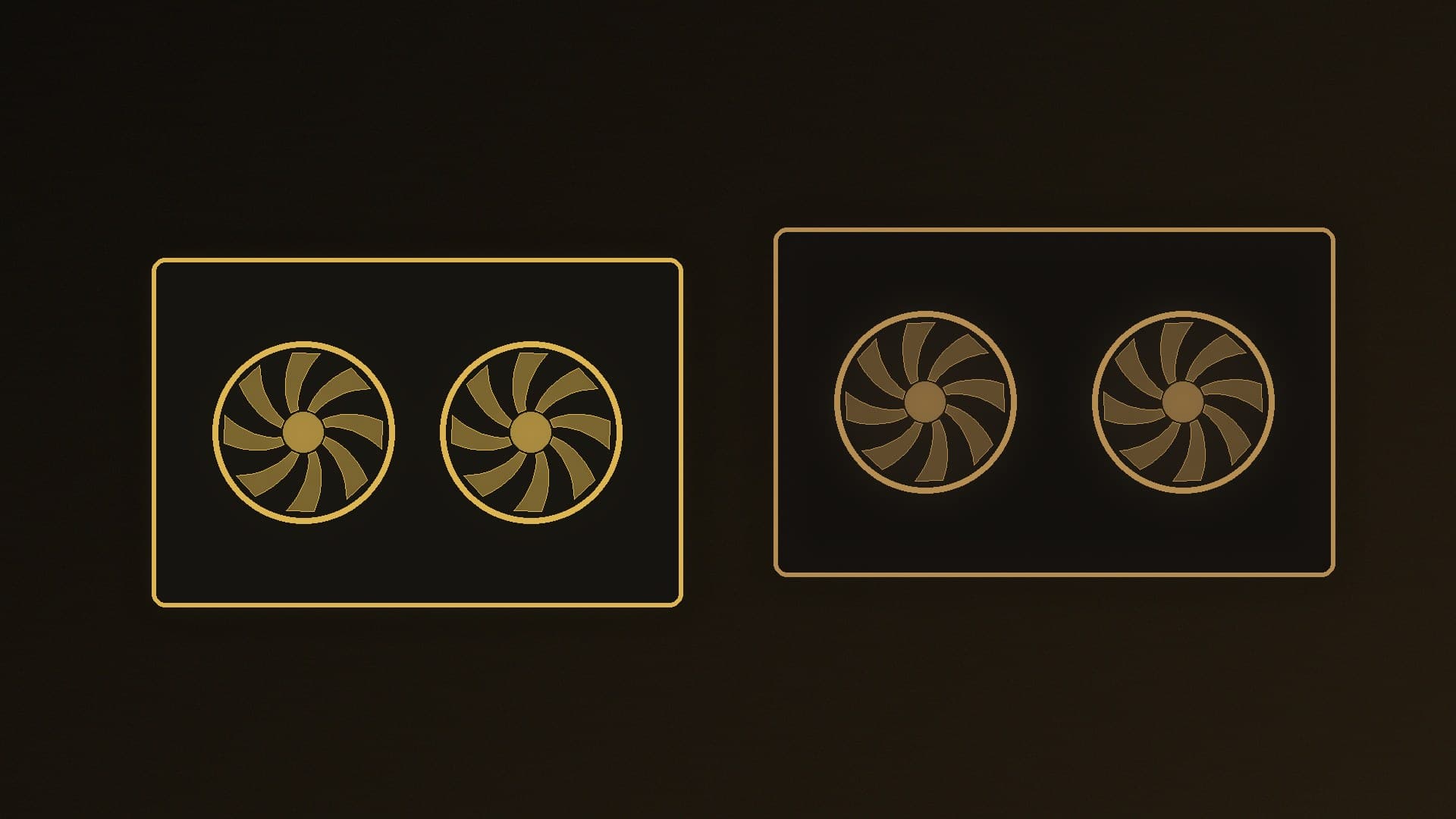
Multi Frame Generation at 6X — five additional frames for every natively rendered frame — is described as a GeForce RTX 50-series feature. NVIDIA says a later transformer model, plus frame-pacing and image-quality work, allowed it to raise the previous 4X maximum to 6X on those GPUs.
NVIDIA's own claim is that moving from 4X to 6X Multi Frame Generation "increases 4K frame rates in path-traced titles by up to 35 per cent" on GeForce RTX 50-series GPUs. That is a vendor figure, not an independent test, and it is not a guarantee for every game.
In the NVIDIA app you now choose between Dynamic and Fixed Multi Frame Generation. Dynamic is meant to aim at your monitor's refresh rate rather than a single fixed multiplier.
NVIDIA also points to Reflex to keep latency down when generated frames are in use.
RTX 40-series cards are mentioned for some of the newer Frame Generation model work, but not for 6X Multi Frame Generation. If a setting is missing, check the app, the game's DLSS version and that the GPU is in the officially supported generation.
AMD FSR "Redstone"
AMD's FidelityFX Super Resolution page describes FSR "Redstone" as a suite of machine-learning features developers can add to a game. The suite includes:
FSR Upscaling, formerly called FidelityFX Super Resolution 4, AMD's most advanced upscaling mode.
Frame Generation, which AMD describes as predicting and inserting frames between rendered ones.
Ray Regeneration, which infers fuller ray-traced detail from sparse samples, and Radiance Caching.
Hardware support is tiered, and you should read AMD's current table for your exact card rather than assuming every Redstone feature runs on every Radeon. On the official page, Frame Generation is listed for Radeon RX 5000 Series graphics and above. Separate "upscaling only" rows cover older Radeon GPUs (including an RX 590 and above path) and certain Ryzen AI processors and handhelds. That is not the same as saying the newest ML upscaler runs on a 2019 graphics card — check which FSR version the game is actually offering.
AMD also publishes its own performance claims for Redstone on specific test systems. Treat those as vendor results, in the same way as NVIDIA's 35 per cent figure, not as a substitute for what you see in the titles you play.
Anti-Lag (AMD's low-latency option) is the counterpart to look for when frame generation is on.
How to turn them on, and what to watch
Update the game, and install the current NVIDIA or AMD graphics driver from the official app. Many DLSS 4.5 changes arrive through the NVIDIA app as well as the game itself.
Set the display resolution to the monitor's native pixel count first. Upscaling still outputs at that resolution.
Enable the upscaler at Quality or Balanced and see whether the game stays smooth enough. Drop to a stronger performance mode only if you need the extra headroom.
If the game offers frame generation and your GPU supports it, try it after upscaling is in a good place. Enable Reflex or Anti-Lag if the game or driver exposes it.
If menus, text or a first-person view look smeared, try a higher quality mode, disable frame generation, or cap the frame rate closer to the monitor's refresh rate.
A 16GB-class card still has more headroom at 1440p and 4K than an 8GB card, which is why how much VRAM you need and the RX 9070 versus RTX 5070 comparison remain relevant even after you turn these modes on. Ethernet versus Wi-Fi will not change image quality; if a multiplayer game still feels laggy after Reflex or Anti-Lag, see our Wi-Fi vs Ethernet guide for the network side.
Our verdict
Treat upscaling and frame generation as two tools. Start with DLSS Super Resolution or FSR Upscaling at a high-quality preset, then add frame generation only if your GPU is on the official list and the game still feels responsive. 6X Multi Frame Generation is an RTX 50-series feature in NVIDIA's documentation; AMD's Redstone suite is broader than a single "FSR on/off" switch and is split across hardware tiers. We have not timed these modes, so use the official support lists, then trust what you see and feel in the game.