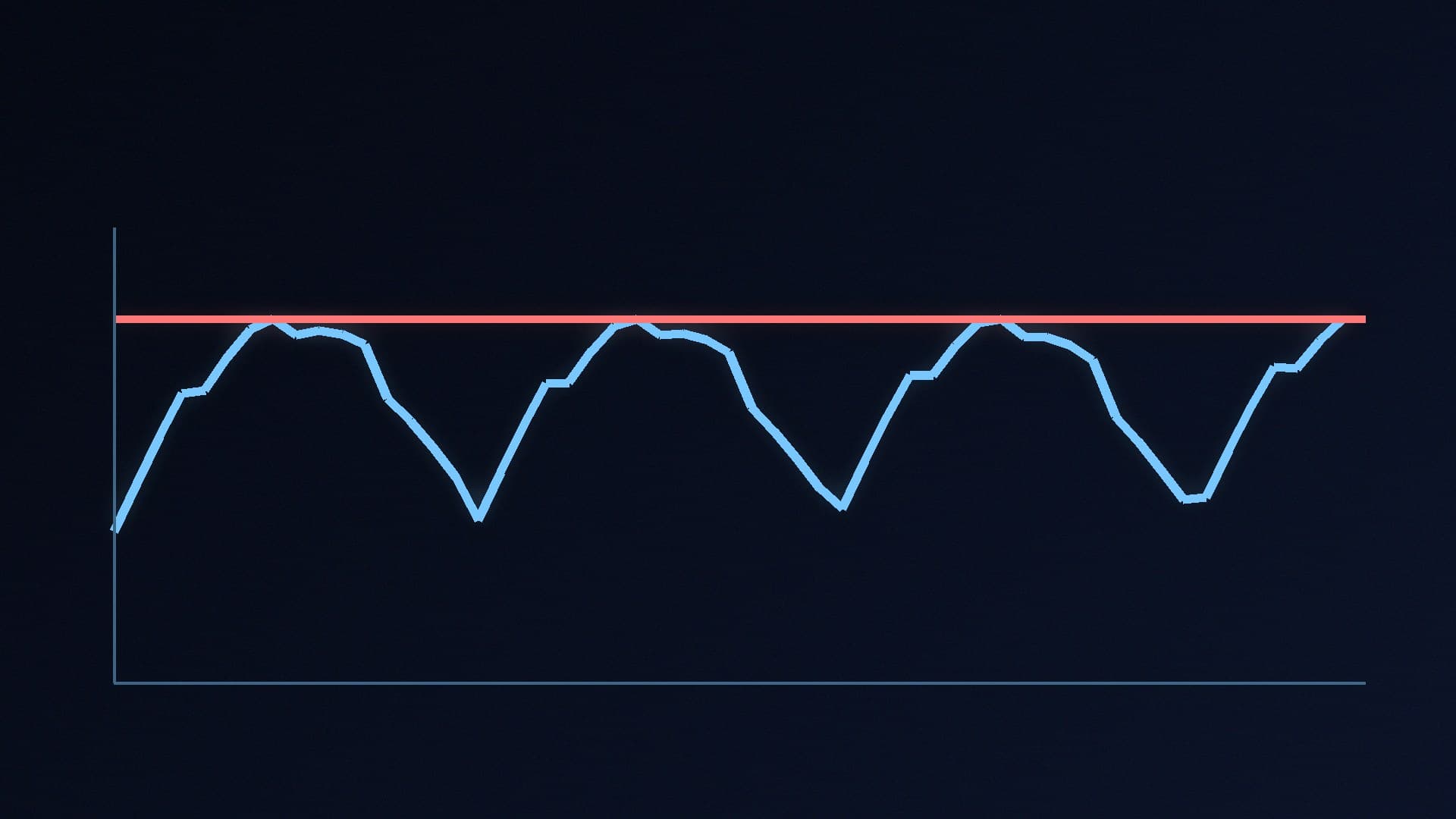
Running a game at hundreds of frames per second is not always a good thing. If your graphics card is producing far more frames than your monitor can show, it uses extra power, gets hotter and louder, and can push you outside your monitor's variable refresh rate (VRR) range. A frame-rate cap fixes that.
Forge PC hasn't measured the effect of frame caps on specific games or cards. The steps below follow NVIDIA's and AMD's support documentation; menu names can vary slightly between driver versions.
Why cap your frame rate?
NVIDIA's support article on its Max Frame Rate setting lists three reasons:
Saving power. Pair a cap with the "Optimal Power" power management mode and NVIDIA says the GPU runs at reduced frequency and uses less power.
Reducing system latency. In GPU-bound games with consistent frame rates, NVIDIA suggests setting the cap slightly below your average FPS, with Low Latency Mode on Ultra and power management on "Prefer maximum performance".
Staying in the VRR range. Setting the cap slightly below your display's maximum refresh rate keeps a G-Sync or G-Sync Compatible monitor inside its variable refresh range for a tear-free experience.
If you're not sure whether your monitor supports VRR, see G-Sync vs FreeSync, and check it's running at its full refresh rate with our refresh rate guide.
How to cap FPS on an NVIDIA graphics card
NVIDIA's support article places the setting in NVIDIA Control Panel > 3D Settings > Max Frame Rate.
Right-click the desktop and open NVIDIA Control Panel.
Go to Manage 3D settings. Use Global Settings for every game, or Program Settings to set a cap for one game.
Find Max Frame Rate, switch it on and enter your limit.
Click Apply.
For VRR, NVIDIA's own recommendation is a cap slightly below the maximum refresh rate, Low Latency Mode on Ultra and V-Sync on. On laptops, NVIDIA notes Max Frame Rate works alongside Battery Boost and Whisper Mode, and the lowest limit applies.
How to limit FPS on an AMD Radeon graphics card
AMD's support documentation covers Radeon Chill, which works differently from a fixed cap: it lowers the frame rate dynamically when your character and camera move less, saving power and reducing GPU temperature, according to AMD.
Open AMD Software: Adrenalin Edition and go to the Gaming tab.
Select the game's profile (or use the global graphics settings).
Click the Chill tile to enable it.
Set Chill Min (the cap on static screens, lowest setting 30 FPS) and Chill Max (the cap with on-screen action, highest setting 300 FPS).
AMD says Chill auto-tunes its defaults to your main display: Chill Max matches the peak refresh rate, and Chill Min is half the peak refresh rate, or on a FreeSync monitor the bottom of its FreeSync range if that is higher. If you want a fixed limit, set Chill Min and Chill Max to the same value.
AMD notes that Chill works in most DirectX 9, 10, 11, 12 and Vulkan games, can be toggled in game with a hotkey (F11 by default), and cannot be used at the same time as Radeon Anti-Lag: enabling one disables the other.
Use the game's own limiter where possible
Many games include a frame-rate limit in their graphics or display settings. It's worth checking there first, because it applies only to that game and is often the simplest option. If a game has no limiter, use the driver setting above. Avoid stacking several limiters at once, such as a driver cap, an in-game cap and an overlay tool's cap, because it makes problems harder to diagnose.
What cap should you choose?
VRR monitor: a few frames below its maximum refresh rate, as NVIDIA recommends.
Quieter, cooler PC: your monitor's refresh rate or lower in less demanding games.
Competitive shooters: if latency matters most, read our input lag guide before capping.
To see what your GPU is doing before and after, monitor frame rate, power and temperature with the tools in our HWiNFO and Afterburner guide.
Our verdict
A frame-rate cap is one of the easiest ways to cut power, heat and noise, and to keep a VRR monitor in range. On NVIDIA, use Max Frame Rate in the driver, set slightly below your monitor's maximum refresh rate. On AMD, enable Radeon Chill, whose default Chill Max matches your monitor's peak refresh rate (or set Min and Max to the same value for a fixed limit), remembering it can't run alongside Anti-Lag. Where a game has its own limiter, use that first. Forge PC hasn't measured the gains; the settings come from NVIDIA and AMD support guidance.