The steps and shortcuts below come from Microsoft's support pages on multiple desktops, multitasking and Windows keyboard shortcuts, checked on 24 November 2026. Menu names can vary slightly between Windows 11 versions.
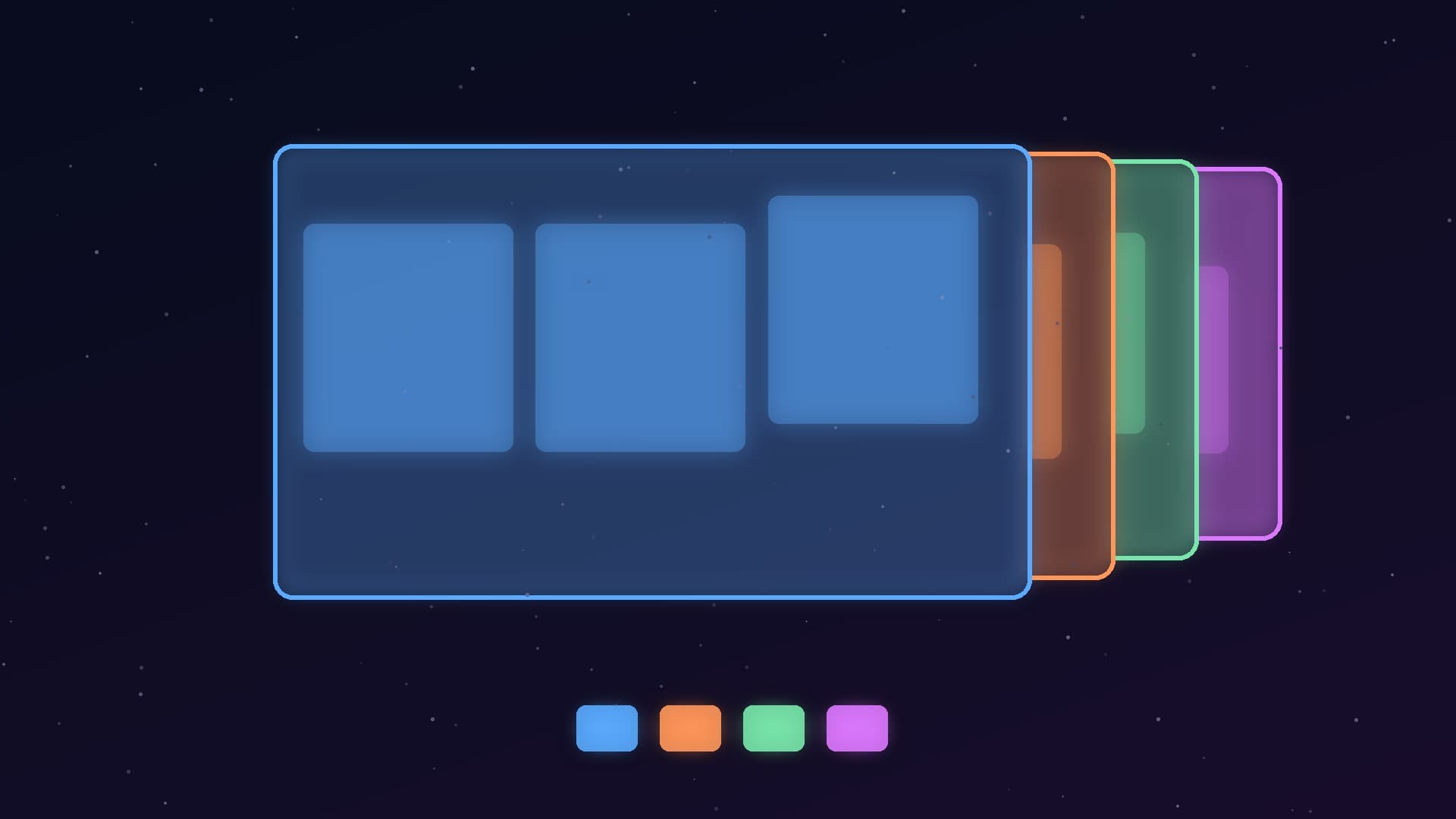
If your taskbar is a wall of browser windows, chat apps, a game launcher and a half-finished spreadsheet, Windows 11 has a built-in fix that costs nothing and needs no extra software: multiple desktops, often called virtual desktops. Microsoft describes a desktop as a work area that holds a group of open apps, and you can create several of them to keep different activities apart.
It's especially handy on a single monitor or a laptop, where you can't spread windows across extra screens. If you have the desk space, our guide to setting up dual monitors in Windows 11 is the hardware route to the same goal, and our ultrawide vs dual monitors comparison covers which screen setup suits you.
What virtual desktops are good for
Microsoft lists a few common uses, and they translate well to a home PC:
Work and personal separation: work apps and documents on one desktop, personal apps on another.
Projects: one desktop per project, so you can switch context without closing anything.
Meetings: a desktop already set up with the apps and documents you need before a call starts.
For PC owners, a typical split might be one desktop for gaming (Steam, Discord, a monitoring overlay), one for work or study, and one for a long-running job such as a video render or a local AI model download that you don't want to keep tripping over.
How to create a new desktop
Hover over the Task view icon on the taskbar, or press Windows key + Tab.
Select New desktop.
Select the new desktop's name and rename it to something useful, such as "Gaming" or "Work".
The fastest way is the keyboard: Windows key + Ctrl + D creates another desktop and switches you to it straight away.
Keyboard shortcuts for multiple desktops
These are the shortcuts Microsoft lists for working with multiple desktops:
Shortcut | What it does |
|---|
Windows key + Tab | Open Task view |
Windows key + Ctrl + D | Create another desktop |
Windows key + Ctrl + Right arrow | Switch to the desktop on the right |
Windows key + Ctrl + Left arrow | Switch to the desktop on the left |
Windows key + Ctrl + F4 | Close the desktop you're using |
Closing a desktop doesn't close the apps on it. Microsoft says any open apps on a closed desktop are moved to the next available desktop. You can also close a desktop from Task view by hovering over its thumbnail and selecting the close button in its top corner.
How to move a window to another desktop
There are two ways, both in Task view (Windows key + Tab):
Drag and drop: find the window you want to move, drag it onto the thumbnail of the desktop you want, and release.
Right-click: right-click the window, select Move to and pick a desktop from the list.
You can also switch desktops with the mouse by hovering over the Task view button on the taskbar and selecting the desktop you want.
Give each desktop its own wallpaper
A different background makes it obvious which desktop you're on at a glance:
Open Task view (Windows key + Tab).
Right-click the desktop you want to change and select Choose background.
Under Personalize your background, choose Picture and pick an image.
Microsoft notes that per-desktop backgrounds only work with a picture. You can't use a slideshow or a different solid colour for each desktop.
Two settings worth checking
Open Settings > System > Multitasking and expand Desktops. There are two options:
On the taskbar, show all the open windows: choose Only on the desktop I'm using for a tidy taskbar that shows just the current desktop's apps, or On all desktops if you want every open app one click away regardless of which desktop you're on.
Show all open windows when I press Alt+Tab: choose whether Alt+Tab cycles through windows on every desktop or only the current one.
If you use desktops to separate work from play, setting both to "only the desktop I'm using" gives the cleanest split. If you mainly use them to reduce clutter but still jump between apps a lot, "all desktops" for Alt+Tab is more forgiving.
Combine desktops with Snap layouts
Virtual desktops decide which group of apps you see; Snap decides how those apps are arranged on screen. Each desktop can have its own layout, such as a browser and a document side by side on your work desktop and a full-screen game on another. Our guide to Snap layouts in Windows 11 covers the Snap shortcuts, and our Microsoft PowerToys guide explains FancyZones if you want custom layouts.
Tips and limits
Games and full-screen apps: switching away from a game running in exclusive full screen means leaving it, much like alt-tabbing out. If you switch in and out of games a lot, our fullscreen vs borderless windowed explainer covers the trade-offs between the two display modes.
Desktops aren't separate accounts: every desktop runs under the same Windows user account, with the same files and installed apps. They're for organisation, not privacy or security.
Don't overdo it: three or four named desktops are usually easier to manage than ten anonymous ones.
Our verdict
Virtual desktops are one of Windows 11's most useful built-in features and take seconds to learn. Press Windows key + Ctrl + D to create a desktop, Windows key + Ctrl + Left or Right to switch, and Windows key + Tab to see everything and drag windows between desktops. Give each desktop a name and its own wallpaper, then check Settings > System > Multitasking > Desktops to decide whether the taskbar and Alt+Tab show every desktop's windows or just the current one.