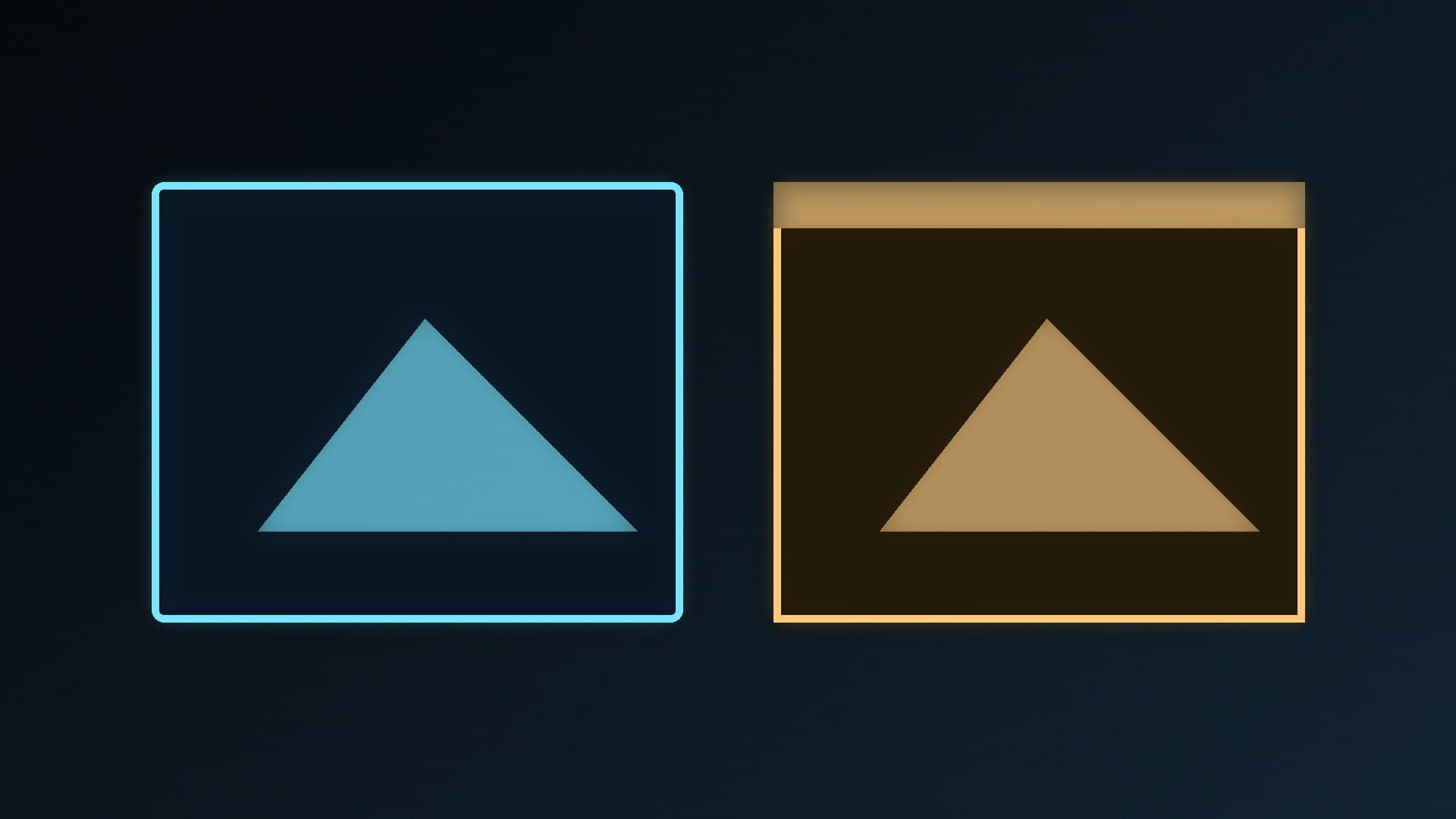
Open almost any PC game's display settings and you'll see a choice between Fullscreen (often called exclusive fullscreen) and Borderless windowed (sometimes "Windowed fullscreen" or just "Borderless"). The old advice was that exclusive fullscreen is always faster. On Windows 10 and 11, Microsoft has changed how both modes work behind the scenes, so the answer isn't that simple anymore. This explainer is based on Microsoft's DirectX team's documentation and Microsoft Support; Forge PC hasn't measured frame rates or latency in either mode itself, and results vary between games.
The short answer
| Exclusive fullscreen | Borderless windowed |
|---|
How it works | Traditionally, the game takes direct control of the display | The game runs as a window covering the whole screen, managed by Windows |
Alt-Tab | Traditionally could cause performance issues, per Microsoft's DirectX team | Fast |
Overlays (Game Bar, Discord, etc.) | Traditionally needed to hook into the game's rendering | Composited on top by Windows |
Performance on Windows 11 | Usually handled through Fullscreen Optimisations, which Microsoft says perform as well on average | Older DirectX 10/11 games can use "Optimisations for windowed games" to reduce latency |
For most people on Windows 11, borderless windowed is the convenient choice and the performance gap is small or zero. Exclusive fullscreen is still worth testing in individual games where borderless feels worse.
What exclusive fullscreen used to mean
Microsoft's DirectX team describes Fullscreen Exclusive (FSE) as a mode where a game takes total ownership of the display. That gave it the best performance in the old days, because Windows' Desktop Window Manager (DWM), which composes everything you see on the desktop, was out of the way.
The downsides, according to Microsoft, were that Alt-Tabbing out of a game could cause performance issues, and anything that wanted to draw on top of the game, such as an overlay, had to intercept the game's rendering to do it.
What borderless windowed means
In borderless windowed mode, the game is just a window without a title bar or borders, sized to fill the screen. Because Windows manages it like any other window, you can Alt-Tab instantly, move your mouse to a second monitor, and see notifications and overlays on top. Historically, the trade-off was performance: Microsoft's DirectX team says exclusive fullscreen offered the best performance because the game had complete ownership of the display.
How Windows changed things
Fullscreen Optimisations
Microsoft's DirectX team explains that with Fullscreen Optimisations (FSO), a game that asks for exclusive fullscreen believes it's running in exclusive fullscreen, but behind the scenes Windows runs it in a highly optimised borderless windowed mode. The aim is to give games the full screen and full speed of FSE with the fast Alt-Tab and overlay support of borderless.
Microsoft says it didn't release FSO until performance matched FSE, and that its telemetry shows almost all users of Fullscreen Optimisations get performance equal to Full Screen Exclusive, and on average as good or better. It does note that when an overlay such as the Game Bar is on screen, a slight performance overhead is incurred so the overlay can be drawn on top of the game.
That means on Windows 10 and 11, picking "Fullscreen" in many DirectX games may not give you true exclusive fullscreen at all.
Optimisations for windowed games
Windows 11 adds a second feature for borderless and windowed play. Microsoft Support says Optimisations for windowed games improves performance for DirectX 10 and DirectX 11 games running in windowed and borderless windowed modes by moving them from the older "blt-model" presentation to the newer "flip-model". Microsoft says this reduces frame latency and enables features such as Auto HDR and variable refresh rate on supported displays.
To check it's on:
Open Settings > System > Display > Graphics.
Turn on Optimizations for windowed games (Microsoft's spelling in Settings).
Restart your game.
Microsoft notes that turning on Auto HDR turns this feature on automatically, and that you can switch it off for individual games from the same Graphics page if a game has problems. Our HDR setup guide and Windows 11 gaming settings guide cover the related options.
When exclusive fullscreen can still be worth trying
Microsoft's own troubleshooting advice acknowledges that some games may have problems with Fullscreen Optimisations, such as performance regressions or input lag. If a game feels worse in one mode than the other:
Try the other display mode in the game's settings and compare.
To force true exclusive fullscreen for a specific game, Microsoft says you can right-click its .exe file, choose Properties > Compatibility and tick Disable fullscreen optimizations.
Check that your monitor's refresh rate is set correctly in Windows; see how to change monitor refresh rate.
If you use G-Sync or FreeSync, check your graphics driver's settings to make sure variable refresh rate is set up for the mode you play in. Our G-Sync vs FreeSync guide explains the technologies, and if you're chasing latency, NVIDIA Reflex vs AMD Anti-Lag is a better place to start than the display mode.
Which should you use?
Use borderless windowed if you Alt-Tab a lot, use a second monitor for Discord, guides or streams, or rely on overlays. With Optimisations for windowed games turned on, DirectX 10 and 11 titles can also get flip-model presentation, Auto HDR and variable refresh rate.
Use fullscreen if a game offers it and you never leave it while playing. On Windows 11 it will often be using Fullscreen Optimisations anyway.
Test both if a game stutters, feels laggy or has problems with HDR or variable refresh rate. Our stuttering guide has other fixes to try.
Our verdict
On Windows 11, the old rule that exclusive fullscreen is always faster no longer holds. Microsoft's Fullscreen Optimisations already run most "fullscreen" games in an optimised borderless mode with, by Microsoft's measurements, equal performance on average, and Optimisations for windowed games closes the gap for older DirectX 10 and 11 titles. Use borderless windowed for convenience, make sure the Windows optimisation is switched on, and only fall back to exclusive fullscreen if a particular game behaves better that way.