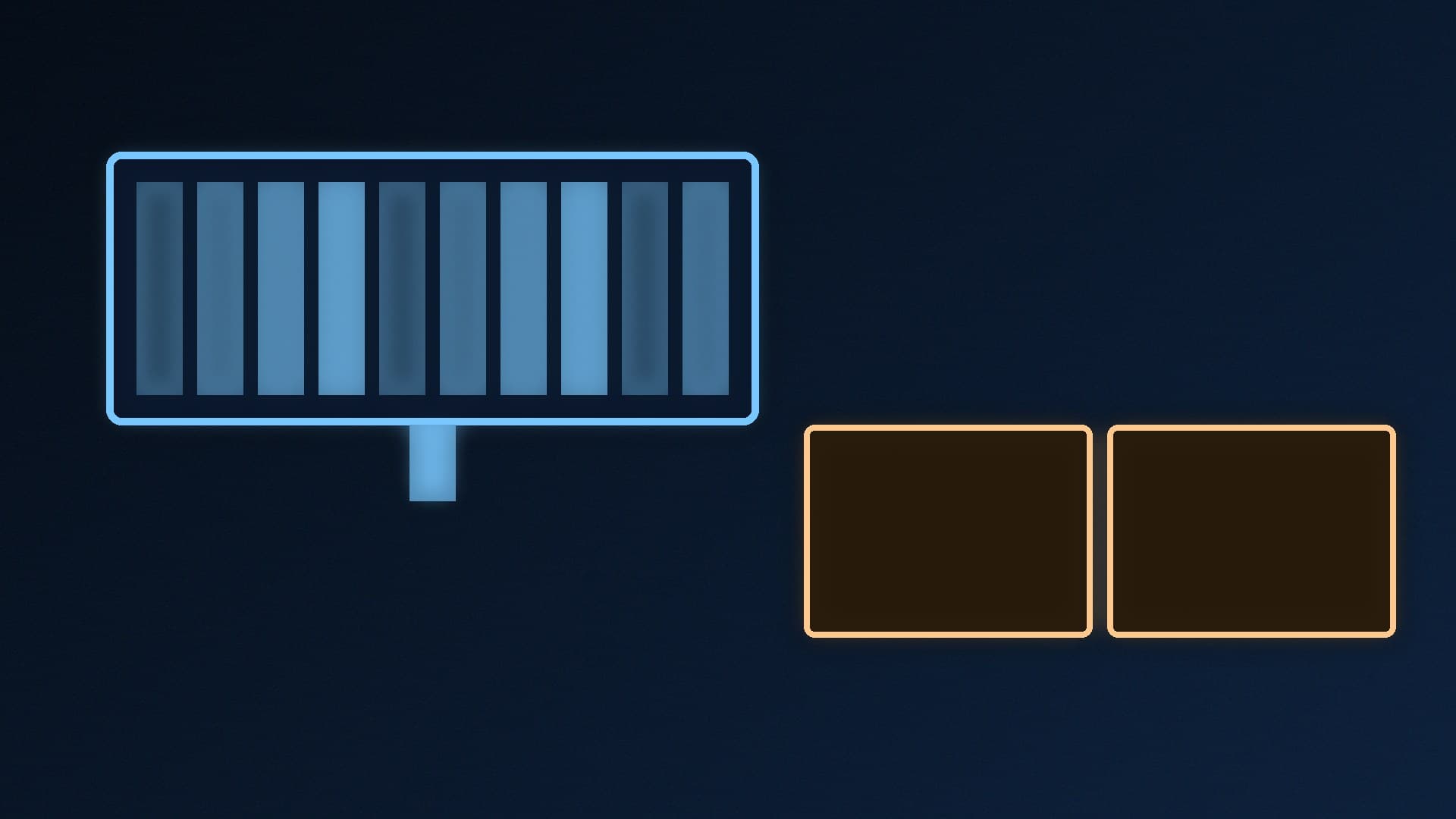
If you want more screen space, you have two main choices: one 21:9 ultrawide monitor, or two standard 16:9 monitors side by side. Both work well, but they suit different people. This comparison is based on simple resolution maths and Microsoft's documentation for Windows 11's window and display features. Forge PC hasn't run its own tests for this article, and we don't quote frame-rate results.
The short version
Choose an ultrawide if gaming comes first, or you work with wide content such as video timelines and spreadsheets and want no gap down the middle.
Choose two monitors if you mainly multitask (game or work on one screen, chat, guides or streams on the other), or you want the most total pixels for your money and desk.
The resolution maths
Here's how a 3440 x 1440 ultrawide compares with popular dual setups:
Setup | Total resolution | Total pixels |
|---|
One ultrawide, 3440 x 1440 | 3440 x 1440 | about 4.95 million |
Two 1080p monitors | 2 x 1920 x 1080 | about 4.15 million |
Two 1440p monitors | 2 x 2560 x 1440 | about 7.37 million |
One 32:9 super-ultrawide, 5120 x 1440 | 5120 x 1440 | about 7.37 million |
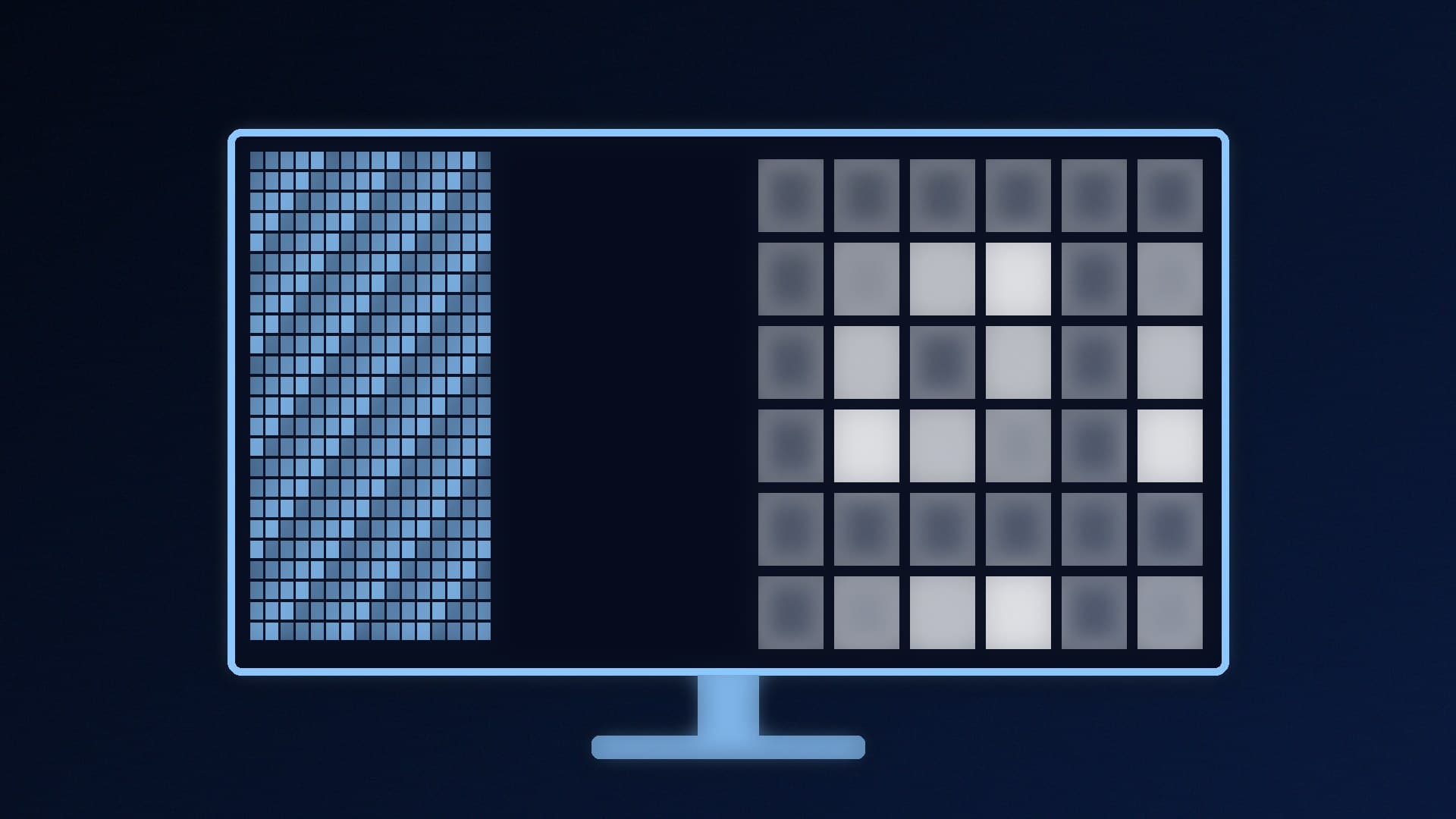
Two 1440p screens give you about 49% more pixels than a 3440 x 1440 ultrawide, which is useful if you keep lots of windows open. A 5120 x 1440 super-ultrawide has the same pixel count as two 1440p screens in one panel, without the gap.
Gaming: ultrawide's strongest point
An ultrawide gives you a wider field of view in games that support 21:9, with no bezel down the middle of the action. A dual-monitor setup doesn't help much in games: you'll almost always play on one screen and use the other for chat, a guide or monitoring tools.
There's a performance cost, though. A 3440 x 1440 ultrawide has about 34% more pixels than a standard 2560 x 1440 monitor, so your graphics card has more work to do for every frame. A super-ultrawide at 5120 x 1440 has double the pixels of a 1440p screen. With two monitors, the GPU only renders the game on one of them. Check that your graphics card suits the resolution with our 1080p vs 1440p vs 4K guide, and check that the games you play support 21:9 before you buy.
Work and multitasking: dual monitors' strongest point
Two monitors split your work naturally: one for the main task, one for reference, email or chat. In Windows 11, Microsoft's multi-monitor settings let you Extend your desktop across the screens so you can move windows between them, or Duplicate the same image on both. Our dual monitor setup guide walks through it, and a monitor arm makes lining up two screens easier.
An ultrawide can still multitask well. Windows' Snap layouts let you drag a window to the edge of the screen and choose a predefined layout, with Snap Assist filling the remaining space, so one ultrawide can show two or three windows side by side. You don't get a physical gap, but you also don't get two separate screens to full-screen two apps at once.
Other things to weigh
Curve. Many ultrawides are curved, which helps keep the edges in view. See curved vs flat gaming monitors.
Upgrade path. With two monitors, you can buy one now and add a second later, or reuse an old screen.
Matching. Two different monitors may not match in colour, brightness or height. Buying a matched pair avoids that.
For ultrawide recommendations, see our best ultrawide gaming monitor guide.
Our verdict
Buy an ultrawide if gaming is your priority or you want one seamless, wide workspace: a 3440 x 1440 panel has about 4.95 million pixels, with no bezel in the middle, but your GPU has about 34% more pixels to render than at 2560 x 1440. Buy two monitors if you mainly multitask: two 1440p screens give you about 7.37 million pixels, games still run on just one screen, and you can add the second screen later. Windows 11's Snap layouts make either setup easier to use.