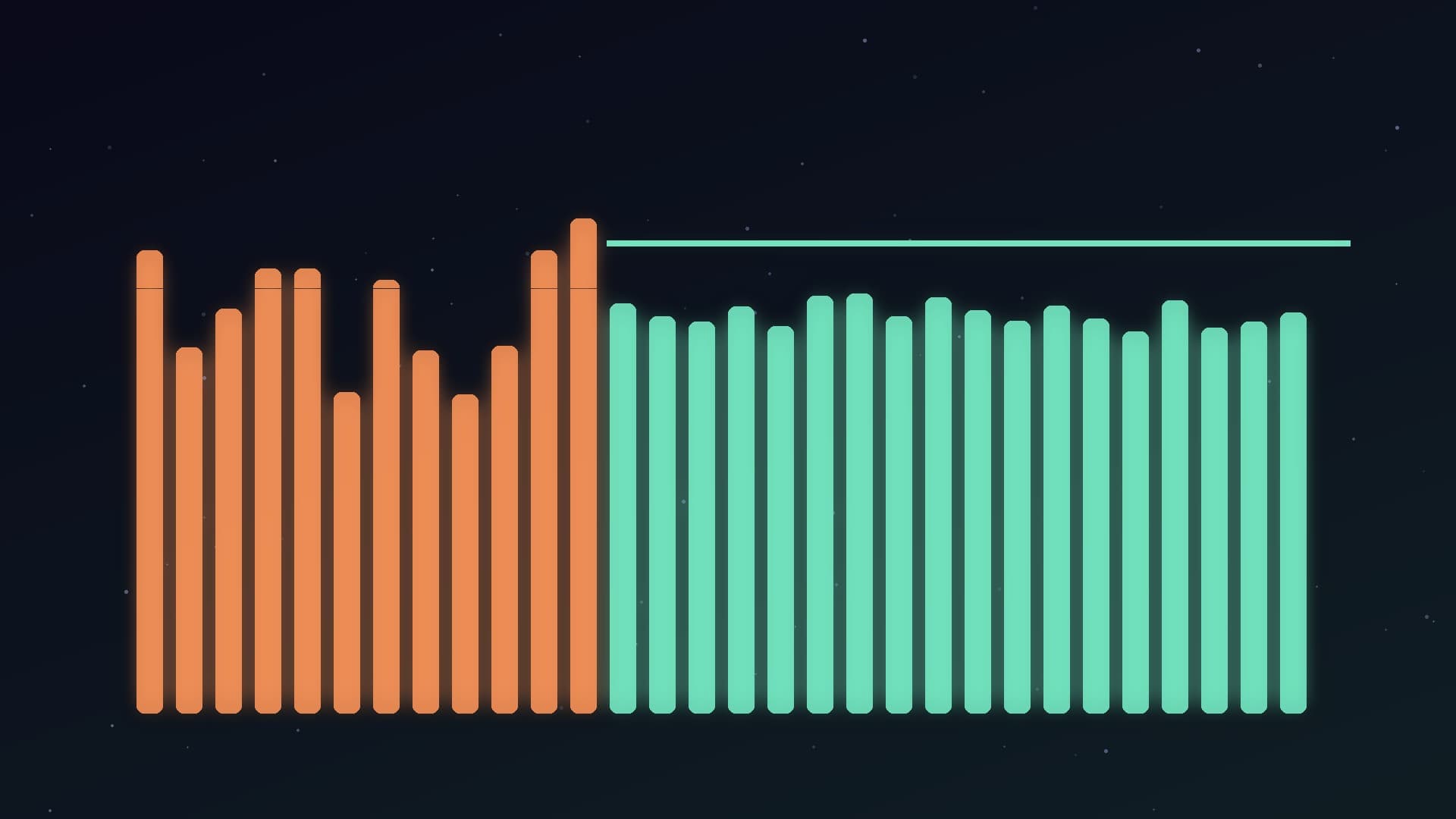
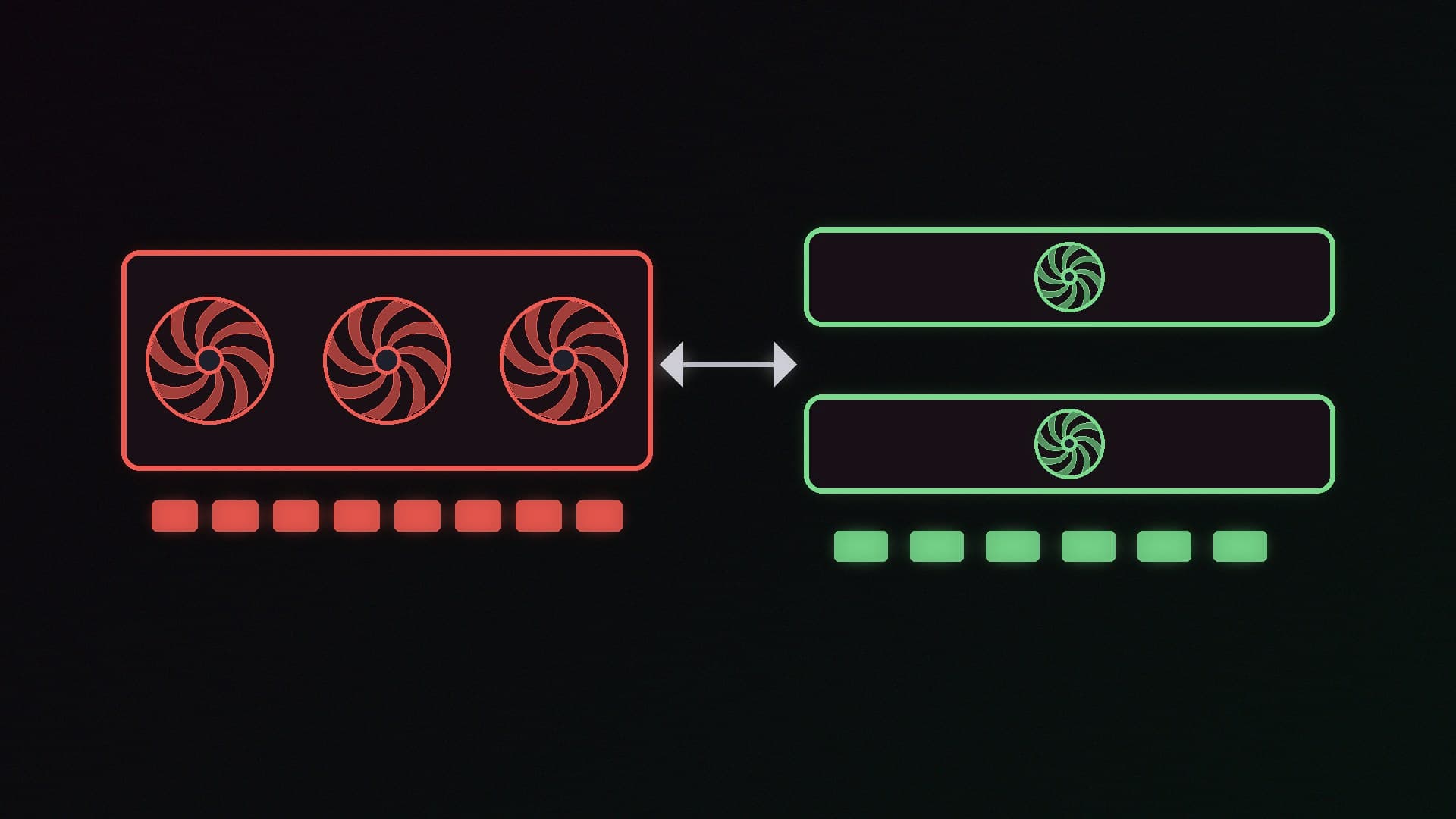
More frames isn't always better. If your graphics card is pushing far past your monitor's refresh rate, it's using power and making heat and noise for frames you can't see, and it can push you out of your monitor's variable refresh rate (VRR) range. A frame rate cap fixes that. This guide is based on NVIDIA's and AMD's own support documentation, linked in the sources, plus TechSpot's guide to the NVIDIA app.
Why cap your frame rate?
NVIDIA's support article on its Max Frame Rate setting gives three main reasons:
Staying in your VRR range. Setting the cap slightly below your display's maximum refresh rate keeps a G-Sync or G-Sync Compatible monitor in its variable refresh range, which NVIDIA says gives a no-tear, low-latency experience.
Saving power. A cap combined with an "Optimal Power" power management mode lowers GPU clocks and power use. On laptops, NVIDIA says it works alongside Battery Boost and Whisper Mode.
Reducing system latency. In GPU-bound games with a steady frame rate, NVIDIA suggests capping slightly below your average FPS and setting Low Latency Mode to Ultra.
AMD describes its Radeon Chill feature in similar terms: it's a power-saving feature that lowers frame rate when there's little movement on screen, which saves power and helps lower GPU temperature.
If you're not sure what your monitor's refresh rate is set to, check that first with our guide on how to change monitor refresh rate, and make sure VRR is on with our G-Sync and FreeSync setup guide.
Step 1: Pick your target
For a VRR monitor: pick a figure a little below the maximum refresh rate, as NVIDIA recommends. For example, a few frames under 144 on a 144Hz monitor.
For power saving or a quieter PC: pick a figure you're happy with in that game. Slower-paced games are good candidates for a lower cap.
For lower latency in GPU-bound games: follow NVIDIA's advice and cap slightly below the frame rate you're getting on average. Our guide to monitoring FPS with HWiNFO and Afterburner shows how to see that figure.
Step 2a: Cap frame rate on an NVIDIA graphics card
NVIDIA's Max Frame Rate setting was originally found in NVIDIA Control Panel > 3D Settings > Max Frame Rate. In the NVIDIA app, TechSpot says the equivalent controls are in the Graphics menu, where the Program Settings tab sets options per game and the Global tab sets them for all games.
Open the NVIDIA app and go to Graphics.
Choose Program Settings to cap a single game, or Global Settings to cap everything.
Find Max Frame Rate, turn it on and set your target.
For power saving, NVIDIA pairs the cap with the "Optimal Power" power management mode. For lower latency, it pairs it with "Prefer maximum performance".
NVIDIA's app release notes also mention a separate Background Application Max Frame Rate setting, which limits games while they run in the background.
One thing to know if you stream: NVIDIA says the Max Frame Rate value isn't applied to third-party streaming software, and that this is by design rather than a bug.
Step 2b: Cap frame rate on an AMD graphics card
AMD's frame-limiting tool is Radeon Chill, in AMD Software: Adrenalin Edition. AMD's support guide gives these steps:
Open AMD Software, type "Graphics" into the search box and choose Graphics Settings.
In Global Graphics, switch Radeon Chill to Enabled. It's disabled by default.
Set the Min FPS (target frame rate when idle) and Max FPS (target during fast action) using the sliders or by typing exact values.
To set a cap for one game only, go to Gaming > Games, open that game's profile and set its Chill values. AMD says per-game settings override the global ones.
Toggle Chill during play with the default Alt+F11 hotkey.
Two caveats from AMD: Radeon Chill can't run at the same time as Radeon Anti-Lag or Radeon Boost, so turning Chill on disables them. If you rely on Anti-Lag for competitive games, read our NVIDIA Reflex vs AMD Anti-Lag explainer before deciding. And Chill works with most DirectX 9, 10, 11 and 12 and Vulkan games, according to AMD.
Step 2c: Use the game's own limiter
Many games include their own frame rate limit in the graphics or display settings. If yours does, it's the simplest option because it only affects that game and needs no driver changes. To keep things simple and easy to troubleshoot, use one cap at a time rather than stacking a driver cap and an in-game cap.
Frame generation and caps
If you use DLSS or FSR frame generation, a cap still matters. TechSpot notes that some games force V-Sync off when frame generation is on, and says setting NVIDIA's Max Frame Rate slightly below your monitor's maximum refresh rate is usually the best way to prevent tearing. Our DLSS and FSR frame generation explainer covers how frame generation works.
Our verdict
Capping your frame rate is one of the easiest settings changes you can make. For most people with a G-Sync or FreeSync monitor, set the cap a few frames below the monitor's maximum refresh rate, as NVIDIA recommends. On NVIDIA cards, use Max Frame Rate in the NVIDIA app's Graphics settings; on AMD cards, use Radeon Chill's Max FPS, remembering that it disables Anti-Lag and Boost. If your game has its own limiter, that's a simple alternative. Set one cap per game and check the result with an FPS overlay.