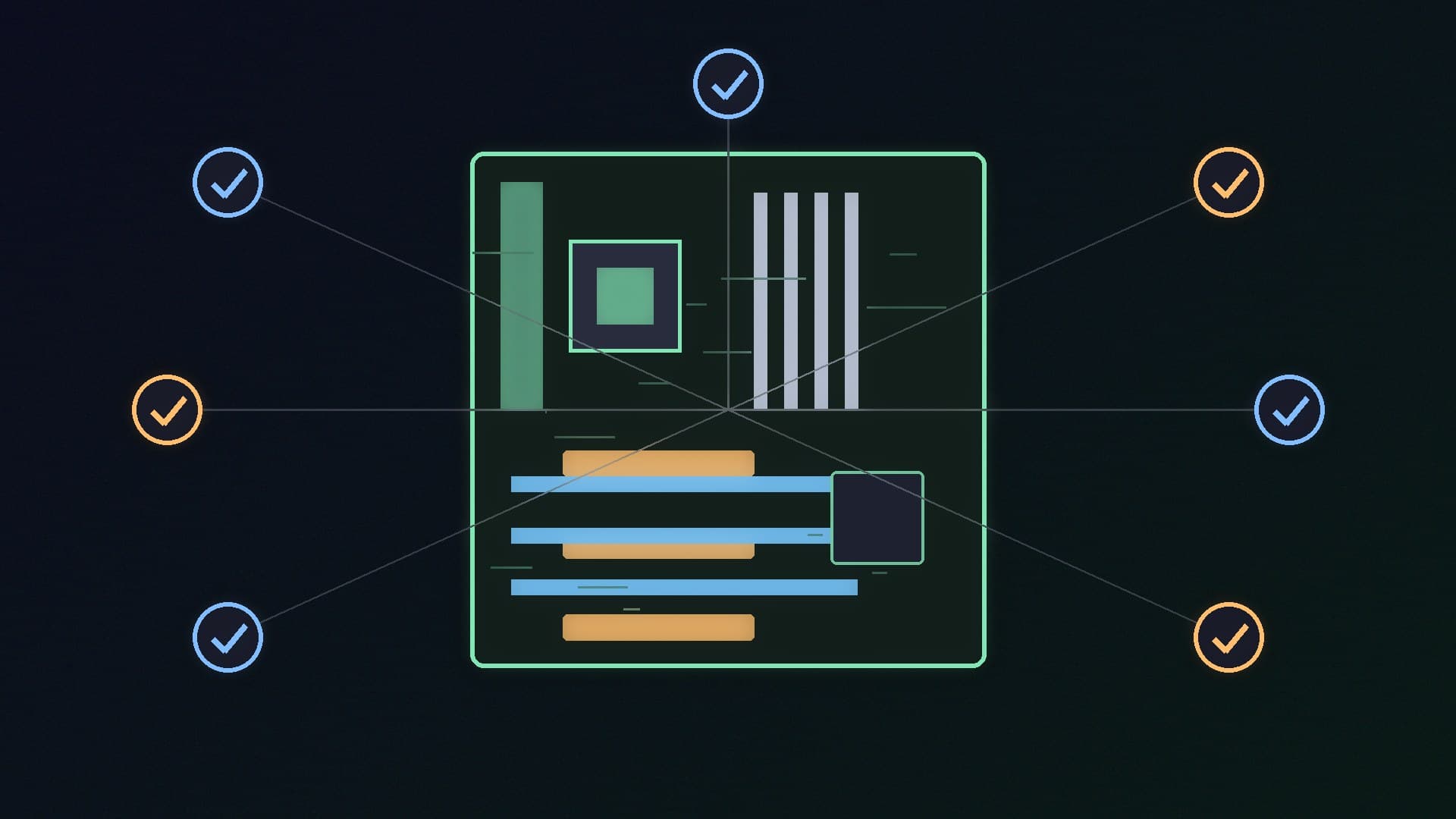
The motherboard decides which CPU you can use, how many SSDs you can fit, what network ports you get and how big your case needs to be. It's also where it's easiest to spend too much or too little. This guide covers the checks in the order we recommend, with real spec sheets as examples. Every figure comes from the manufacturers' official spec pages or AMD's chipset page, linked in the sources.
Step 1: Match the socket to your CPU
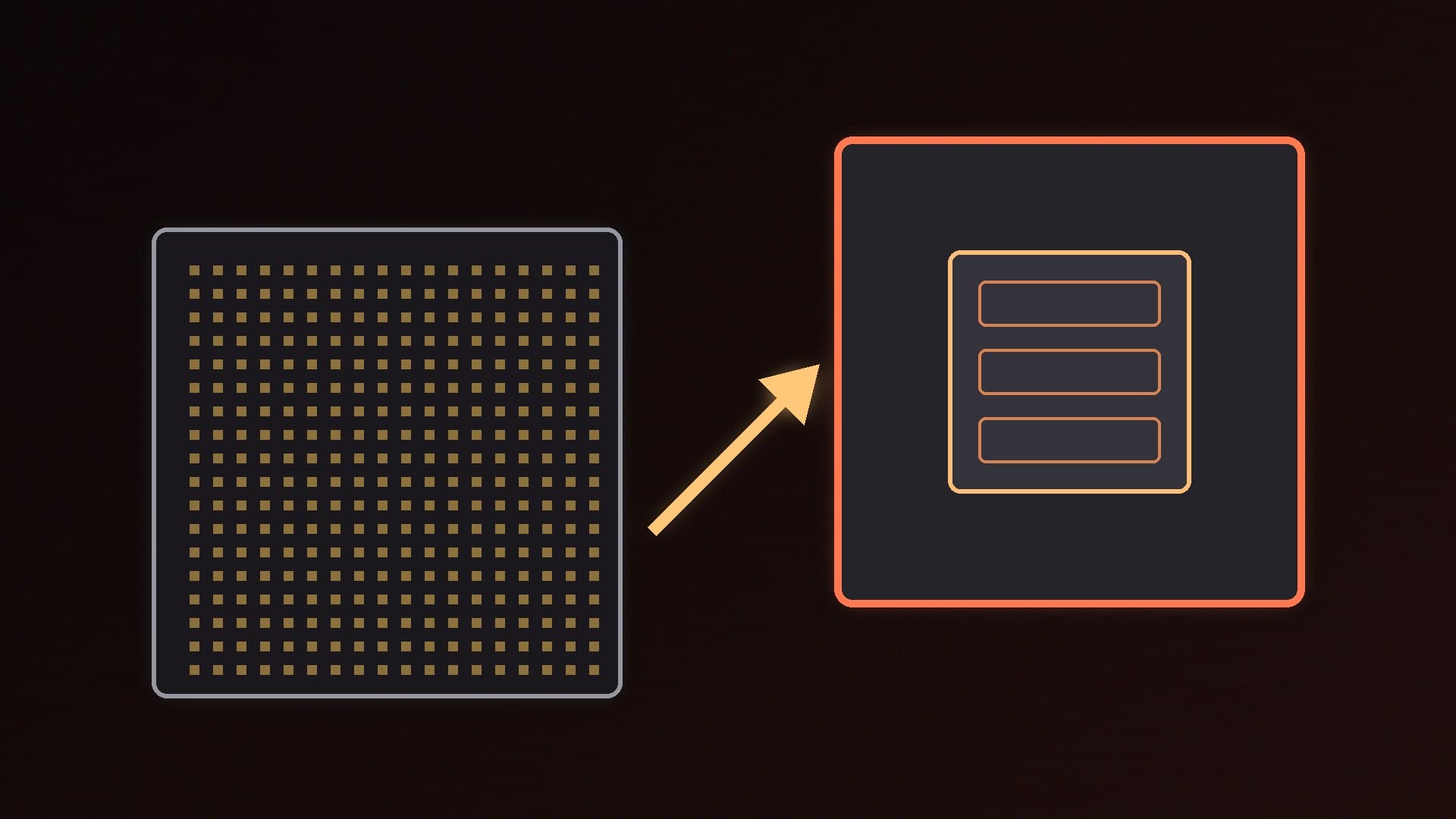
Choose the processor first, because it determines the socket. Current AMD Ryzen 7000, 8000 and 9000 desktop processors use socket AM5, and AMD says all AM5 boards with 600 and 800 series chipsets are compatible with all AM5 processors. AMD adds that a BIOS update may be required for Ryzen 8000 and 9000 processors on 600-series boards. Intel desktop processors use Intel sockets, which aren't compatible with AM5 boards, so check your CPU's socket on its spec page before you start. See our guide to checking CPU and motherboard compatibility for the details, and to updating your BIOS safely.
Step 2: Pick a chipset that has the features you need
Within a socket, the chipset sets the ceiling for features. On AMD's AM5 chipset page:
A620 and B840 have PCIe 4.0 for graphics and the main NVMe SSD, no PCIe 5.0 and no CPU overclocking, but support EXPO memory overclocking on select boards.
B850 adds a PCIe 5.0 x4 connection for an NVMe SSD and supports CPU overclocking.
X870 and X870E are the high-end options, with PCIe 5.0 for graphics and NVMe. AMD lists USB4 as standard on both, and X870E has more usable PCIe lanes (44 against 36) and more USB ports.
Spend on a better chipset only if you'll use what it adds. A PCIe 5.0 SSD, CPU tuning or a lot of fast storage justifies B850 or X870. For a simple gaming PC with one PCIe 4.0 SSD, A620 or B840 can be enough. Our A620 vs B840 and B650 vs B850 comparisons explain the differences in detail. Intel buyers can start with our best LGA 1851 motherboard guide.
Step 3: Choose a size that fits your case
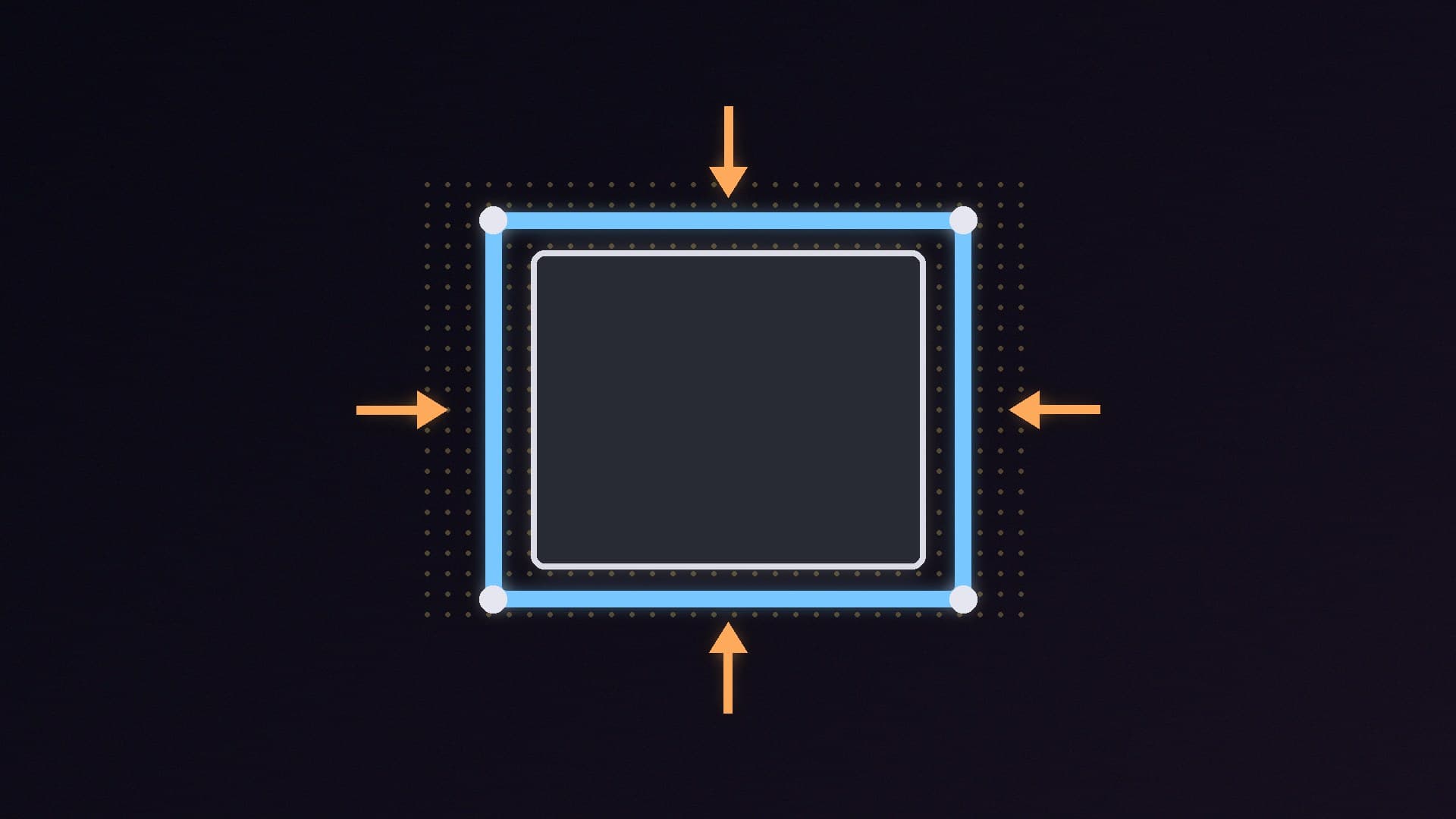
The three common sizes are ATX, micro-ATX and Mini-ITX. As examples, ASUS lists the TUF Gaming B850-PLUS WIFI (ATX) at 30.5 x 24.4 cm, ASUS lists the TUF Gaming A620AM-PLUS WIFI (micro-ATX) at 24.4 x 24.4 cm, and Gigabyte lists the A620I AX (Mini-ITX) at 17 x 17 cm. Smaller boards usually mean fewer slots. The Mini-ITX A620I AX has two memory slots and one x16 slot, while the ATX TUF B850-PLUS WIFI has four memory slots, three M.2 slots and four expansion slots. Check that your case supports the board size; our how to choose a PC case guide covers the case side, and our best micro-ATX motherboard guide covers the middle size.
Step 4: Count memory and M.2 slots
Memory: two slots is enough for a two-stick kit, such as 32GB. Four slots let you add a second kit later, but ASUS, for example, notes that supported memory speed depends on the CPU and memory configuration, including the number of modules, so a larger two-stick kit is often the simpler plan. Check the memory support list (QVL) if you're buying a fast kit; our memory QVL guide shows how.
M.2 slots: count how many NVMe SSDs you want, and check each slot's PCIe generation and lane count. For example, ASUS lists the TUF B850-PLUS WIFI's first M.2 slot at PCIe 5.0 x4 with Ryzen 7000 and 9000 processors, and notes that the third M.2 slot shares bandwidth with the second x16 slot. Our guide to checking M.2 slot speed explains how to read these notes.
Step 5: Check networking and USB
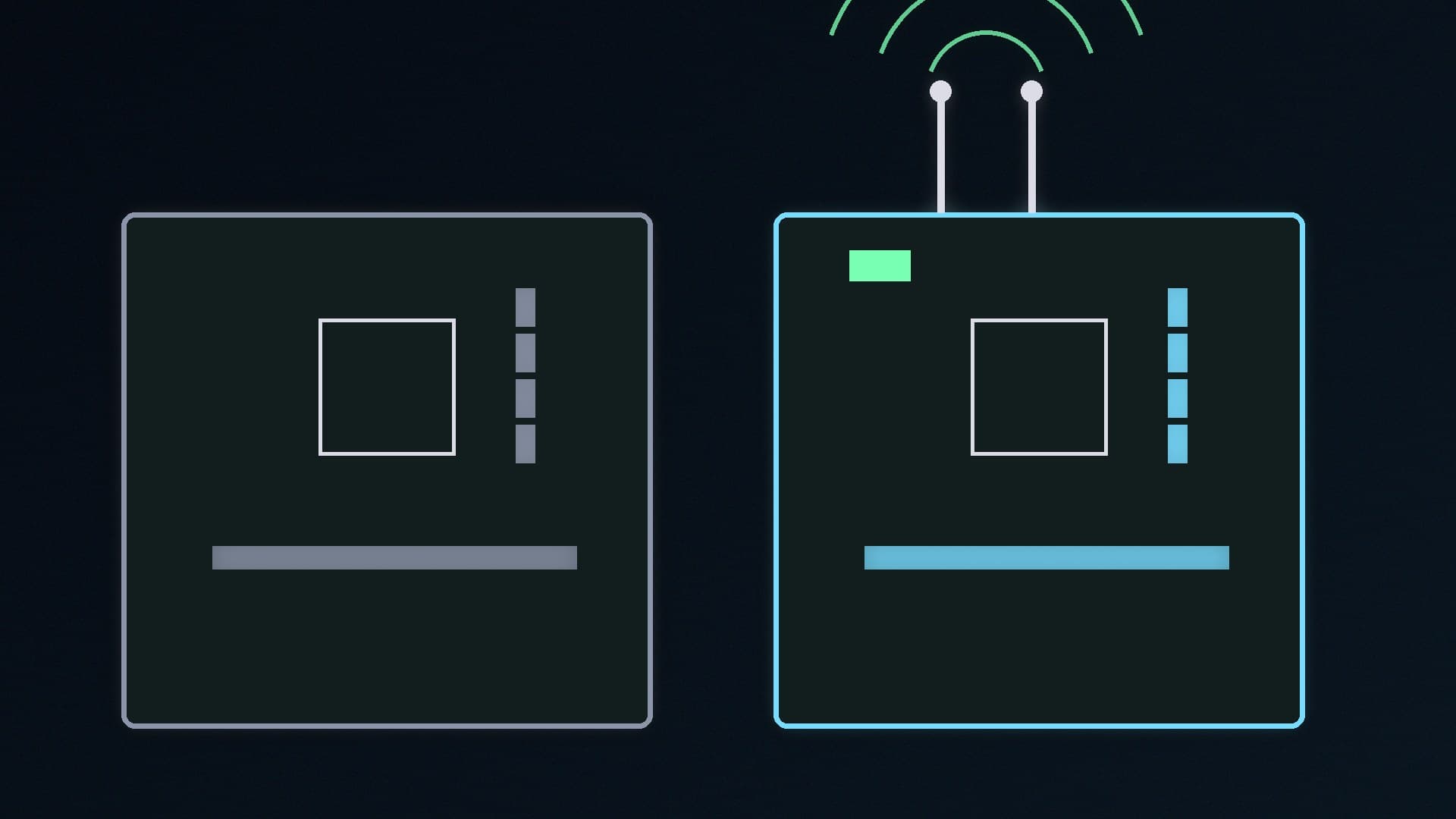
Look for the Ethernet speed (1Gb or 2.5Gb) and whether Wi-Fi is built in. A board without Wi-Fi is fine if you use a cable, but adding Wi-Fi later uses a slot or a USB port. Then count the rear USB ports and check for USB-C, both at the rear and as a front-panel header for your case's USB-C port. These vary widely, even between boards on the same chipset.
Step 6: Check CPU power support and BIOS recovery
Cheaper boards sometimes limit which processors they support. ASUS, for example, lists the Prime A620AM-K for CPUs up to 120 W, while it lists the TUF Gaming A620AM-PLUS WIFI for CPUs up to 170 W. If you're planning a high-end CPU, check the manufacturer's CPU support list for your exact model.
BIOS recovery is worth paying a little extra for. Features such as Gigabyte's Q-Flash Plus let you update the BIOS without a CPU, memory or graphics card installed, which helps if your board's BIOS doesn't yet support your processor. Our BIOS Flashback guide explains how this works.
Step 7: Read the full spec sheet before you buy
Marketing pages highlight the best features, but the specification page lists the details: which slots share bandwidth, which ports need a particular CPU and how many fan headers there are. Our guide to reading a motherboard spec sheet goes through a full example. If you plan a back-connect build with hidden cables, check that the board and case support it; see back-connect vs standard motherboards.
Our verdict
Choose a motherboard in this order: socket to match your CPU, then a chipset with the features you'll actually use, then a size that fits your case. After that, check memory and M.2 slots, networking, USB, CPU power support and BIOS recovery on the maker's spec page, not just the product listing. For AM5 builds, our best AM5 motherboard guide and best B850 motherboard guide apply these checks to real boards.