Modern motherboards advertise four, five or even seven M.2 slots, but the CPU and chipset only have so many PCIe lanes to hand out. To fit everything on the board, manufacturers make some slots share lanes. Fill one M.2 slot and a PCIe slot might switch off, a pair of SATA ports might stop working, or your graphics card's slot might drop from x16 to x8. None of this is a fault, but it catches builders out because the details are hidden in footnotes.
This guide shows you how to find those footnotes for your own board and plan your drives around them.
If you're not sure which board you have, start with how to check your motherboard model in Windows 11.
Why M.2 slots share bandwidth
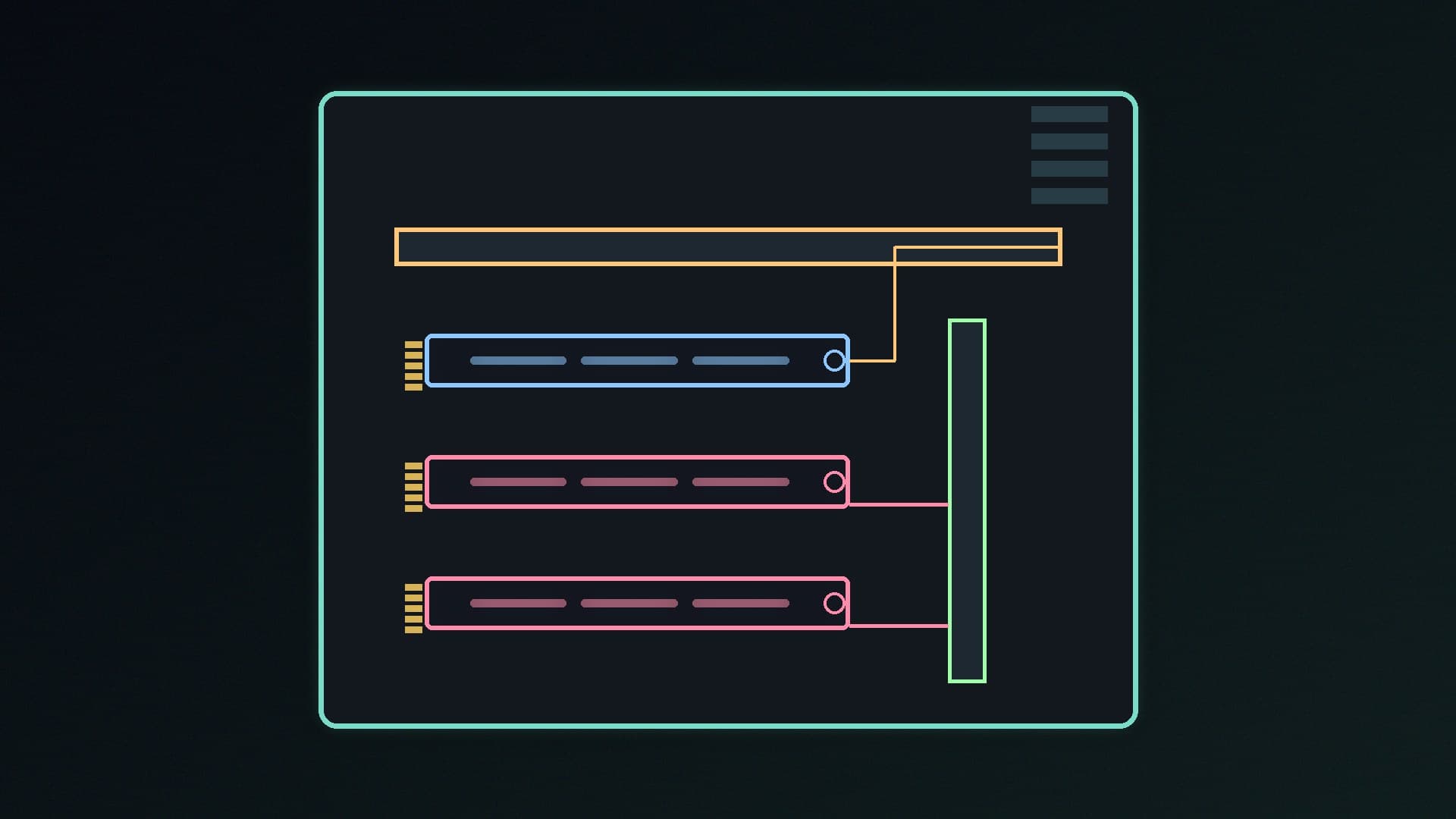
Every M.2 NVMe slot needs PCIe lanes, usually four. Those lanes come from one of two places:
The CPU. These lanes connect directly to the processor. The main graphics card slot and the first one or two M.2 slots normally use them.
The chipset. The chipset provides extra lanes for more M.2 slots, secondary PCIe slots, SATA ports and USB, and connects back to the CPU over its own link.
MSI's user guide for the PRO Z890-A WIFI is a good example of how makers label this. It marks M2_1 and M2_2 as "From CPU", M2_3 and M2_4 as "From Z890 chipset", and the two secondary PCIe 4.0 x4 slots and all four SATA ports as coming from the Z890 chipset too.
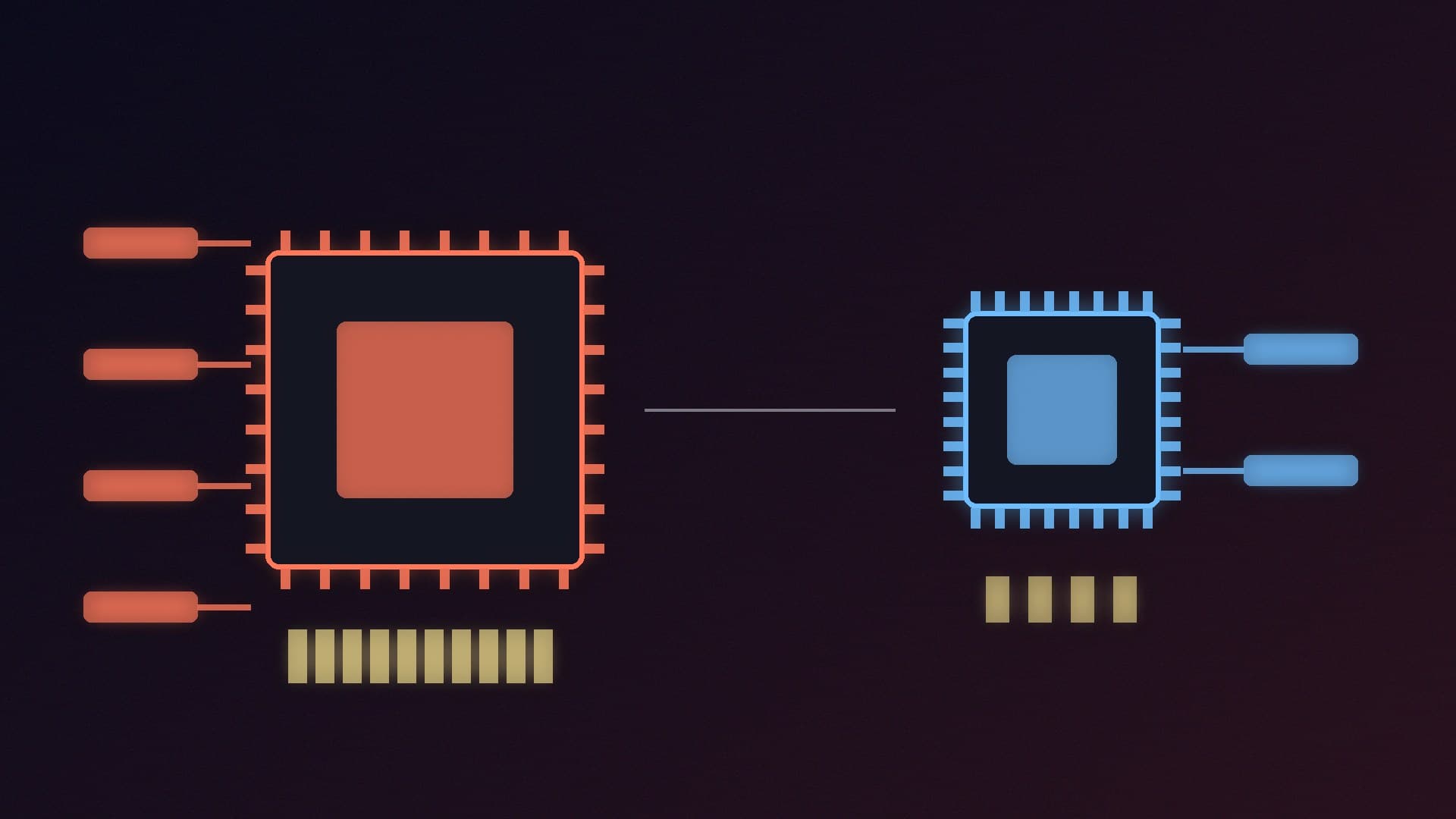
When a board has more slots than it has lanes to give them all at once, the maker wires two devices to the same lanes and lets you use one or the other, or splits the lanes between them. That is bandwidth sharing.
The three kinds of sharing to look for
Reading ASUS's spec pages for current AMD and Intel boards, sharing falls into three patterns.
1. An M.2 slot halves your graphics card slot
This is the one that matters most for gamers, because it affects the main PCIe x16 slot.
ASUS ROG STRIX Z890-E GAMING WIFI: "M.2_3 & M.2_4 slots share bandwidth with PCIEX16(G5). When M.2_3 & M.2_4 are occupied with SSD devices, PCIEX16(G5) will run x8 only."
ASUS TUF GAMING X870-PLUS WIFI: "The PCIEX16(G5) shares bandwidth with M.2_2. The PCIEX16(G5) will run to x8 mode when M.2_2 runs."
On both boards, the slots involved are CPU-connected PCIe 5.0 M.2 slots, so the trade-off is a fast SSD in exchange for running the graphics card at x8. Whether that matters for your card depends on the card and the PCIe generation, and we haven't measured it, so if you want your GPU at full x16, keep those M.2 slots empty and use the others first.
2. An M.2 slot switches off a secondary PCIe slot
This pattern appears on all four of the AMD B850 and X870 boards we checked, and it involves a chipset M.2 slot and a chipset PCIe slot:
ASUS TUF GAMING B850-PLUS WIFI (our specs page): "The PCIEX16(G4) shares bandwidth with M.2_3. The PCIEX16(G4) will be disabled when M.2_3 runs."
ASUS ROG STRIX B850-F GAMING WIFI (our specs page): "M.2_3 slot shares bandwidth with PCIEX16(G4). When PCIEX16(G4) slot is operating, M.2_3 will be disabled."
ASUS PRIME X870-P WIFI: PCIEX16(G4)_1 is disabled when M.2_2 runs, and PCIEX16(G4)_2 and PCIEX16(G4)_3 are disabled when M.2_3 runs.
ASUS TUF GAMING X870-PLUS WIFI: as well as the x8 rule above, "The PCIEX16(G4) will be disabled when M.2_4 runs."
Note that the B850-F's footnote is written the other way round: on that board, the PCIe slot wins and the M.2 slot is the one that turns off. Read the wording carefully, because it tells you which device loses.
If you were planning to fit a capture card, sound card, 10GbE adapter or a PCIe M.2 adapter card in the lower x16 slot, these are the footnotes that decide whether it will work alongside a full set of SSDs.
3. An M.2 slot and SATA ports cancel each other out
Some boards share lanes between an M.2 slot and SATA ports. On the ASUS PRIME X870-P WIFI, ASUS says: "M.2_4 shares bandwidth with SATA6G_1 and SATA6G_2. M.2_4 will be disabled when SATA6G_1 or SATA6G_2 runs." That board lists only two SATA ports, so using either SATA drive costs you the fourth M.2 slot.
This matters if you're carrying over hard drives or SATA SSDs from an old build. See NVMe vs SATA SSD if you're weighing up whether to keep them, and how to install a SATA SSD or hard drive for fitting them.
Step 1: Find the specifications page and manual
You need two documents for your exact board model, including any suffix such as WIFI, PLUS or II:
The specifications or tech specs page on the manufacturer's website. ASUS puts its sharing notes as footnotes, marked with asterisks, under the Expansion Slots and Storage sections.
The user guide (manual) PDF from the board's support page. Manuals often include a slot table showing which slots run from the CPU and which from the chipset, as MSI's PRO Z890-A WIFI guide does in its specifications section.
Check both. The spec page is quicker to scan; the manual often has more detail and diagrams of where each M.2 slot physically sits.
Step 2: Read every asterisk
Go through the Expansion Slots and Storage sections and follow every asterisk to its footnote. You are looking for words such as:
Write down each pair: which M.2 slot, which other slot or port, and which one loses. On the boards above, it is never more than two or three rules, so it fits on a sticky note.
Step 3: Check your CPU, too
Several ASUS AMD footnotes say "Specifications vary by CPU types". On the TUF GAMING B850-PLUS WIFI, for example, ASUS lists the M.2_1 slot as PCIe 5.0 x4 with Ryzen 9000 and 7000 processors but PCIe 4.0 x4 with Ryzen 8000 series processors, and the main x16 slot as PCIe 4.0 supporting x8/x4 mode with Ryzen 8000. On the TUF GAMING X870-PLUS WIFI, ASUS says the M.2_2 slot is not supported with Ryzen 8000 series processors at all.
So if you're using a Ryzen 8000 series APU on an AM5 board, read the CPU-specific lines before you decide where your drives go.
Step 4: Plan where each drive goes
With your list of rules, plan the build before you fit anything:
Boot drive in M.2_1. On every board above, M.2_1 is a CPU-connected slot with no sharing footnote, so it's the safe home for your main SSD.
Next, use slots with no footnote. Fill any M.2 slot that doesn't share lanes before you touch one that does.
Decide what you're willing to give up. If you need a second PCIe card, avoid the M.2 slot that disables its slot. If you want your graphics card at x16, avoid the M.2 slots that halve it. If you're keeping SATA drives, avoid the M.2 slot that shares their lanes.
Check physical size. The same spec lists show which slots take 2242, 2260, 2280 or 22110 drives. Not every slot takes every length.
Our guide on how to install an M.2 SSD covers the physical fitting, and SSD heatsink vs no heatsink helps if a slot has no heatsink of its own.
Step 5: Confirm it after building
Once the PC is built, check that everything you expect is actually there:
Open Disk Management in Windows and check that every SSD and hard drive appears. If a drive is missing, it may be sitting in a slot that has been disabled by sharing, or it may simply need initialising. See SSD not showing up? How to fix it.
If a PCIe card stops being detected after you add an SSD, check the sharing footnote for that slot before assuming the card is faulty. Our guide on how to fix a graphics card not detected covers wider troubleshooting steps.
Common questions
What the spec footnotes tell you for certain is the lane count; if you'd rather not take the risk, leave the M.2 slots that share with the main x16 slot empty.
Does a PCIe 4.0 SSD in a PCIe 5.0 slot still trigger the sharing?
The ASUS footnotes above trigger on the slot being "occupied" or when the M.2 slot "runs", not on the drive's speed, so assume any SSD in that slot counts. Check the exact wording for your board.
Are SATA M.2 drives different?
Some slots support both PCIe and SATA M.2 drives. ASUS lists the ROG STRIX Z890-E GAMING WIFI's M.2_7 as supporting "PCIe 4.0 x4 & SATA modes", for example. The board's other six M.2 slots are listed as PCIe only, so check the spec line for your slot before buying an older SATA M.2 drive. For a speed comparison of NVMe generations, see PCIe 4.0 vs PCIe 5.0 SSD.
Our verdict
Before you fill every M.2 slot on a new motherboard, read the asterisked footnotes under Expansion Slots and Storage on the maker's spec page and check the manual's CPU-vs-chipset slot table. Sharing comes in three forms: an M.2 slot can halve the main graphics card slot to x8 (as on ASUS's ROG STRIX Z890-E and TUF GAMING X870-PLUS WIFI), switch off a secondary PCIe slot (as on the TUF GAMING B850-PLUS WIFI and PRIME X870-P WIFI), or disable SATA ports (as on the PRIME X870-P WIFI). Put your boot drive in M.2_1, fill footnote-free slots next, check CPU-specific limits on AM5, and confirm every drive in Disk Management after the build.