It's a buying checklist built from Microsoft's Windows 11 and Copilot+ PC specifications, Microsoft's developer guidance on NPUs, and the official system requirements published by LM Studio, Ollama and ComfyUI, all read on 26 November 2026.
"AI PC" has become one of the most overused labels in computing. It appears on laptop and desktop listings alike, but it doesn't guarantee any particular level of performance. A thin laptop that blurs your webcam background and a desktop with a 32GB graphics card that runs large language models can both be sold as AI PCs.
The trick is to ignore the label and work out which kind of AI you actually want to use. Then you can check the handful of specs that matter for that job.
Step 1: Decide which kind of AI you want
There are broadly two kinds of AI that run on a PC, and they lean on different hardware.
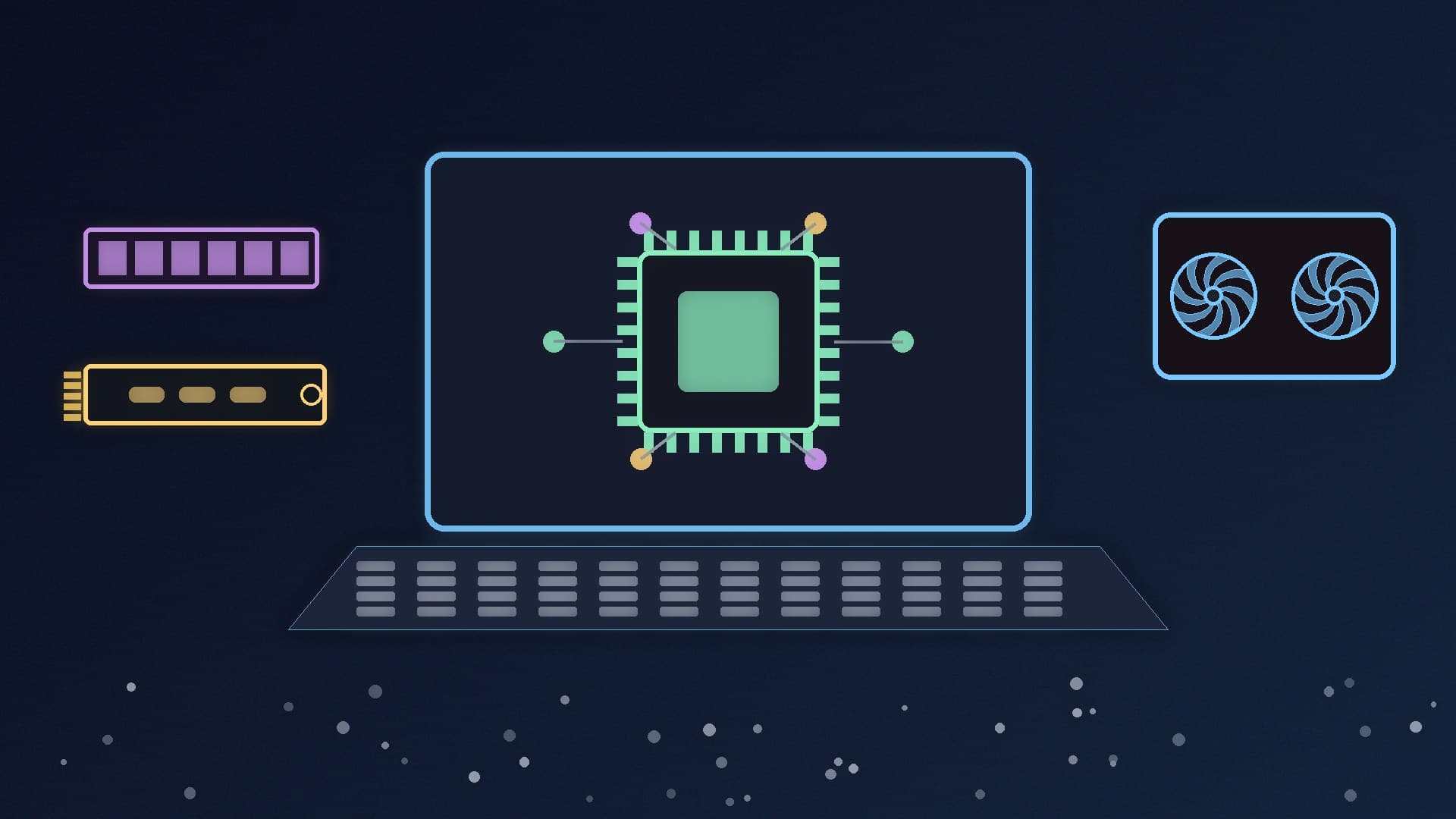
Windows' built-in AI features. These are things like Click to Do, improved Windows search, Live Captions with translation and the AI tools in Paint and Photos. Microsoft designs many of them to run on the neural processing unit (NPU), a dedicated AI chip built into recent laptop processors.
AI apps and models you run yourself. This means chatbots in apps such as LM Studio or Ollama, image generators such as ComfyUI, transcription, coding assistants and so on. Their official system requirements focus on the graphics card, system memory and storage rather than the NPU.
Microsoft's own description of an AI PC is broad. Its Copilot+ PC page says an AI PC on Windows is one that lets you talk to Copilot Voice, show things to Copilot Vision and hand tasks to agentic features, and that some AI PCs, like Copilot+ PCs, add purpose-built hardware such as an NPU. So a PC can be an "AI PC" in Microsoft's marketing sense without having anything special inside.
If you're mostly interested in local chatbots and image generation, skip ahead to steps 4 and 5. If you want the Windows features, step 2 is the important one. Our Copilot+ PC vs regular Windows 11 PC comparison goes deeper on that decision.
Step 2: Check whether it's a genuine Copilot+ PC
Copilot+ PC is the one AI label with a published hardware definition. Microsoft's Windows 11 specifications page says that, on top of the normal Windows 11 requirements, a Copilot+ PC must have:
Component | Copilot+ PC minimum |
|---|
Processor | A compatible processor or system on a chip with an NPU capable of 40+ TOPS |
Compatible chips (currently) | AMD Ryzen AI 300 and 400 series, Intel Core Ultra 200V and 300V series, Snapdragon X series |
RAM | 16GB DDR5/LPDDR5 |
Storage | 256GB SSD/UFS |
For comparison, the standard Windows 11 minimum is 4GB of RAM and a 64GB storage device.
The detail that catches people out is that all of these have to be met. Microsoft says some Windows 11 PCs have a 40+ TOPS NPU but don't meet the other requirements, and gives the example that devices with less than 16GB of RAM or less storage are not Copilot+ PCs. Those machines can still run AI apps locally, but they won't get the unique Copilot+ experiences such as improved Windows search and Click to Do.
So when you're shopping, don't stop at the processor name. Check the RAM and storage on the exact configuration you're buying, and look for the Copilot+ PC branding on the listing.
Step 3: Know what Copilot+ actually gets you
Microsoft's specifications page lists the unique Copilot+ PC features, which it says need a 40+ TOPS NPU to work as intended. They include Click to Do, improved Windows search, Live Captions translation, Recall (preview), Paint's Cocreator, object select and sticker generator, Photos' image creator, restyle and super resolution, the Snipping Tool's perfect screenshot, flexible commands in Voice Access, Windows Studio Effects and Agent in Settings.
Read the small print, though:
Some features are Snapdragon-only for now. Microsoft lists automatic super resolution for games, Paint's generative fill and Photos' relight as available on Copilot+ PCs with Snapdragon X Series processors.
Some need the cloud as well. Cocreator, the sticker generator, image creator and restyle require a Microsoft account or Entra ID and an internet connection to access cloud services that Microsoft uses for responsible AI checks.
Recall has extra requirements. It needs Windows Hello Enhanced Sign-in Security.
Basic Studio Effects need much less. Microsoft says automatic framing, background blur, standard eye contact and voice focus run on Windows 11 devices with an NPU of 10+ TOPS, with additional effects only on Snapdragon X Series Copilot+ PCs.
If none of those features matter to you, a Copilot+ badge isn't worth paying extra for. If several of them do, it's the only way to get them.
Step 4: Get the RAM right first
Memory is the spec most worth over-buying on an AI PC, because local AI models have to be loaded into memory to run.
Microsoft sets 16GB as the Copilot+ minimum. LM Studio's system requirements for Windows say LLMs can consume a lot of RAM and recommend at least 16GB. On Apple Silicon Macs, LM Studio recommends 16GB or more and says 8GB Macs can still work if you stick to smaller models and modest context sizes.
Treat 16GB as a floor rather than a target if you want to run models yourself. Our guide to how much RAM you need for local AI walks through realistic sizes for different model classes.
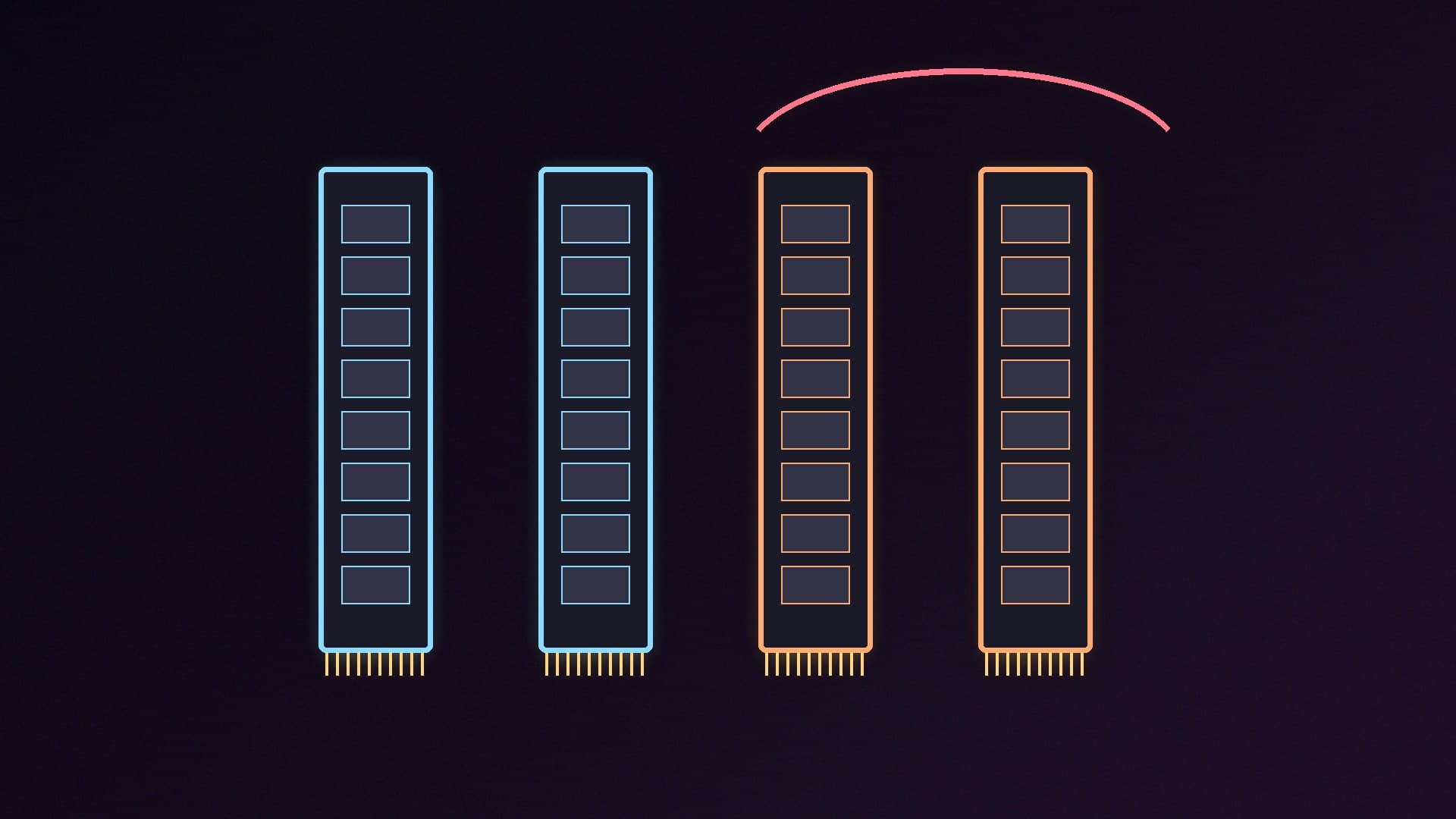
Before buying a laptop or mini PC, check whether its memory can be upgraded later. Check the spec sheet or the manufacturer's support pages to see whether the RAM is soldered or in removable slots. If it can't be upgraded, buy the amount you'll want in three years' time, not the amount you need today.
Step 5: For local models, the graphics card matters most
If you plan to run chatbots or image generators yourself, the graphics card and its video memory (VRAM) usually matter more than the NPU.
The official requirements give a sense of the minimums:
LM Studio recommends at least 4GB of dedicated VRAM on Windows, and needs a processor with AVX2 support on x64 PCs. It also runs on Arm-based Snapdragon X Elite PCs.
Ollama supports NVIDIA graphics cards with compute capability 5.0 or newer and driver version 550 or newer. AMD cards are supported through ROCm on a published list of models, and Ollama says Vulkan provides additional GPU support on Windows and Linux, enabled by default. On Windows, its ROCm list covers Radeon RX 7000-series and Radeon PRO W7000-series cards. It also supports Apple GPUs through Metal.
ComfyUI, the popular image and video generation app, supports NVIDIA, AMD (with ROCm on Linux and Windows), Intel Arc and Apple Silicon, according to its system requirements page.
Those are minimums for the software to start. Comfortable use takes a lot more: our guides to how much VRAM you need and whether your PC can run a local LLM explain how model size, quantisation and context length add up.
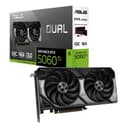
A desktop with a 16GB card such as the ASUS RTX 5060 Ti 16GB Dual OC is a common starting point for local AI. Machines with large pools of shared memory work differently, and our unified memory vs VRAM explainer covers the trade-offs.
TOPS (trillions of operations per second) is the headline number on many AI PC listings, but it's easy to misread.
Microsoft defines a Copilot+ NPU as one capable of more than 40 TOPS. Graphics card makers quote far bigger figures for their own hardware: NVIDIA lists the GeForce RTX 5060 Ti at 759 AI TOPS, for example. Those numbers aren't measured the same way and don't tell you how fast a particular app will run, because software support matters just as much. Our TOPS vs TFLOPS explainer and NPU vs GPU comparison go into detail.
What TOPS can't fix is missing software. Microsoft's developer guidance says the NPU needs software to be specifically programmed to use it, and that many NPUs only support lower-precision integer maths, so models have to be converted to run on them. The LM Studio, Ollama and ComfyUI requirements we've cited focus on graphics card support, not NPUs.
Step 7: Check software support for your chip
This step is easy to skip and expensive to get wrong.
Arm-based Snapdragon X PCs are on Microsoft's Copilot+ chip list, some Copilot+ features are currently exclusive to them, and LM Studio supports them. But ComfyUI's own "Which GPU should I buy?" guide places Qualcomm AI PCs in its lowest tier, saying PyTorch doesn't work on them at all and recommending avoiding them for ComfyUI until it does. If image generation is on your list, that's a deal-breaker for now. Our guide to running a local LLM on a Snapdragon X laptop covers what does work.
The same guide rates NVIDIA cards as the best-supported option for ComfyUI, AMD as good on Linux with officially supported cards, and Intel Arc as officially supported in PyTorch. Apple Silicon works but sits in a lower tier because it's slow and lacks some features.
Step 8: Leave room for models on the SSD
Copilot+ PCs need at least 256GB of storage, and that can fill up once you start downloading AI models. Microsoft also notes that storage requirements for Copilot+ features depend on your configuration and what's installed.
If you plan to experiment with local models, aim higher. Our guide to how much storage you need for local AI gives practical numbers.
Quick checklist
If you want... | Check for... |
|---|
Windows Copilot+ features | Copilot+ PC branding, a chip on Microsoft's list, 16GB+ RAM, 256GB+ SSD |
Local chatbots | As much RAM and VRAM as you can afford; NVIDIA, or an AMD card on Ollama's support list |
Local image generation | A dedicated NVIDIA, AMD or Intel Arc graphics card; avoid Qualcomm PCs for ComfyUI for now |
Long-term flexibility | Upgradable RAM and a spare M.2 slot |
Our verdict
Ignore the "AI PC" sticker and buy for the AI you'll actually use. If you want Windows' Copilot+ features, make sure the exact model meets all of Microsoft's minimums: a 40+ TOPS NPU from the approved chip list, 16GB of RAM and 256GB of storage. If you want to run chatbots and image generators yourself, prioritise RAM, a graphics card with plenty of VRAM and software support for your chip over NPU TOPS figures, and remember that Qualcomm-based PCs can't run ComfyUI yet.