Most local AI guides focus on VRAM and RAM, but storage fills up fast too. Every model you download is a multi-gigabyte file, and it's easy to end up with several versions of the same model in different apps. This guide uses the download sizes published in Ollama's model library and on Hugging Face, plus each app's own documentation for where files are stored. Forge PC hasn't measured every app's disk use, and sizes change as models are updated, so treat the figures below as examples rather than fixed rules.
How big are local AI models?
Model size depends mainly on the number of parameters and the quantisation (how heavily the weights are compressed). Ollama's library lists these download sizes:
Model (Ollama tag) | Download size |
|---|
llama3.1:8b (default 4-bit quantisation) | 4.9GB |
llama3.1:8b-instruct-q8_0 (8-bit) | 8.5GB |
llama3.1:8b-instruct-fp16 (unquantised) | 16GB |
gpt-oss:20b | 14GB |
llama3.1:70b | 43GB |
gpt-oss:120b | 65GB |
llama3.1:405b | 243GB |
Image generation adds more. On Hugging Face, Stability AI's SDXL base checkpoint file (sd_xl_base_1.0.safetensors) is 6.94GB on its own, before you add a refiner, LoRAs, upscalers or other checkpoints.
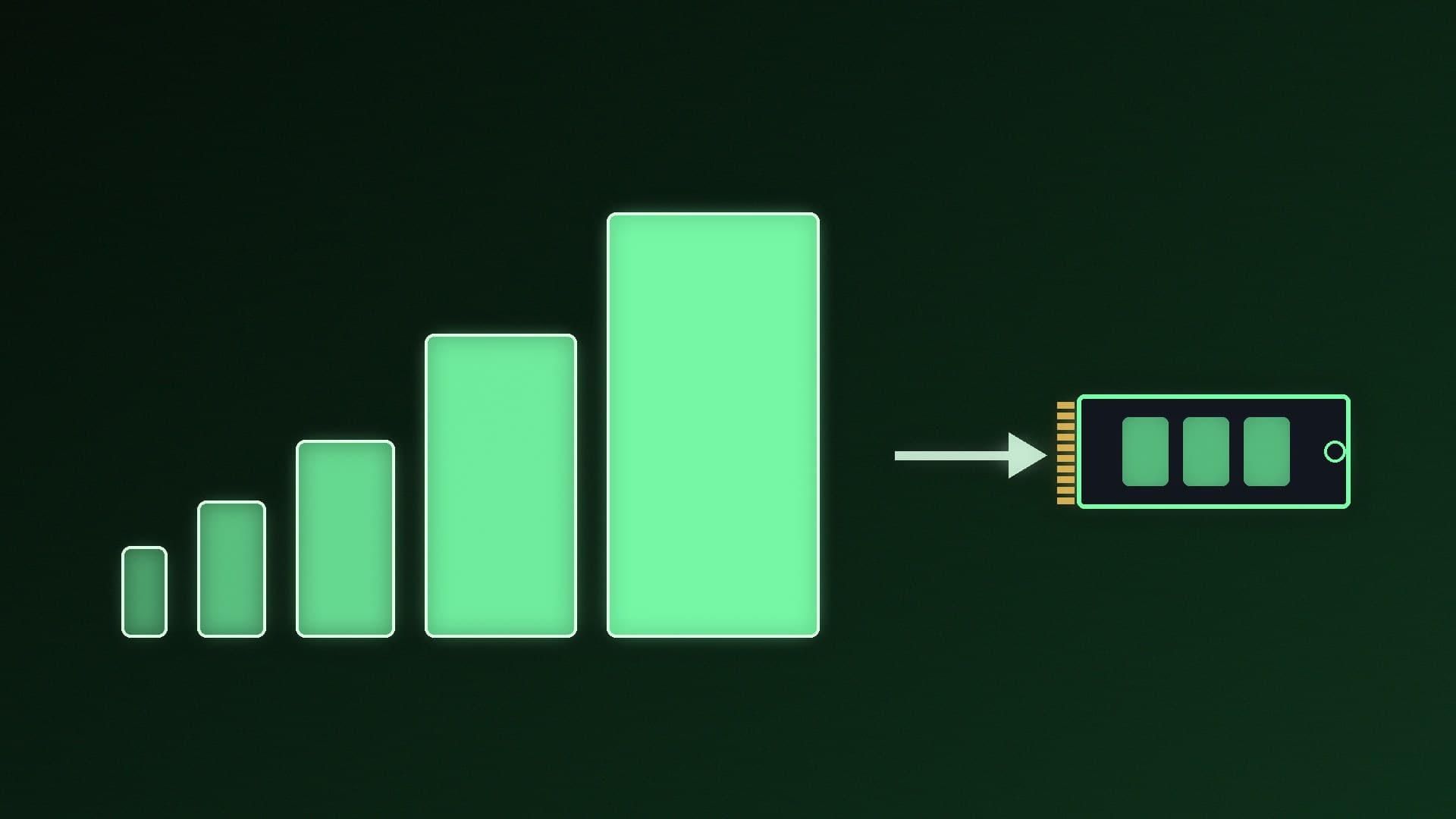
Two things follow from the table. First, the same model can be three times bigger depending on quantisation: the 8-bit and full-precision versions of Llama 3.1 8B are 8.5GB and 16GB, against 4.9GB for the default. Our LLM quantisation explainer covers the trade-off. Second, the jump from small to large models is steep: a single 70B model is about the size of eight or nine 8B models.
How much space to budget
These are planning suggestions based on the sizes above, not hard limits:
Trying local AI: a few small chat models plus one image model fit in roughly 50GB.
Regular use: several chat models in two or three sizes, a coding model and a couple of image checkpoints can easily pass 150-250GB.
Large models: one 70B-class and one 120B-class model already take over 100GB together, before anything else.
Leave free space on top. SSDs need room for normal housekeeping, and Windows, games and updates need space too. If your system drive is a 1TB SSD that's already half full, a dedicated second drive for models is the tidy solution. See our best 2TB SSD and best 4TB SSD guides.
Does a faster SSD make AI faster?
A faster drive mainly shortens the time it takes to load a model into memory. Once a model is loaded into VRAM or RAM, generation speed depends on your GPU, memory and settings, not on the SSD. A PCIe 4.0 NVMe drive is a sensible choice for a models drive; a hard drive will work but makes loading large models slow. Our NVMe vs SATA SSD guide explains the differences.
Where each app stores models (and how to move them)
Ollama
Ollama's FAQ says models are stored in C:\Users\%username%\.ollama\models on Windows. To use a different folder, set the OLLAMA_MODELS environment variable to the new location. On Windows, quit Ollama from the taskbar first, open Settings, search for "environment variables", choose Edit environment variables for your account, add OLLAMA_MODELS, click OK and restart Ollama. Our guide to managing Ollama models walks through moving existing models.
LM Studio
LM Studio's documentation says you can change the models directory from the My Models tab. Our guide to choosing models in LM Studio explains which downloads to pick.
Python tools that download through the huggingface_hub library cache files in ~/.cache/huggingface by default (the hub cache goes in a hub folder inside it). Hugging Face's documentation says you can change this with the HF_HOME environment variable, or set HF_HUB_CACHE to move only the model cache. Its cache-management guide also explains how to scan and delete cached files.
ComfyUI
ComfyUI's documentation describes an extra_model_paths.yaml file (there's an extra_model_paths.yaml.example in the ComfyUI folder to copy). You set a base_path pointing at a folder of models, so ComfyUI can use models stored elsewhere without copying them. The desktop app uses an extra_models_config.yaml file in your AppData\Roaming\ComfyUI folder instead. Our ComfyUI install guide covers setting it up.
Tips to save space
Delete models you don't use. Our Ollama models guide shows how to list and remove them; LM Studio's My Models tab and Hugging Face's cache tools do the same job for those apps.
Avoid duplicates. Ollama, LM Studio and Hugging Face tools each keep their own copies, so the same model can end up on your drive two or three times.
Pick one quantisation. For most chat use on a gaming PC, a 4-bit or 5-bit version is the practical choice.
Our verdict
Budget around 50GB to try local AI, and 250GB or more if you plan to keep several models or any 70B-class model. Large models are the real space hogs: llama3.1:70b is 43GB and gpt-oss:120b is 65GB in Ollama. A second NVMe SSD used only for models keeps your system drive free, and every major tool (Ollama, LM Studio, Hugging Face and ComfyUI) lets you point it at another folder.