If a local language model feels slow on your PC, speculative decoding is one of the few speed-ups that doesn't cost answer quality. LM Studio supports it with a simple drop-down: you load your normal model, add a much smaller "draft" model from the same family, and the pair work together. This guide follows LM Studio's official documentation. Forge PC hasn't benchmarked speculative decoding for this article, so we don't quote speed-up figures; your results will depend on your models, prompts and hardware.
How speculative decoding works
LM Studio's documentation explains it in two parts:
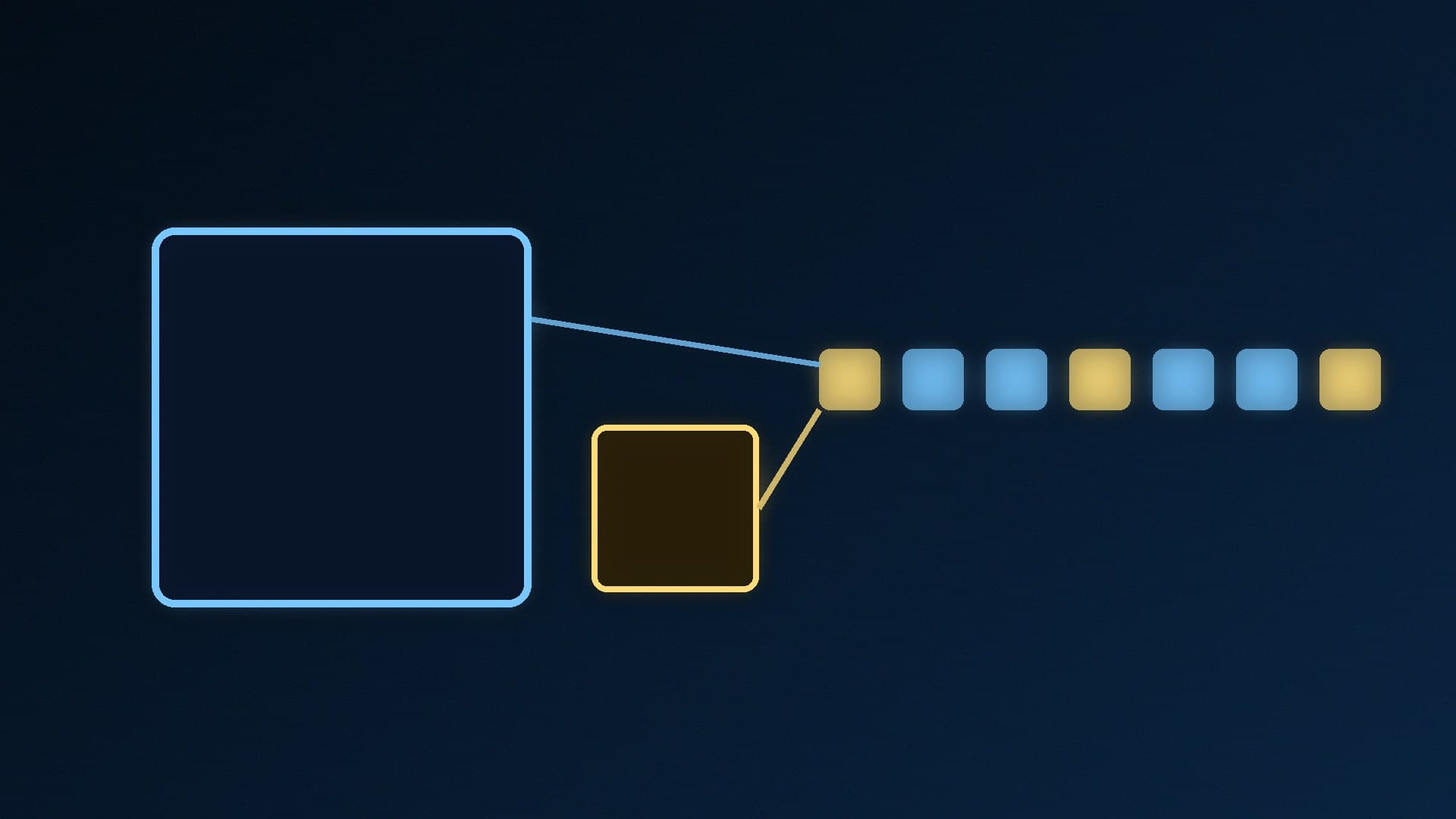
A small, fast draft model quickly proposes the next few tokens (chunks of words).
The larger main model checks those proposals, which is faster than generating each token from scratch.
The main model only accepts tokens that match what it would have generated itself, so the output quality is the same as using the main model alone. After the last accepted draft token, the main model always generates one more token of its own.
There's one hard rule: the draft model must use the same vocabulary as the main model. In practice that means a smaller model from the same family.
Step 1: Turn on Developer Mode
LM Studio's speculative decoding page says the controls appear in Power User mode or higher. In current versions, LM Studio's interface documentation says Developer Mode "combines the previous Developer and Power User modes" into one mode with all advanced features, and you switch it on in Settings > Developer.
Step 2: Load your main model
Load the model you normally use. If you're not sure which size suits your graphics card, our guide to choosing models in LM Studio covers VRAM and quantisation.
Step 3: Pick a draft model
Open the chat sidebar, find the Speculative Decoding section and choose a Draft Model from the drop-down. If nothing compatible is listed, download a smaller version of the same model. LM Studio gives these example pairings:
Main model | Draft model |
|---|
Llama 3.1 8B Instruct | Llama 3.2 1B Instruct |
Qwen 2.5 14B Instruct | Qwen 2.5 0.5B Instruct |
DeepSeek R1 Distill Qwen 32B | DeepSeek R1 Distill Qwen 1.5B |
Once both models are loaded, just start chatting. Speculative decoding is then active.
How big should the draft model be?
LM Studio says the speed-up depends on two things: how much smaller and faster the draft model is than the main model, and how often its suggestions are accepted. Its guidance on the maximum draft size likely to give a speed-up is:
Main model size | Largest draft model to expect speed-ups |
|---|
3B | (none listed) |
7B | 1B |
14B | 3B |
32B | 7B |
In general, the bigger the gap between the two models, the bigger the speed-up.
Know the trade-offs
It uses more resources. Running two models needs more computation and memory than one. If the extra model pushes your GPU out of VRAM, things can get slower, not faster. Check with our guide to checking VRAM usage in Windows.
It can make things worse. LM Studio warns that if the draft model isn't fast enough, or doesn't make enough "good" suggestions, generation speed won't increase and could decrease.
Results vary by prompt. Predictable answers, such as a maths formula, suit it well because both models are likely to produce the same tokens. Creative writing has many valid next words, so more draft tokens get rejected.
Check whether it's actually helping
Measure before and after rather than trusting your impression. Run the same prompt with and without a draft model and compare LM Studio's tokens-per-second figure. Use a few different prompt types, because speed-ups aren't consistent. Our guide to benchmarking local LLM speed explains how to get repeatable numbers. If you use Ollama instead, see Ollama vs LM Studio for how the two apps differ.
Our verdict
Speculative decoding is worth trying in LM Studio if you run a mid-sized or large model and have memory to spare: turn on Developer Mode (Settings > Developer), load your main model and choose a much smaller draft model from the same family in the chat sidebar. Output quality doesn't change, but the speed-up depends on the prompt and can disappear if the draft model is too big or your VRAM runs out, so measure tokens per second with and without it.