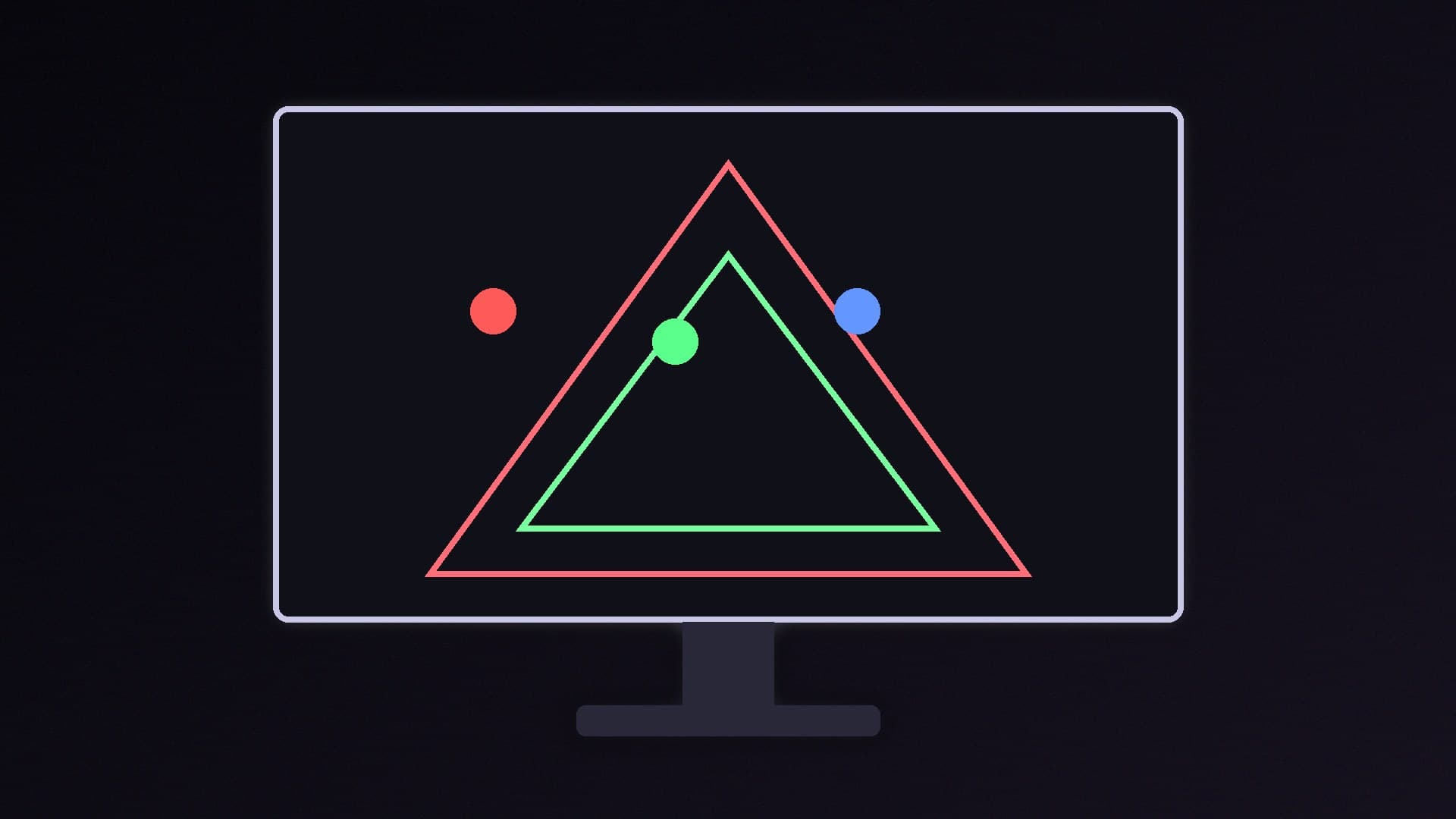
Monitors with wide colour gamuts are becoming increasingly common, and many, such as those with Quantum Dot backlights, can show far more saturated colours than older screens. That sounds like a good thing, until you notice that faces in games look tanned or sunburnt, grass looks garish and skies look artificially blue. The monitor isn't faulty. It is showing content made for the smaller sRGB colour space using its full, wider gamut.
This guide explains why that happens and the four main ways to rein it in. The technical background from Microsoft's documentation.
Why wide-gamut monitors oversaturate colours
A monitor's colour gamut is the range of colours it can produce. PC Monitors explains that most SDR content, including games and most images and video, is designed around the sRGB colour space. When that content is shown on a screen with a wider gamut, and nothing controls the gamut, "things appear more vibrant and saturated than they should".
PC Monitors gives examples of what this looks like in games and other sRGB content: overly tanned or sunburnt-looking skin tones, reddish-brown earth looking far too red, yellowish-green vegetation looking overly yellow, and artificially vibrant sky blues.
It also points out that this is different from a simple saturation boost such as NVIDIA's Digital Vibrance or a saturation slider in the monitor menu. A wide gamut keeps good spacing between shades; some people like the vivid look, others don't. If you're one of the people who doesn't, read on.
Microsoft's developer documentation describes the underlying problem the same way. When Windows isn't doing colour management, it assumes app content is in the standard sRGB colour space and passes it to the display unchanged. Microsoft's example is that sRGB red sent to an Adobe RGB display is shown as that display's most saturated red, "which is incorrect".
Why ICC profiles don't fix games
You might expect installing the monitor's ICC colour profile to solve this. PC Monitors explains that ICC profiles only correct colours in colour-aware applications such as web browsers and photo editors, and not games or the Windows desktop itself. Unless you created the profile on your own screen with a colorimeter, it won't be very accurate either. If you want to do that properly, see our best monitor calibrator guide.
For games and the desktop, you need a gamut clamp that applies to everything. There are four ways to get one.
Option 1: Use the monitor's sRGB mode
Check your monitor's on-screen display (OSD) for a picture mode called sRGB, sRGB emulation or similar. PC Monitors says this setting "clamps the colour gamut universally" so it more closely tracks sRGB, regardless of whether an application is colour-aware.
How to use it:
Open the monitor's OSD menu with the buttons or joystick on the monitor.
Look in the picture mode, colour or preset section for an sRGB option.
Select it and check a game or photo with natural skin tones.
The catch: PC Monitors says it's fairly common for sRGB modes to lock brightness, and "extremely common" for them to lock other settings such as colour controls and gamma. If brightness is locked at a level you find uncomfortable, try one of the options below instead. Not every wide-gamut monitor has an sRGB mode at all; PC Monitors notes it's "fairly widespread but not always found".
PC Monitors also says the monitor's sRGB mode is the only clamp option for games consoles such as the Xbox Series X and PS5, since they can't use the PC methods below.
Option 2: Use AMD's driver clamp (Radeon cards)
AMD's graphics driver has an sRGB emulation feature, though its name doesn't make that obvious. PC Monitors explains that it reads the monitor's EDID data, which describes the panel's native gamut, and corrects colours based on that. It applies universally, including in full-screen games.
How to turn it on, per PC Monitors:
Open AMD's Radeon Software and click Gaming (on older drivers, the Settings cog), then Display.
Make sure Custom Color is set to Enabled.
Make sure Color Temperature Control is set to Disabled. If it already appears disabled, switch it to Enabled and then back to Disabled to trigger the sRGB emulation behaviour.
PC Monitors says it has tested this on a broad range of monitors and typically sees about 98% sRGB coverage with very little extension beyond sRGB. The advantage over the monitor's own sRGB mode is that you keep access to all of the monitor's OSD settings, including brightness.
Things to know:
PC Monitors says the correction can also change the white point and green balance, so you may need to adjust the monitor's colour channels afterwards.
Because it is applied at the GPU level, it can introduce slight banding in fine gradients.
Under HDR, disabling Color Temperature Control can upset image balance and cause intense oversaturation or undersaturation, depending on the monitor. PC Monitors says the tweak is only designed for viewing sRGB content in SDR.
If you're thinking of switching GPU brand partly for this feature, our guide on how to switch from an NVIDIA to an AMD graphics card covers the process.
Option 3: Use Windows Auto Colour Management
Windows 11 has its own system-wide colour management. PC Monitors says Auto Colour Management (ACM) rolled out more broadly in the Windows 11 24H2 update and can be found under System > Display > Colour management. Under SDR, it clamps the colour gamut for all applications to sRGB by default, using the same EDID data as the GPU methods, unless an app is written to target a different gamut.
Microsoft's documentation confirms the mechanism: when Windows' Advanced Color is active, Windows performs automatic system colour management, converting to the display's colour space using its default colour profile or, if there is none, its EDID colorimetry data, and it treats apps that aren't Advanced Color-aware and render in a standard integer pixel format as sRGB. Microsoft's example is that sRGB red shown on an Adobe RGB monitor "will correctly reproduce it as sRGB red".
Things to know:
PC Monitors says that although ACM only works under SDR, it appears to be available only if the monitor supports HDR.
If you have a calibrated ICC profile, PC Monitors notes that the EDID data ACM uses is "generalised and sometimes inaccurate" compared with a profile made for your specific screen.
Windows also has a "Use legacy display ICC colour management" compatibility option. PC Monitors says that with it on, hardware-accelerated video in web browsers can still look oversaturated.
NVIDIA's driver doesn't have an equivalent to AMD's clamp. PC Monitors says NVIDIA's "Color accuracy mode" setting "is not an sRGB emulation setting", despite the name.
PC Monitors describes a free third-party tool, novideo_srgb, that uses a hidden feature of NVIDIA's desktop GPU pipeline to clamp the gamut using the same EDID data, without changing white point or colour balance. You download it, run it and tick the "Clamped" box. It also lets you choose DCI-P3, Adobe RGB or BT.2020 targets, or load your own ICC profile for more accurate correction.
PC Monitors notes some quirks: the clamp is temporarily disabled when Windows turns the display off after a period of inactivity and reapplies after a restart, Windows SmartScreen may flag the file initially, and recent NVIDIA drivers may need a Chromium-based app such as Chrome running in the background for the tool to adjust the clamp. As with any third-party utility, download it only from its official project page.
If you use Intel Arc graphics, PC Monitors says Intel users "aren't so lucky", so your options are the monitor's sRGB mode or Windows ACM.
Avoid double-correcting
PC Monitors warns that if you apply an sRGB clamp and then use a colour-aware application with an ICC profile created without the clamp, colours will look "significantly undersaturated" because they're being corrected twice. If you do colour-critical photo work, use one method consistently and re-profile under it. Our best monitor for photo editing guide covers monitors with more flexible colour modes, and 8-bit vs 10-bit monitors explains another part of colour quality.
When to leave the wide gamut on
There's nothing wrong with preferring the vivid look; PC Monitors says some users like it. PC Monitors also links the spread of wide gamuts to HDR, and both the AMD method and ACM are SDR features. In our view, a practical approach is to clamp to sRGB for SDR gaming and the desktop, and let HDR use the full gamut.
If your colours look wrong in other ways, such as flicker or uneven backlighting, see how to fix monitor flickering and how to check for IPS glow and backlight bleed.
Our verdict
If skin tones look sunburnt and greens look neon on a wide-gamut monitor, it's showing sRGB content across its full gamut. Try the monitor's sRGB mode first; if it locks brightness, AMD users can enable Custom Color and toggle Color Temperature Control on and off in Adrenalin (PC Monitors typically measures about 98% sRGB coverage with this), Windows 11 users with an HDR-capable monitor can turn on Auto Colour Management, and NVIDIA users can try the third-party novideo_srgb tool, because NVIDIA's Color accuracy mode isn't an sRGB clamp. Use these clamps for SDR only, and don't stack them with an ICC profile made without them.