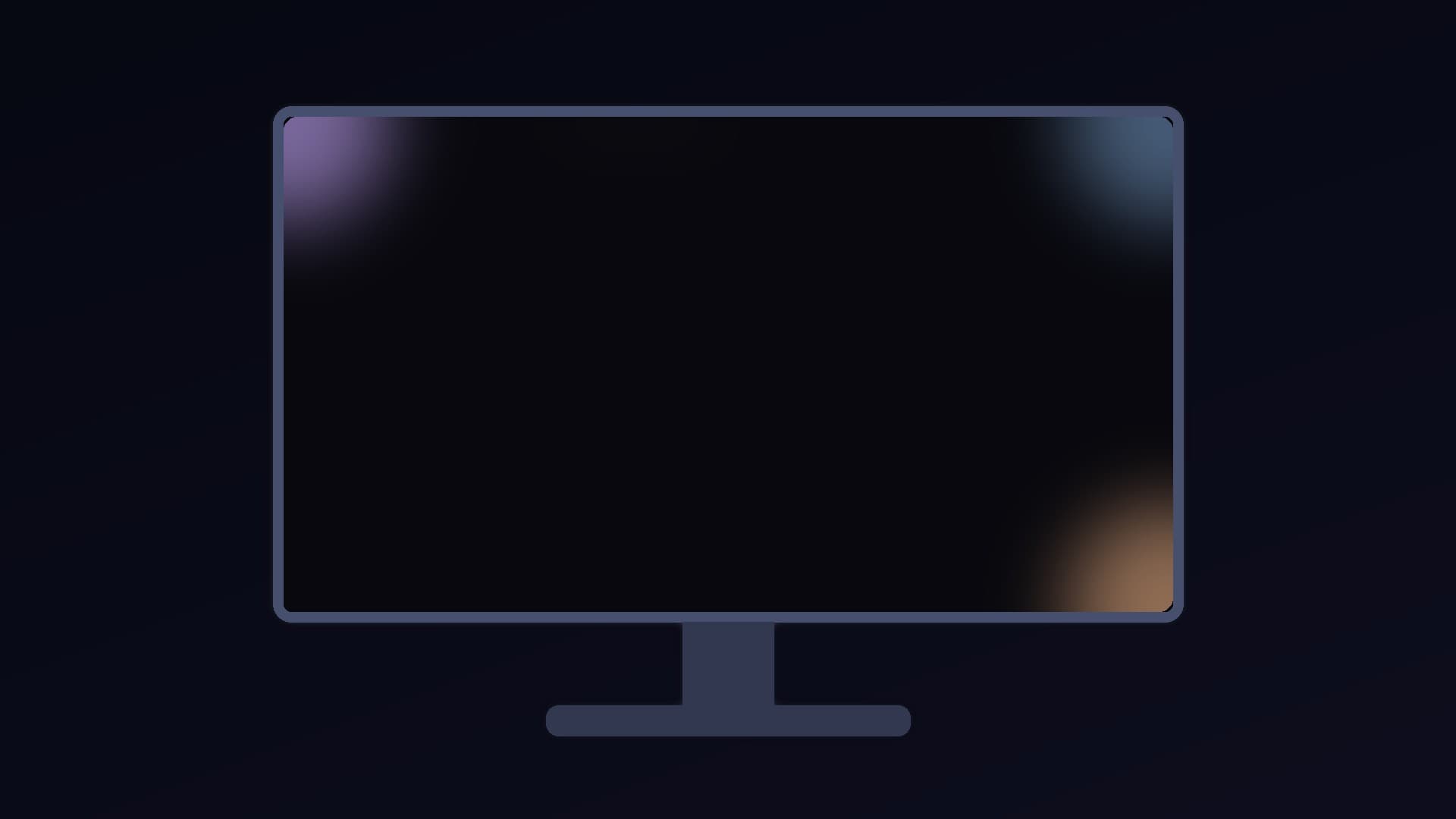
A new monitor arrives, you load a dark game or a black desktop at night, and you notice a pale glow in the corners. It could be IPS glow, which is a normal trait of IPS panels, or backlight bleed (also called light leakage), which is a manufacturing variation and can be worth reporting. The steps below are based on Dell's and ASUS's official support guidance, linked in the sources.
IPS glow vs backlight bleed at a glance
| IPS glow | Backlight bleed (light leakage) |
|---|
What it is | A characteristic of IPS and similar panels | Uneven backlight distribution |
Changes with viewing angle? | Yes, and with distance | No, stays the same |
Where you see it | Mainly the corners | Anywhere along the edges or corners |
Panel types | IPS and similar technologies | Any LCD panel type |
A defect? | No, according to Dell | Can be, if it significantly affects viewing (Dell) |
The table follows Dell's support article on distinguishing IPS glow from light leakage. ASUS's Edge Up blog makes the same distinction: IPS glow shifts with your viewing position, while bleed shows up as static bright spots on the border that don't move as you change angle.
Before you start
Give the monitor a fair test. Dell recommends this setup before you judge:
Put the monitor where you'll actually use it, at eye level and roughly an arm's length away.
Connect your cables and turn it on.
Let it warm up for about 30 minutes.
Keep the room slightly lit rather than completely dark.
Also clean the screen first so smudges don't distract you; our guide on how to clean a monitor screen covers that safely.
Step 1: Show a black image
Display a full-screen black image or set a plain black desktop background and hide the taskbar. Set brightness to the level you normally use. ASUS's Edge Up blog notes that effects obvious at maximum brightness can be hard to spot at 40 to 50% brightness, so don't judge the panel only at 100%.
Step 2: Move your head
Sit in your normal position, then slowly move your head left, right, up and down while watching the corners.
If the glow shifts, gets stronger or fades as you move, that's IPS glow. Dell says it changes with viewing angle and distance and is present to some degree in all IPS panels.
If bright patches stay in exactly the same place, that points to backlight bleed. Dell says light leakage remains constant regardless of viewing angle and distance.
Step 3: Check in normal room lighting
ASUS's support guidance for its LCD monitors says to judge light leakage in a well-lit room of at least 150 lux, which it describes as typical office lighting, rather than a dark room. ASUS says leakage visible only on a black background in a dim room is normal and within its specification. If leakage is still clearly visible on a black background in normal room lighting, ASUS advises taking a photo and contacting its service centre.
Step 4: Don't rely on phone photos alone
ASUS's Edge Up blog warns that cameras can exaggerate glow and bleed, especially in dark rooms, if exposure isn't adjusted to match what you actually see. Take a photo for your records if you plan to contact support, but judge the panel with your eyes.
How to reduce IPS glow
You can't remove IPS glow, but Dell suggests a few settings that make it less noticeable:
Set brightness to around 30% to 50% of maximum.
Adjust contrast to keep the image clear without blowing out bright areas.
Use a warm colour temperature preset, around 6500K, if your monitor has one.
Keep some light on in the room and sit at a normal viewing distance.
If glow bothers you a lot, it's a reason to consider a different panel type next time; our IPS vs VA vs TN explainer covers the trade-offs.
What to do if you think it's backlight bleed
Check it the way the manufacturer specifies (warm-up, normal brightness, normal room lighting) so you can describe the problem clearly.
Contact the retailer early. If you bought online, GOV.UK says customers can tell the seller within 14 days of receiving an item that they want to cancel, then have another 14 days to return it. Check the retailer's own returns terms too.
Contact the manufacturer under warranty, with photos and a description of the test conditions, as ASUS suggests.
While you're checking a new monitor, it's worth also testing for dead pixels, flickering and ghosting.
Our verdict
Glow that moves when you move your head is IPS glow, a normal trait of IPS panels that you can soften with lower brightness and some room lighting. Bright patches that stay fixed on the edges are backlight bleed. Test after a 30-minute warm-up at normal brightness in a lit room, as Dell and ASUS advise, and if the bleed is still obvious there, contact the retailer or manufacturer promptly.