If you're buying a new monitor this Black Friday, spend five minutes checking it for pixel defects as soon as it arrives. A dot that's always lit or always black is far easier to deal with in the first 30 days than months later. The test needs nothing more than a few full-screen colours and a clean screen.
This guide is based on Dell's display pixel guidelines and Which?'s guide to the Consumer Rights Act. Forge PC hasn't tested pixel-fixing tools, and pixel policies differ between manufacturers, so always check your own monitor maker's policy.
Dead, stuck and partial pixels: what you might see
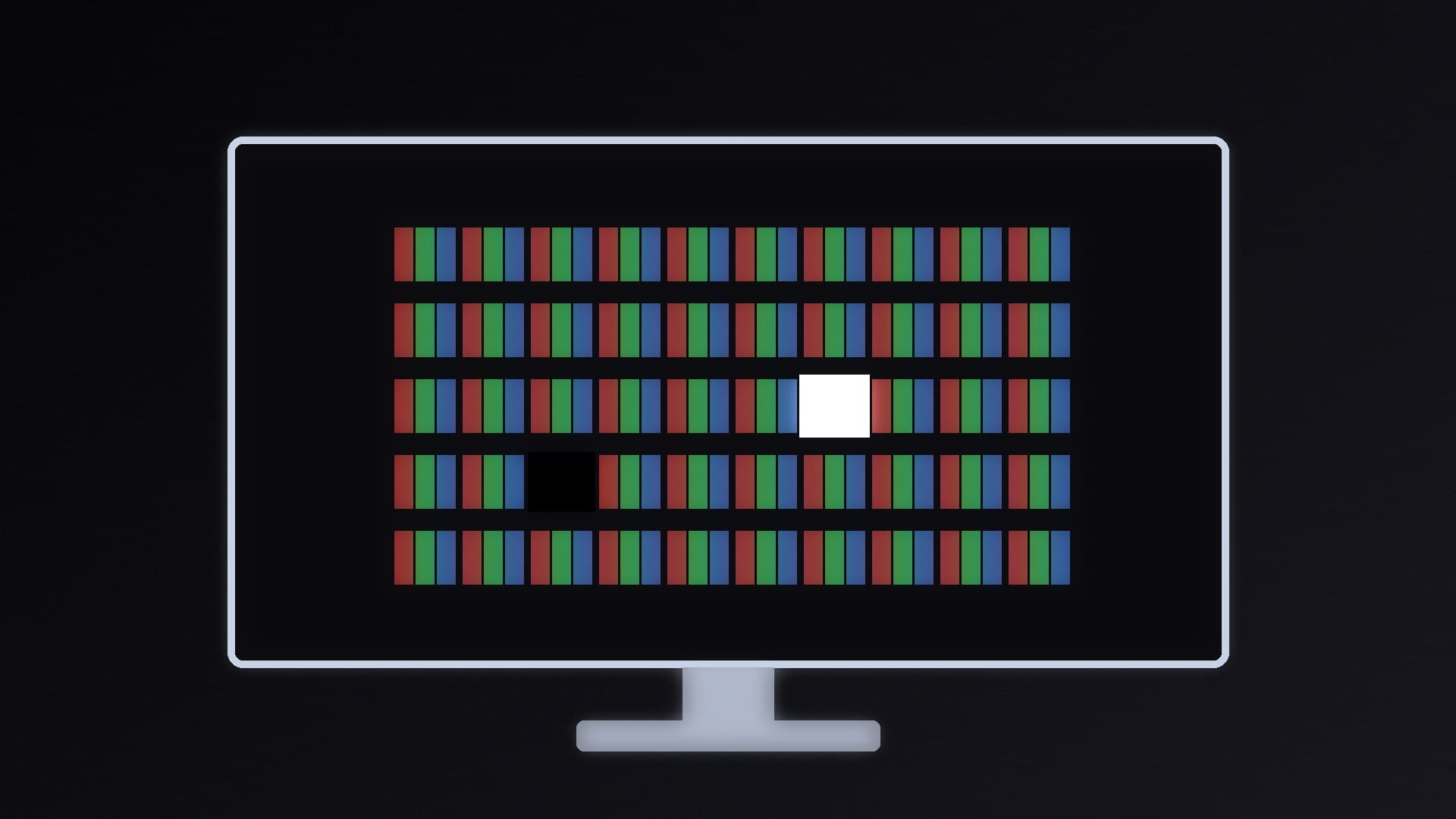
Every pixel on an LCD is made of three subpixels: red, green and blue. Dell defines the defects like this:
Bright (stuck) pixel: all three subpixels stay on. You'll see a white dot, most obvious on a black background.
Dark (dead) pixel: all three subpixels stay off. You'll see a black dot on white or coloured backgrounds.
Bright subpixel: one subpixel stays on, so you see a red, green or blue dot on a dark background.
Dark subpixel: one subpixel stays off, showing a small dark spot on white.
Partial subpixel: a tiny fragment less than half a subpixel in size. Dell says these occur on nearly all LCD panels and aren't defects.
Dell says that if you can clearly see a bright or coloured dot with your naked eye at a normal viewing distance (about 35 to 50cm for a desktop monitor), it isn't a partial subpixel and should be checked against the warranty policy.
How to test your monitor
Clean the screen gently with a lint-free cloth. Dell notes that what looks like a stuck pixel is sometimes just dust.
Display solid full-screen colours: black, white, red, green and blue. Dell's monitors have a built-in diagnostic test that cycles through these colours (the steps vary by model, so check your manual); other monitors may have something similar. Otherwise, show full-screen colour images from your PC. Dell also notes that its monitors show a floating box on a black screen when no video cable is connected, which is a quick way to check for bright dots.
Check each colour carefully:
On black, look for bright dots (white, red, green or blue).
On white, look for dark dots.
On red, green and blue, look for dots that don't match the background.
Count and note the location of any defects. A photo helps if you need to contact support.
While you're at it, check the monitor is running at its full refresh rate (how to change refresh rate), and look out for flicker (flickering fixes) or smearing (ghosting fixes).
Can you fix a dead or stuck pixel?
Dell's advice is clear: don't try. It recommends against pixel-fixing software and pressing on the screen, warning that these methods can damage the display and may void your warranty. It also says a dead (dark) pixel can't be revived by any software or other method; only replacing the panel fixes it.
How pixel policies work
Manufacturers allow a small number of defects before they'll replace a monitor, and the number varies by model. Dell is a useful example:
Monitors covered by Dell's Premium Panel Exchange (including UltraSharp, Alienware and G-series gaming models, with some exceptions) allow zero bright pixels or bright subpixels during the warranty, and up to five dark subpixels on most models.
Dell's standard monitors (such as the E-series) allow up to five bright and five dark subpixels.
Other brands set their own limits, so look up your manufacturer's pixel policy before contacting support.
Your rights in the UK
Separate from the maker's warranty, the Consumer Rights Act covers goods that aren't of satisfactory quality. Which? explains that within 30 days you can claim a full refund for goods that are of unsatisfactory quality; between 30 days and six months you must give the retailer one chance to repair or replace before claiming a refund. If you bought online, the 30 days start when the goods are delivered.
Whether a single dead pixel makes a monitor "unsatisfactory" isn't clear-cut. Which? notes that what a reasonable person would consider satisfactory depends on the product, so a defect on an expensive panel is a stronger case. Raise it with the retailer quickly and check its returns policy too. For more Black Friday buying advice, see our guide to checking PC deals.
Our verdict
Test any new monitor in the first few days: clean it, then check full-screen black, white, red, green and blue for dots that don't match. Bright dots show on black and dead pixels show on white. Don't press the screen or run fixing tools; Dell warns they can cause damage and void the warranty. Count any defects, compare them with your manufacturer's pixel policy, and contact the retailer within 30 days if you want the strongest UK refund rights.