The jump from 24 to 27 inches sounds small, but it changes how big everything looks, how sharp text is and how much desk you need. The right answer depends far more on the resolution and how far you sit from the screen than on the size alone. The size and pixel-density figures below are our own calculations from standard 16:9 screen geometry, and the desk and distance guidance is BenQ's, linked in the sources.
24-inch vs 27-inch at a glance
| 24-inch (16:9) | 27-inch (16:9) |
|---|
Screen area width x height (approx.) | 53.1 x 29.9cm | 59.8 x 33.6cm |
Pixel density at 1080p | 91.8 PPI | 81.6 PPI |
Pixel density at 1440p | 122.4 PPI | 108.8 PPI |
Pixel density at 4K | 183.6 PPI | 163.2 PPI |
BenQ's suggested viewing distance | About 50cm (22-24in class) | About 60cm (24-27in class) |
BenQ's suggested desk depth | 60-70cm (22-24in class) | 70-80cm (24-27in class) |
Screen dimensions are for the visible screen only; the monitor itself is bigger once you add the bezels and stand. A 27-inch screen has about 27% more area than a 24-inch one.
Pixel density: why resolution matters more than size
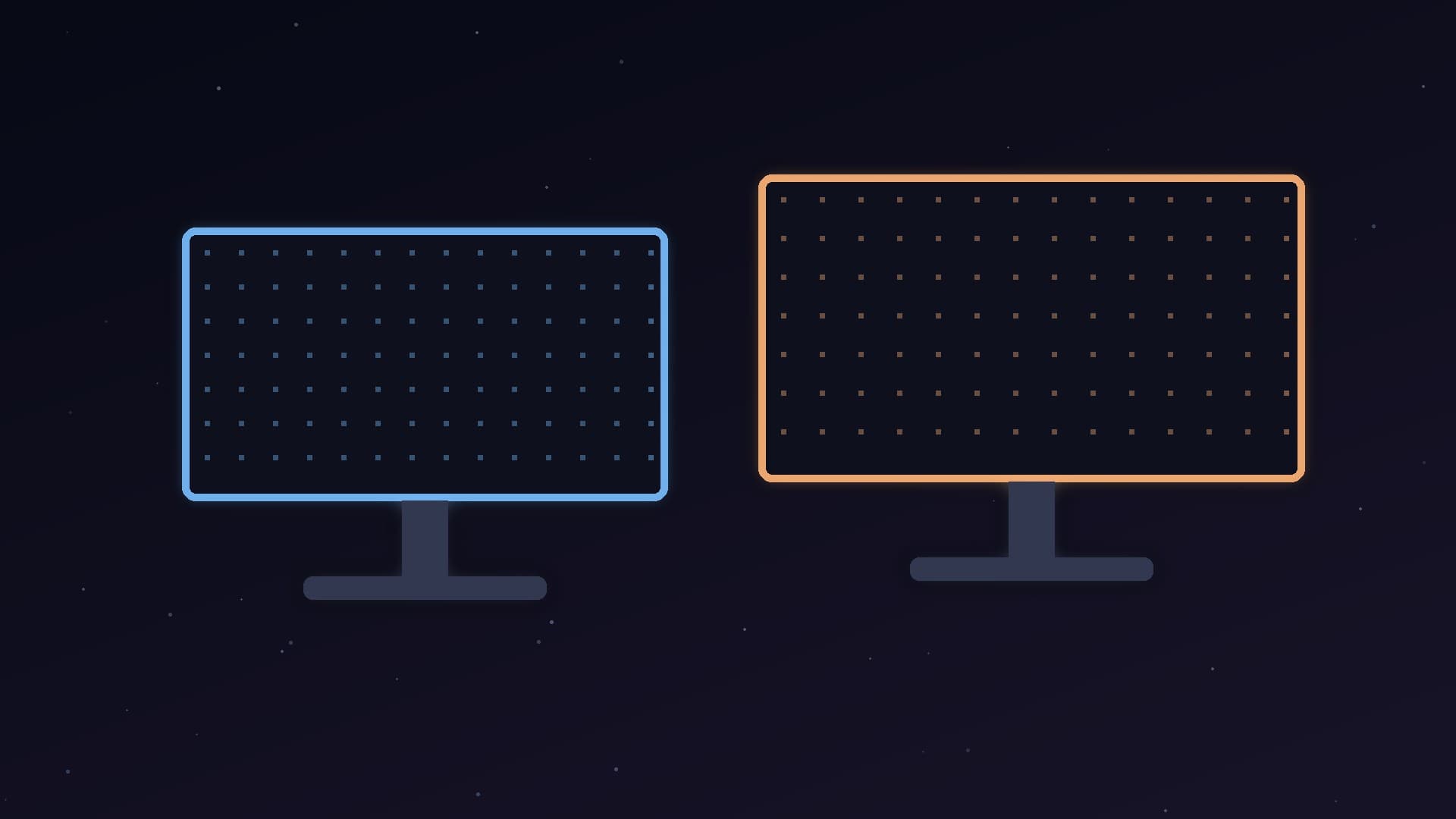
Pixel density, measured in pixels per inch (PPI), is what decides how sharp text and game detail look at a normal distance. The same resolution spread over a bigger screen means bigger, more visible pixels.
BenQ says it's widely agreed that human sight is best suited to a pixel density of roughly 100 to 120 PPI. Below that, BenQ says, images can look smudgy or lacking in detail; well above it, everything looks tiny and cramped unless you use scaling. By that measure:
24-inch 1080p (91.8 PPI) is a little under BenQ's range but is the long-standing standard size for 1080p, and it's the cheapest way into a decent gaming monitor.
27-inch 1080p (81.6 PPI) is the combination to be wary of. Text will look noticeably softer than on a 24-inch 1080p screen, especially if you sit close.
27-inch 1440p (108.8 PPI) sits right in BenQ's range, which is why BenQ calls 27 inches and QHD (2560 x 1440) "made for each other".
24-inch 1440p (122.4 PPI) is sharper still but makes text small at 100% scaling. Many people will want to raise Windows' scale setting, which cancels some of the extra workspace.
27-inch 4K (163.2 PPI) is very sharp for photos and text, but BenQ points out that it's above the ideal range for gaming, and you'll almost certainly need scaling in Windows. It also asks far more of your graphics card.
Our 1080p vs 1440p vs 4K gaming comparison explains the GPU side of that choice.
Desk space and viewing distance
BenQ's size guide groups 22 to 24-inch monitors with a viewing distance of about 50cm and a desk 60 to 70cm deep, and 24 to 27-inch monitors with about 60cm and a desk 70 to 80cm deep. So if your desk is shallow, or you sit close because of a small room, a 24-inch screen will be more comfortable. A monitor arm can help by freeing desk space and letting you push the screen further back.
For 27-inch 1440p gaming specifically, BenQ's viewing-distance article, which uses SMPTE recommendations, suggests about 80cm to one metre, so that the whole screen fits in your field of view without you turning your head. BenQ's two articles don't give the same figure, so treat them as a range: at about 60cm a 27-inch screen will be comfortable for desk work, and if you play fast games and keep moving your head to see the corners, sit a little further back.
Which size for gaming?
Budget 1080p gaming: a 24-inch screen. You keep reasonable sharpness at 1080p and your graphics card has fewer pixels to push. See our best 1080p gaming monitor guide.
Mid-range to high-end gaming: a 27-inch 1440p screen is the sweet spot for most people. See our best 1440p gaming monitor picks.
Competitive esports: BenQ's viewing-distance advice is that the whole screen should fit in your field of view without constant head movement, and a smaller screen makes that easier at a normal desk distance. Our best esports monitor guide covers high-refresh options.
Which size for work?
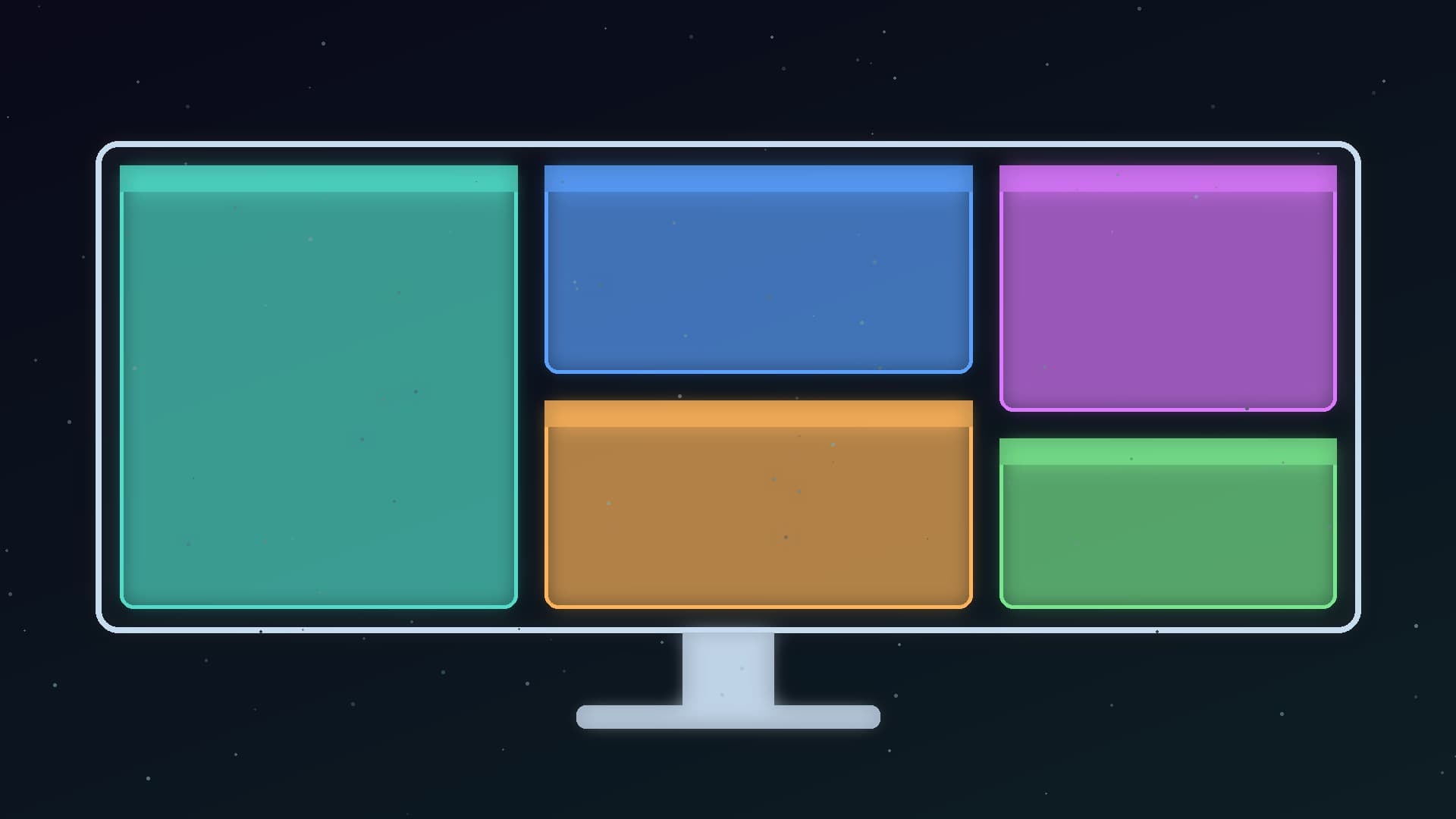
For spreadsheets, coding and having two windows side by side, a 27-inch 1440p monitor gives you more usable space at a comfortable text size than a 24-inch 1080p screen: 2560 x 1440 has about 78% more pixels than 1920 x 1080. If you do photo work or read a lot of text and have the graphics power, a 27-inch 4K monitor with Windows scaling turned on gives the sharpest text of the options here.
If you're replacing a 24-inch 1080p monitor and want more room, two 24-inch screens are also an option, but a single 27-inch 1440p screen avoids having a bezel down the middle.
Our verdict
Buy a 24-inch monitor if you're gaming at 1080p, have a shallow desk or sit close to the screen, or play competitive esports. Buy a 27-inch monitor if you're moving to 1440p, which at 108.8 PPI is the sweet spot BenQ recommends for gaming and gives noticeably more room for work. The one combination to avoid is 27 inches at 1080p, where text and fine detail look soft at normal desk distances.