A good monitor in the wrong place can leave you with a stiff neck, sore shoulders and tired eyes after a long gaming or work session. The fix is usually free: move the screen, adjust your chair and change a couple of Windows settings. This guide uses the UK Health and Safety Executive's (HSE) guidance on display screen equipment (DSE) as its baseline and applies it to a typical desktop PC setup, including dual monitors, large screens and laptops. It isn't medical advice. If you have ongoing pain, speak to a GP or physiotherapist.
Why it matters
HSE says incorrect use of display screen equipment, or poorly designed workstations, can lead to pain in the neck, shoulders, back, arms, wrists and hands, as well as fatigue and eye strain. Its eyesight guidance adds that screen work doesn't cause permanent eye damage, but long spells of it can cause tired eyes, discomfort, temporary short-sightedness and headaches.
If you use a PC for work, there's a legal side too. HSE says the Health and Safety (Display Screen Equipment) Regulations apply to workers who use screens daily for continuous periods of an hour or more, including home workers. In that case your employer must do a workstation assessment, plan breaks, provide training and arrange an eye test if you ask for one. The rest of this guide is useful whether you're covered by those rules or just gaming at home.
Step 1: Set your chair first
Your monitor height only makes sense once your seat is right, so start there. HSE's standard workstation setup says:
Sit high enough that you don't need to shrug your shoulders.
Your seat should support the front and back of your thighs equally, with a gap of 2-3cm between the front of the seat and the back of your knee.
The back of the seat should support your lower back. A cushion can help if it doesn't.
Your keyboard should sit just below elbow height, with the mouse in line with your elbow.
If raising the chair leaves your feet unsupported, a footrest can help. Only once you're sitting comfortably should you adjust the screen.
Step 2: Put the monitor directly in front of you
HSE says the computer and screen should be directly in front of you, with the screen and keyboard central so you don't twist your back. That sounds obvious, but many desks end up with the monitor slightly to one side because of speakers, a PC case or a second screen. If you spend most of your time looking at one screen, centre it on your keyboard and your chair.
Step 3: Set the height so the top of the screen is at eye level
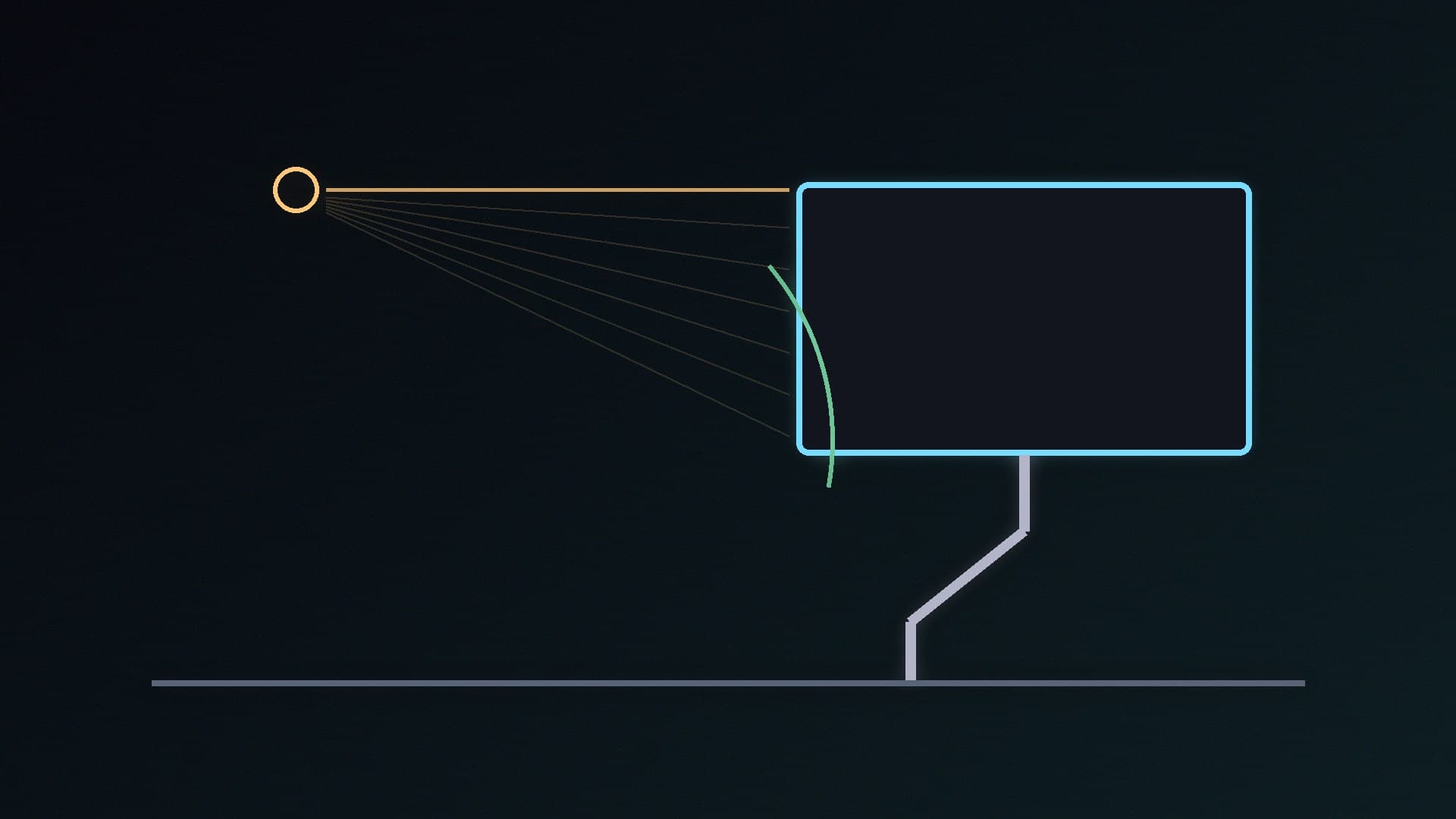
HSE's guidance is that the top of the screen should be level with your eyes. Sit back in your normal position, look straight ahead, and adjust the monitor until the top edge of the visible screen area lines up with your eyeline. You then look slightly down at the middle of the screen rather than up at it.
How to raise or lower it:
Built-in stand. Many monitors have height-adjustable stands. Check the spec sheet before you buy if this matters to you, because some models only tilt.
Monitor arm. A desk-mounted arm gives you the most freedom over height, distance and angle, and frees up desk space. It needs a VESA mount on the back of the monitor and an arm rated for the screen's weight. Our best monitor arm guide covers what to look for.
A riser or a stack of books. A cheap fix for a stand with no height adjustment.
If you struggle to see the screen clearly at this height and distance, get your eyes tested. HSE notes that some people need glasses prescribed specifically for the distance they view a screen at.
Step 4: Set the distance at about an arm's length
HSE says the screen should be about an arm's length away. A quick way to check: sit back in your chair and stretch your arm out towards the screen. Your fingertips should roughly reach it.
Bigger screens make this trickier. With a 32-inch or ultrawide monitor at arm's length, you may find you're turning your head to see the corners. In that case, try pushing the screen a little further back rather than sitting closer, then use Windows scaling (see step 6) to keep text readable. Our 27 vs 32-inch monitor and 24 vs 27-inch monitor comparisons explain how size and resolution affect this.
Step 5: Tilt the screen to cut reflections and keep your neck neutral
A slight backwards tilt usually helps the screen face your eyes when the top is at eye level. Then look for reflections from windows and lights. Tilting or turning the screen slightly, closing a blind or moving a lamp can make a bigger difference than you'd think. If reflections are a constant problem, our glossy vs matte monitor comparison explains how screen coatings differ.
Step 6: Make text readable without leaning in
If you find yourself leaning towards the screen, the problem is often text size rather than distance. Microsoft's support guidance explains the built-in options in Windows 11:
Text only: Start > Settings > Accessibility > Text size, then move the Text size slider.
Everything (text, images and apps): Start > Settings > Accessibility > Text size, select Display, then choose a Scale option.
Magnifier for a quick zoom: press the Windows key and Plus (+) to turn it on and zoom in, the Windows key and Minus (-) to zoom out, and the Windows key and Esc to turn it off.
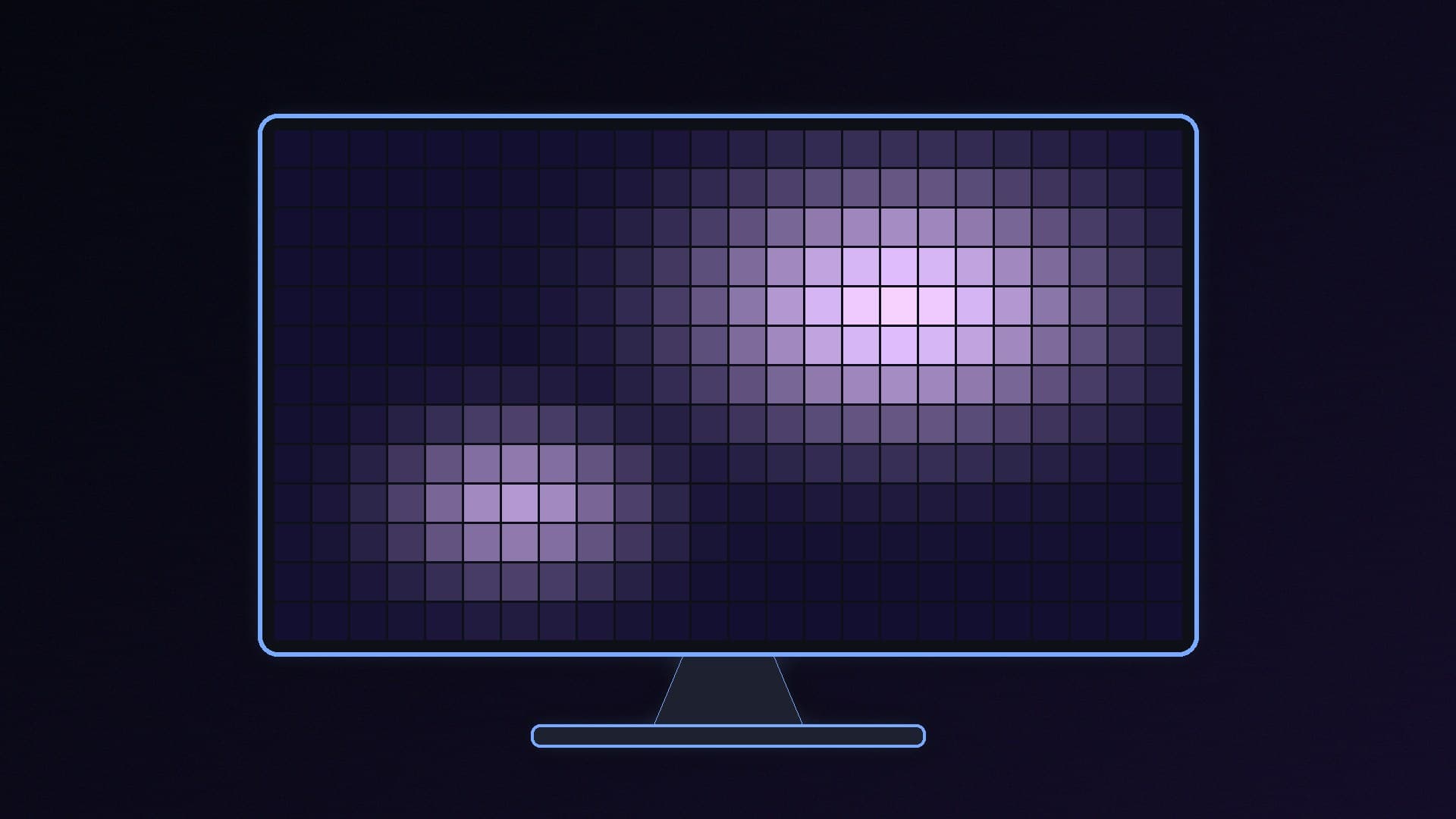
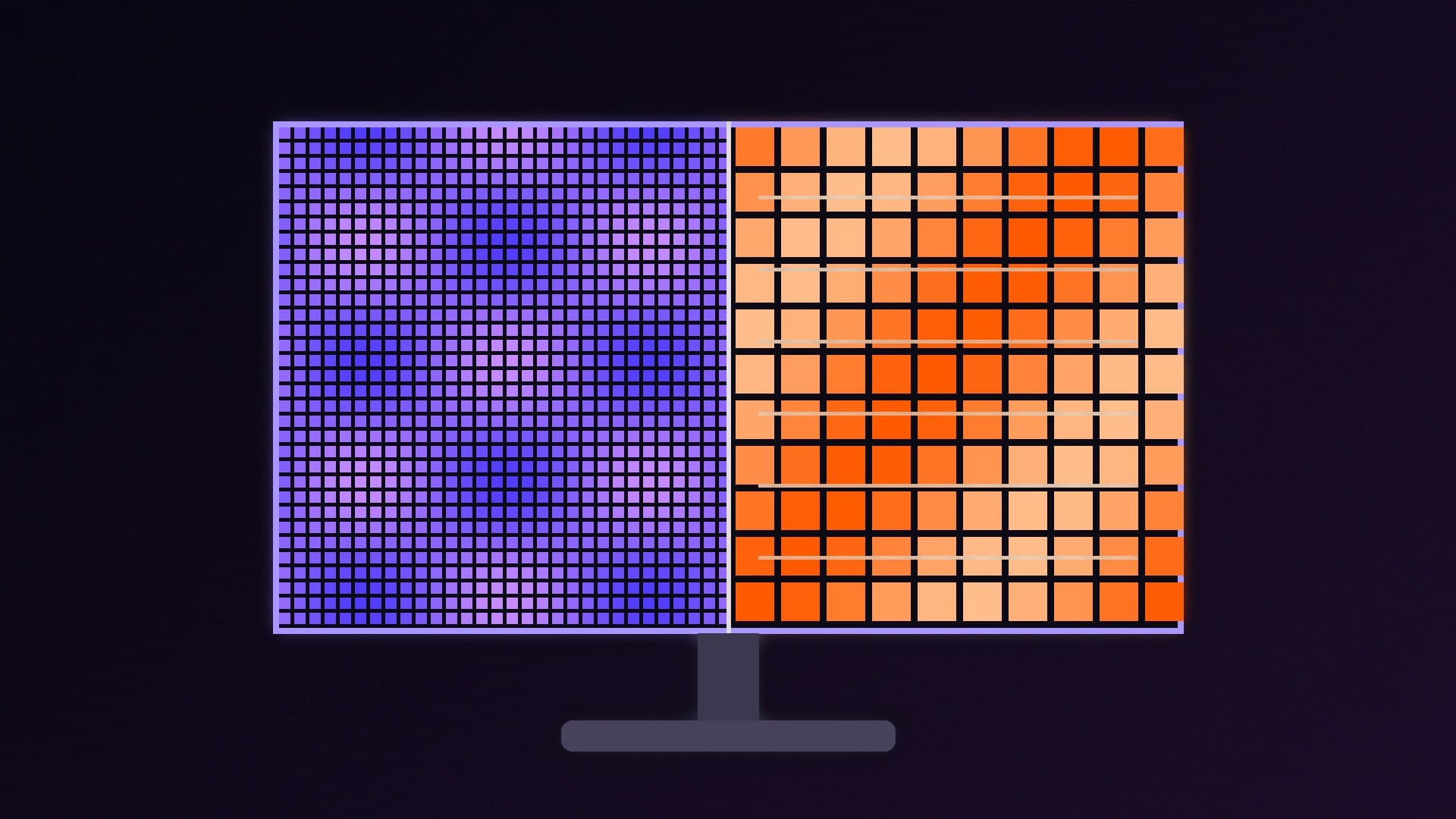
Scaling is especially useful on high-resolution 27-inch and 32-inch screens, where text at 100% can be small at arm's length.
Step 7: Place dual monitors so you don't twist
HSE's rule about keeping the screen directly in front of you applies to multi-monitor setups too. How you apply it depends on how you use the screens:
One main screen, one secondary: put the main screen directly in front of you, following steps 3 and 4, and the second screen to one side, angled towards you at the same height.
Both used equally: place them side by side with the join in front of you, angled inwards slightly so both are a similar distance from your eyes.
Keep the tops of both screens at the same height if you can; matching monitors or a dual arm makes that easier. For the Windows side, see how to set up dual monitors in Windows 11, and if you're deciding between two screens and one wide one, read ultrawide vs dual monitors.
Step 8: If you use a laptop at a desk
HSE says that for prolonged laptop use, you should use a separate keyboard and mouse so the screen can be raised on a laptop riser or similar, or use a separate display. A laptop screen sitting on the desk is too low for the top to be at eye level, so you end up looking down. A riser plus a cheap keyboard and mouse, or plugging into an external monitor, fixes that.
Step 9: Take regular breaks
Even a perfect setup won't stop you getting stiff if you never move. HSE recommends taking short breaks often rather than longer ones less often; for example, 5 to 10 minutes every hour is better than 20 minutes every 2 hours. Breaks should let you get up and move around, or at least stretch and change posture. For gaming, loading screens, matchmaking queues and the end of a match are natural moments to stand up.
HSE also suggests helping your eyes by checking the screen is well positioned and adjusted, making sure the lighting is suitable and taking regular breaks from screen work. If screen work makes you notice an eyesight problem, get an eye test. If you're a DSE user at work, HSE says your employer must pay for one if you ask.
Quick checklist
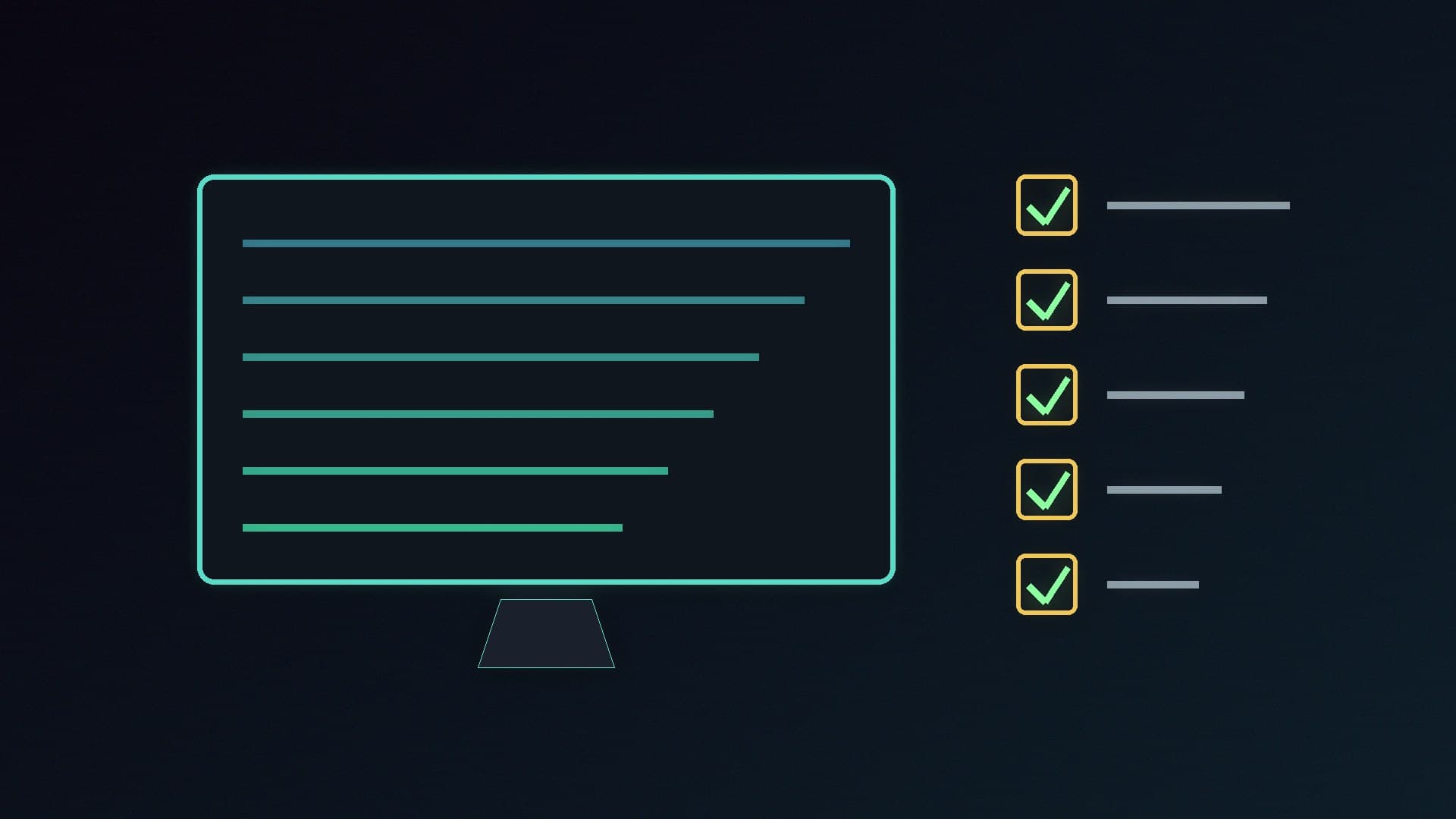
Chair set first: shoulders relaxed, thighs supported, lower back supported.
Keyboard just below elbow height, mouse in line with your elbow.
Main screen directly in front of you, keyboard central.
Top of the screen level with your eyes.
Screen about an arm's length away.
Slight tilt, no reflections from windows or lights.
Text size or scaling adjusted so you don't lean in.
Short breaks every hour.
Comfortable peripherals help too. See our best ergonomic mouse and best split ergonomic keyboard guides.
Our verdict
Set your chair first, then put your main monitor directly in front of you with the top of the screen level with your eyes and about an arm's length away, as HSE recommends. Tilt it to remove reflections, use Windows text size or scaling instead of leaning in, angle a second screen towards you at the same height, and raise a laptop on a riser with a separate keyboard and mouse. Most of this costs nothing, and a monitor arm is the most useful upgrade if your stand doesn't adjust. Take short, regular breaks, and get an eye test if screen work makes you aware of eyesight problems.