Most desktop PCs don't have a built-in camera, so if you want to take video calls, stream or sign in to Windows with your face, you'll need a webcam. The specs can be confusing: 4K, 60fps, HDR, infrared, auto-framing and AI effects all appear on boxes. This guide takes you through the decisions in order, using Microsoft's support pages and Logitech's product pages as examples. We haven't listed prices because they're changing quickly around Black Friday.
Step 1: Decide what you'll use it for
Video calls: almost any 1080p webcam is enough, because apps like Teams and Zoom compress video heavily. Good low-light handling and a decent mic matter more than resolution.
Streaming and recording: higher frame rates, better sensors and manual control matter more, because viewers see the full-quality picture.
Signing in to Windows: you'll need an infrared (IR) camera for Windows Hello face recognition (Step 5).
If you stream seriously, compare a webcam with a camera first: our webcam vs mirrorless camera comparison covers that choice.
Step 2: Choose resolution and frame rate
1080p is the sensible standard. 4K gives you more detail and room to crop or zoom, but only if the app you use can send or record it. Our 1080p vs 4K webcam comparison explains when 4K helps.
Frame rate matters for smooth motion. Check which frame rates are available at each resolution, because many webcams drop frame rate at higher resolutions. For example, Logitech says its Brio 4K delivers 4K at 30fps, 1080p at up to 60fps and 720p at up to 90fps. For streaming, 1080p at 60fps is a common target.
Step 3: Check how it handles lighting
Most webcams struggle in dim rooms or with a bright window behind you. Look for automatic light correction or HDR. Logitech, for example, says the Brio 500 uses RightLight 4 to adjust automatically "so you appear well-lit even in poor lighting conditions", and that the Brio 4K's RightLight 3 adjusts from low light to bright backlighting. These are maker claims, so check sample footage in reviews. Better lighting in the room helps any webcam more than any spec.
Step 4: Check autofocus, field of view and framing
Autofocus keeps you sharp if you move or hold objects up to the camera. Logitech lists autofocus and 5x digital zoom for the Brio 4K.
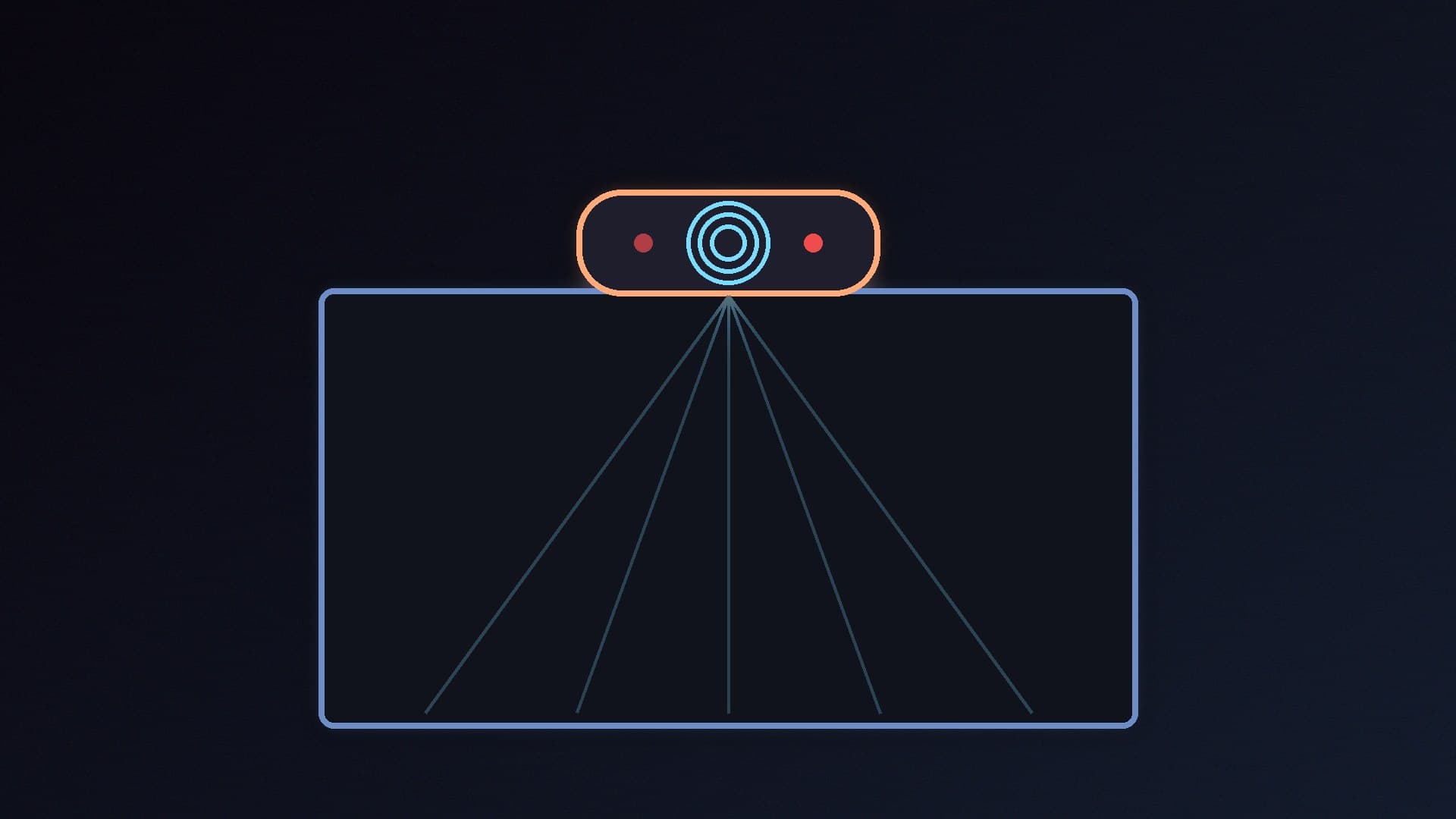
Field of view decides how much of the room is in shot. A narrower view suits a single person at a desk; a wider view suits groups or showing a whiteboard. Some webcams let you choose.
Auto-framing keeps you centred as you move. Logitech says the Brio 500's RightSight 4 auto-framing does this, enabled through its free Logi Tune software.
Step 5: Decide if you want Windows Hello face sign-in
Microsoft says signing in with your face requires a "Hello-compatible camera": you set up facial recognition "with your PC's infrared camera or an external infrared camera" under Settings > Accounts > Sign-in options. An ordinary webcam can't do this. Look for Windows Hello support on the box. Logitech, for example, says the Brio 4K is powered by "both optical and infrared sensors" for Windows Hello facial recognition. Our Windows Hello face vs fingerprint comparison helps you decide between the two.
Step 6: Check whether your PC can use Windows Studio Effects
Windows Studio Effects adds AI features such as background blur, eye contact correction and automatic framing to video calls. Microsoft says it now supports compatible third-party cameras, but it requires a Copilot+ PC with an NPU of more than 40 TOPS and the latest Windows updates, so most desktop PCs can't use it, whichever webcam you buy. If you're buying a webcam for those features, check your PC first; our Windows Studio Effects on a desktop webcam guide explains what works. Otherwise, rely on the webcam maker's software or your call app's own effects.
Step 7: Check the practical details
Microphone: built-in mics are fine for calls, but a headset or USB mic usually sounds better.
Mounting: check that the clip suits your monitor and whether there's a tripod thread.
Privacy: a physical shutter or lens cover gives you peace of mind.
Connection: most webcams use USB; check the cable length and connector type (USB-A or USB-C) against your PC.
Short of budget? You can also use your phone as a webcam in Windows 11.
Step 8: Shortlist and set it up
Compare models in our best webcam guide, then read independent reviews with sample footage. Once it's plugged in, our guide to adjusting webcam settings in Windows 11 helps you get the best picture, and if it isn't detected, see how to fix a webcam not working in Windows 11.
Our verdict
For most people, a 1080p webcam with good automatic light correction and autofocus is the right choice; pay more for 4K or 60fps only if you stream or record. If you want to sign in with your face, you need an infrared camera with Windows Hello support, and Windows Studio Effects depends on your PC's NPU rather than the webcam. Check sample footage in independent reviews before you buy, because image quality in real lighting is what a spec sheet can't show.