If your webcam looks too dark in calls, is the wrong way up, or refuses to work in one app while another has it open, you don't always need the manufacturer's software. Windows 11 has a Camera settings page that sets defaults for every app, and newer versions add a mode that lets several apps share one camera. This guide follows Microsoft's own documentation. Forge PC hasn't tested these settings with specific webcams, and which controls you see depends on what your camera supports.
Open Camera settings
Select Start > Settings > Bluetooth & devices > Cameras. Microsoft notes that this page was introduced in Windows 11 and isn't available on older versions.
The Connected cameras list shows every camera Windows manages. Select your webcam to open its own page, which shows a live preview and its settings. Microsoft says some cameras don't appear here, including infrared cameras used for Windows Hello, cameras that use DirectShow (which can include DSLRs and action cameras used as webcams in some apps), and cameras with missing drivers or that have been disabled in Device Manager.
Adjust the picture
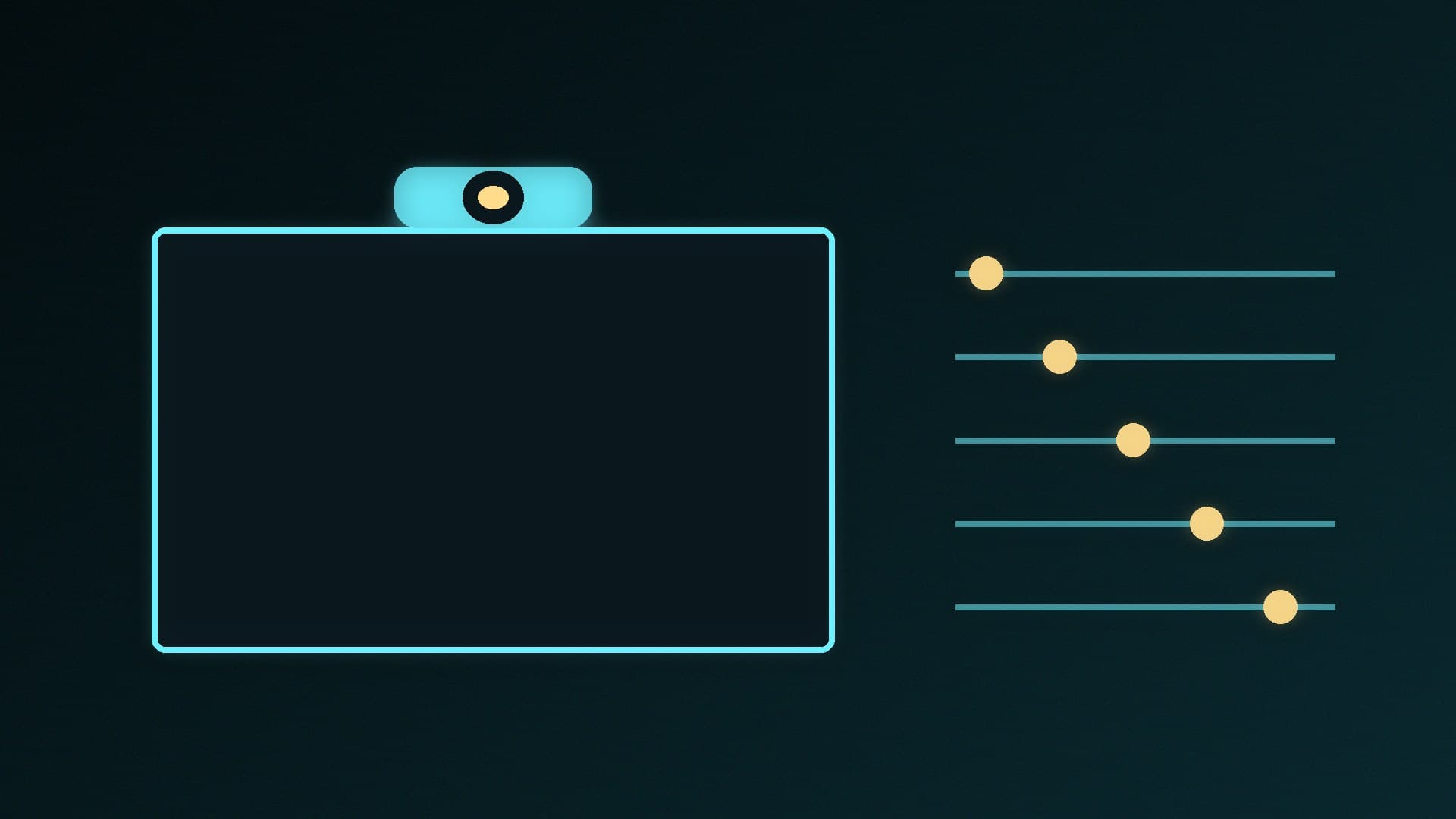
Under Basic settings, Windows can show sliders and switches for:
Zoom, Pan and Tilt
Brightness and Contrast
Sharpness and Saturation
Video HDR
Microsoft explains that these controls are optional for cameras, so you may see some, all or none of them. Changes apply immediately to the preview and are saved as the default for the next time any app opens the camera. They're saved per camera and per user account, they don't sync between PCs, and they aren't kept if you reinstall Windows.
If your webcam maker offers a companion app, Microsoft says a link to it may appear under Related settings for extra options.
One thing to watch: if an app such as a video-call program is using the camera at the same time, it may change a setting straight back. Microsoft says a banner appears on the settings page when the camera is in use by another app.
Fix an upside-down or sideways picture
For external cameras, such as USB webcams, there's a Video rotation drop-down with No rotation, Right 90°, Left 90° and 180°. Microsoft adds an important warning: any rotation other than No rotation makes Windows output only uncompressed video, removing compressed formats such as MJPEG and H.264, which some older apps and cameras rely on. If an app stops working after you rotate the picture, set it back.
Studio Effects and Camera Effects
On Copilot+ PCs, a Windows Studio Effects section can add controls such as automatic framing, portrait light, eye contact and background effects. Some webcams offer similar effects themselves, labelled Camera Effects. Our guide to Windows Studio Effects with a desktop webcam has more on that.
Let two apps use the webcam at once
A common streaming problem is that OBS has the camera, so your call app can't use it. On Windows 11 version 24H2 and later, Microsoft's Advanced camera options can help:
On your camera's settings page, select Edit under Advanced camera options.
Turn on Multi-app camera mode.
Microsoft says this lets multiple apps share the camera stream at the same time, for example Teams and Zoom. You can choose the resolution and frame rate, or let Windows pick; by default it tries the highest resolution up to 1440p that can run at 30fps. Note that Windows Hello face sign-in can't use a camera in this mode while another app has it, and falls back to your PIN. These options might be managed by your organisation on a work PC. For more on streaming setups, see our PC streaming setup guide and OBS recording guide.
If the webcam won't work
Troubleshoot: on the camera's page, select Troubleshoot to launch the Get Help troubleshooter.
Basic camera mode: in Advanced camera options, Microsoft's Basic camera mode turns off hardware acceleration and, where possible, the camera maker's plug-ins that might stop the camera working. It also turns on multi-app mode, and Studio Effects won't work while it's on.
Reset settings: this returns the camera to factory defaults, erasing changes to Basic settings, effects and rotation, including defaults set by the maker's app, and restarts the camera.
Disabled camera: if a camera has been turned off on this page, it appears under a separate disabled list with an Enable button. Microsoft says you need administrator access to enable or disable cameras.
If the webcam isn't detected at all, try our USB device not recognised guide. If you're shopping for a better one, see our best webcam guide and webcam vs mirrorless camera comparison.
Our verdict
Go to Settings > Bluetooth & devices > Cameras, pick your webcam and set brightness, contrast, HDR and rotation once, and every app will start with them. On Windows 11 24H2 or later, turn on Multi-app camera mode if you need OBS and a call app to share the webcam, and try Basic camera mode or Reset settings if it misbehaves. Forge PC hasn't tested these settings with specific webcams; the steps follow Microsoft's documentation.