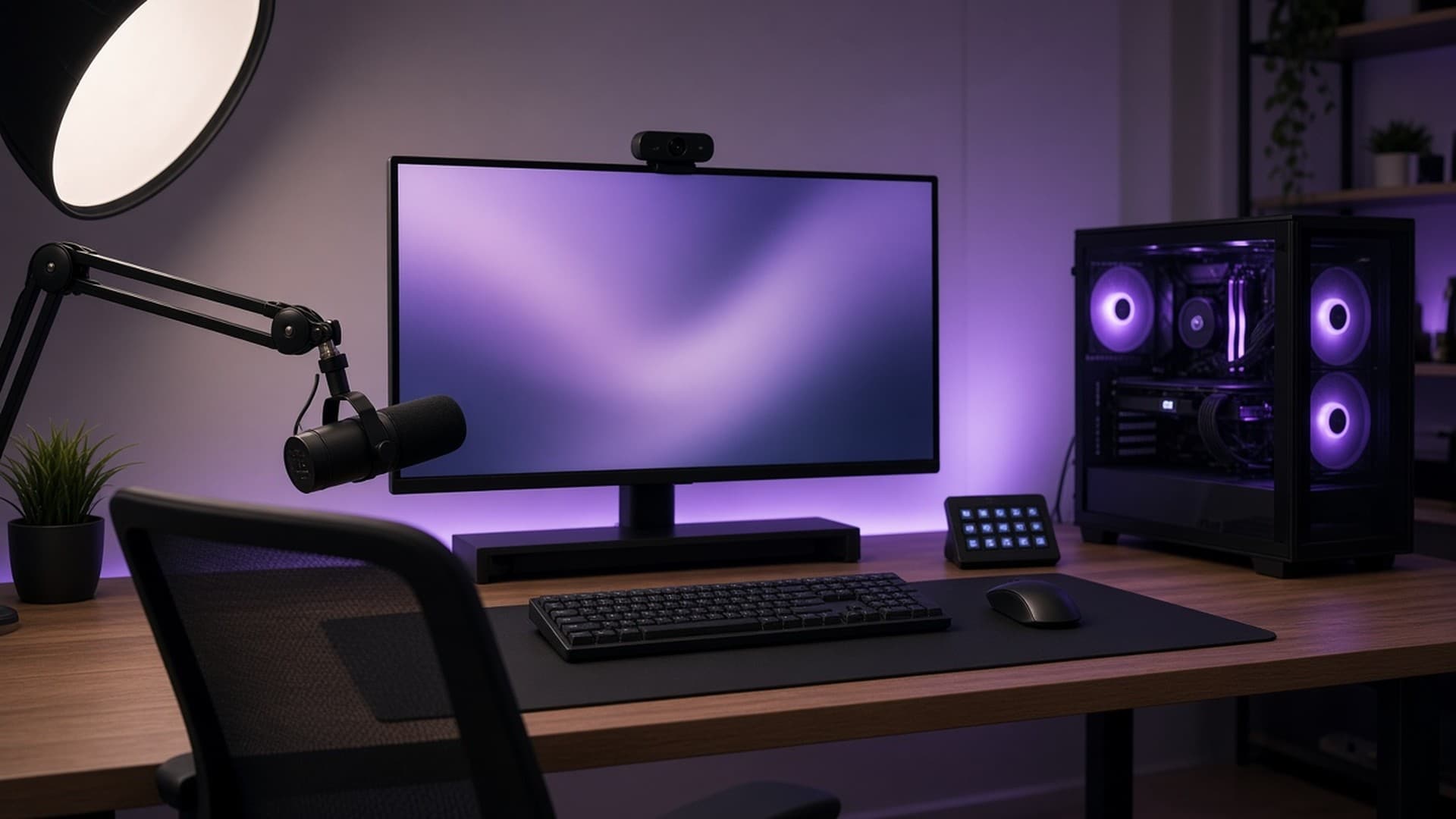
Streaming your games used to need a second PC. Today, a single gaming PC with a modern graphics card can play and stream at the same time, because the card has a dedicated video encoder that handles the stream without taking much performance from your game.
This guide covers the hardware and settings you need to get started. It's based on NVIDIA's broadcasting guide and YouTube's encoder recommendations, both credited at the end. Forge PC hasn't tested stream quality or encoder performance.
What you need
A gaming PC with a recent graphics card. GeForce RTX cards have a dedicated hardware encoder called NVENC, and AMD lists hardware video encoding, including AV1, for its Radeon RX 9070 XT.
Streaming software. OBS Studio is free and widely used, and NVIDIA's guide uses it for its recommended settings.
A reliable upload speed. Your broadband upload speed matters more than download speed for streaming.
A wired connection, ideally. Wi-Fi can drop out at the worst moment.
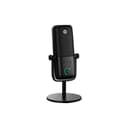
A microphone. Viewers will forgive a basic webcam, but poor audio is hard to watch.
Step 1: Check your upload speed
Run a speed test and note your upload speed. NVIDIA recommends using around 75% of your upload speed for the stream, leaving the rest for your game and anything else on your network. NVIDIA's guide gives this as an example:
Upload speed | Stream bitrate (about 75%) | What NVIDIA says it suits |
|---|
8 Mbps | 6 Mbps | 720p (H.264), 1080p (HEVC or AV1) |
If your upload speed is low, stream at a lower resolution rather than a bitrate your connection can't sustain.
Step 2: Choose your encoder and codec
There are three video codecs to know:
H.264: the most widely supported option.
HEVC (H.265): more efficient. NVIDIA rates it at 1.35 times the compression efficiency of H.264 on RTX 50-series cards.
AV1: more efficient again, at 1.43 times H.264 by NVIDIA's figures.
What you can use depends on both your graphics card and the platform. NVIDIA's guide says Twitch supports H.264 and HEVC but not AV1, while YouTube supports H.264, HEVC and AV1.
NVIDIA's guide says RTX 40 and RTX 50 series cards can encode AV1, while RTX 20 and 30 series cards are limited to H.264 and HEVC. NVIDIA lists two ninth-generation NVENC encoders for the RTX 5070 Ti and one for the RTX 5070. AMD lists AV1 encoding for the Radeon RX 9070 XT.
Step 3: Pick a bitrate and resolution
Twitch: NVIDIA's guide says Twitch's maximum bitrate is currently 6,000 Kbps (6 Mbps). Platforms change their limits, so check Twitch's own guidance before you go live.
YouTube: YouTube publishes its own recommendations. For a 1080p stream at 60 frames per second, it suggests:
YouTube 1080p60 | Minimum | Recommended |
|---|
H.264 | 6 Mbps | 17 Mbps |
AV1 or HEVC | 4 Mbps | 12 Mbps |
For 1440p60, YouTube suggests 8–34 Mbps with H.264, or 6–24 Mbps with AV1 or HEVC. These higher bitrates need a fast upload connection.
Step 4: Set up OBS
NVIDIA's guide recommends these OBS settings when using NVENC:
Keyframe interval: 2 seconds. YouTube also recommends 2 seconds and says not to exceed 4.
Preset: P6 (Slower, Better Quality). NVIDIA says you may want a lower preset if you're running several encodes at the same time.
Tuning: High Quality.
Multipass mode: Two Passes (Quarter Resolution).
Profile: High, for H.264.
Do a private test stream or local recording before going live.
Step 5: Improve audio and video
Once the basics work, these upgrades make the biggest difference:
Microphone: a USB microphone is the simplest upgrade. Position it close to your mouth and away from your keyboard.
Webcam: a 1080p webcam is enough for a face camera, and good lighting matters more than resolution.
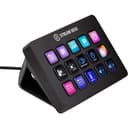
Stream controller: devices such as Elgato's Stream Deck let you switch scenes, mute your microphone and trigger alerts with one press.
These are optional. Many successful streamers started with just a headset microphone.
Do you need a more powerful PC?
NVIDIA says NVENC lets you capture and stream without impacting GPU or CPU performance. We haven't measured that, but it means a PC that already runs your games well is a reasonable starting point for streaming. If you're choosing a graphics card for streaming, NVIDIA's encoder support and AMD's AV1 support are both worth checking. Our best graphics card guide and VRAM guide can help.
For a stable stream, use Ethernet where you can. Avoid running big downloads while you're live.
Our verdict
To start streaming, you need a recent graphics card with a hardware encoder, free software such as OBS, a reliable upload connection and a decent microphone. Follow NVIDIA's advice to use about 75% of your upload speed. For Twitch, that means up to 6,000 Kbps with H.264 or HEVC. For YouTube, 1080p60 starts at 6 Mbps with H.264 or 4 Mbps with AV1 or HEVC, according to YouTube's guidance. Keep the keyframe interval at 2 seconds, test privately first and add a webcam or stream controller later.