It's based on the original FlashAttention research paper, LM Studio's documentation and llama.cpp's official command-line reference.
Flash Attention is one of those settings that local AI guides mention in passing and rarely explain. It's worth understanding, because it can help you fit a longer context into the same video memory, and in LM Studio it's a prerequisite for quantising the V half of the KV cache. The good news is that it's a single switch in both LM Studio and llama.cpp.
What Flash Attention does
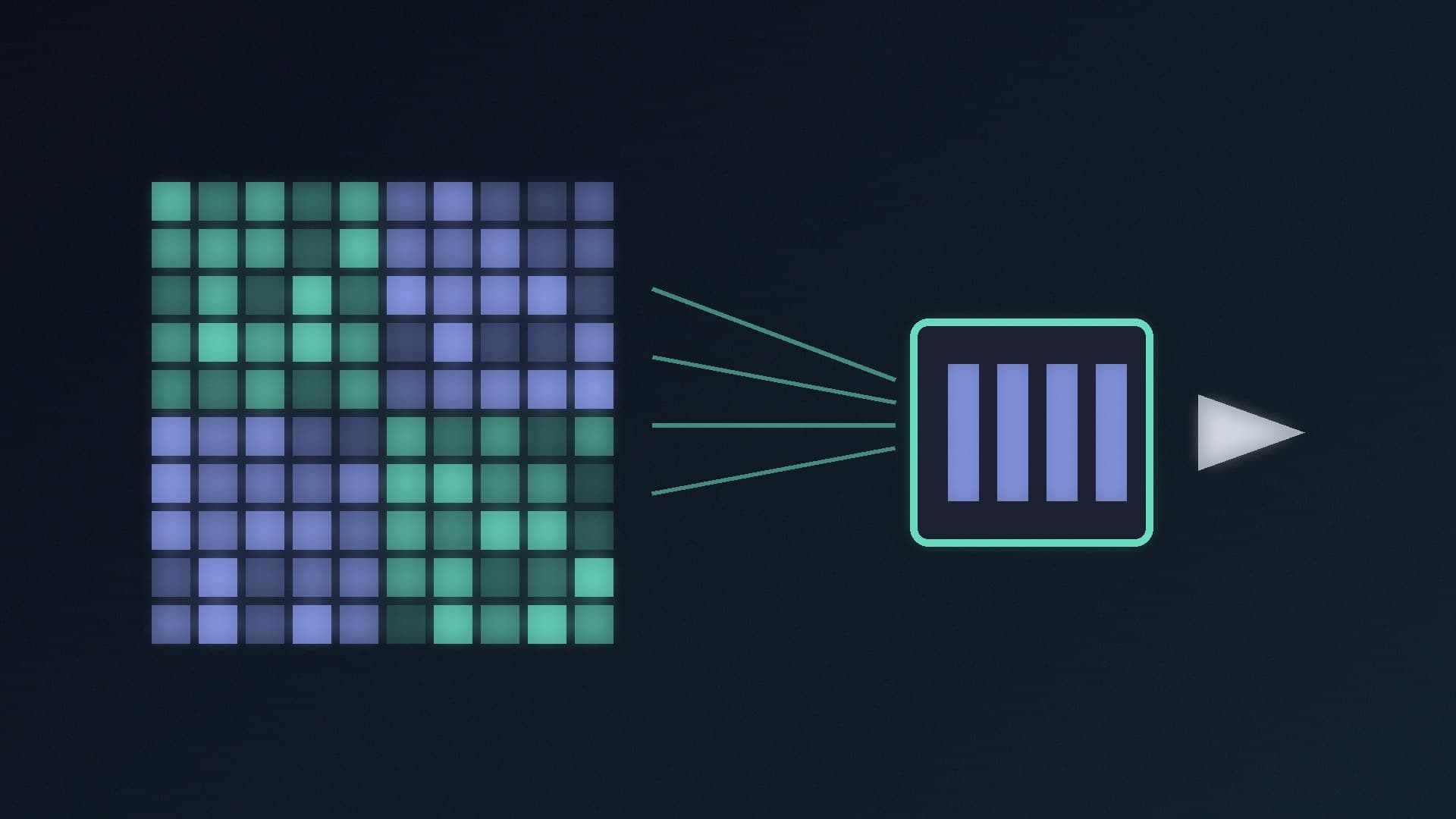
Every time a language model produces a token, its attention layers compare the new token with the text that came before it. Done the straightforward way, that work grows quickly as the conversation gets longer. The FlashAttention paper by Tri Dao and colleagues says standard self-attention has time and memory complexity that's quadratic in sequence length, which is why long prompts are slow and memory-hungry.
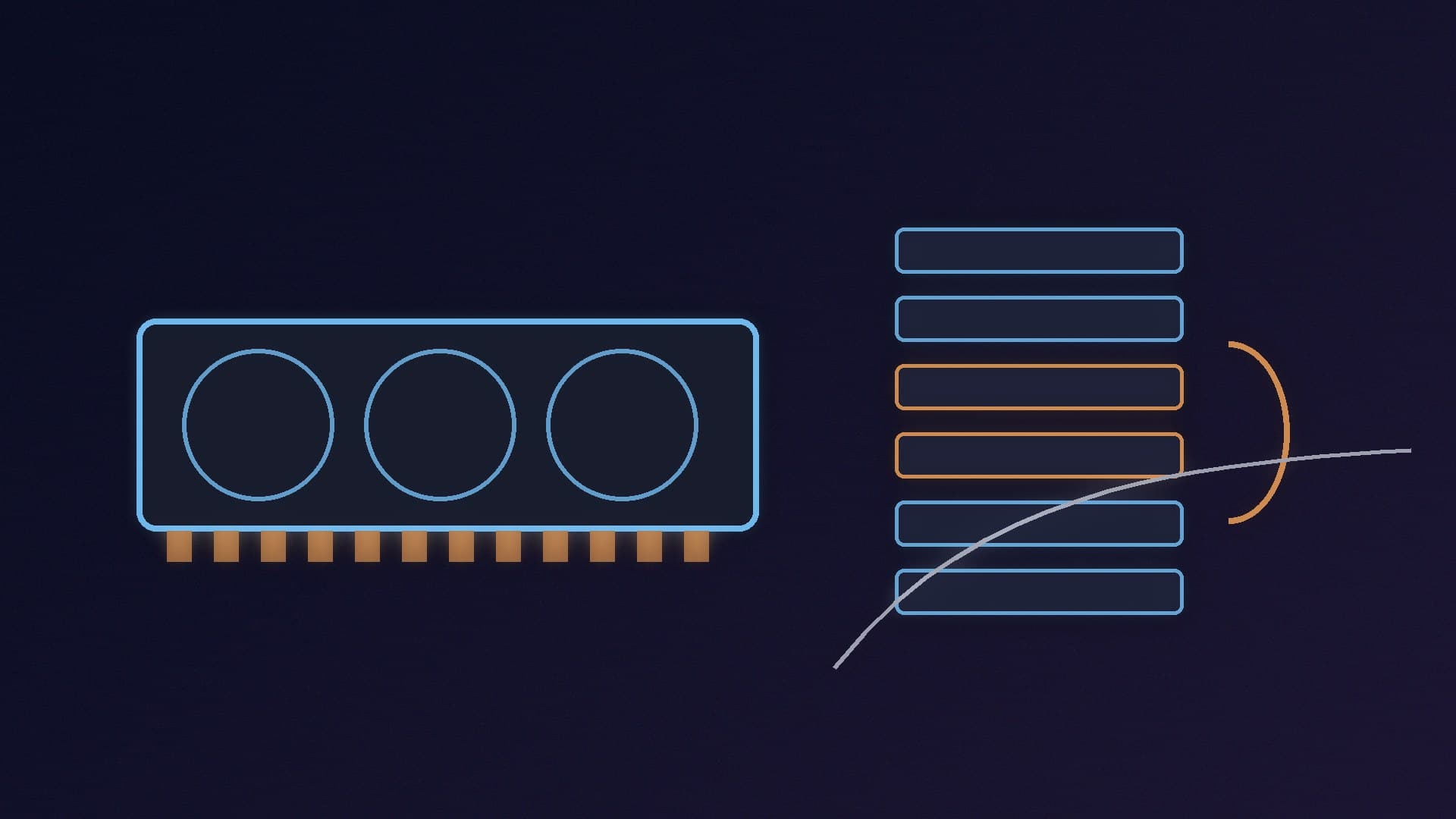
FlashAttention is described in the paper as an "IO-aware exact attention algorithm". It splits the calculation into tiles so the GPU makes fewer reads and writes between its main video memory and its much faster on-chip memory. Two points matter for home users:
It's exact, not an approximation. The paper contrasts it with approximate attention methods that trade away model quality. It computes the same attention more efficiently.
It's aimed at longer contexts. The authors say it enables longer context in Transformer models. LM Studio's own documentation says Flash Attention reduces memory usage and speeds up generation, and can significantly improve performance on compatible hardware, "especially for longer sequences".
The phrase "on compatible hardware" is important. Whether you see a benefit depends on your GPU, the backend (CUDA, Vulkan, Metal and so on) and the model, so test it rather than assuming.
If the KV cache is new to you, our context length and VRAM explainer covers why long conversations eat video memory.
How to enable Flash Attention in LM Studio
LM Studio lets you set Flash Attention per model, either as a saved default or each time you load a model.
Option 1: set it as a model's default
Open LM Studio and go to the My Models tab.
Click the gear icon next to the model you want to change. This opens that model's default load parameters.
Find Flash Attention and switch it on.
Close the dialog. LM Studio's documentation says the next time you load the model, these settings will be used.
LM Studio says per-model defaults apply wherever the model is loaded in the app, including through its lms load command-line tool. That's handy, because the lms load reference lists options for context length, GPU offload and TTL but doesn't list a Flash Attention flag.
Option 2: change it when you load a model
When you load a model, LM Studio lets you change its load settings first. Switch on Flash Attention there, then load the model. LM Studio's documentation says you can save changes made at load time as that model's defaults, so you don't have to repeat the step.
While you're in the load settings, the same panel controls context length and GPU offload. Our LM Studio GPU offload guide explains those.
How to enable Flash Attention in llama.cpp
In llama.cpp, Flash Attention is controlled by one flag, documented for both llama-server and llama-cli:
-fa, --flash-attn [on|off|auto]
The reference says the default is auto, so llama.cpp may already be using it where your build and hardware support it. To force it on, add -fa on to your command, for example:
llama-server -m your-model.gguf -fa on -c 32768
Here -c sets the context size. To switch it off, for example to rule it out while troubleshooting, use -fa off.
You can also set it with the environment variable LLAMA_ARG_FLASH_ATTN, which the reference lists for the same option. That's useful if you start llama-server from a script or service and would rather not edit the command line.
Flash Attention and KV cache quantisation
The most practical reason to turn Flash Attention on is that it lets you shrink the KV cache further.
LM Studio's SDK documentation describes separate K cache and V cache quantisation settings. It says lower-precision values such as 8-bit or 4-bit "significantly reduce memory usage" but may slightly affect output quality, and that V cache quantisation "requires Flash Attention to be enabled to function properly". So in LM Studio, switch Flash Attention on first, then set the cache quantisation.
In llama.cpp, the cache types are set with -ctk (--cache-type-k) and -ctv (--cache-type-v). The reference lists the default as f16 and allowed values including f8_e4m3, q8_0 and q4_0. For example:
llama-server -m your-model.gguf -fa on -ctk q8_0 -ctv q8_0
Our llama.cpp 1.0 news story covers the FP8 KV cache option added in that release. If you use Ollama rather than LM Studio, see our Ollama KV cache quantisation guide, which covers its OLLAMA_FLASH_ATTENTION setting.
Check whether it helped
Don't assume Flash Attention made a difference; measure it. Load the same model with the same context length twice, once with Flash Attention on and once with it off, and compare:
LM Studio users can also get a quick memory estimate without loading anything: its documentation says lms load with --estimate-only prints a resource estimate, and that the estimator accounts for context length and flash attention, among other factors.
If you see errors, garbled output or slower speeds after turning it on, set it back to off (or auto in llama.cpp) and check whether your app or backend has an update.
Our verdict
Flash Attention is a free, exact optimisation for the attention step in local AI models, and it's most useful with long contexts and tight video memory. In LM Studio, switch it on in a model's load settings or as a per-model default; in llama.cpp it's -fa on, though the default auto may already use it. Turn it on before quantising the V cache, then measure memory and speed on your own PC rather than relying on general claims.