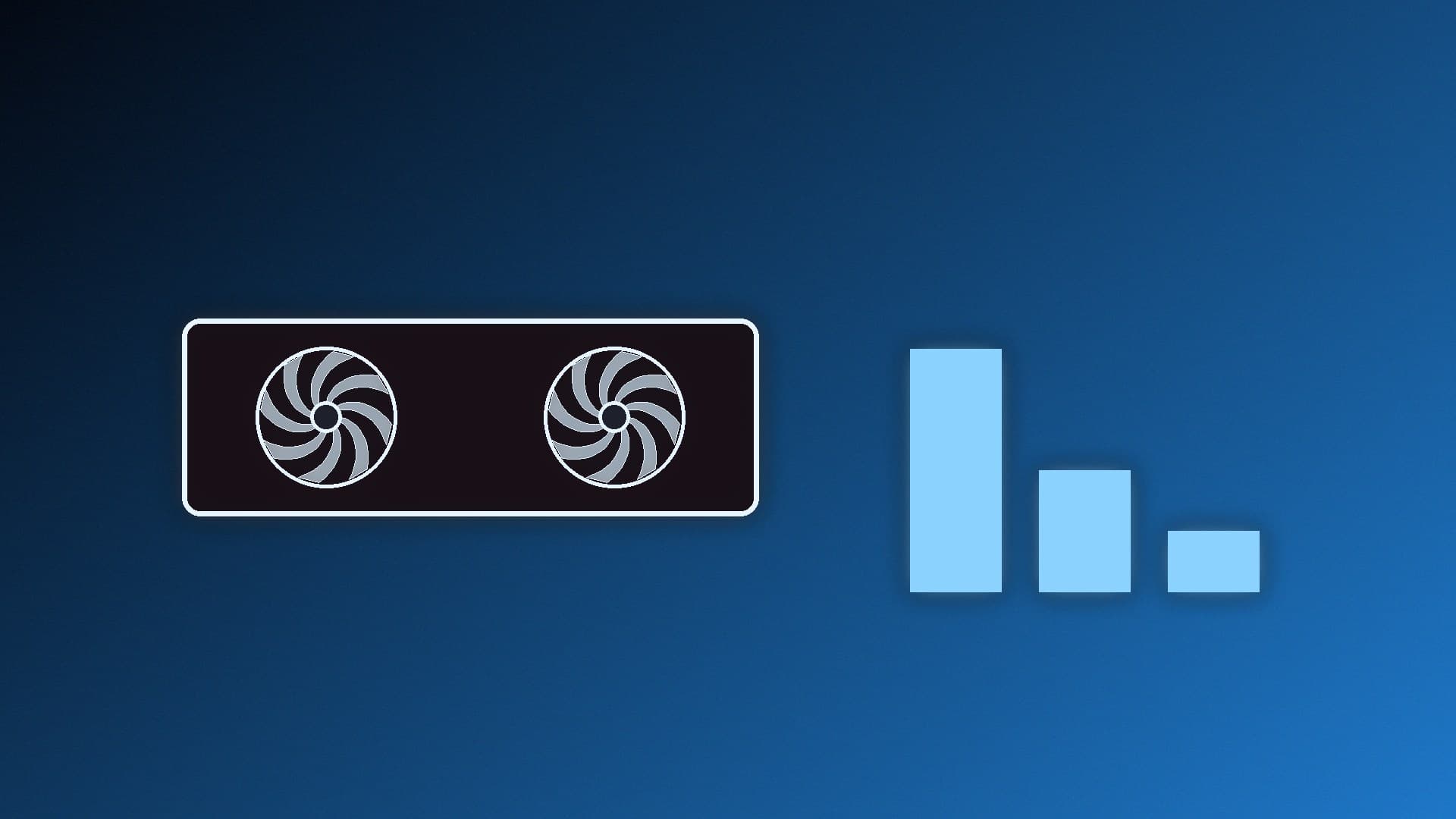
When you give a local model a long context window, the model weights aren't the only thing filling your graphics card. Ollama also keeps a K/V (key/value) context cache, and it grows as the context gets longer. Ollama can store that cache at lower precision to save memory. This guide shows how to switch it on, based on Ollama's own FAQ.
What the K/V cache is
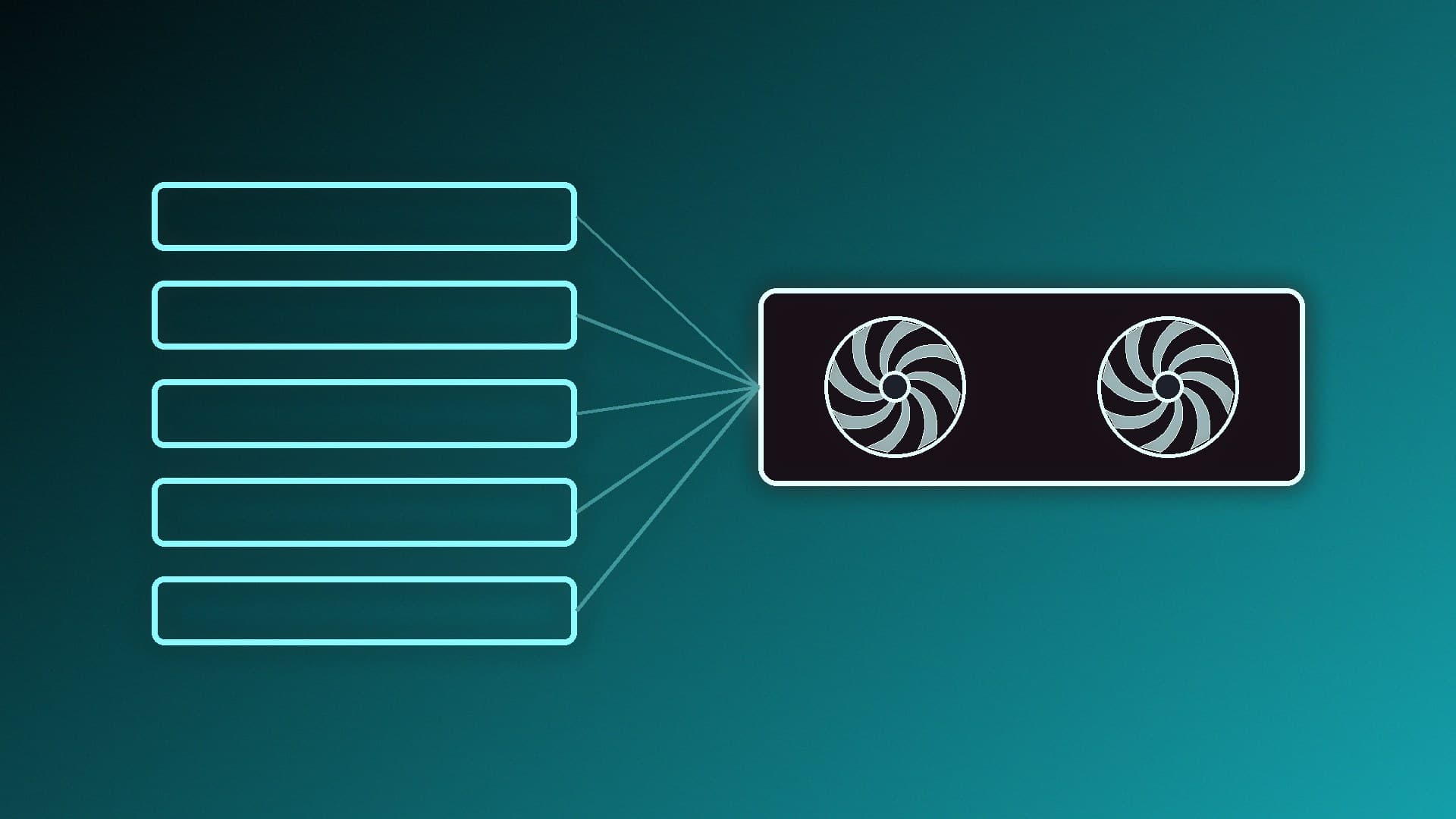
The K/V cache holds the attention data for the text the model has already processed, so it doesn't have to recompute it for every new token. Our context length explainer covers why a bigger context needs more VRAM. Ollama's FAQ says the K/V cache can be quantised to significantly reduce memory usage when Flash Attention is enabled.
The three cache types
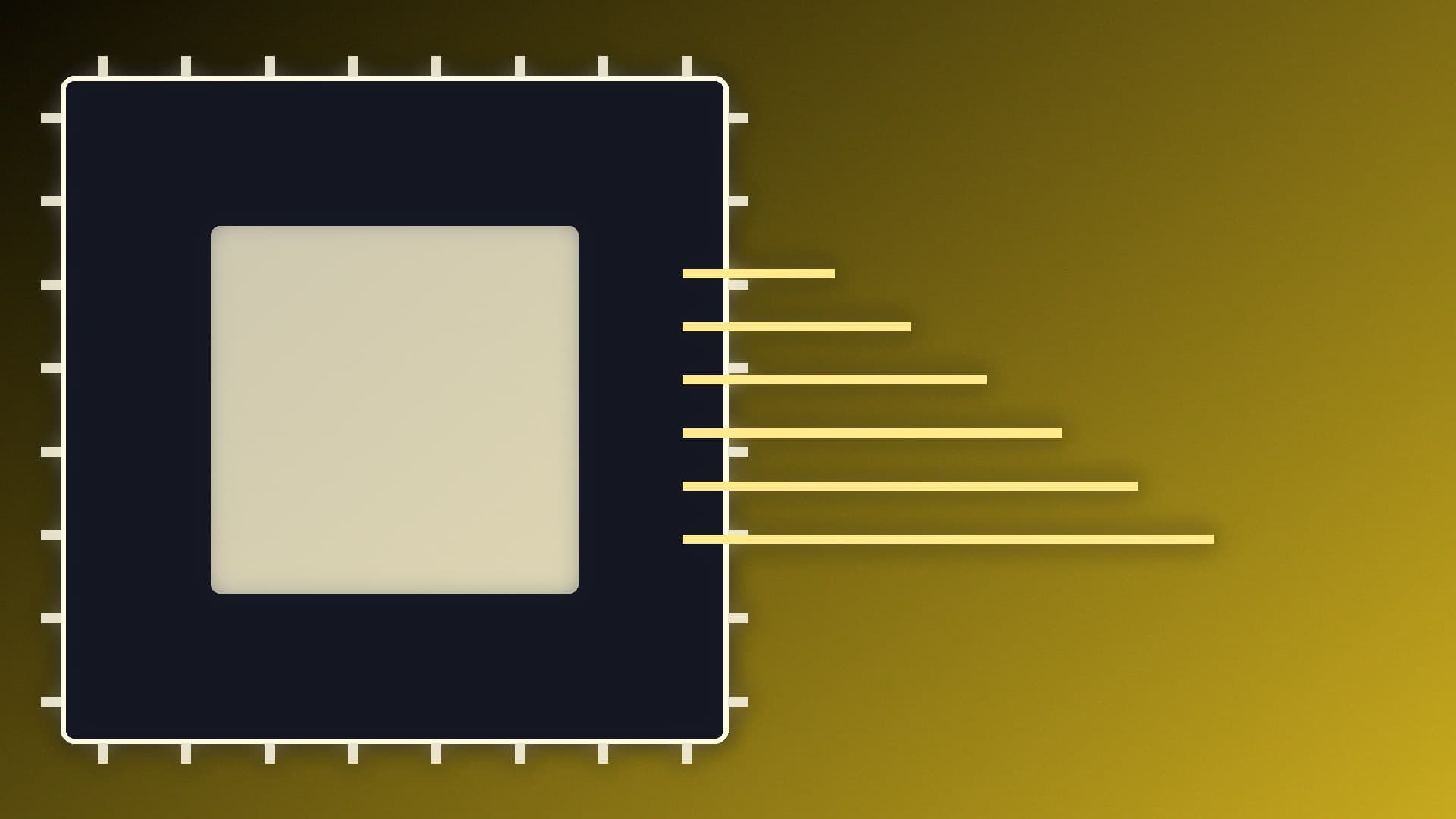
Ollama's FAQ lists three values for OLLAMA_KV_CACHE_TYPE:
Value | Memory use (Ollama's estimate) | Precision |
|---|
f16 (default)
| Full | High precision |
q8_0
| About half of f16 | Very small loss; usually no noticeable impact on quality |
q4_0
| About a quarter of f16 | Small-medium loss, more noticeable at higher context sizes |
Ollama recommends q8_0 if you're not using f16. It also notes that this is a global option: every model the server loads uses the same cache type.
Step 1: Make sure Flash Attention can run
Ollama's FAQ says it uses Flash Attention automatically when the backend and devices support it. You can force it on by setting OLLAMA_FLASH_ATTENTION=1 when starting the server (or off with 0). If you've previously set it to 0, remove that setting.
Step 2: Set the environment variable
Ollama is configured with environment variables on the server, so set OLLAMA_KV_CACHE_TYPE=q8_0 (or q4_0) using the method for your system:
Windows: quit Ollama from the taskbar, open Settings and search for environment variables, choose Edit environment variables for your account, add OLLAMA_KV_CACHE_TYPE with the value q8_0, click OK, then start Ollama from the Start menu.
Linux (systemd): run systemctl edit ollama.service, add Environment="OLLAMA_KV_CACHE_TYPE=q8_0" under [Service], save, then run systemctl daemon-reload and systemctl restart ollama.
macOS app: run launchctl setenv OLLAMA_KV_CACHE_TYPE "q8_0", then restart the Ollama app.
Step 3: Check the result
Load a model and run ollama ps. Its Processor column shows whether the model sits 100% on the GPU or is split between CPU and GPU. If a model that used to spill into system memory now shows more on the GPU at the same context length, the smaller cache is helping. Our guide to checking Ollama is using your GPU has more detail.
Things to watch
Ollama warns that the quality impact depends on the model and task. Models with a high GQA count, such as Qwen2, may lose more precision from quantisation than models with a low GQA count. If answers get worse on long documents, step back from q4_0 to q8_0, or to the default f16. For other ways to make models run faster, see our Ollama speed guide.
Our verdict
Set OLLAMA_KV_CACHE_TYPE=q8_0 if long contexts are pushing your model out of VRAM: Ollama says it roughly halves cache memory with very little quality loss. Use q4_0 only if you need the extra room and are willing to check the output quality.