If a local model in Ollama seems to forget the start of a long chat, or a coding tool keeps losing track of your files, the context length is the first thing to check. This guide follows Ollama's official documentation. Forge PC hasn't benchmarked how different context lengths affect speed or memory on particular graphics cards, so there are no figures here beyond Ollama's own defaults.
What context length is
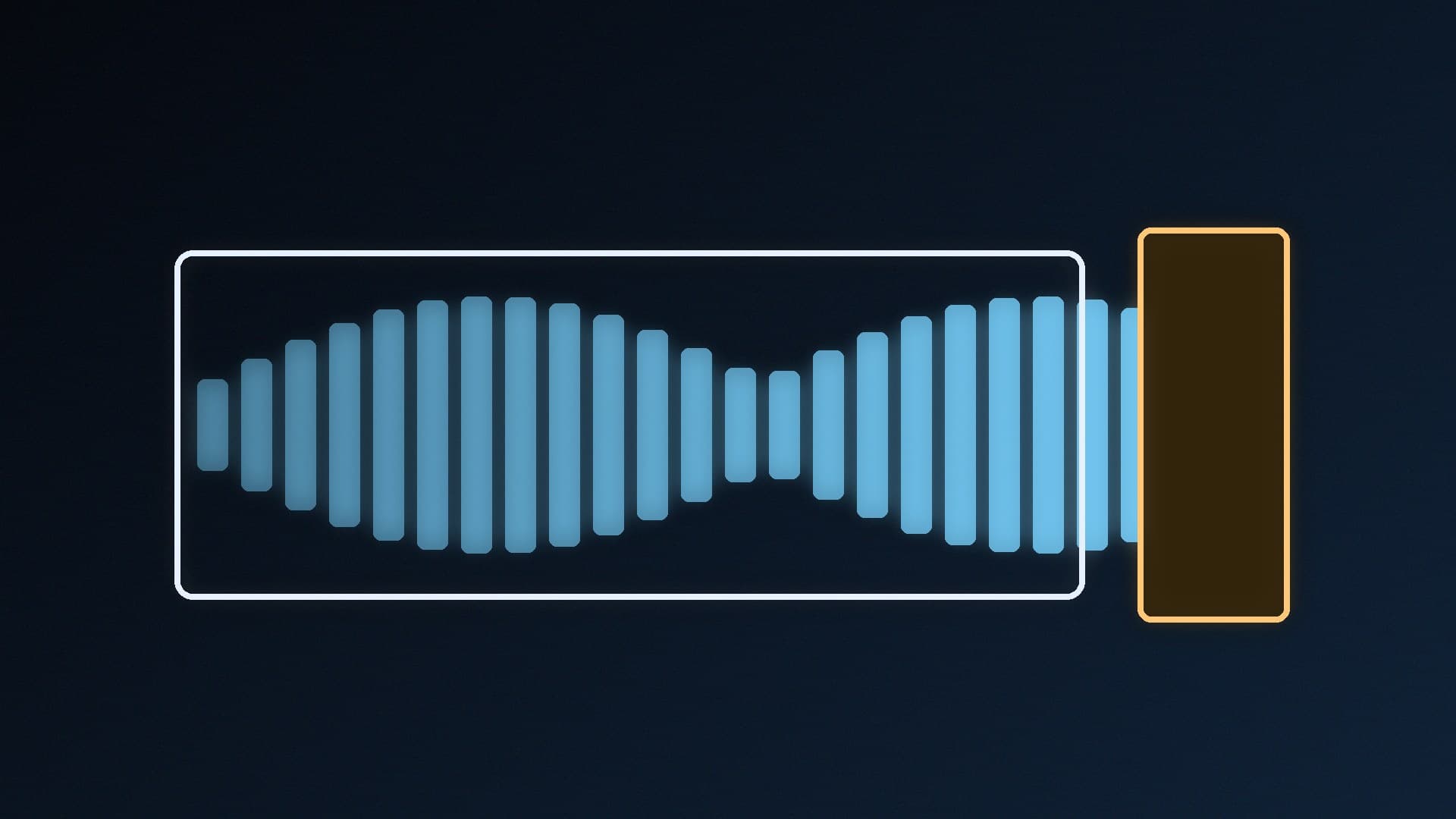
Ollama defines context length as the maximum number of tokens the model has access to in memory. Everything in the conversation, including your prompts, the model's replies and any pasted documents, has to fit inside it. When it fills up, the earliest parts are no longer available to the model.
For a deeper explanation of how context uses memory, see LLM context length and VRAM explained.
Ollama's default context length
Ollama's context length documentation says the default now depends on how much VRAM you have:
VRAM | Default context |
|---|
Under 24GiB | 4k |
24 to 48GiB | 32k |
48GiB or more | 256k |
(Ollama's FAQ still describes a default of 4,096 tokens, which matches the under-24GiB tier.) Ollama recommends at least 64,000 tokens for tasks that need a large context, such as web search, agents and coding tools.
Bigger context needs more memory
Ollama warns that a larger context length increases the amount of memory a model needs, so make sure you have enough VRAM before raising it. For best performance it recommends using the model's maximum context and avoiding offloading the model to the CPU. Those two goals can conflict on a card with limited VRAM, so you may need a smaller model to get a long context. Our guide to how much VRAM you need can help.
Method 1: The Ollama app
Ollama's docs say you can change the context length with the slider in the Ollama app's settings. This is the easiest option if you mainly chat in the app.
Method 2: Set a default for the server
To set a default for everything that uses Ollama, set the OLLAMA_CONTEXT_LENGTH environment variable. Ollama's example is:
OLLAMA_CONTEXT_LENGTH=64000 ollama serve
That form works in a Linux or macOS terminal. On Windows, Ollama's FAQ says the app inherits your user and system environment variables. To set one:
Quit Ollama by clicking its icon in the taskbar.
Open Settings and search for environment variables.
Click Edit environment variables for your account.
Create a new variable named OLLAMA_CONTEXT_LENGTH with the value you want, for example 64000.
Click OK or Apply, then start Ollama again from the Start menu.
Method 3: Change it for one chat
When using ollama run, Ollama's FAQ says you can change it for the session with:
/set parameter num_ctx 4096
Change the number to the context length you want. If you build your own model variants, see how to create a custom Ollama model with a Modelfile.
Method 4: Through the API
Apps that call Ollama's API can pass num_ctx in the request options. Ollama's FAQ example looks like this:
curl http://localhost:11434/api/generate -d '{
  "model": "llama3.2",
  "prompt": "Why is the sky blue?",
  "options": { "num_ctx": 4096 }
}'
Check it's still on the GPU
After changing the context length, load the model and run:
ollama ps
Ollama's docs say the PROCESSOR column shows where the model is loaded and the CONTEXT column shows the allocated context. "100% GPU" means the model is entirely in VRAM, "100% CPU" means system memory, and a split such as "48%/52% CPU/GPU" means it's partly in each. Ollama recommends avoiding offloading to the CPU for best performance, so if it's no longer 100% GPU, try a shorter context or a smaller model. You can also watch memory use with how to check VRAM usage in Windows.
Save memory with Flash Attention and K/V cache quantisation
Ollama's FAQ describes two server settings that can help with long contexts:
Flash Attention can significantly reduce memory use as context grows. Ollama uses it automatically when the backend and devices support it; OLLAMA_FLASH_ATTENTION=1 forces it on.
K/V cache quantisation (OLLAMA_KV_CACHE_TYPE) reduces memory use when Flash Attention is enabled. The default is f16; Ollama says q8_0 uses about half the memory of f16 with a very small loss in precision. It's a global setting that applies to all models.
For more ways to make models run faster, see how to speed up a local LLM in Ollama.
Our verdict
If you use Ollama for long chats, documents, agents or coding, raise the context length: use the app's slider, set OLLAMA_CONTEXT_LENGTH (Ollama suggests at least 64,000 for those tasks), or set num_ctx per chat or per request. Then run ollama ps to check the model is still 100% on the GPU. If it isn't, shorten the context, try q8_0 K/V cache quantisation or pick a smaller model.