Many of the most capable open-weight AI models simply don't fit in one PC's memory. On 19 November 2026, Microsoft announced a developer preview of RDMA over USB4 on Windows, which lets you connect two or more Windows PCs with USB4 cables and split one model across them. This article is based on Microsoft's announcement. Forge PC hasn't tested the preview, which isn't available to download yet, and the performance figures quoted below are Microsoft's, AMD's and Intel's own.
What it does
RDMA (Remote Direct Memory Access) moves data directly between the memory of two systems, bypassing most of the usual networking stack. It's common in data centres but normally needs special network adapters. Microsoft's approach runs it over USB4 instead, which many AI PCs already have, including via Thunderbolt 4 and Thunderbolt 5 ports. For the difference between those, see USB4 vs Thunderbolt 5.
According to Microsoft:
You can split one model across two or more PCs and use their combined memory and GPU compute.
There's no RDMA network adapter to buy, no switch to configure and no third-party driver to install.
Apps use NetworkDirect, the RDMA API Windows already uses with data-centre adapters.
A new NetworkDirect provider for USB4 and a llama.cpp-based testbed are open source.
Microsoft says that when a model is split this way, the PCs exchange data many times for every token, so latency matters more than bandwidth. In its measurements between two PCs, RDMA over USB4 cut round-trip latency for small messages to about 28 to 50 microseconds, which it says is roughly four times lower than Ethernet (UDP) over the same USB4 link.
The early results
Microsoft published results measured by its partners. These are vendor figures, not independent tests:
AMD Ryzen AI Max: In Microsoft's lab, three mini PCs with Ryzen AI Max processors and 128GB of unified memory each, connected in a 40Gbps USB4 full mesh, ran the 235-billion-parameter Qwen3-235B-A22B model at about 18.5 tokens per second with 4-bit quantisation. On its own three-PC setup, AMD measured 21.98 tokens per second decode.
Intel Core Ultra Series 3: Intel ran GPT-OSS-120B across three and four PCs with 64GB of memory each, connected over Thunderbolt 4. It measured about 49 tokens per second with three PCs and about 54 with four, at a 1K-token context.
For context on the models themselves, see how to run GPT-OSS locally. If you'd rather add a second graphics card to one PC, see how to run a local LLM on two GPUs.
What you'll need
Microsoft lists these requirements:
Two or more USB4-capable Windows PCs with USB4 ports managed by Windows. 40Gbps ports work; 80Gbps ports such as Thunderbolt 5 offer twice the nominal link rate.
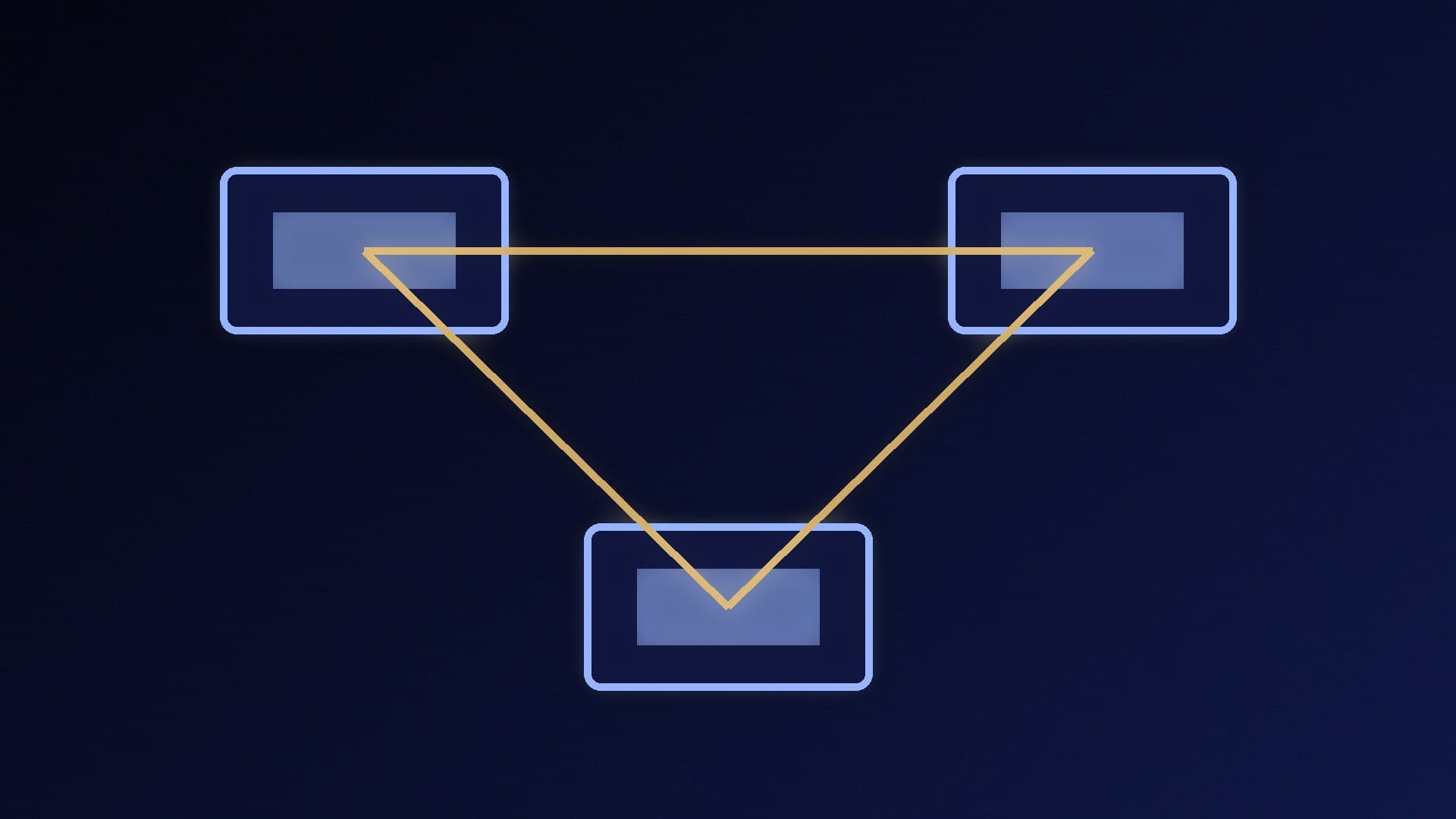
Enough ports: to connect N PCs, each needs N-1 USB4 ports, so a three-PC cluster needs two ports on each.
One USB4 cable for every pair of PCs, connected directly. Microsoft warns not to daisy-chain, as performance drops sharply.
The same RDMA-enabled Windows Insider build, preview drivers and NetworkDirect provider version on every PC.
Not for your everyday PC yet
This is very much a developer preview. Microsoft says it's coming soon to Windows Insiders in the Experimental channel (Future Platforms). Setup involves a registry change and turning on test signing, which requires Secure Boot to be switched off in each PC's firmware. Microsoft advises using dedicated test PCs, not your everyday device, and turning test signing off and Secure Boot back on afterwards. Our guide to enabling Secure Boot and TPM explains where those settings live.
Microsoft also lists known limitations: the transport doesn't retry if a connection drops, daisy-chained setups perform poorly, firewall rules must allow traffic on the USB4 network interfaces and apps need to align memory buffers correctly.
Our verdict
RDMA over USB4 is a clever idea: link a few USB4 PCs with ordinary cables and run a model none of them could hold alone. Microsoft's partner figures, such as about 18.5 tokens per second for a 235B model on three Ryzen AI Max mini PCs, suggest it's more than a demo. But it's a developer preview that needs Secure Boot off and test signing on, so for now it's for enthusiasts with spare machines, not your main gaming PC.