If a local language model is too big for one graphics card, a second card can give you more total VRAM to hold it. Ollama, LM Studio and llama.cpp can all split a model across two GPUs, but they do it differently, and none of them turns two cards into one faster card.
Forge PC has not benchmarked a two-GPU setup for this guide, so there are no speed figures here. The behaviour and settings below come from Ollama's official FAQ and GPU documentation, LM Studio's 0.3.14 release notes and llama.cpp's official server documentation, all read on 14 November 2026.
First, what two GPUs do and don't do
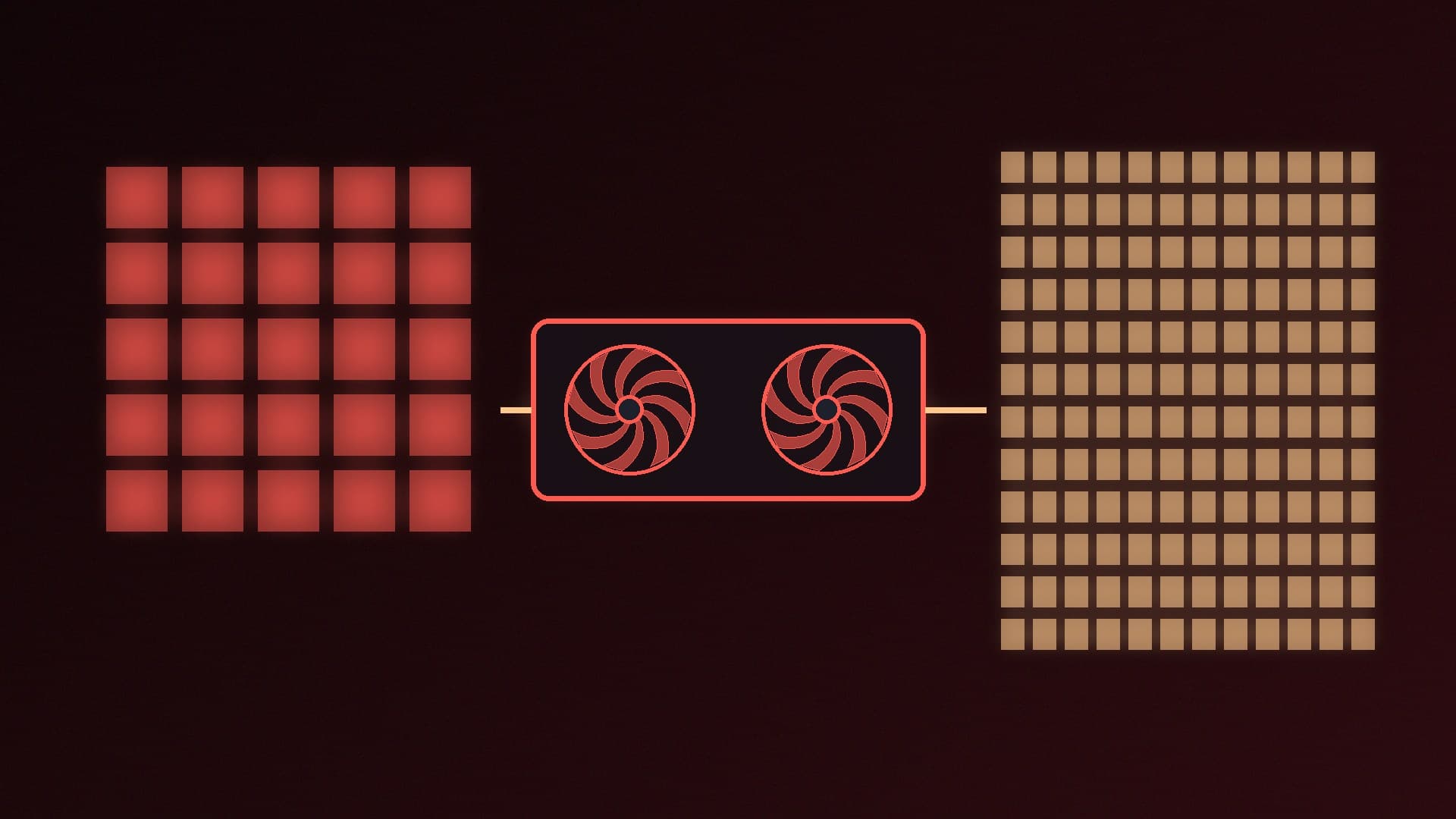
They add room. With the model split across two cards, the combined VRAM can hold a larger model or a less compressed version of it. Our GGUF and quantisation explainer covers why that matters.
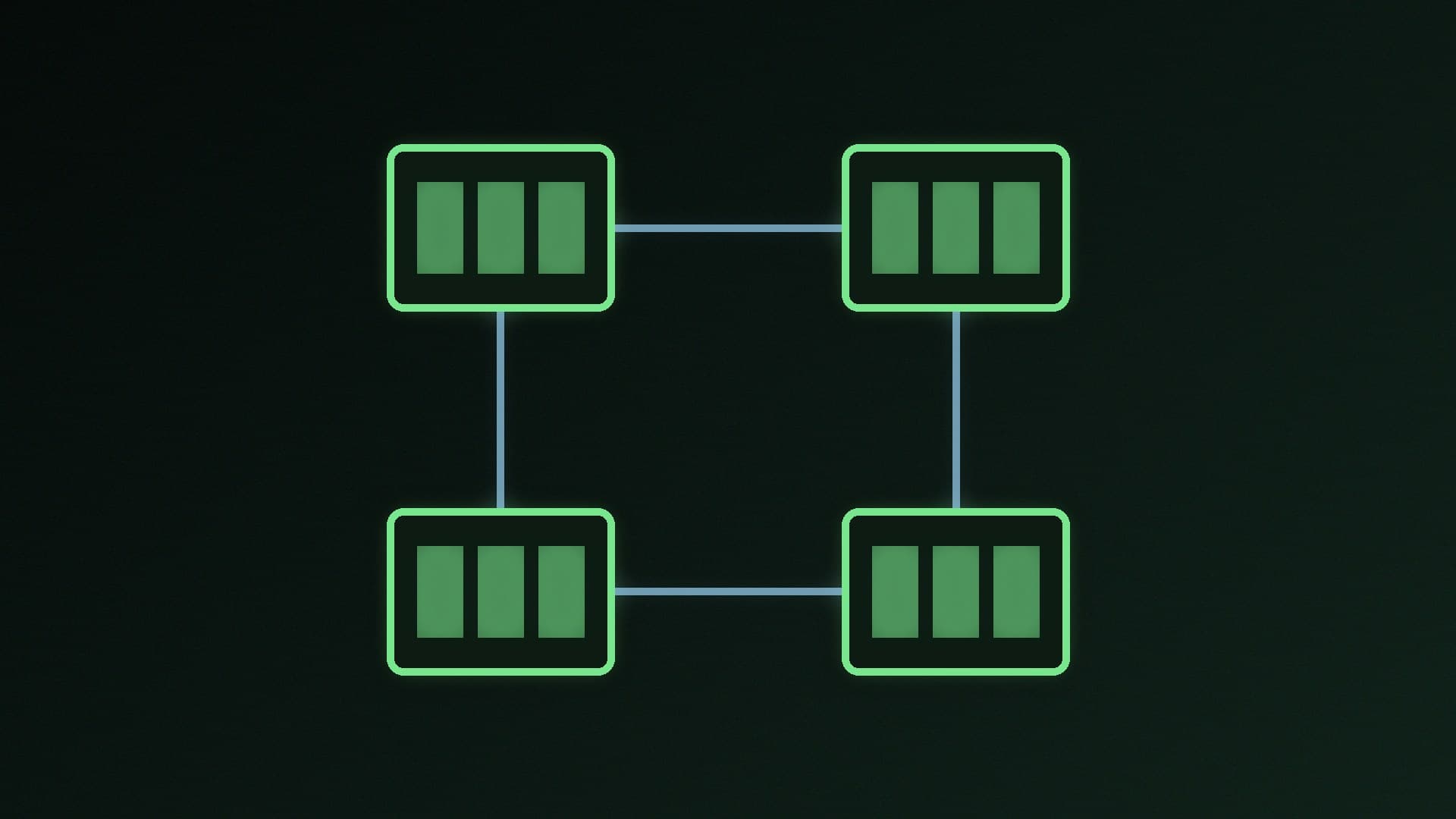
They don't simply double speed. By default, llama.cpp splits a model by layers, which its documentation describes as "pipelined". In a pipelined split, the cards largely take turns rather than both working flat out on the same token.
One card is often better if the model fits. Ollama's own FAQ says loading a model on a single GPU "typically provides the best performance" because it reduces data transfers across the PCIe bus.
If you are still choosing hardware, start with our best GPU for local LLMs guide and, for second-hand cards, our used GPU for local AI guide.
Ollama: automatic, with a way to limit it
Ollama needs no special setting. According to its FAQ, when you load a model it checks the VRAM available. If the model fits entirely on any single GPU, Ollama loads it on that GPU. If it does not fit on one, Ollama spreads it across all available GPUs.
To stop Ollama using a card, set an environment variable before starting the Ollama server:
NVIDIA: set CUDA_VISIBLE_DEVICES to a comma-separated list of the GPUs you want Ollama to use. Ollama's GPU documentation says numeric IDs work, but ordering can vary, so UUIDs are more reliable. Run nvidia-smi -L to list them.
AMD: the equivalent variable is ROCR_VISIBLE_DEVICES.
If you are new to Ollama, set it up first with our Ollama and LM Studio starter guide.
LM Studio: the multi-GPU controls
LM Studio added dedicated multi-GPU controls in version 0.3.14. According to its release notes:
Press Ctrl+Shift+H on Windows (Cmd+Shift+H on a Mac) to open the GPU controls.
Use the switch next to each GPU to enable or disable it. A disabled GPU is not used at all.
Choose an allocation strategy: split evenly, or use priority order, which fills the GPUs in the order you set.
Optionally turn on Limit Model Offload to Dedicated GPU Memory, so model weights do not spill into slower shared GPU memory. LM Studio says that in its testing, splitting weights between dedicated VRAM and system RAM was faster than using shared memory.
LM Studio's release notes say priority order and the dedicated-memory limit were CUDA-only (NVIDIA) at launch, with AMD support being worked on. Check the current version's settings if you use Radeon cards.
llama.cpp: full manual control
llama.cpp's server documentation lists the options that control a multi-GPU split:
--list-devices prints the GPUs llama.cpp can see, and -dev (or --device) chooses which to use.
-sm (or --split-mode) sets how the model is split: none (one GPU only), layer (the default: layers and KV cache split across GPUs, pipelined), row (weights split by rows, parallelised) or tensor (marked experimental).
-ts (or --tensor-split) sets the proportion of the model each GPU gets, for example 3,1 to put three-quarters on the first card. This is useful when your cards have different amounts of VRAM.
-mg (or --main-gpu) picks the GPU used with split mode none, or for intermediate results and the KV cache with split mode row.
So a server running a model split 3:1 across two cards by layer would use something like llama-server -m your-model.gguf -sm layer -ts 3,1, with your other usual options added. If you are deciding between tools, see our llama.cpp vs Ollama comparison.
Hardware checks before you add a second card
Power supply. Two GPUs can draw a lot of power. Add up both cards' official board power and the rest of the system, then size the PSU with our power supply buying guide.
Slots and spacing. Check your motherboard manual for which slot the second card can use and how many PCIe lanes it gets. Many consumer boards run the second full-length slot at fewer lanes, often through the chipset. Also check the cards physically fit with room to breathe.
Cooling. A second card in the slot below the first can starve it of air. Watch temperatures with our HWiNFO monitoring guide.
Our verdict
If a model fits on one card, keep it on one card; Ollama does that automatically and says it is usually faster. When a model needs more VRAM than one GPU has, Ollama will spread it across all your cards without any setup, LM Studio 0.3.14 and later let you choose which cards to use and how to fill them, and llama.cpp gives full control with --split-mode and --tensor-split. Check your PSU, slots and airflow before buying a second card. Forge PC has not benchmarked two-GPU setups; this guide follows the official documentation for each app.