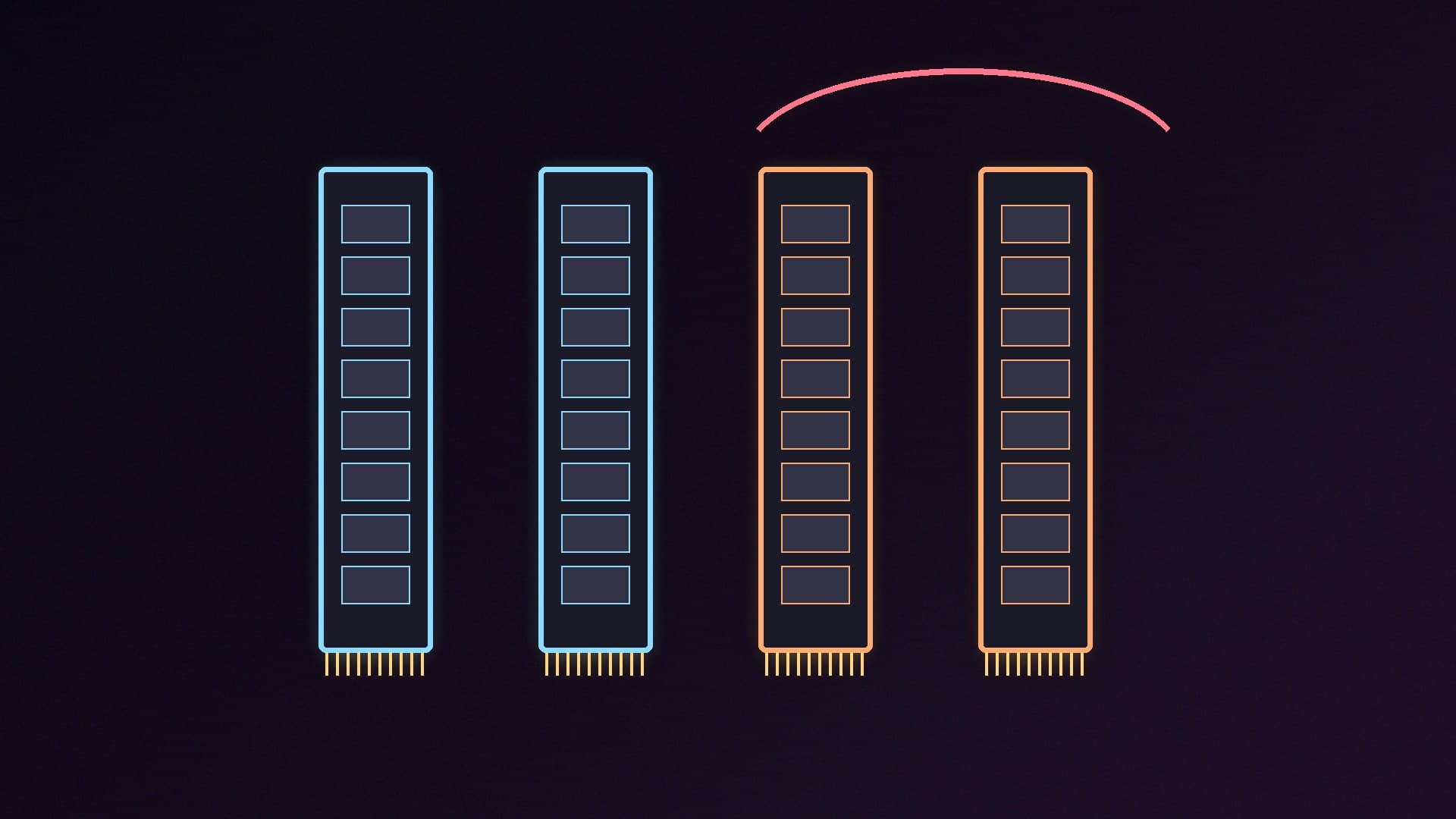
You have a 2x16GB kit and want 64GB, so buying a second identical 2x16GB kit and filling the other two slots seems obvious. It might work. It might also stop your PC booting, refuse to run its XMP or EXPO profile, or crash a week later. This guide explains what Corsair, G.Skill, Kingston and Crucial say about mixing memory, why it goes wrong, and how to do it as safely as possible if you decide to try.
Everything below comes from the memory makers' own support pages, which we've linked at the end.
What the memory makers say
All four makers we checked advise against mixing kits, and they're unusually blunt about it.
Corsair: "We strongly recommend that you do NOT combine multiple kits of CORSAIR memory in your system." Corsair says combining kits, "even if they are rated with the same speed", risks stability problems, EXPO or XMP being prevented from enabling, or the system being unable to boot, because its kits are only validated with the modules in that specific kit.
G.Skill: "We do not recommend mixing memory kits, regardless of brand or model." G.Skill adds that its QVL (qualified vendor list) applies to single-kit compatibility only, "so mixing two or more of the same memory kit is not recommended."
Kingston: Using two Kingston FURY "K2" dual-channel kits together "is not recommended", even with the same part number, because two K2 kits "may feature different builds with different components". Kingston points buyers to its four-module "K4" kits instead.
Crucial: Memory is backward compatible within a generation, so you can generally add faster memory to a system designed for slower memory, but "your system will operate at the speed of the slowest memory module installed."
So the short answer is: you can physically mix kits of the same generation, but no maker will promise it works at rated speed.
Why two identical kits can still clash
The most surprising part is that buying the exact same kit again isn't a guarantee. The makers give three reasons.
Different components under the same part number
Kingston says parts "may be built with different combinations of components at the factory under a single part number". So a kit you buy today may not be built from the same components as the one you bought earlier, even if the label is identical. G.Skill makes the related point that each kit is tested on its own, and "because we have not tested our memory kit with your existing memory kit, we cannot guarantee compatibility".
Four modules are harder on the memory controller
Corsair's DDR5 support article says mixing kits is "especially true at higher speeds, where the memory controller of the CPU can be a limiting factor", and that the achievable speed can be capped by the CPU's memory controller, "particularly with four DIMMs or two dual-rank DIMMs". In other words, going from two sticks to four adds strain on its own, before you consider whether the kits match. Our single vs dual channel RAM comparison explains how memory channels work.
Profiles are written for one kit
XMP and EXPO profiles store a speed, voltage and set of timings validated for that kit. G.Skill describes them as preprogrammed profiles that set the correct memory overclock with a single setting. With two different kits installed, the motherboard has to choose one set of values for all four modules, and nothing guarantees the other kit is happy at those settings.
When mixing is most likely to cause trouble
Based on the makers' guidance, the riskiest combinations are:
Different speeds or timings. Crucial says everything runs at the slowest module's speed, so a faster kit is wasted.
Different capacities or chip densities. Kingston says it doesn't recommend mixing overclockable FURY modules or kits with different DRAM densities or specifications, "as this may cause instability or fail to overclock". On mixing 24Gbit-based and 16Gbit-based standard JEDEC modules, it says mixing across banks is OK but it doesn't recommend mixing within the same bank group, which on PCs and laptops can force the memory to perform at "half the potential bandwidth".
High-speed DDR5 with XMP or EXPO enabled. Corsair says high-frequency DDR5 running XMP "can sometimes be unstable", and mixing adds another variable.
Four modules on a platform that already struggles with four. See Corsair's memory controller point above.
Kingston's guidance is most relaxed for standard, non-overclocked JEDEC memory, so that is the lowest-risk case; overclocked XMP and EXPO kits are where every maker draws the line.
The safer alternative: replace, don't add
If you need more memory, the makers' advice points to one answer: buy a single kit with the total capacity you want, in the number of modules your board handles best. Kingston explicitly recommends buying modules "as a kit of 2 or kit of 4, which are built and packaged with the same identical components".
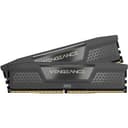
For a DDR5 desktop where you want 64GB, that means a single 2x32GB kit rather than two 2x16GB kits, which also avoids the four-DIMM strain Corsair describes. Examples in our database include the Kingston Fury Beast Black EXPO 64GB (2x32GB) DDR5-6000 CL30 and the Corsair Vengeance DDR5 6000 64GB. Selling or reusing your old kit in another PC can offset some of the cost.
Before buying, check the kit is on your motherboard's memory support list. Our guide on how to check your motherboard's memory QVL shows how, and the Black Friday RAM buying checklist covers the other things to check.
How to mix kits if you go ahead anyway
If you already own both kits, or you're happy to accept the risk, this approach gives you the best chance:
Match as much as you can. Same generation (Crucial is clear DDR5 won't work in DDR4 slots), same capacity per stick, and ideally the same speed, timings and voltage. Use the same model from the same maker if possible.
Check how many slots you have free. See how to check free RAM slots in Windows 11.
Update the BIOS first. G.Skill lists updating the BIOS as a fix when new memory won't boot, and Corsair says motherboard makers have released BIOS updates to improve stability with XMP enabled on DDR5.
Install the modules properly. Follow the slot order in your manual; our how to install RAM guide walks through it.
Boot at default settings first. Leave XMP or EXPO off for the first boot, so you know the modules work together at standard settings. If the first boot seems to hang on a DDR5 system, see how to fix slow boot on DDR5 before assuming something is wrong.
Then try the slower kit's profile. Because everything runs at the slowest module's speed anyway, aim for the slower kit's rated settings. If XMP or EXPO won't apply, G.Skill says you can set frequency, DRAM voltage, CL timings and command rate manually from the information on the module's sticker or packaging. Corsair notes that loosening timings is one way to gain stability at high frequencies. Our how to enable XMP or EXPO guide shows where these settings live.
Test before you trust it. G.Skill suggests checking memory with MemTest86 or Windows Memory Diagnostic. Our Windows Memory Diagnostic vs MemTest86 comparison explains which to use.
If it won't boot
G.Skill's checklist for memory that won't boot is a good starting point:
Make sure the motherboard supports the memory capacity and frequency.
Clear the BIOS settings using the Clear CMOS jumper or button, or by removing the CMOS battery. See how to clear CMOS.
Update the motherboard BIOS to the latest version.
Test the modules with memory testing software.
If one kit isn't being detected at all, try each kit on its own to find out whether it's a mixing problem or a faulty stick. Our how to fix RAM not detected guide covers this in more detail.
Our verdict
You can mix RAM kits of the same generation, but Corsair, G.Skill and Kingston all advise against it, even with two identical kits, because each kit is only validated on its own and the same part number can use different components. Crucial adds that everything runs at the slowest module's speed. The reliable way to add memory is to replace your kit with a single kit of the total capacity you need, such as a 2x32GB DDR5 kit for 64GB. If you mix anyway, match capacity and speed, update the BIOS, boot at defaults first, then try the slower kit's settings and test thoroughly with MemTest86 or Windows Memory Diagnostic.