You press the power button on your new DDR5 build and nothing happens for a worryingly long time. Fans spin, maybe a DRAM debug light glows, but there's no picture. After a few minutes it suddenly boots, or every cold start takes far longer than your old PC did. In most cases this is memory training, not a fault. This guide explains what's going on, when you should simply wait, and how to shorten boot times without making the PC unstable. It's based on Kingston's memory support FAQ, MSI's support FAQ and AM5 BIOS manual, and a Tom's Hardware report, all checked on 23 November 2026.
What memory training is
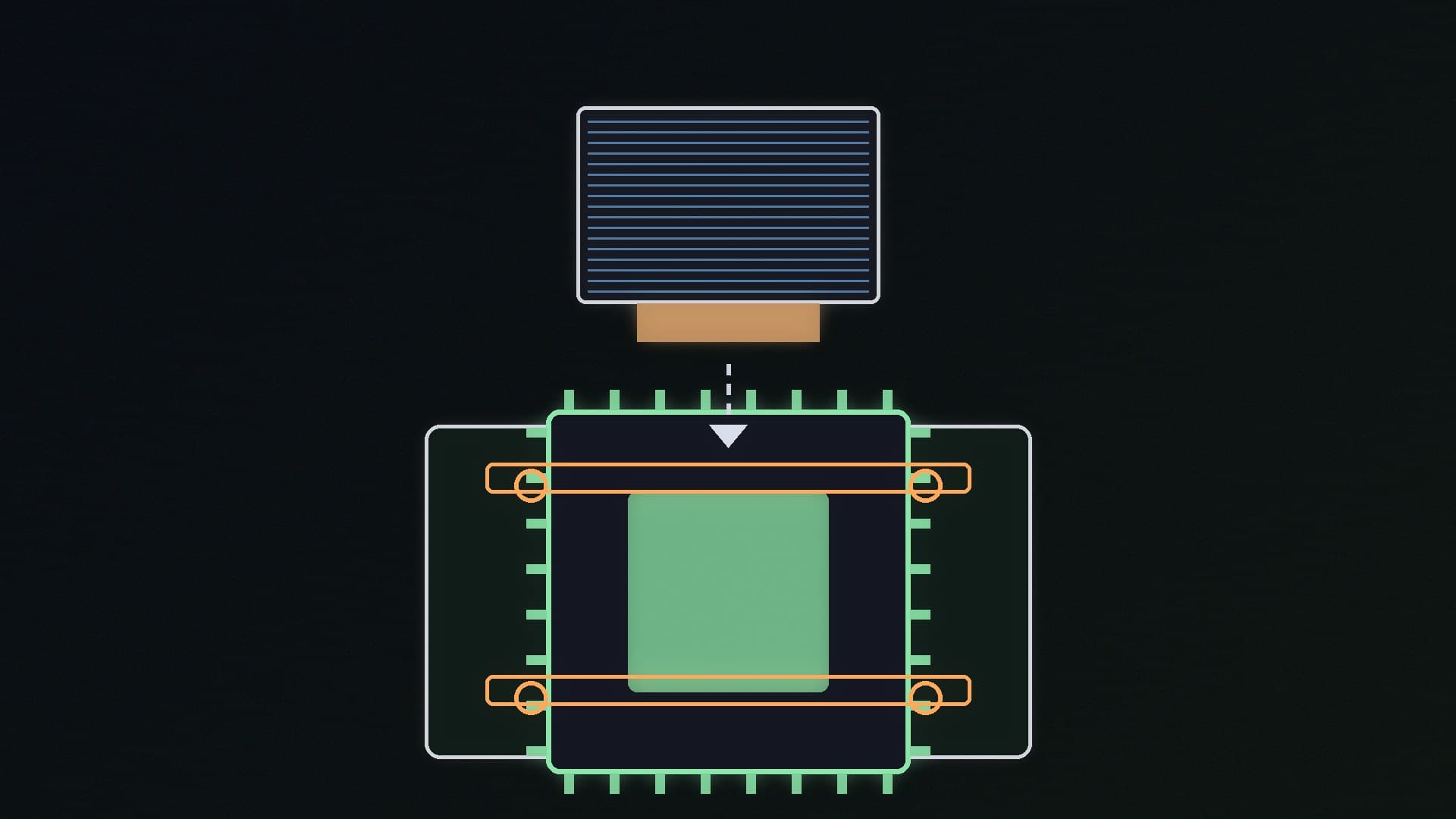
Kingston explains that memory training happens during POST (the Power-On Self-Test) when a DDR5 system boots for the first time, when the memory configuration has changed, or when the BIOS has been updated. It calls training "a critically important step for DDR5", because the memory controller, BIOS and DRAM have to be tuned to work together. Skipping it can cause instability or performance problems.
How long does it take? Kingston says some DDR5 PCs take 3-5 minutes and some DDR5 servers and workstations up to 15 minutes. More installed memory usually means a longer wait. Kingston also notes the blank screen is often mistaken for a freeze. Genuine memory errors usually show up as motherboard LEDs, codes or an on-screen error. Without one of those, let training finish. Afterwards the PC either reboots or carries on into the operating system, and later boots should be much quicker.
Step 1: Wait out the first boot
If you've just built the PC, added or swapped memory, or updated or reset the BIOS, be patient. Kingston's advice after a memory change is to leave the PC powered on at the blank screen for at least 10 minutes. If it still hasn't moved on, power cycle it and try again, then give it another five minutes if the black screen comes back. Switching off halfway through just restarts the process and can make it look as though the memory is faulty.
Step 2: Work out whether every boot is slow
One long boot after a change is normal. The problem is when every cold boot is slow. Kingston says later boots should be significantly shorter once training has finished. If they aren't, the board may be repeating part of the memory check every time. MSI acknowledges this in a support FAQ that lists X670E and X670 boards among others, which answers the question "I'm getting extreme long boot time comparing to my old platform. Is there any problem with my system?"
Step 3: Update the BIOS
Before changing any settings, install the latest stable BIOS for your exact board. Kingston notes that periodic BIOS updates improve DRAM compatibility, and boot times have been one of the things board makers have worked on. Tom's Hardware reported in April 2023 that MSI released an update for its AMD X670 and B650 boards which, according to MSI, cut boot times by 50%. In MSI's example configuration, boot to the Windows 11 desktop fell from 43 to 22 seconds. Those are MSI's own figures for one test system (a Ryzen 7 7800X3D on a MAG X670E Tomahawk WiFi with a Kingston 2x16GB DDR5-6000 EXPO kit), not independent results. Remember that a BIOS update itself triggers fresh training on the next boot. Our safe BIOS update guide explains how to do it without risk.
Step 4: Consider Memory Context Restore (AM5)
On AMD AM5 boards, the setting designed for this is Memory Context Restore (MCR). MSI's FAQ says enabling it lets the BIOS "bypass the memory self-check process once the process is completed in the first boot to reduce boot time". MSI's AM5 BIOS manual describes it the same way: when it's enabled, "the POST latency will be minimized".
Where to find it:
MSI: OC > Overclocking > Memory Context Restore, according to MSI's FAQ.
Gigabyte: Tom's Hardware reported the option deep in the advanced BIOS under Settings > AMD CBS > UMC Common Options > DDR Options > DDR Memory Features > Memory Context Restore, at the time of its 2023 article. Menu paths change between BIOS versions.
Other brands: look in the memory or AMD CBS/DDR options, or search your board's manual for "Memory Context Restore".
Tom's Hardware points out that MCR can't speed up the very first boot. It won't skip training on a new system, after fitting new memory or after a BIOS reset.
The caveats
MCR is a trade-off, and memory makers are more cautious than board makers. Kingston says outright: "We do not recommend changing settings to bypass training in any way." Tom's Hardware also reported user complaints from early 2023. One owner of an ASUS ROG Crosshair X670E Hero said turning the option on caused Windows 11 blue screens, and the article described Gigabyte's version as perhaps not "truly ready for prime time".
A sensible approach:
Update to the latest BIOS first.
Enable MCR, save and reboot, then let the first boot finish.
Test stability properly. Run a full memory test and use the PC normally for a while. Our Windows Memory Diagnostic vs MemTest86 comparison explains which tool to use.
If you get crashes, blue screens or boot failures, turn MCR off and accept the longer boot. If you can't reach the BIOS, clear CMOS to get back to defaults.
Step 5: Check your memory settings
If problems started after you set timings by hand, go back to the kit's standard XMP/EXPO profile with no extra tweaks. Our XMP and EXPO guide shows how. MSI's manual also warns that changing memory timings can make a system "unstable or unbootable", in which case you should clear CMOS and load the defaults.
Capacity matters too. Kingston says more installed memory usually means a longer training period, so a high-capacity build should expect a longer first boot.
When it isn't training
Training shouldn't stop the PC booting altogether. If it never gets past the black screen after 10-15 minutes, or a DRAM error LED stays on, treat it as a detection or compatibility problem rather than slow training. Check the modules are fully seated and in the right slots, try one stick at a time, then clear CMOS and update the BIOS.
Our verdict
A long black screen on the first boot of a DDR5 PC is normal. Kingston says training can take 3-5 minutes on a desktop, so wait at least 10 minutes before assuming something's wrong. If every cold boot is slow, update the BIOS first. Then, on AM5 boards, consider Memory Context Restore, which MSI says skips the repeated memory check after the first successful boot. Kingston advises against bypassing training, and some early BIOS versions caused blue screens, so test stability afterwards. If it isn't stable, switch MCR off again. For stable memory speeds, keep to your kit's standard XMP or EXPO profile.