The steps and warnings are based on AMD's Ryzen Master product page, its Ryzen Master reference guide, its Curve Optimizer FAQ and the Ryzen Master 2.14.2 release notes, all read on 24 November 2026. AMD redesigns the interface from time to time, so some menu names may look slightly different in the version you install.
AMD Ryzen Master is AMD's free Windows utility for monitoring and tuning Ryzen processors. It's best known as an overclocking tool, but it's just as useful for checking what your CPU is doing, switching on Eco Mode to cut heat and noise, or trying Precision Boost Overdrive (PBO) and Curve Optimizer without digging through BIOS menus. This guide explains what it does, how to set it up, and how to use it without getting yourself into trouble.
Before you start: what Ryzen Master is (and isn't)
AMD's product page points out that every Ryzen processor is multiplier-unlocked from the factory, and Ryzen Master is the tool AMD provides to take advantage of that. Its reference guide is equally clear that Ryzen processors are designed to deliver their full rated performance out of the box without Ryzen Master. In other words, you don't need it. It's aimed at enthusiasts who want to experiment and who accept that some settings can reduce performance or cause instability.
That leads to the most important warning in this guide. AMD states that its product warranty doesn't cover damage caused by overclocking, even when it's enabled through AMD's own hardware or software, and that Precision Boost Overdrive runs the processor outside its specifications and invalidates the AMD product warranty. The reference guide also warns that changes to voltage in particular can cause permanent damage if used incorrectly. Monitoring is risk-free; tuning is not.
What Ryzen Master can do
Feature | What it's for | Risk level |
|---|
Home / monitoring | Live per-core clocks, temperatures and voltages, including average and peak readings | None |
Eco Mode | Runs the CPU at a different (usually lower) power limit on supported chips | Low when lowering power, but applied through an overclocking tool |
Auto Overclock | Lets Ryzen Master raise CPU and RAM performance automatically, according to AMD | Medium |
Precision Boost Overdrive | Raises the power and current limits the CPU boosts within | Medium; voids AMD warranty |
Curve Optimizer | Adjusts the voltage/frequency curve for all cores or individual cores | Medium; needs stability testing |
Manual mode | Sets a fixed clock speed and CPU voltage yourself | High |
Memory tuning | Adjusts memory speed and timings; EXPO can be applied on the fly in 2.14.2 | Medium |
AMD's product page also lists integrated Radeon graphics overclocking for Ryzen chips with Radeon graphics, and profile support covering the CPU, integrated graphics and DDR5 memory.
Step 1: Prepare your PC
AMD's reference guide recommends a little housekeeping before you install:
Update your BIOS. AMD recommends upgrading to the latest BIOS from your motherboard maker. Our guide to updating your BIOS safely explains how.
Load BIOS defaults. AMD recommends starting from the motherboard's default settings, because Ryzen Master copies whatever settings are active on first launch and treats them as its "default".
Check Windows security features. AMD's reference guide (written for Ryzen Master 2.9) says Windows Virtualization-Based Security must be disabled for Ryzen Master to function. Newer versions may behave differently, but if Ryzen Master warns you about this, think carefully before turning Windows security features off, because you're trading protection for a tuning tool.
Back up anything important. AMD's own warning advises saving important data before using the software, since unstable settings can crash the PC.
Step 2: Download and install the right version
Go to AMD's Ryzen Master page and download the installer. AMD lists separate downloads for Ryzen 5000 Series processors and later, for Ryzen 3000 to 4000 Series, and for Ryzen 2000 Series and earlier, so pick the one that matches your CPU. The 2.14.2 release notes say that build dropped support for Ryzen and Threadripper 1000 and 2000 series chips and added support for Ryzen 9000 desktop processors and 800-series AM5 chipsets.
Run the installer and accept the licence agreement and legal disclaimer. AMD's guide notes you must accept these risks to continue.
If your system or CPU isn't enabled for overclocking, AMD says Ryzen Master will either install with only the Home monitoring page available, or tell you overclocking is restricted and refuse to install.
If an upgrade to a new version fails, AMD's guide suggests using Microsoft's install and uninstall troubleshooter to clean up the old installation first.
Step 3: Find your way around
Open Ryzen Master and you'll land on the main dashboard. AMD's current interface lets you toggle between Basic and Advanced modes. Basic shows the essentials; Advanced exposes the full set of tuning controls.
Home (monitoring): AMD says this shows real-time per-core clock speeds, temperature and voltages, including average and peak readings, and you can choose which parameters to display. On multi-CCD chips you can view each CCD separately.
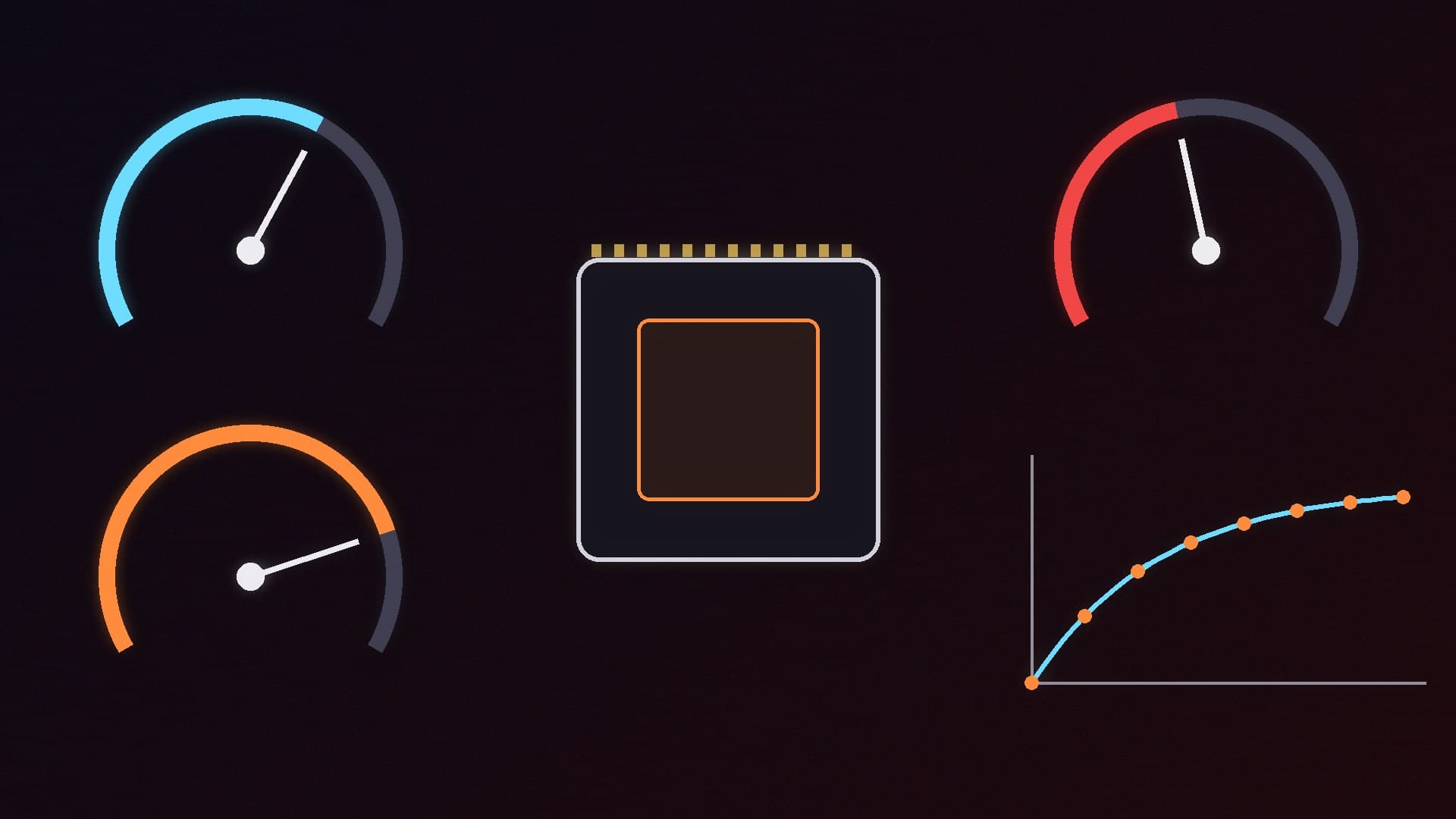
Power and current gauges: these show how close the CPU is to its limits. AMD's guide defines PPT (Package Power Tracking) as the total power in watts available at the socket, TDC as the current in amps the CPU can sustain at its thermal limit, and EDC as the maximum current in amps that can be supplied to the socket.
Profiles / Tuning: AMD's product page describes a Tuning page where you can create multiple profiles with your own settings for the CPU, integrated graphics and DDR5 memory, plus a Workspace for immediate adjustments if you'd rather not create a profile.
Settings: here you choose how often readings update, set stress-test options and, according to AMD, decide whether PBO and Curve Optimizer adjustments are applied on the fly or through the BIOS so they survive restarts.
Step 4: Use Eco Mode for a cooler, quieter PC
Eco Mode runs the CPU at a different power limit from its default, which is usually used to lower power, heat and fan noise in exchange for some performance in heavily threaded work. Read the options carefully on Ryzen 9000: AMD's 2.14.2 release notes describe a 105W Eco Mode for Ryzen 9000 Series 65W and 120W desktop processors. On a 120W chip that's a lower limit, but on a 65W chip 105W is above the default rating, so it raises the limit instead.
Open Ryzen Master and choose Eco Mode as the control mode. The exact layout depends on your version and on whether you're in Basic or Advanced mode.
Click Apply.
Restart if Ryzen Master asks you to. AMD's reference guide notes that switching to or from Eco Mode needs a restart on some processors.
We cover the trade-offs and the options for each Ryzen generation in our dedicated AMD Eco Mode guide.
Step 5: Try Auto Overclock or PBO carefully
The reference guide describes several control modes: Manual, Auto Overclocking and Precision Boost Overdrive, with Default returning the system to a non-overclocked state. Ryzen Master's newer builds also include an IRM mode, and the 2.14.2 release notes say users can adjust PBO's PPT, TDC and EDC limits up to the IRM limits in that mode.
Make sure your cooler is up to the job and temperatures are reasonable at stock.
Choose Auto Overclocking or Precision Boost Overdrive as the control mode.
Click Apply & Test rather than just Apply. AMD's guide says this runs a test to help determine whether your system is stable with the chosen settings, and the 2.14.2 release notes describe an upgraded stress test behind this button.
Watch the temperature and power gauges while the test runs.
If anything crashes, reboot and return to Default.
AMD lists a known issue in 2.14.2: on some CPUs the built-in stress test might not fully load the processor or may need longer to reach maximum stress, so AMD suggests increasing the stress test duration in Settings. In practice, treat Ryzen Master's test as a first check and follow up with your own workloads and a longer test; our stress-testing guide covers the tools.
Step 6: Use Curve Optimizer (supported CPUs only)
Curve Optimizer adjusts the voltage/frequency curve the CPU uses, either for all cores at once or per core. AMD's Curve Optimizer FAQ explains two approaches:
Auto Offset: Ryzen Master runs a stress test and derives offset values for you. AMD recommends setting the Test Duration and Stress Test Type (CPU Only or Both) in Settings first. Longer tests take more time but may produce more stable values.
Manual Offset: you enter values yourself within the allowed range, then click Validate Offset to apply them and run a stress test.
AMD is frank that values derived automatically can still cause instability, describing them as a starting point that you should adjust (using the Difference Offset Value setting) after checking stability with your own workloads. To turn it off, set the Curve Optimizer mode to Off and apply; AMD says a restart may be required. Our PBO and Curve Optimizer guide explains the BIOS route and what the offsets do.
Step 7: Know what survives a restart
Not every change sticks. AMD's reference guide explains that some settings are applied instantly, some need Ryzen Master to restart the PC itself (it then reopens automatically), and some need a full shutdown where you press the power button. Ryzen Master tells you which is needed. Some configurations don't persist after a user-initiated restart, and loading BIOS defaults returns everything to stock. If you want settings applied every time, check the Settings page option to apply PBO and Curve Optimizer through the BIOS.
AMD also recommends that after a BIOS update you uninstall and reinstall Ryzen Master, exporting your favourite profiles first and importing them afterwards, so it links to the new BIOS correctly.
Troubleshooting and good habits
Settings look wrong after a BIOS change: reinstall Ryzen Master as above so it picks up the new defaults.
Fast Startup: AMD's reference guide recommends unticking "Turn on fast startup" in Windows power options when using Ryzen Master. It's under Power Options > Choose what the power buttons do > Shutdown settings. AMD's guide also recommends the High Performance power plan.
Game Mode profile: AMD's guide says the older Game Mode profile was intended only for processors with more than eight cores and isn't necessary for Ryzen 3, 5 or 7 chips.
Updates: AMD says Ryzen Master checks for updates automatically every 15 days, and you can check manually under Settings.
Change one thing at a time, and test after each change, so you know what caused a problem.
Our verdict
Ryzen Master is worth installing on any desktop Ryzen PC if you want a clear, official view of clocks, temperatures and power limits, and it's the easiest way to try Eco Mode for a cooler, quieter system. Its tuning features, including Auto Overclock, PBO and Curve Optimizer, are genuinely convenient, but AMD's own documents make it clear they run the CPU outside specification, void the AMD warranty and need proper stability testing. Start with monitoring, change one setting at a time, use Apply & Test and then your own longer tests, and remember that Default is always one click away.