Colour bit depth is one of the more confusing lines on a monitor spec sheet. You'll see panels described as 8-bit, 8-bit + FRC or 10-bit, sometimes with "16.7 million colours" or "1.07 billion colours" alongside. The difference affects how smoothly a screen can show gradients, such as a sky, a sunset or a dark scene, and it matters most for HDR and colour-critical work. This guide explains what bit depth means, how 8-bit + FRC works, and who should pay for true 10-bit. It's based on BenQ's explainers on colour depth and NVIDIA's guide to deep colour on Windows 11.
The short answer
| 8-bit | 8-bit + FRC | True 10-bit |
|---|
Shades per colour channel | 256 | 256 natively, more simulated | 1,024 |
Total colours | About 16.7 million | About 1.07 billion (simulated) | About 1.07 billion |
How it works | Native panel output | Pixels flash between two shades quickly to create in-between shades | Native panel output |
Best for | Everyday use, SDR gaming | Most creative work and HDR on a budget | High-end photo and video work |
What colour bit depth means
Each pixel on your monitor mixes red, green and blue. Bit depth is how many steps, or shades, each of those three colours can have. BenQ explains the maths: an 8-bit panel has 2 to the power of 8, or 256, shades per colour, and 256 x 256 x 256 gives about 16.7 million colours. A 10-bit panel has 1,024 shades per colour, and 1,024 cubed is about 1.07 billion colours. BenQ adds that 12-bit goes further, to 4,096 shades per colour and about 68.7 billion colours.
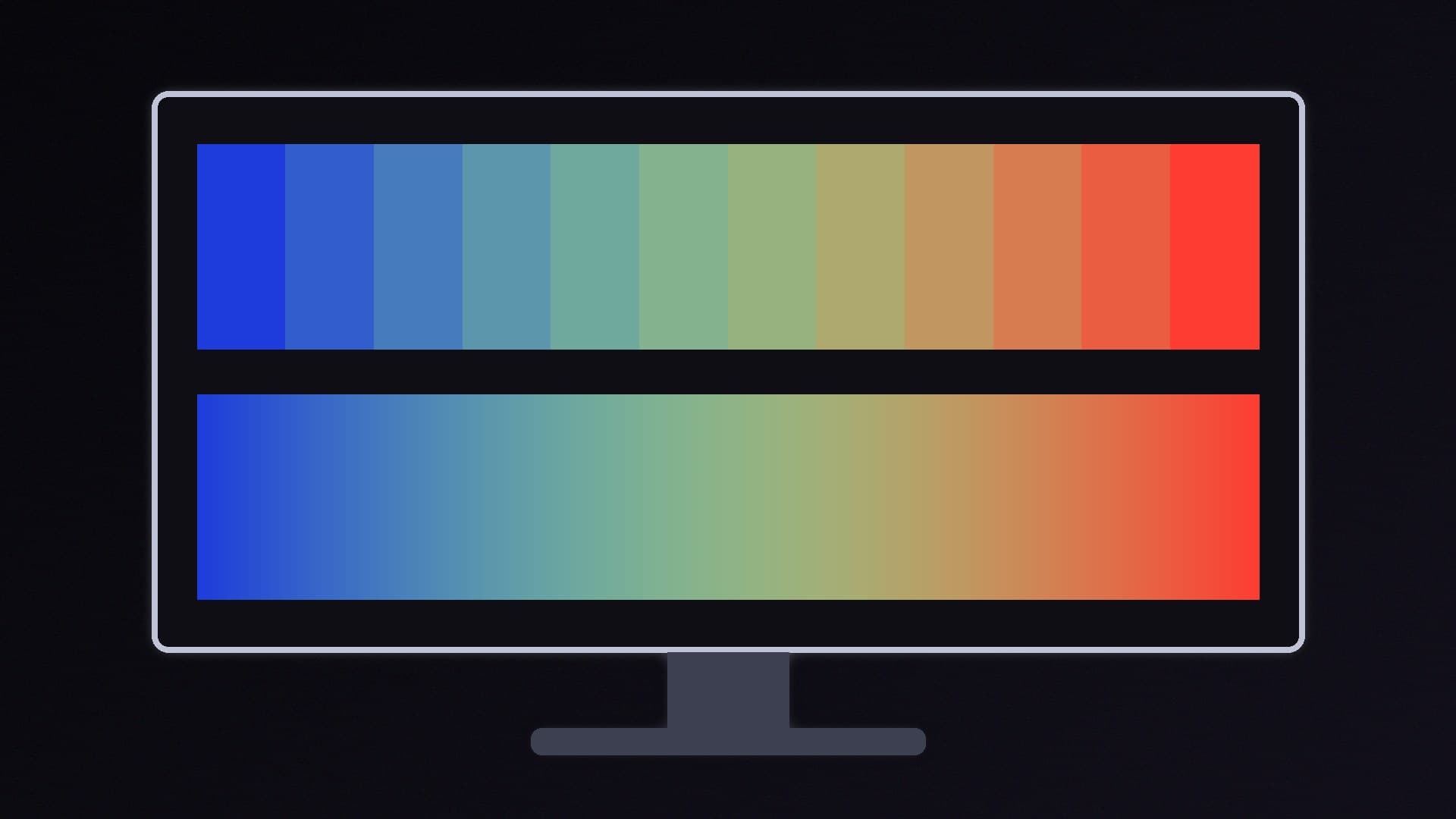
More shades make the steps between colours finer. With too few steps, a smooth gradient can show visible stripes, known as banding. BenQ's example is the sun on an 8-bit panel appearing as a bright blob with clear bands of light around it, where a 10-bit panel shows a smoother gradient.
How 8-bit + FRC works
FRC (BenQ calls it Frame Rate Control; you'll also see it called dithering) is a way for an 8-bit panel to approach 10-bit colour. BenQ says FRC makes pixels flash between two alternating colours so quickly that you perceive the shade in between, giving access to the 1.07 billion colour range. BenQ says 8-bit or 8-bit + FRC is the most common setup in creative work today.
BenQ's view is that for most people 8-bit + FRC is adequate and affordable, and that true 10-bit is needed mainly for high-end retouching, where you zoom into individual pixels at more than 500%.
Where 10-bit matters most
HDR: BenQ says most 4K content is authored in 10-bit colour or higher, and that 8-bit monitors can't properly show HDR content, for which you need 10-bit as a minimum. BenQ also says a dithered 8-bit display can only work with basic HDR10, while proper 10-bit displays open up Dolby Vision and HDR10+. For the HDR formats themselves, see HDR10 vs HDR10+ vs Dolby Vision, and check the brightness tier in DisplayHDR 400 vs 600 vs 1000.
Wide colour gamuts: BenQ says 8-bit colour can't keep up with wider colour spaces such as Adobe RGB or DCI-P3.
Photo and video editing: finer steps help you judge smooth gradients in skies, skin tones and shadows. Our best monitor for photo editing guide lists each screen's specifications.
Everyday SDR gaming and office work: 8-bit is still fine. BenQ acknowledges there are plenty of excellent 8-bit monitors, though its gaming article recommends 10-bit where you can get it.
Bear in mind that BenQ sells monitors in all of these categories, and its two articles lean in slightly different directions: its creative-focused piece says 8-bit + FRC is enough for most people, while its gaming piece pushes harder for 10-bit.
How to check what you're getting
Read the spec sheet carefully. "1.07 billion colours" can mean true 10-bit or 8-bit + FRC. If the panel bit depth isn't stated, check the manufacturer's detailed specifications.
Check your graphics card's output. NVIDIA says desktop colour depth settings are under Display > Change resolution in the NVIDIA Control Panel, with SDR options for 24-bit and 30-bit colour (30-bit is 10 bits per channel). NVIDIA notes that from Windows 11 24H2, the SDR 30-bit option is replaced with SDR (64-bit) because of Windows' Auto Color Management.
Check your connection. If you're unsure whether to use DisplayPort or HDMI, see DisplayPort vs HDMI for gaming.
Turn on HDR in Windows when you want HDR content; our guide to setting up HDR in Windows 11 covers it.
If colour accuracy matters to you, also see our guide to calibrating your monitor in Windows 11.
Our verdict
An 8-bit monitor shows about 16.7 million colours, while 10-bit shows about 1.07 billion, which means smoother gradients and less banding. For everyday use and SDR gaming, 8-bit is fine. For HDR and creative work, look for 10-bit or 8-bit + FRC: BenQ says FRC is adequate for most people, with true 10-bit mainly needed for high-end retouching. Check the panel's real bit depth on the spec sheet, and set your graphics card's output colour depth correctly so you get what you paid for.